Browser share options
Learn how to share tab and system audio in Chrome and Edge and limit screen sharing in Chrome to share tabs, windows, or screens.
Share tab and system audio in Chrome and Edge
You can share tab audio and system audio in Chrome and Edge using WebAssembly audio with SharedArrayBuffer (SAB) enabled, or using WebRTC audio without SAB. To play tab audio or system audio in a session, initiate a screen share. If you select a Tab, select the Also share tab audio box. If you select Window or Entire Screen, select the Also share system audio box. These features work regardless of whether you enable multiple share screen or not.
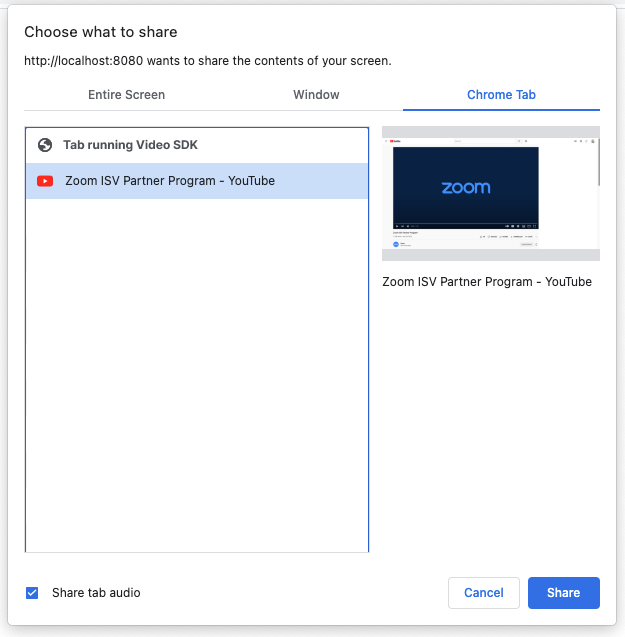
To enable share tab and system audio, either:
- Enable
SharedArrayBufferfor WebAssembly audio, or - Set
audio_webrtc_modeto1in the JWT payload to use WebRTC audio when starting or joining a session.
Developers can also control this via the systemAudio option in the controls object of ZoomVideo.ScreenShareOption.
stream.startShareScreen(VIDEO_OR_CANVAS_ELEMENT, {
    controls: {
        systemAudio: "include", // or "exclude"
    },
});
Use isSupportMicrophoneAndShareAudioSimultaneously to determine if you can support sharing system audio and microphone audio at the same time.
Limitations for Chrome browsers prior to version 111
Chrome browsers prior to version 111 can either share audio in a Chrome tab or audio from a microphone, but not both.
As a workaround, toggle the audio source between the microphone and the Chrome tab while still sharing the screen content by calling stream.muteShareAudio() and stream.unmuteShareAudio() respectively.
After you stop sharing audio in the tab, the audio source will switch back to the microphone. You can use the share-audio-change event listener to keep track of which audio source is enabled.
client.on("share-audio-change", (payload) => {
    if (payload.state === "on") {
        console.log("Switched audio source to Share system audio");
    } else if (payload.state === "off") {
        console.log("Switched audio source to your microphone");
    }
});
Limit screen sharing options in Chrome
If the user's Chrome browser supports it, you can limit the screen sharing options to tabs, windows, or screens. The Video SDK displaySurface option takes the same options available in the Chrome displaySurface options. The values include browser for tabs, window for windows, and monitor for screens. See the mdn web docs for MediaTrackConstraints: displaySurface property for details.
For example, to limit the screen share options to tabs, pass browser in the displaySurface option.
stream.startShareScreen(VIDEO_OR_CANVAS_ELEMENT, {
    controls: {
        // ...
    },
    displaySurface: "browser",
});
You can also include or exclude other screen sharing control options using the Video SDK controls option. See Chrome for Developers Privacy-preserving screen sharing controls for details.