Core features
During a session, users can share their screen with other users. See the following core features for screen sharing such as how to start and stop, render user screen sharing, and optimize screen sharing for video. Then see the other sections to learn how to share tab audio and system audio in Chrome and Edge and limit screen sharing in Chrome.
Start screen sharing
To start your screen share and render it on the webpage, use the following code for compatibility across all browsers and devices. The screen share will be rendered on either an HTML canvas or video element to optimize for the specific browser and device.
<video id="my-screen-share-content-video" height="1080" width="1920"></video>
<canvas id="my-screen-share-content-canvas" height="1080" width="1920"></canvas>
#my-screen-share-content-video,
#my-screen-share-content-canvas {
    width: 100%;
    height: auto;
}
You can use a .then function or await operator.
if (stream.isStartShareScreenWithVideoElement()) {
    stream
        .startShareScreen(
            document.querySelector("#my-screen-share-content-video"),
        )
        .then(() => {
            // screen share successfully started and rendered
        })
        .catch((error) => {
            console.log(error);
        });
} else {
    stream
        .startShareScreen(
            document.querySelector("#my-screen-share-content-canvas"),
        )
        .then(() => {
            // screen share successfully started and rendered
        })
        .catch((error) => {
            console.log(error);
        });
}
if (stream.isStartShareScreenWithVideoElement()) {
    await stream.startShareScreen(
        document.querySelector("#my-screen-share-content-video"),
    );
    // screen share successfully started and rendered
} else {
    await stream.startShareScreen(
        document.querySelector("#my-screen-share-content-canvas"),
    );
    // screen share successfully started and rendered
}
Stop screen sharing
To stop the screen share, call the stream.stopShareScreen() function.
stream.stopShareScreen();
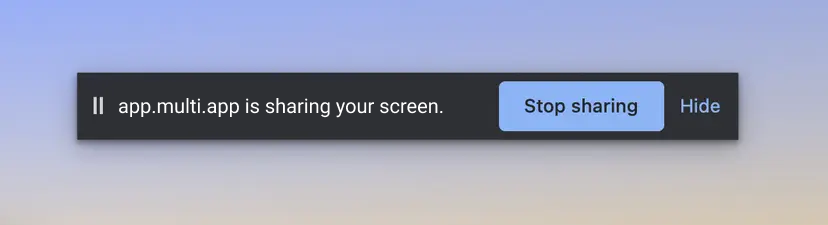
A screen share can also be stopped via the "stop sharing" controls provided by the browser. You can listen to this via the passively-stop-share event.
client.on("passively-stop-share", (payload) => {
    console.log(payload);
});
Render user screen sharing
Video SDK offers flexible methods to render users' shared screens, giving you full control over how shared content appears in your application. Whether you want to show only the currently active share or display multiple screens at once, the SDK provides events and APIs to manage these views dynamically.
By listening for share-related events and using attachShareView and detachShareView, you can render or remove shared views in real time as users start or stop sharing. The following examples illustrate common use cases and best practices for displaying screen shares effectively in your custom video layout.
Share the active view
In many video sessions, you may only want to render one shared screen at a time, typically the most recently active one. The active-share-change event helps you keep track of which user is currently sharing and automatically updates the view when the active sharer changes.
In this example, the code listens for the active-share-change event. When a new user starts sharing, it detaches the previous share view (if any) and attaches the new one. When the sharing becomes inactive, it removes the associated view from the DOM.
This ensures that at any given time, only one screen share is visible to the viewer, keeping the layout clean and focused.
let activeShareUserId = null;
client.on("active-share-change", async (payload) => {
    const { state, userId } = payload;
    if (state === "Active" && activeShareUserId !== userId) {
        // Detach previous share
        if (activeShareUserId !== null) {
            const oldElement = await stream.detachShareView(activeShareUserId);
            if (Array.isArray(oldElement)) {
                oldElement.forEach((el) => el.remove());
            } else {
                oldElement.remove();
            }
        }
        // Attach new active share
        const element = await stream.attachShareView(userId);
        document.querySelector(".share-container").appendChild(element);
        activeShareUserId = userId;
    } else if (state === "Inactive") {
        const element = await stream.detachShareView(userId);
        if (Array.isArray(element)) {
            element.forEach((el) => el.remove());
        } else {
            element.remove();
        }
    }
});
Share multiple views
In some collaborative scenarios, such as classrooms, design reviews, or team coding sessions, multiple users might share their screens simultaneously. Video SDK supports this through the MultipleShare method.
To enable it, you must first grant the session the MultipleShare privilege and then configure the share to allow simultaneous views. Each active share is displayed in its own video-player element, which you can style to fit your layout using CSS.
The following steps show how to enable and render multiple screen shares. Each attached share view is a video-player element that must be placed inside a video-player-container.
-
Enable multiple share privilege. Set the user share privilege to
MultipleShareafter joining the session.const stream = client.getMediaStream(); await stream.setSharePrivilege(SharePrivilege.MultipleShare); -
Start screen sharing with the
simultaneousShareViewoption. PasssimultaneousShareView: trueto the options object when callingstartShareScreen.const stream = client.getMediaStream(); await stream.startShareScreen(myShareEle, { simultaneousShareView: true }); -
Listen for share events using
peer-share-state-changeto attach or detach views as users start or stop sharing. The logic is similar to handling video views.<video-player-container class="share-container"></video-player-container>video-player-container.share-container { display: flex; flex-wrap: wrap; gap: 10px; } video-player { flex: 0 0 48%; aspect-ratio: 16/9; }// Render existing share views client.getAllUser().forEach(async (user) => { if (user.sharerOn) { const element = await stream.attachShareView(user.userId); document.querySelector(".share-container").appendChild(element); } }); // Handle share changes client.on("peer-share-state-change", async (payload) => { const { action, userId } = payload; if (action === "Start") { const element = await stream.attachShareView(userId); document.querySelector(".share-container").appendChild(element); } else if (action === "Stop") { const element = await stream.detachShareView(userId); if (Array.isArray(element)) { element.forEach((el) => el.remove()); } else { element.remove(); } } });
This approach allows your application to display multiple shared screens at once, dynamically adding and removing them as users share or stop sharing, without manual refreshes or page reloads.
Switch share view
Sometimes, instead of displaying all shares simultaneously, you might want to toggle between users' shared screens. For example, when implementing a "Next Presenter" or "Switch View" button.
The switchShare function in this example demonstrates how to manually switch between shared views by detaching the current share and attaching another user's share. This function is a custom helper, not an SDK method, but it uses the same underlying attachShareView and detachShareView methods.
This pattern gives you full control over which share is visible at any given time, ideal for custom layouts or controlled experiences where only one shared screen should appear.
async function switchShare(lastUserId, activeUserId) {
    const element = await stream.detachShareView(lastUserId);
    if (Array.isArray(element)) {
        element.forEach((el) => {
            el.remove();
        });
    } else {
        element.remove();
    }
    const newElement = await stream.attachShareView(activeUserId);
    document.querySelector(".share-container").appendChild(newElement);
}
Render sharing summary
Use switchShare when you want to manually handle transitions between shared screens, active-share-change when you want automatic switching to the active user, and MultipleShare mode when you want to show several shares at once.
Optimize screen sharing for video
If you want to optimize sharing a full screen video clip using enableOptimizeForSharedVideo, you must use WebAssembly video with SharedArrayBuffer enabled. This feature prioritizes FPS over resolution.
More screen sharing features
For the full set of screen sharing features, see Stream in the Video SDK Reference.