When joining a meeting or webinar where Realtime Media Streams (RTMS) is available, you'll see a variety of disclosures and notifications, request modals, and other visual indicators. These help you better understand what data is being shared and with whom.
Disclosures and notifications
You may see these disclosures and notifications while participating in a meeting or webinar.
RTMS disclosure
This standard disclosure is displayed for you as a participant: "The content of this meeting is being sent to one or more apps."

If you're participating in a webinar, you'll see "The content of this webinar is being sent to one or more apps.".
App Activity Notifications
As a participant, you'll see these App Activity Notifications (AAN) if RTMS-enabled apps are accessing content.
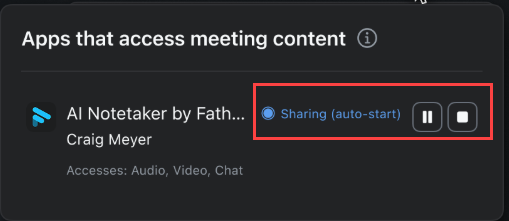
RTMS set to auto-start
You'll see this AAN when RTMS-enabled apps are set to auto-start by the account admin.
If you're the app's user, you can also scope which meeting types trigger auto-start for your app, such as only meetings you host or only meetings you join outside your own account.
RTMS started by you
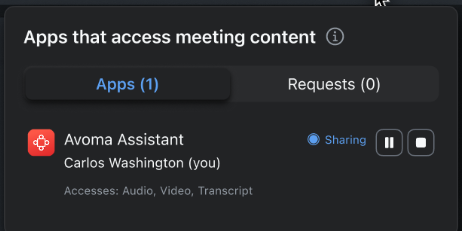
You'll see this AAN when you start RTMS.
In this example image, you are Carlos Washington.
Request modals and messages
When participating in a meeting or webinar and have an RTMS-enabled app, you'll see this modal and these messages.
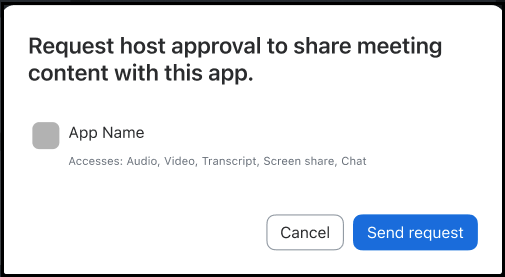
Request to share content
This is the modal you'll use to ask the host to share content with your app.
Response messages
In response to your request, you may see these messages
- Request sent to the host.
- Request for app to share content denied by host.
- Host cannot approve your app's access to content.
- Host disabled your app from sharing content.
- Request to share content cannot be sent until the host has joined.
- Apps sharing content have been disabled.
Visual indicators
When RTMS is enabled, and at least one app is accessing content, you'll see these notifications.
Apps actively sharing
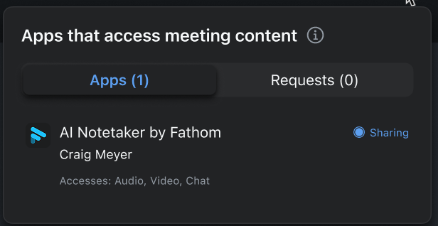
You'll see this AAN when an approved app is actively sharing content.
It shows the name of the app, the app's user, and the status as sharing.
Video tiles
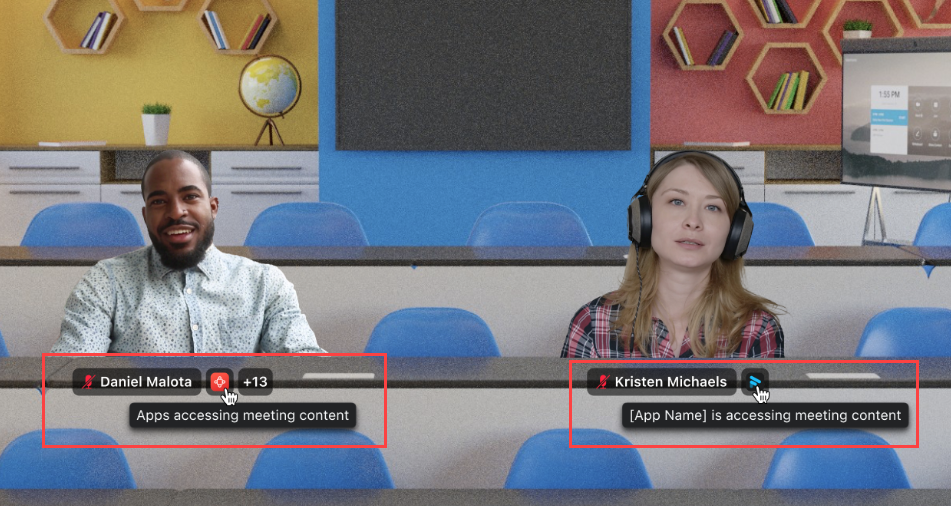
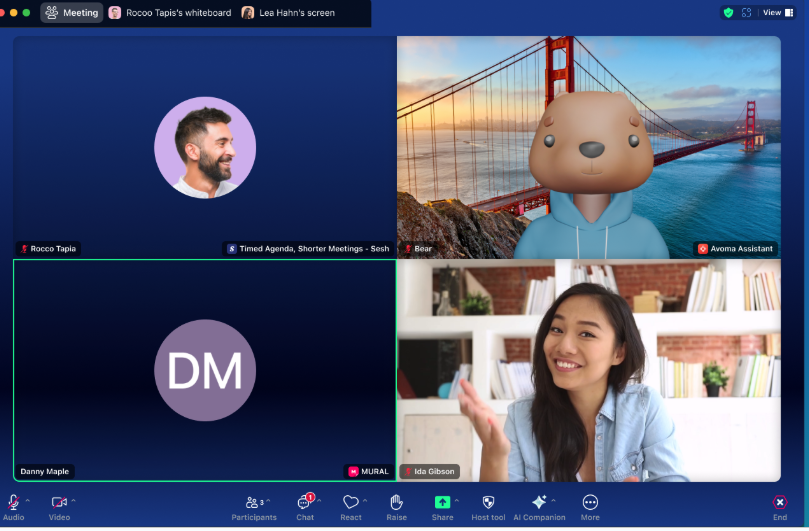
The video tiles view of active apps is the same for all participants, including you.
The name of the app used by the participant is displayed in their video tile.
Immersive view
The immersive view of active apps is the same for all participants, including you.
The name of the app used by the participant is displayed below their video image.