Working with streams
Each Realtime Media Streams (RTMS) stream follows a predictable flow that starts with at least one session being started; continues while your app connects to the required servers, receives stream data, and maintains connection; and ends when the stream ends. A stream can have multiple sessions happening within it, each session typically corresponds to an individual user.
Sessions can exist in the following states:
| State | |
|---|---|
| INACTIVE | Default state. The session is not active yet. |
| INITIALIZE | The session is initializing. |
| STARTED | The session has started. |
| PAUSED | The session has been paused either by the user or the host. |
| RESUMED | The paused session has been resumed. |
| STOPPED | The session is being stopped by the user, host, or the meeting or webinar ending. |
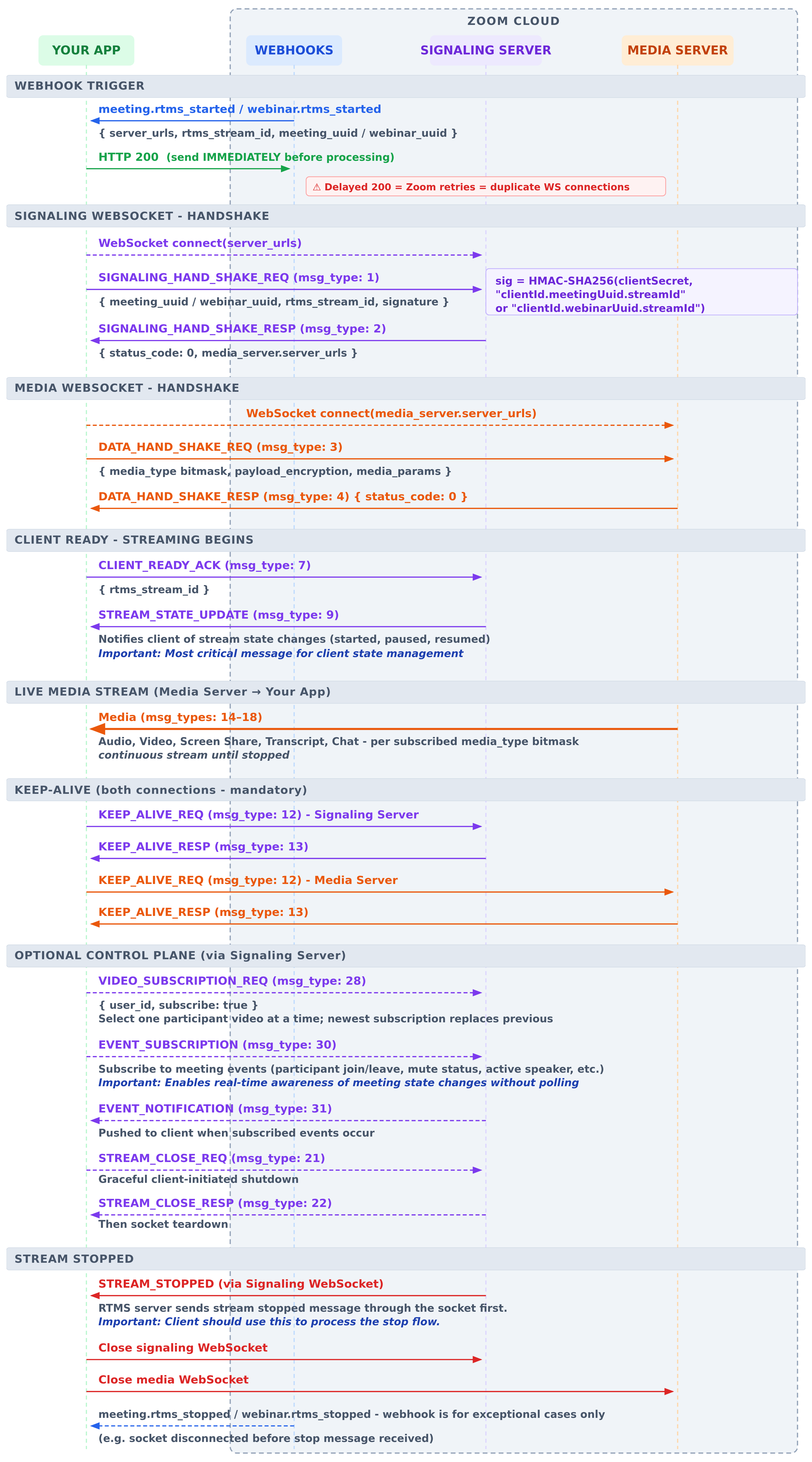
This diagram outlines the lifecycle of an RTMS stream during a meeting or webinar.
Prerequisites
To process RTMS data, you need to add RTMS features to your app. Your app needs the appropriate event subscriptions, scopes, and, optionally, the JavaScript SDK or REST APIs for starting and managing sessions. For more information, see Add RTMS features to your app.
Once your app is configured, RTMS sessions will follow these steps:
Step 1: RTMS is started
RTMS provides role-based controls to manage the streaming experience. You can set their apps to auto-start streams when the user joins a meeting, or webinar, or to start manually by using the REST API or JavaScript SDK.
Note
Your account has a concurrent stream limit based on your Developer Pack subscription. Each RTMS session ID counts as one concurrent stream. For more information, see Concurrent stream limits.
In addition, the streaming experience is also controlled by:
-
Admins can manage the auto-start settings for users, groups, or the entire account in the Zoom web portal.
-
Hosts can allow or deny RTMS start requests for each meeting or webinar, or choose Always allow in my meetings so their approval persists across the meetings and webinars they host.
-
Participants can manually start, pause, and end their own streams. (Requires host approval.)
Auto-start is enabled at the account, group, or user level and automatically launches RTMS when a user with auto-start enabled:
- Hosts - RTMS starts automatically when the user initiates a meeting or webinar.
- Joins as participant - RTMS starts automatically when the user joins a meeting or webinar.
If the user is a guest rather than a host, the host can decide to:
- Allow RTMS to start without host approval.
- Require host approval to start RTMS.
- Disallow RTMS from starting automatically.
An app's user can also scope which meeting types trigger auto-start for their app, such as meetings they host, meetings hosted by others in their account, or meetings joined outside their own account. For example, a note-taking app's user might only want it to auto-start in meetings they host or join externally, not in meetings hosted by their teammates.
Developers set the default scope, and it can be adjusted when the app is added to a user's or admin's account. For more information, see Add app for users and groups.
Enable users to manually start streams in meetings and webinars using RTMS button controls. For more information, see Add JS SDK APIs for apps.
You can use JavaScript (JS) SDK method calls to programmatically start RTMS streams in live meetings and webinars on a Zoom Surface App. This can be used either as the onclick
event of a button, or when your RTMS-enabled app is opened during a meeting or webinar.
Manual start triggers:
Method: startRTMS()
Example
import zoomSdk from "@zoom/appssdk";
(async () => {
    try {
        const configResponse = await zoomSdk.config({
            capabilities: ["startRTMS"],
        });
        const { runningContext } = configResponse;
        if (runningContext === "inMeeting") {
            const rtmsResponse = await zoomSdk.callZoomApi("startRTMS");
            console.debug("RTMS Start Response:", rtmsResponse);
        }
    } catch (e) {
        console.error("Zoom SDK Error:", e);
    }
})();
Apps can initiate a stream in a meeting or webinar with a REST API request.
This enables backend or external systems to start an RTMS session without Zoom client user interaction. For example, RTMS could be started from your company's scheduling software rather than from the meeting or webinar.
Endpoint: Send API requests to Update participant Realtime Media Streams (RTMS) app status Authentication: Use a valid Zoom access token. Payloads must be securely signed.
Rate limits
The RTMS start API is a light API with a limit of 80 requests per second per account. If starting many streams simultaneously, implement retry logic for
429 Too Many Requestsresponses. For more information, see Rate limits.
Your app can start RTMS for a participant when both of the following are true:
- The participant is an invitee to the meeting. An invitee is a participant who was added to the meeting's invite list, not a participant who joined with a shared meeting link.
- The participant has already joined the meeting.
The host or designated alternate host must be present. The API doesn't support in-meeting, or in-webinar, host change.
Step 2: App receives streaming notification
Zoom sends meeting.rtms_started, or webinar.rtms_started, webhook events when RTMS streaming starts. You can then use the information in the event to establish a signaling connection in the next step.
To receive notifications when new streams are available, create an HTTP POST handler in your web app. This handler acts as the endpoint for incoming webhook events. In your app settings, provide the URL of this endpoint.
After you receive an event, verify the event's signature to ensure it's from a trusted source.
Step 3: App establishes signaling connection
Establishing a signal connection to an RTMS server enables your app to establish and manage a WebSocket connection with the RTMS server. It begins with a signed handshake and includes messages for session readiness, state updates, and stream control.
The signal connection provides lifecycle updates for the media connection, such as when it starts, stops, or encounters an event.
When you have the connection details and know a stream is available, you can start the connection to the signaling server.
-
Run the following command to create a signature that your app will use to securely connect to the RTMS server; replacing
client_idandsecretwith your app's Client ID and Client Secret, andmeeting_uuidandrtms_stream_idwith the meeting_uuid, or webinar_id, and rtms_stream_id from the streaming notification event.HMACSHA256(client_id + "," + meeting_uuid + "," + rtms_stream_id, secret); -
Your app sends a signaling handshake request with the
meeting_uuid, orwebinar_uuid, andrtms_stream_idfrom the streaming notification event and the signature you just created. If the handshake is successful, your app will receive a signaling handshake response confirming the connection and containing the media server locations.If the handshake fails, the server responds with a
SIGNALING_HAND_SHAKE_RESPmessage containing a status code and reason. -
(Optional) Your app can Subscribe to events for participant changes and active speaker updates.
Once your app has successfully established a signaling connection, it can now establish a media connection.
Step 4: App establishes the media connection
Use one of the URLs list in media_server.server_urls in the signaling handshake response
to establish a media WebSocket connection.
Use integers for message and event types
For data type definitions, use the representative enum integers.
Example: Send
msg_type: 1✓ notmsg_type: SIGNALING_HAND_SHAKE_REQ✗
-
Your app sends a media handshake request with the
meeting_uuid, orwebinar_uuid, andrtms_stream_idfrom the streaming notification and the signature you created in Step 3 above. If the handshake is successful, your app will receive a media handshake response confirming the connection and containing information about the available media.If the handshake fails, the server responds with a
SIGNALING_HAND_SHAKE_RESPmessage containing a status code and reason. -
Your app sends a client ready ACK message to the RTMS server media connection to indicate readiness to receive media.
Now that the connection is made, your app can receive media data.
Step 5: App receives media data
Once the connection is established, your app receives continuous streams of:
- Audio data from participants
- Video data from active speakers or a specific individual
- Transcript data from spoken audio
- In-meeting events for participant changes and active speaker updates
By default, video streams the active speaker. To stream a specific participant's video instead, see Stream a single participant's video.
For more information about working with media data, see Handling media data.
Step 6: App maintains connections
Throughout the session, your app must:
- Respond to keep-alive requests to maintain stable connections (sent every 10 seconds when no data is flowing)
- Monitor session state updates for pauses, resumes, or interruptions
- Handle stream state changes for connection issues or termination
Connection maintenance is critical: If your app fails to respond to three consecutive keep-alive requests (sent every 10 seconds during idle periods), the RTMS server will terminate the connection.
If a connection has been interrupted, see Failover and reconnection for more information on reestablishing the connection.
Step 7: Stream ends
The RTMS stream ends when:
- The meeting or webinar concludes
- The user manually stops streaming
- The host disables RTMS
- Connection issues cause termination
- App users leave the meeting or webinar
Your app receives a meeting.rtms_stopped, or webinar.rtms_stopped, notification indicating the stream has ended.