In this section, you’ll configure a slash command in the Zoom App Marketplace and use the App Card Builder Kit to design interactive UI elements. These enhancements allow users to trigger your chatbot using a command and receive structured messages with buttons for feedback or interaction.
By the end of this section, you’ll have:
- A slash command configured to invoke your chatbot in Chat.
- An interactive message layout created using the App Card Builder Kit.
- An updated
sendChatMessagefunction that sends a UI-rich response.
Configure a slash command
Set up a slash command to allow users to trigger the chatbot from Chat.
- Navigate to the Zoom App Marketplace.
- Select your app.
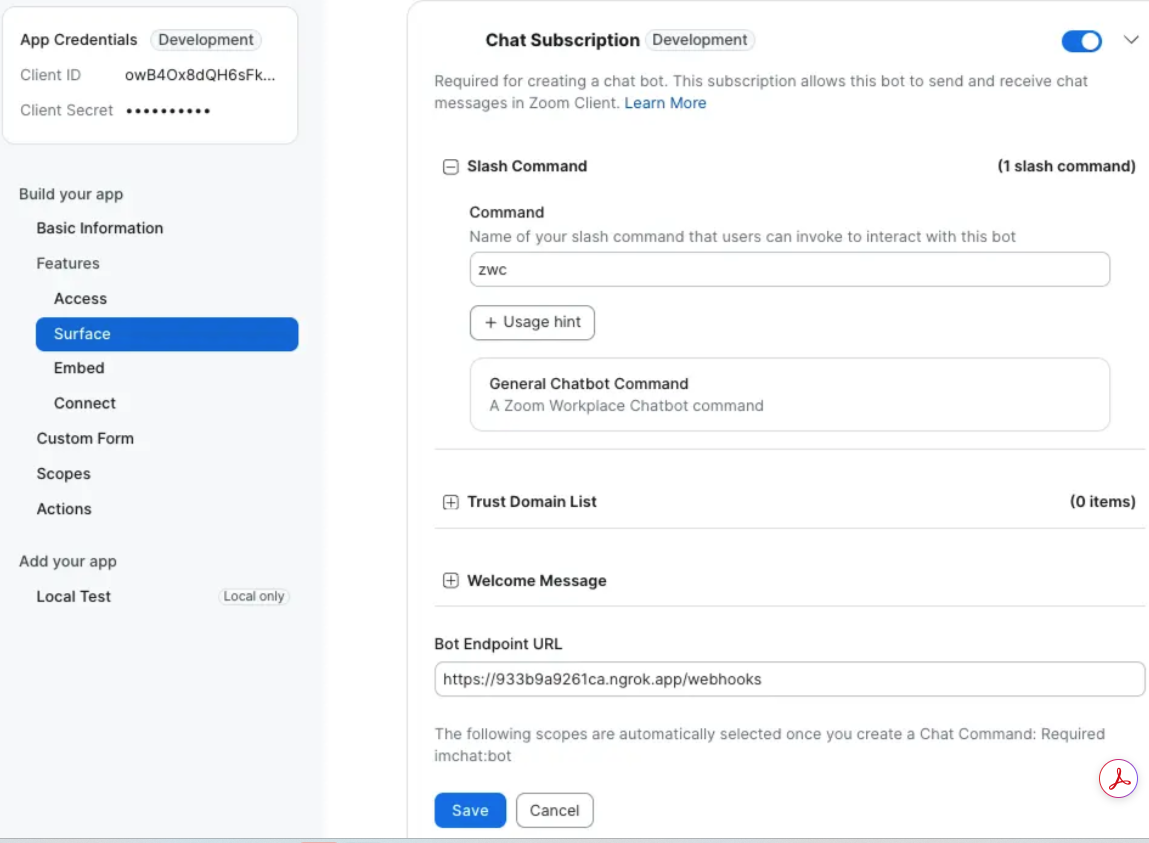
- In the sidebar, go to Surface → Team Chat Subscription.
- Toggle Slash Command and enter
zwc(or a command of your choice).
Example:
Create UI elements with Card Builder
Use the Zoom App Card Builder Kit to design structured messages and interactive components like buttons.
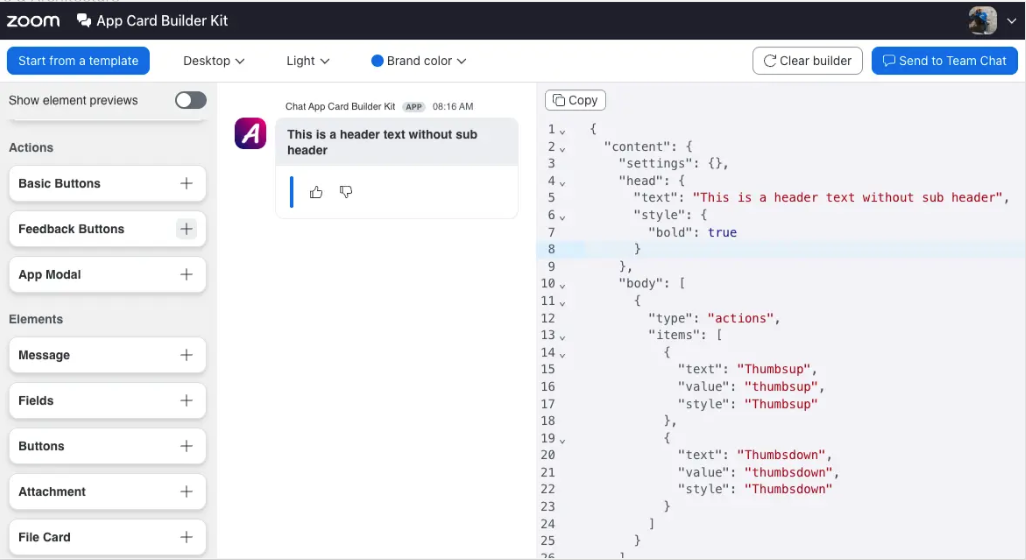
- Open the App Card Builder Kit.
- In the Actions panel, select Feedback Buttons.
- Customize the card layout and preview the message.
- Copy the generated JSON and update your chatbot message payload.
Example:
Update chatbot message payload
To include UI elements like feedback buttons in your chatbot response, update the body object in your sendChatMessage function.
This pattern combines slash commands and interactive cards to create a more engaging Chat experience—making your chatbot feel intuitive, responsive, and visually aligned with modern collaboration workflows.
File Path
utils/zoom-api.js
Code Snippet
/**
 * Sends a UI-rich message with feedback buttons to Zoom Team Chat
 * @param {string} toJid - Recipient JID (user or channel)
 * @param {string} message - Message text content
 */
const body = {
  account_id: "YOUR_ACCOUNT_ID",
  robot_jid: "YOUR_ROBOT_JID",
  to_jid: "YOUR_JID",
  user_jid: "YOUR_USER_ID",
  content: {
    head: {
      text: "Hello World",
      style: { bold: true }
    },
    body: [
      {
        type: "message",
        text: message
      },
      {
        type: "actions",
        items: [
          {
            text: "Thumbsup",
            value: "thumbsup",
            style: "Thumbsup"
          },
          {
            text: "Thumbsdown",
            value: "thumbsdown",
            style: "Thumbsdown"
          }
        ]
      }
    ]
  }
};