Get credentials
You use the following credentials when creating and configuring a chat app or chatbot:
- Client ID
- Client secret
- Public key
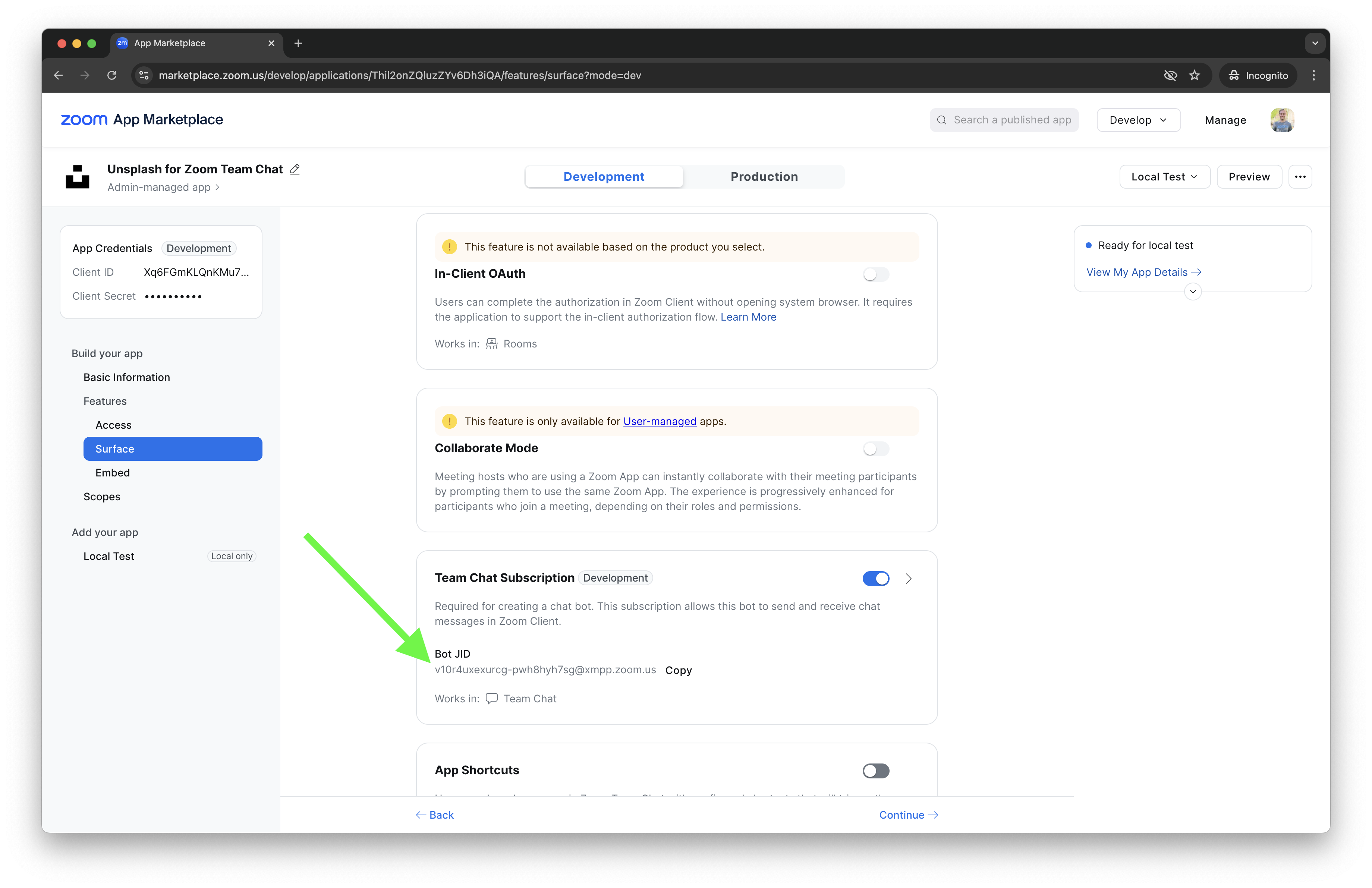
- Bot JID
- Webhook secret
Start by creating an app on the Zoom App Marketplace. This creates an integration point between your app and the Zoom platform, and also generates the app credentials.
App credentials consist of the client ID and the client secret or public key for authentication. They are used in combination to authenticate and authorize your app securely.
The Client ID in a Zoom app is a unique identifier assigned to your application when you register it in the Zoom App Marketplace. It is used in authentication and authorization processes, particularly when integrating your app with Zoom's APIs.
For the key part of the authentication you can choose from:
-
Client Secret is a confidential key generated by Zoom and assigned to your Zoom app.
-
Public Key is also known as bring your own key (BYOK) because you provide the cryptographic key. Public key authentication gives you control over your application's security by enabling you to manage your own encryption keys.
Client ID and Client Secret
On the Basic Information page you will see your App credentials and a space for your OAuth redirect URL.
- Your Client ID and Client Secret are used to generate the Chatbot and user OAuth tokens.
- Your OAuth Redirect URL is a webpage where you or your users land after they install your app.
Typically during development you will want to use the development environment of your app. This allows you to reserve the production environment for your deployed version and still be able to test edits locally in your development environment.
If you publish your app to the Zoom App Marketplace, the production environment will be used, but you can still test changes using the development environment. Once your changes are complete, you can submit an update request, and once approved, your users will get an email to adopt your new update.
Bot JID
After creating your app, navigate to the Features -> Surface page and enable Zoom Chat:
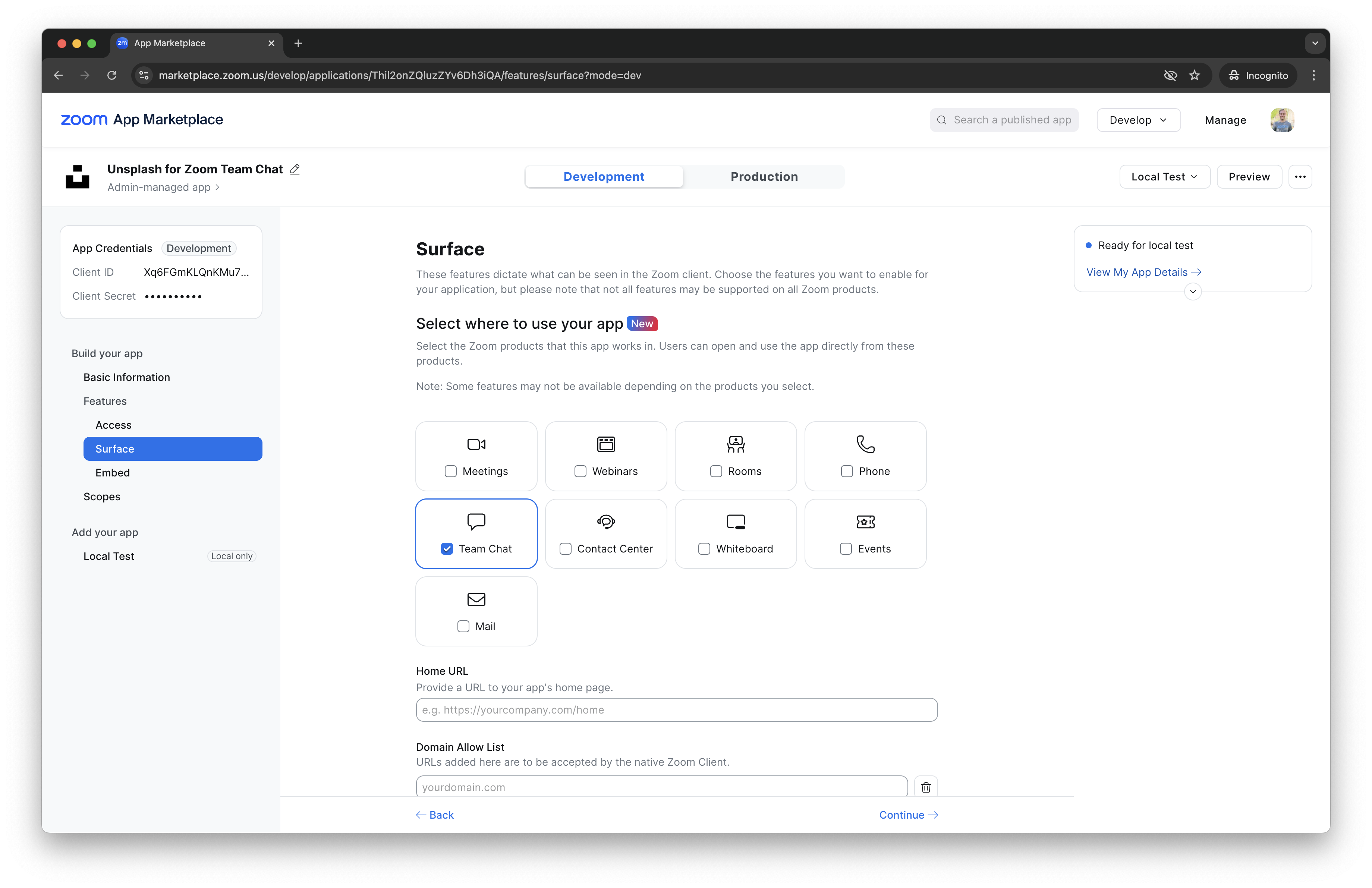
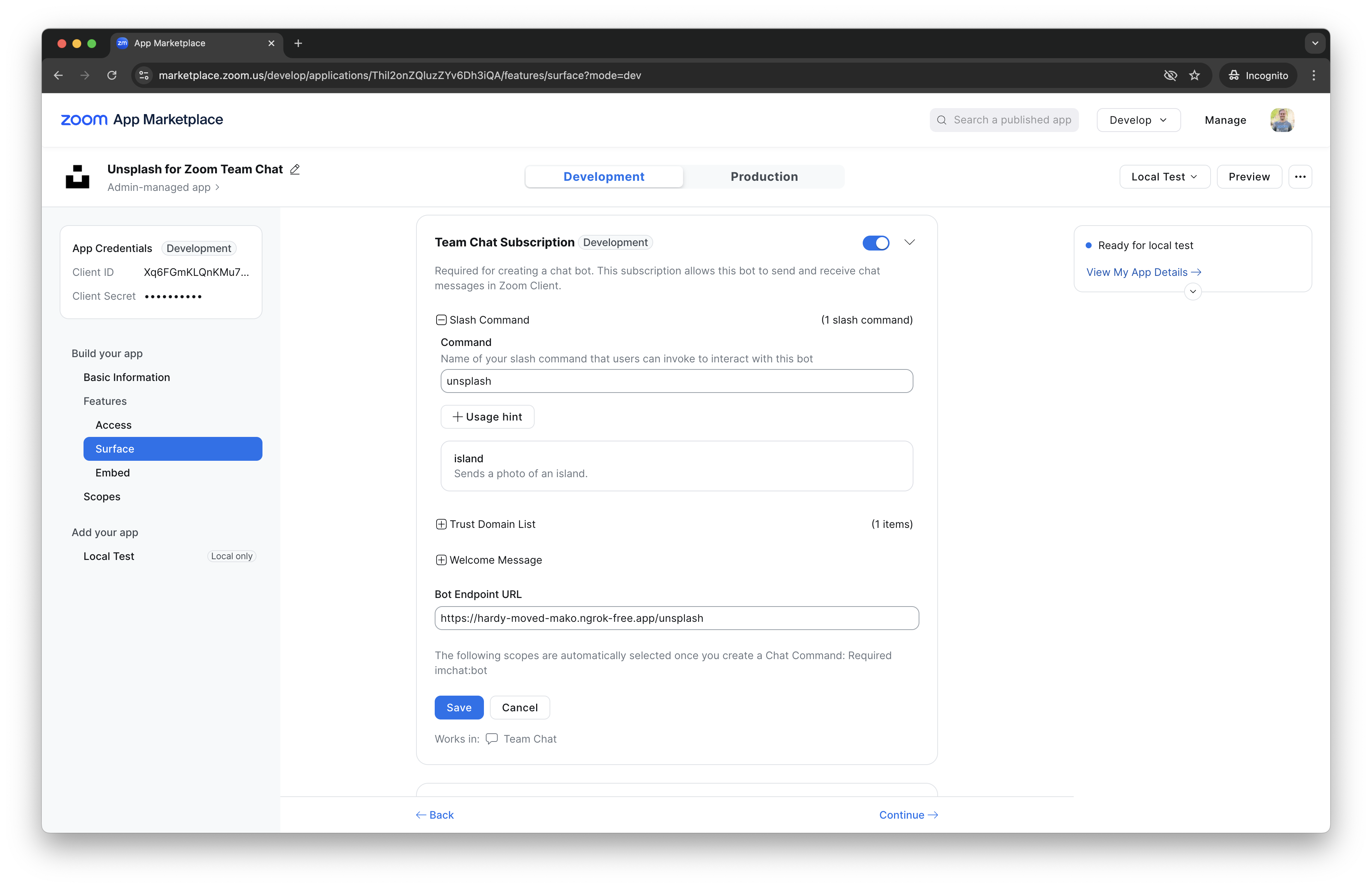
Then scroll down and toggle Chat Subscription.
Add your webhook url in the Bot endpoint URL. Your webhook URL should accept HTTP POST requests.
Make sure to click the blue Save button:
You use the Bot JID to send, edit, and delete messages.
Webhook secret
The webhook secret is on the Features -> Access page. It's used to verify webhooks events like slash commands are sent from Zoom, and for Zoom to validate that you control the webhook URL.