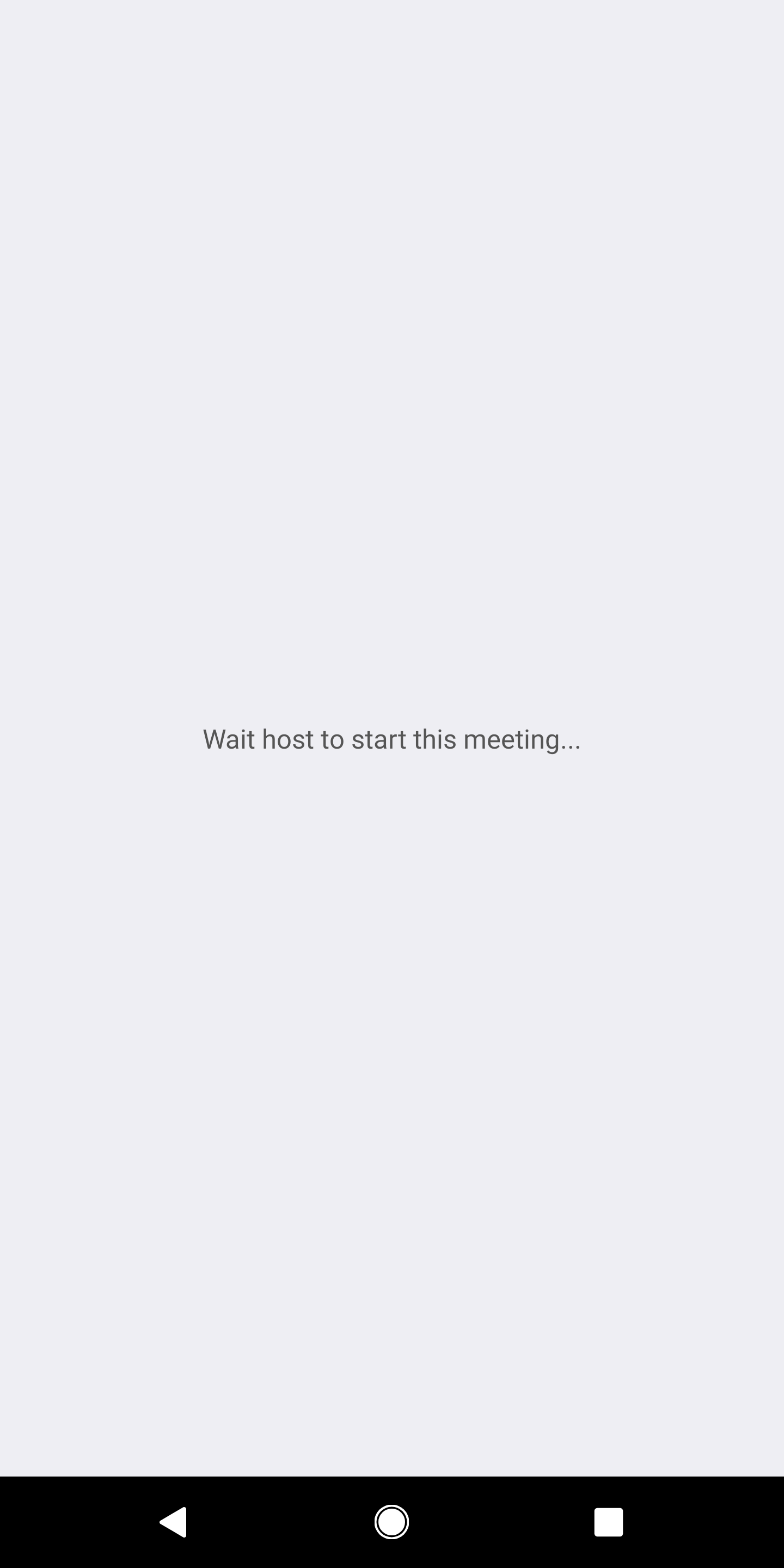
Customize the waiting room
For some meetings that do not allow "Join Before Host", participants are put into a waiting room until the host starts the meeting. You might want to decorate this waiting room and make your guests feel comfortable. You can customize the waiting room text, or insert a custom image.
First, define an activity with a intent-filter like this.
<activity android:name="us.zoom.sdkexample.MyWaitJoinActivity" android:icon="@drawable/ic_launcher" >
    <intent-filter>
        <action android:name="us.zoom.sdkexample.intent.action.JoinBeforeHost" />
        <category android:name="android.intent.category.DEFAULT"/>
    </intent-filter>
</activity>
The action name <action android:name="(here)" /> should be your application package name (For example, the demo application package name is: us.zoom.sdkexample) concatenates with intent.action.JoinBeforeHost.
Retrieve the meeting topic, meeting number, meeting time, and meeting type from the intent arguments.
Intent intent = getIntent();
Uri uri = intent.getData();
String topic = intent.getStringExtra(AndroidAppUtil.EXTRA_TOPIC);
long meetingId = intent.getLongExtra(AndroidAppUtil.EXTRA_MEETING_ID, 0);
Hide the waiting view
When the meeting is ready to be joined, you might want to hide the waiting view to get into the meeting. To do that:
-
Override the
onMeetingStatusChangedfunction and observe themeetingStatus.@Override public void onMeetingStatusChanged(MeetingStatus meetingStatus, int errorCode, int internalErrorCode) { if (meetingStatus == MeetingStatus.MEETING_STATUS_WAITINGFORHOST) { // Show join before host view } else { // Hide join before host view } } -
If
meetingStatuschanges to other status thanMeetingStatus.MEETING_STATUS_WAITINGFORHOST, hide your "Join before host" view and enjoy the meeting.