This section guides you through configuring your Zoom chatbot for channel integration. Once configured, users can add your app to any Chat channel, where it will listen for events, respond to mentions, and participate in threaded conversations.
By the end of this section, you’ll have:
- Chat configuration that supports app invitations to channels.
- Webhook subscriptions for app-added and removed events.
- A working channel integration users can trigger directly.
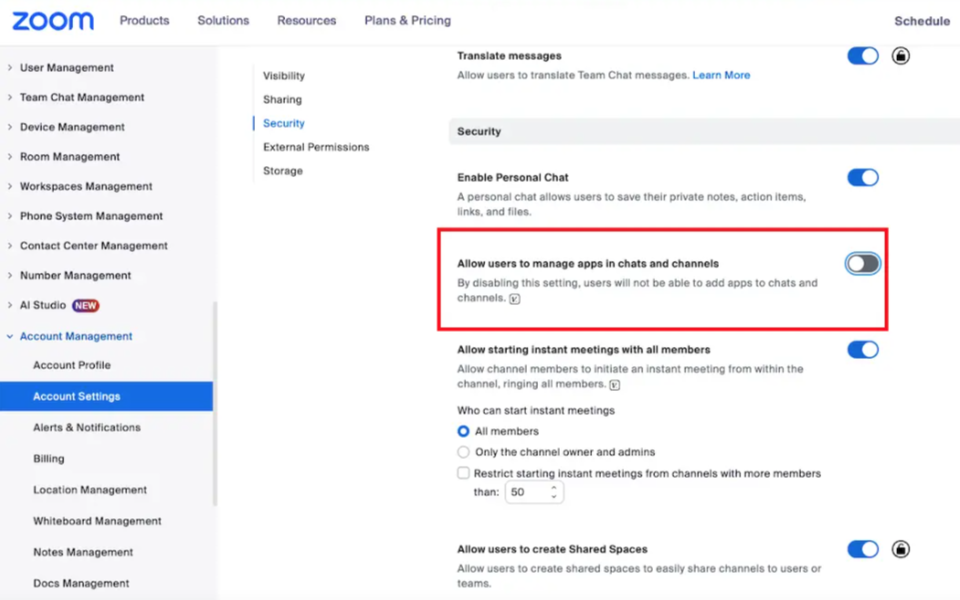
Enable "Add App to Channel" in Account Settings
Before users can add your app to chat channels, you need to enable this feature in your Zoom account settings:
- Navigate to the Zoom admin portal.
- Go to Account Management → Account Settings → Chat.
- Toggle “Allow users to add apps to channels” to enabled.
Example:
Configure app scopes and webhooks
Ensure your app is authorized to participate in channels and listen for membership and conversation events.
Add scopes
In the Scopes tab of your app, enable Chatbot within Chat Channel.
Configure event subscriptions
In the Access tab:
-
Add these event scopes:
team_chat_channel_chatbot_addteam_chat_channel_chatbot_removed
-
These additional events are automatically triggered:
team_chat.app_invitedteam_chat.app_removedteam_chat.app_mentionteam_chat.app_conversation_opened
-
Add your webhook endpoint:
https://example.ngrok.app/anthropic
Add the Chatbot to a Chat channel
Once your app is configured, users can add it directly to any Chat channel:
-
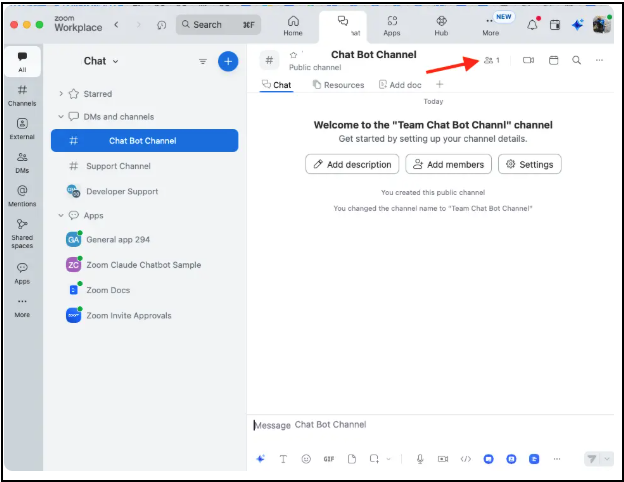
Navigate to the channel in Zoom.
-
Click the members icon at the top.
-
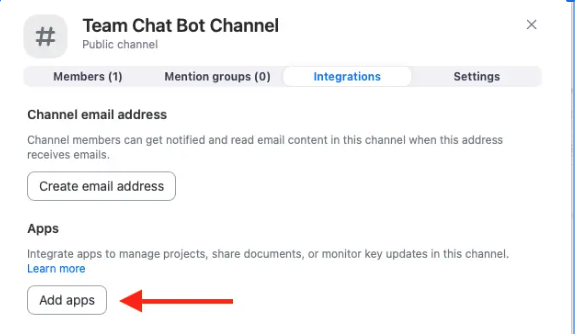
Under Integrations, click Add apps.
-
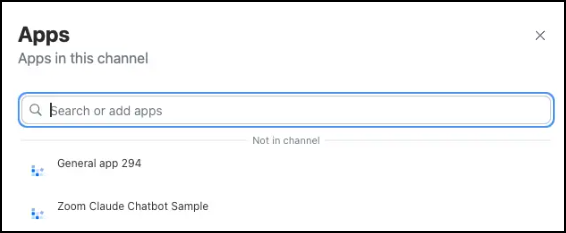
Find and select your app.
-
Choose the access level (e.g., Users & groups or All users).