Access raw video and raw audio data through raw recording or raw streaming. When accessing raw data through raw recording, the host gives the meeting participant associated with the SDK app local recording permission. When accessing raw data through raw streaming, the host gives the meeting participant associated with the SDK app live streaming permission.
This enables more flexibility than either local recording or live streaming for video and audio streams. In addition to session-wide audio and video access, this enables access to raw audio and video data for each participant unless the participant's audio or video are muted.
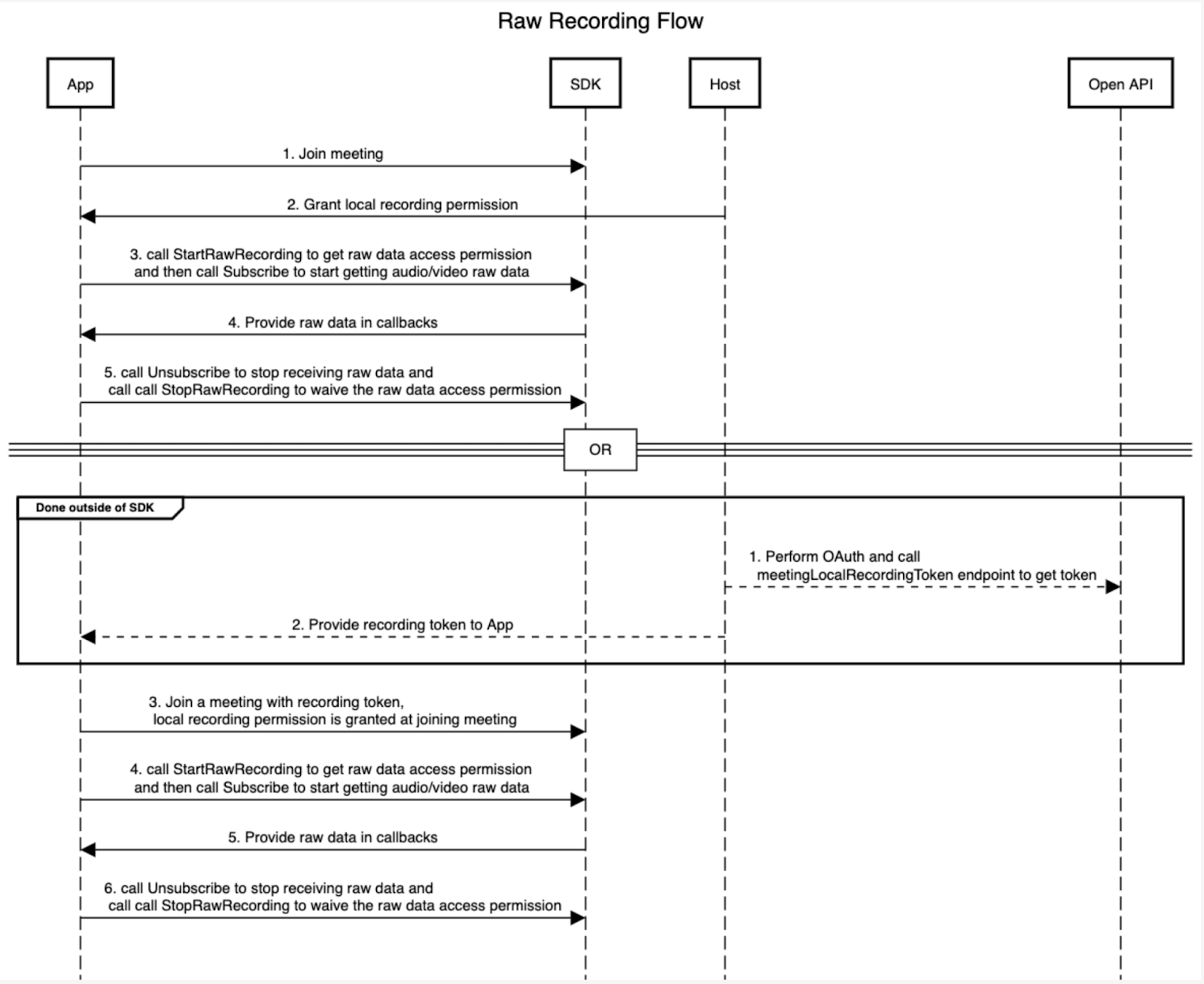
For raw recording, if the SDK user is also the meeting host, they can start both raw recording and an actual local recording. If the SDK user is not the meeting host, they must request local recording permission from the meeting host. In a meeting, the host can perform cloud recording, with one or more SDK clients doing raw recording locally.
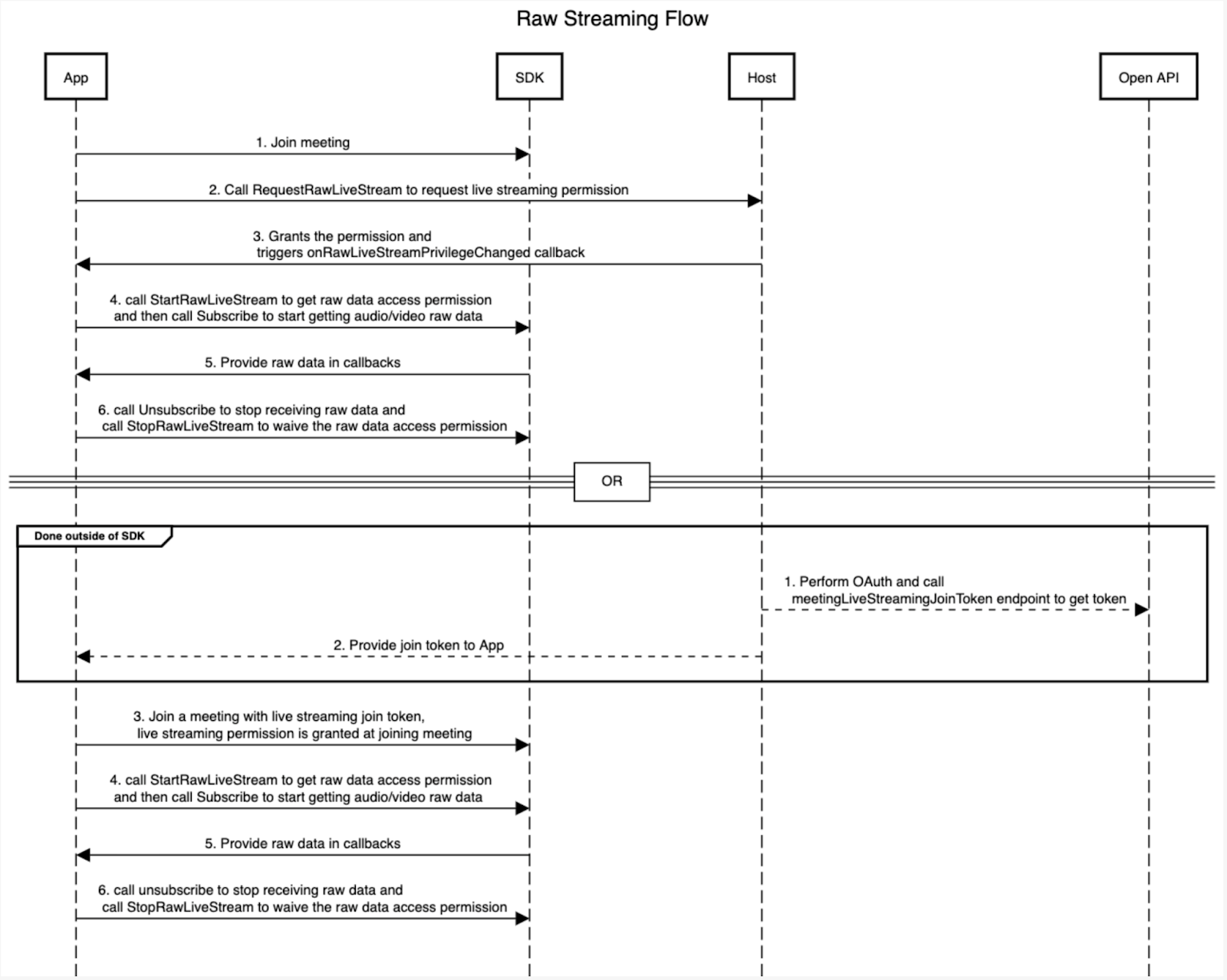
For raw streaming, if the SDK user is also the meeting host, they can start both raw streaming and an actual live streaming service. If the SDK user is not the meeting host, they must request raw streaming permission from the meeting host. In a meeting, the host can perform real external live streaming, with one or more SDK clients doing raw streaming locally.
The SDKs prompt users with a dialog to let them know when recording or streaming has started, as in the Zoom clients used by other meeting participants.
Raw data formats
- Video is in YUV420p format
- Audio is in PCM format
Before you start
To work with raw data in Meeting SDK for Windows, you must:
- Have Meeting SDK for Windows version 5.9.0 or later
- Raw streaming by meeting host: Meeting SDK for Windows version 5.11.0 or later
- Raw streaming by non-host participant: Meeting SDK for Windows version 5.12.8 or later
- To request local recording permission from host: Meeting SDK for Windows version 5.13.5 or later
- Meet these requirements for using raw recording
- The meeting must enable local recording
- Meet any one of these additional requirements
- You are a normal participant but with local recording permission
- You are the meeting host or co-host
- Meet all of these requirements for raw streaming
- The current user has raw live streaming permission
- The meeting host has a Pro, Business, Education, or Enterprise account
- The meeting host is licensed
Recording and streaming sequence diagrams
This sequence diagram shows the raw recording flow.
This sequence diagram shows the raw streaming flow.
Usage
- Set up video raw data callbacks
- Set up audio raw data callbacks
- Request
LocalRecordingpermission - Call
StartRawRecordingto start recording raw data - Call
StopRawRecordingto stop recording raw data
OR - Request RawLiveStream permission
- Call
StartRawLiveStreamto start streaming raw data - Call
StopRawLiveStreamto stop streaming raw data
Methods
- Video raw data callbacks :
onRawDataFrameReceived— triggered for each video frame - Audio raw data callbacks
onOneWayAudioRawDataReceived- per-user audio (no support for telephone participants)onMixedAudioRawDataReceived- session-wide audio (what meeting participants hear)
- StartRawRecording — start raw recording
- StopRawRecording — stop raw recording
- StartRawLiveStream — start raw streaming
- StopRawLiveStream — stop raw streaming
Record raw data
Follow these steps to record audio, video, or a screen.
-
Implement an instance of
IZoomSDKRendererDelegate.- In this class, respond to
onRawDataFrameReceivedto process the raw video or raw screen data stored in theYUVRawDataI420object. - Similarly, set up an
IZoomSDKAudioRawDataDelegatefor the audio raw data. - There are two different callbacks that can be used to receive raw data:
onOneWayAudioRawDataReceivedfor per-user audio andonMixedAudioRawDataReceivedfor meeting-wide audio.
Note: Do not perform heavy operations from within the raw data callbacks. This may cause delayed or lost data.
- In this class, respond to
-
If the current user has permission to start the recording, call
StartRawRecordinginIMeetingRecordingControllerto trigger the recording consent dialog for all users.- A user can either request local recording permission by asking the meeting host or by joining the meeting with a special local recording token (see instructions below.)
- A raw recording is a type of local recording, so listen for the
onRecordingStatuscallback to determine when the recording successfully starts.
-
Once the recording starts, implement an instance of
IZoomSDKRenderer. Pass theIZoomRendererDelegateandIZoomSDKRendererinto thecreateRenderermethod inzoom_rawdata_api.h.- For audio, pass your delegate into the
IZoomSDKAudioRawDataHelperclasssubscribefunction. - For raw video, call the
subscribe(UserID, RAW_DATA_TYPE_VIDEO)method inIZoomSDKRenderer. - For raw share, call the
subscribe(UserID, RAW_DATA_TYPE_SHARE)method inIZoomSDKRenderer.
- For audio, pass your delegate into the
-
To end the recording, call
StopRawRecordinginIMeetingRecordingController.- Unsubscribe in any
IZoomSDKRendererandIZoomSDKRawDataHelperinstance(s) you used.
- Unsubscribe in any
Receive local recording permission through an OAuth app
To successfully request recording permission, your OAuth app must be:
- a public OAuth app in the Zoom Marketplace
- installed by the meeting host or by their account admin
- Your OAuth app requests one of the two scopes:
Meeting_token:read:admin:local_recording- account level, installed by adminMeeting_token:read:local_recording- user level, installed by host
- Once the SDK app has the meeting ID it needs to join, have it call the "Get a meeting's join token for local recording" REST API endpoint
- Have your OAuth app pass the returned token to your Meeting SDK app.
- Have the Meeting SDK app use the returned token to join the meeting with the
app_privilege_tokenparameter.
Stream raw data from within the current meeting
Follow these steps to stream either audio or video from inside a meeting.
-
Implement an instance of
IZoomSDKRendererDelegate.- In this class, respond to
onRawDataFrameReceivedto process the raw video data stored in theYUVRawDataI420object. - Additionally, set up an
IZoomSDKAudioRawDataDelegatefor the raw audio data. - Use one of two different callbacks to receive raw data
onOneWayAudioRawDataReceivedfor per-user audio, oronMixedAudioRawDataReceivedfor meeting-wide audio.
Note: Do not perform heavy operations from within the raw data callbacks. This may cause delayed or lost data.
- In this class, respond to
-
Call
StartRawLiveStreaminIMeetingLiveStreamControllerto trigger the live streaming consent dialog for all users, if the current user has permission to start the live streaming.- A raw stream is a type of live streaming, so listen for the
onUserRawLiveStreamingStatusChangedcallback to determine when the streaming successfully starts.
- A raw stream is a type of live streaming, so listen for the
-
Once the streaming starts, pass the
IZoomRendererDelegateinto thecreateRenderermethod inzoom_rawdata_api.h.- For audio, pass your delegate to the
IZoomSDKAudioRawDataHelperclass's subscribe function.
- For audio, pass your delegate to the
-
To end the recording, call
StopRawLiveStreaminIMeetingLiveStreamController.- Unsubscribe in any
IZoomSDKRendererorIZoomSDKRawDataHelperinstance you used.
- Unsubscribe in any
Notify users when beginning a live stream
When beginning a live stream inside a current meeting, display a notice telling users that the meeting will be streamed to another "platform" - the application or services that need the raw data - and identify the platform. This gives users an informed chance to opt out of being streamed on that new platform.
RawLiveStreamInfo.broadcastName- the name of the app opening the new streaming session, such as "AI Note-taker by XYZ."RawLiveStreamInfo.broadcastUrl- the URL of a landing page hosted by the app developer OR the URL of the app's Zoom Marketplace page, such ashttps://example.com/description-pageorhttps://marketplace.zoom.us/apps/XXXXXXexampleXXXX.
Request live streaming permission
If you are not the meeting host, and do not have live streaming permission, you can either request this permission from the meeting host during the meeting or request live streaming permission through the OAuth app, so that the SDK client can start and stop raw streaming.
Request streaming permission from the host
To request live streaming permission from the host during the meeting:
- Call
RequestRawLiveStream(). - Receive permission by checking the callback
onRawLiveStreamPrivilegeChanged().
Request streaming permission through an OAuth app
To successfully request live-streaming permission through an OAuth app, your app must be:
- a public OAuth app on the Zoom Marketplace
- installed by the meeting host or by their account admin
- Your OAuth app will request one of the two scopes:
Meeting_token:read:admin:live_streaming- account level, installed by adminMeeting_token:read:live_streaming- user level, installed by host
- Once your SDK app has the meeting ID it needs to join, it calls the "Get a meeting's join token for live streaming" REST API endpoint
- Have the OAuth app pass the returned token to your Meeting SDK app.
- Have the Meeting SDK app use the returned token to join the meeting with the
app_privilege_tokenparameter.
Share raw data
Follow these steps to share audio, video, or a screen.
Share audio in PCM buffer format
- Implement an instance of
IZoomSDKVirtualAudioMicEvent.- Save a reference to the method parameter
IZoomSDKAudioRawDataSender pSenderin theonMicInitializemethod. - Respond to
onMicStartSend. Using your reference topSender, callsend(char* data, unsigned int data_length, int sample_rate).
- Save a reference to the method parameter
- Call
GetAudioRawdataHelper, which returns theIZoomSDKAudioRawDataHelperobject. - Pass an implementation of
IZoomSDKVirtualAudioMicEventinto thesetExternalAudioSource(MyIZoomSDKVirtualAudioMicEvent)method, found in theIZoomSDKAudioRawDataHelperobject.
This invokes onMicStartSend. You can now send audio in PCM buffer format.
Share video in YUV420 buffer format
- Implement an instance of
IZoomSDKVideoSource.- Save a reference to the method parameter
IZoomSDKVideoSender senderfound inonInitializemethod. - Respond to
onStartSend. Using your reference tosender, callsendVideoFrame(char* frameBuffer, int width, int height, int frameLength, int rotation).
- Save a reference to the method parameter
- Call
GetRawdataVideoSourceHelper, which returns theIZoomSDKVideoSourceHelperobject. - Pass the implementation of
IZoomSDKVideoSourceinto thesetExternalVideoSource(MyIZoomSDKVideoSource)method, found in theIZoomSDKVideoSourceHelperobject.
This invokes onStartSend. You can now send video in YUV420 buffer format.
Share a screen in YUV420
- Implement an instance of
IZoomSDKShareSource.- Respond to
onStartSendto send video in YUV420 buffer format. Use(IZoomSDKShareSender* pSender)in the method parameter to callsendFrame(char* frameBuffer, int width, int height, int frameLength, int rotation).
- Respond to
- Call
GetRawdataShareSourceHelper(), which returns theIZoomSDKShareSourceHelperobject. - Pass the implementation of
IZoomSDKShareSourceinto thesetExternalShareSource(MyIZoomSDKShareSource)method, found in theIZoomSDKShareSourceHelperobject.
This invokes onStartSend. You can now screen-share in YUV420 buffer format.
Notes
- The usage or actual handling of the raw data may vary based on your use case.
- The SDK only provides the raw data. Implement only the raw data video or audio callbacks that you need.
- Performing any heavy handling within the callback delays the callback being triggered, which may result in loss of data.