Frequently asked questions
This section provides answers to common questions about using the Zoom Virtual Agent bot.
A bot is set to trigger on the left in an embedded campaign. Why does it open on the right side?
When the invitation is in embedded mode, you can use parameters to define the location of the bot when introducing the liveSDK tag, as shown in this example:
<script src="xxx" data-apikey="your_apikey" data-window-position="left">
Why does a page continue to display Connecting and the subsequent dialog pop-ups don't appear as expected?
If the Zoom Virtual Agent process ends and needs to transition to another SDK process and remains stuck on "connecting" for a long time, you should check whether the APIs of the other SDK are functioning correctly. Note that this issue typically happens when routing to a third-party CRM, such as switching from Zoom Virtual Agent to Zendesk.
Why does Zoom Virtual Agent SDK not work with certain ad blockers plugins?
The Zoom Virtual Agent SDK is effective for most ad blockers on Google Chrome. However, some situations exist where the Zoom Virtual Agent SDK could be blocked. For example, deploying the Zoom Virtual Agent SDK through Google Tag Manager(GTM) could result in the Zoom Virtual Agent SDK not loading properly due to blocking GTM under the default filtering rules of the UBlock Origin plugin.
While navigating between pages while the widget is open, the widget can receive an event from the Zendesk websocket that triggers Help center to display in the widget. Why?
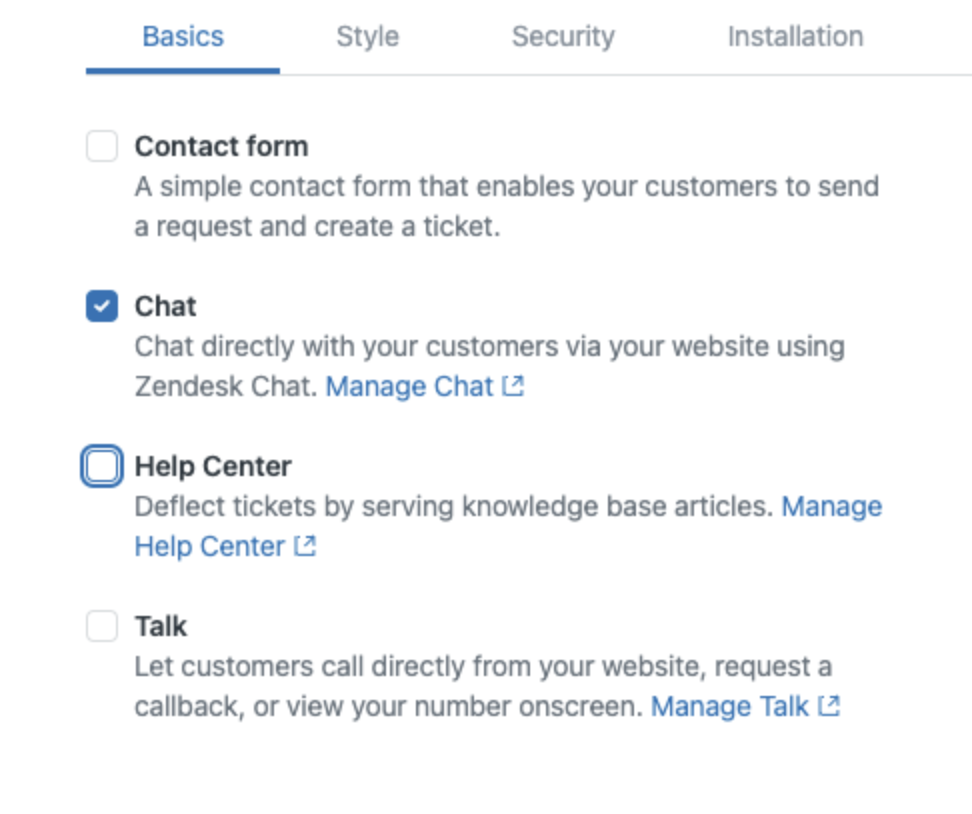
If the button at the bottom of the widget reads, Chat with us, you can return to the chat and receive messages from an agent. If it reads, Leave us a message, you cannot easily return to the chat or receive agent messages. In either state, the chat becomes inactive. When you minimize the Zendesk widget, it triggers Zoom Virtual Agent to completely hide the Zendesk widget and display the Zoom Virtual Agent engagement window.
To prevent this behavior, disable Help Center on the Zendesk widget so it ignores help center triggers from the Zendesk websocket. Now the widget remains in chat mode and forces the chat to remain active.