Live Streaming
Video SDK sessions can be live streamed to an unlimited audience using Real-Time Messaging Protocol (RTMP). This is helpful if you need to scale Video SDK attendees beyond the 1,000 real-time session user limit. For example, you can live stream to YouTube Live, Facebook Live, Twitch, AWS IVS, and other services.
See the following for how to set up a streaming event in a third-party platform and implement a feature to start and stop live streaming of a session using the Video SDK.
Retrieve credentials
Live streaming with SDKs requires the following information from third-party streaming platforms: Stream URL, Stream Key, Broadcast URL. See Live stream to YouTube for an example.
Start live streaming
To start live streaming a session from your app, obtain an instance of IZoomVideoSDKLiveStreamHelper and verify that the current user can start streaming. Then call startLiveStream within IZoomVideoSDKLiveStreamHelper to begin live streaming.
// Get the IZoomVideoSDKLiveStreamHelper to perform live stream actions.
IZoomVideoSDKLiveStreamHelper* pLiveStreamHelper = m_pVideoSDK->getLiveStreamHelper();
// Check if live stream can start.
if (pLiveStreamHelper->canStartLiveStream() == ZoomVideoSDKErrors_Success) {
    // Call startLiveStream to begin live streaming.
    int err = pLiveStreamHelper->startLiveStream(strStreamUrl, strKey, strBroadcastUrl);
    if (err == ZoomVideoSDKErrors_Success)
    {
            // Live stream successfully began.
    }
    else
    {
            // Live stream could not start.
    }
}
Stop live streaming
To stop the stream with the SDK, call stopLiveStream.
// Get the IZoomVideoSDKLiveStreamHelper to perform live stream actions.
IZoomVideoSDKLiveStreamHelper* pLiveStreamHelper = m_pVideoSDK->getLiveStreamHelper();
// Call stopLiveStream to stop the live stream.
pLiveStreamHelper->stopLiveStream();
Listen for updates
After calling the startLiveStream function, you can listen for updates through your IZoomVideoSDKDelegate implementation's onLiveStreamStatusChanged callback.
| Name | Description |
|---|---|
ZoomVideoSDKLiveStreamStatus_None | No live stream is active. |
ZoomVideoSDKLiveStreamStatus_InProgress | Live streaming is in progress. |
ZoomVideoSDKLiveStreamStatus_Ended | Live streaming has ended. |
ZoomVideoSDKLiveStreamStatus_Connecting | Live streaming is connecting. |
ZoomVideoSDKLiveStreamStatus_FailedTimeout | Live stream failed due to timeout. |
ZoomVideoSDKLiveStreamStatus_StartFailed | Live stream could not start. |
Live stream to YouTube
For instance, if you want to live stream a session to YouTube, you must enable live streaming on your Google account.
Step 1:
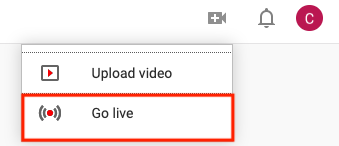
Login to YouTube. Locate the video icon and press "Go Live".
Step 2:
Click the Stream button in the top panel. Note: YouTube Webcam services are not compatible with Zoom SDK.

Step 3:
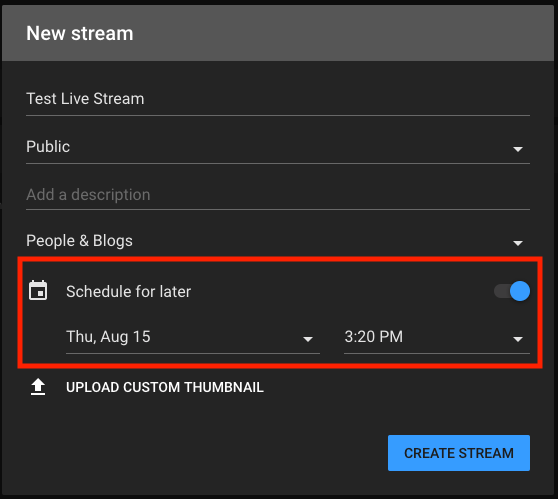
Fill out the required information and toggle "Schedule for later". If this is not selected, the live stream will start immediately and will not provide setting info.
Step 4:
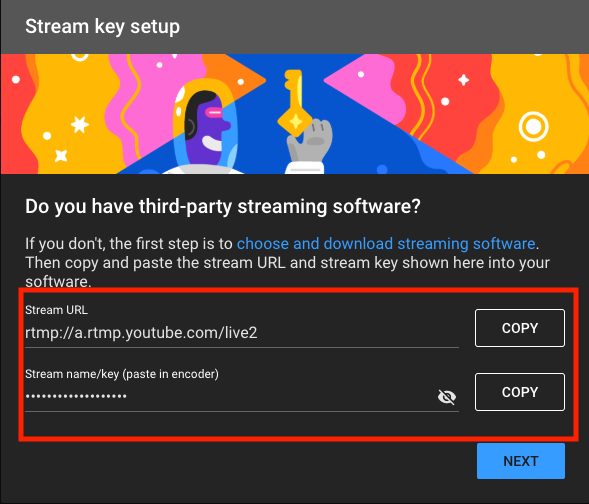
After creating the stream, the Steam URL and Stream Key will be available.
Step 5:
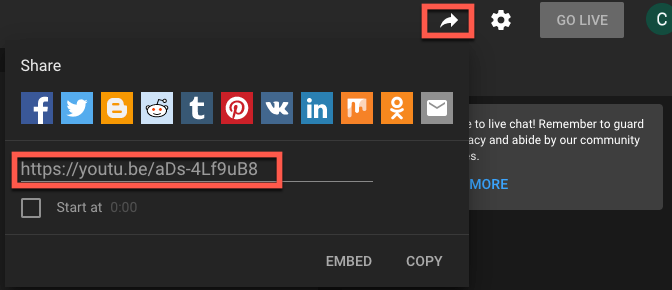
Click the share button beside your account icon to get the broadcast URL.
Use the YouTube Live Streaming API to automate these steps and get stream information programmatically.