Live streaming
Video SDK sessions can be live streamed to an unlimited audience using Real-Time Messaging Protocol (RTMP). This is helpful if you need to scale Video SDK attendees beyond the 1,000 real-time session user limit. For example, you can live stream to YouTube Live, Facebook Live, Twitch, AWS IVS, and other services.
See the following for how to set up a streaming event in a third-party platform and implement a feature to start and stop live streaming of a session using the Video SDK.
Retrieve credentials
Live streaming with SDKs requires the following information from third-party streaming platforms: Stream URL, Stream Key, Broadcast URL. See Live stream to YouTube for an example.
Start live streaming
To start live streaming a session from your app, first obtain an instance of ZoomVideoSDKLiveStreamHelper and verify that the current user can start streaming.
val liveStreamHelper = ZoomVideoSDK.getInstance().liveStreamHelper
if (liveStreamHelper.canStartLiveStream() == ZoomVideoSDKErrors.Errors_Success) {
    // The user may start live streaming.
}
ZoomVideoSDKLiveStreamHelper liveStreamHelper = ZoomVideoSDK.getInstance().getLiveStreamHelper();
if (liveStreamHelper.canStartLiveStream() == ZoomVideoSDKErrors.Errors_Success) {
    // The user may start live streaming.
}
Provide stream URL, stream key, and broadcast URL
In order to start the stream using the SDK, you will need to provide the three pieces of information that were mentioned earlier: stream URL, stream key, and broadcast URL.
Once you have the three fields required for live streaming, you can start or stop a live stream through your helper.
// Start live streaming
liveStreamHelper.startLiveStream(streamUrl, key, broadcastUrl)
// Stop live streaming
liveStreamHelper.stopLiveStream()
// Start live streaming
liveStreamHelper.startLiveStream(streamUrl, key, broadcastUrl);
// Stop live streaming
liveStreamHelper.stopLiveStream();
Listen for updates
After calling the startLiveStream method, you can listen for updates through your ZoomVideoSDKDelgate implementation's onLiveStreamStatusChanged callback.
| Name | Description |
|---|---|
ZoomVideoSDKLiveStreamStatus_None | No live stream is active. |
ZoomVideoSDKLiveStreamStatus_InProgress | Live streaming is in progress. |
ZoomVideoSDKLiveStreamStatus_Connecting | Attempting to connect to the live streaming service. |
ZoomVideoSDKLiveStreamStatus_StartFailed | Failed to connect to the live streaming service. |
ZoomVideoSDKLiveStreamStatus_FailedTimeout | The connection to the live streaming service has timed out. |
ZoomVideoSDKLiveStreamStatus_Ended | Live streaming has ended. |
Here's an example implementation.
override fun onLiveStreamStatusChanged(status: ZoomVideoSDKLiveStreamStatus) {
    // See live stream documentation
}
@Override
public void onLiveStreamStatusChanged(ZoomVideoSDKLiveStreamStatus status) {
    // See live stream documentation
}
Live stream to YouTube
For instance, if you want to live stream a session to YouTube, you must enable live streaming on your Google account.
Step 1:
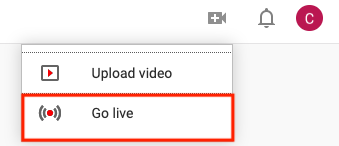
Login to YouTube. Locate the video icon and press "Go Live".
Step 2:
Click the Stream button in the top panel. Note: YouTube Webcam services are not compatible with Zoom SDK.

Step 3:
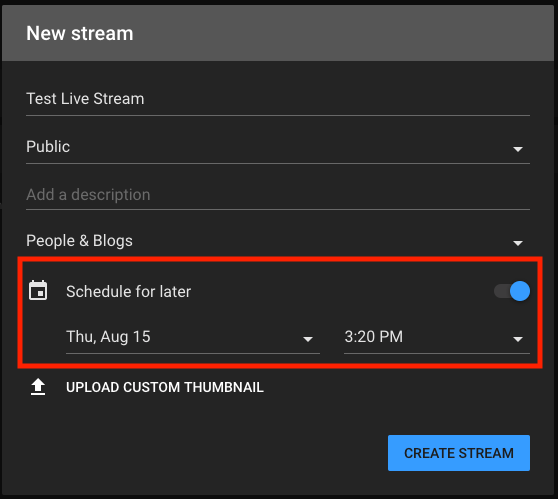
Fill out the required information and toggle "Schedule for later". If this is not selected, the live stream will start immediately and will not provide setting info.
Step 4:
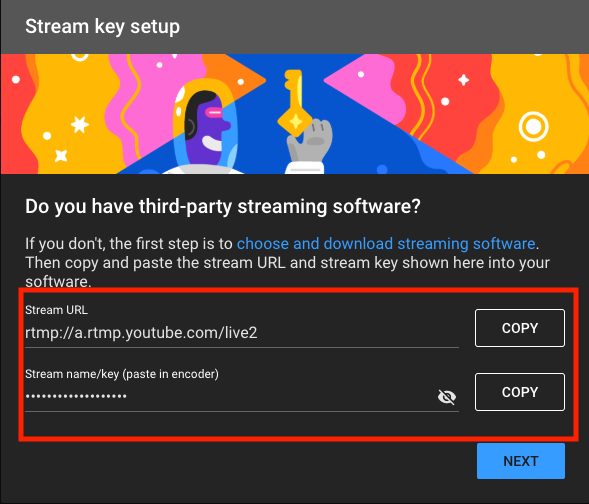
After creating the stream, the Steam URL and Stream Key will be available.
Step 5:
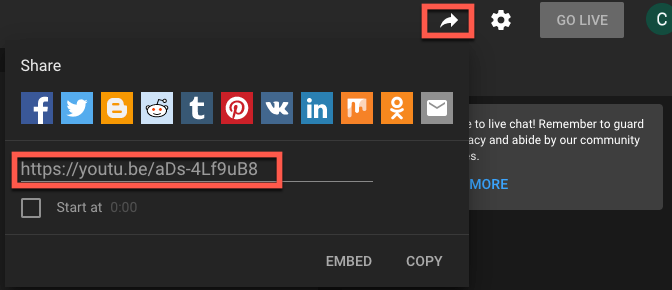
Click the share button beside your account icon to get the broadcast URL.
Use the YouTube Live Streaming API to automate these steps and get stream information programmatically.