How to use Twilio IVR Dial Trees with the Zoom Video SDK
Updated September 17, 2024
One of the advantages of the Zoom Video SDK is our PSTN and SIP call out/call in compatibility. This allows developers to connect phone users to Video SDK Sessions. Going a step further, PSTN and SIP support allows the Video SDK to be used with complex IVR dial tree use cases. For example, if I am calling a phone number to talk to a support agent, pressing numbers along the way to route me to the right point of contact, I can be connected into a Video SDK session via the Zoom PSTN or SIP bridge with an agent present in the Video SDK Session.
Below is an example of how to use the Zoom Video SDK with Twilio's IVR dial tree.
Prerequisites
- Twilio account with a phone number.
- Zoom Video SDK account with the PSTN or SIP.
Getting the Video SDK session dial in info
There are a few ways to get the dial in info for a Video SDK session once the session has started.
-
Video SDK functions (web example).
stream.getCurrentSessionCallinInfo();{ "meetingId": "123456789", "password": "1234", "tollNumbers": [ // ... { "number": "+1 1234567890", "country": "US", "free": false, "displayNumber": "+1 123 456 7890", "countryId": "US", "type": 0, "priority": 0, "businessType": 0, "countryName": "United States", "dc": "US" } // ... ], "participantId": "345" } -
POST or GET Video SDK session REST API (see
session_number,passcode, andsettings→global_dial_in_numbers) .{ "id": "sfk/aOFJSJSYhGwk1hnxgw==", "session_number": 123456789, "session_name": "My session", "passcode": "123456", "start_time": "2019-08-20T19:09:01Z", "end_time": "2019-08-20T19:19:01Z", "duration": "30:00", "user_count": 2, "has_voip": true, "has_video": true, "has_screen_share": true, "has_recording": true, "has_pstn": true, "session_key": "my_session_key", "has_session_summary": true, "created_at": "2022-03-25T07:29:29Z", "settings": { "auto_recording": "cloud", "global_dial_in_countries": [ "US" ], "global_dial_in_numbers": [ { "country": "US", "country_name": "US", "number": ""+1 1234567890", "type": "toll" } ] } }
The Zoom dial in info convention is Phone Number -> Meeting ID followed by # -> Participant ID (optional) followed by # -> password followed by #. The Participant ID is optional, to bypass it, just press #.
Using Twilio IVR Dial Tree
The Twilio IVR Dial Tree platform allows you to design dial trees via code using your favorite language with the TwiML™ language, or with a drag and drop studio designer.
IVR Dial Tree using Twilio Studio
-
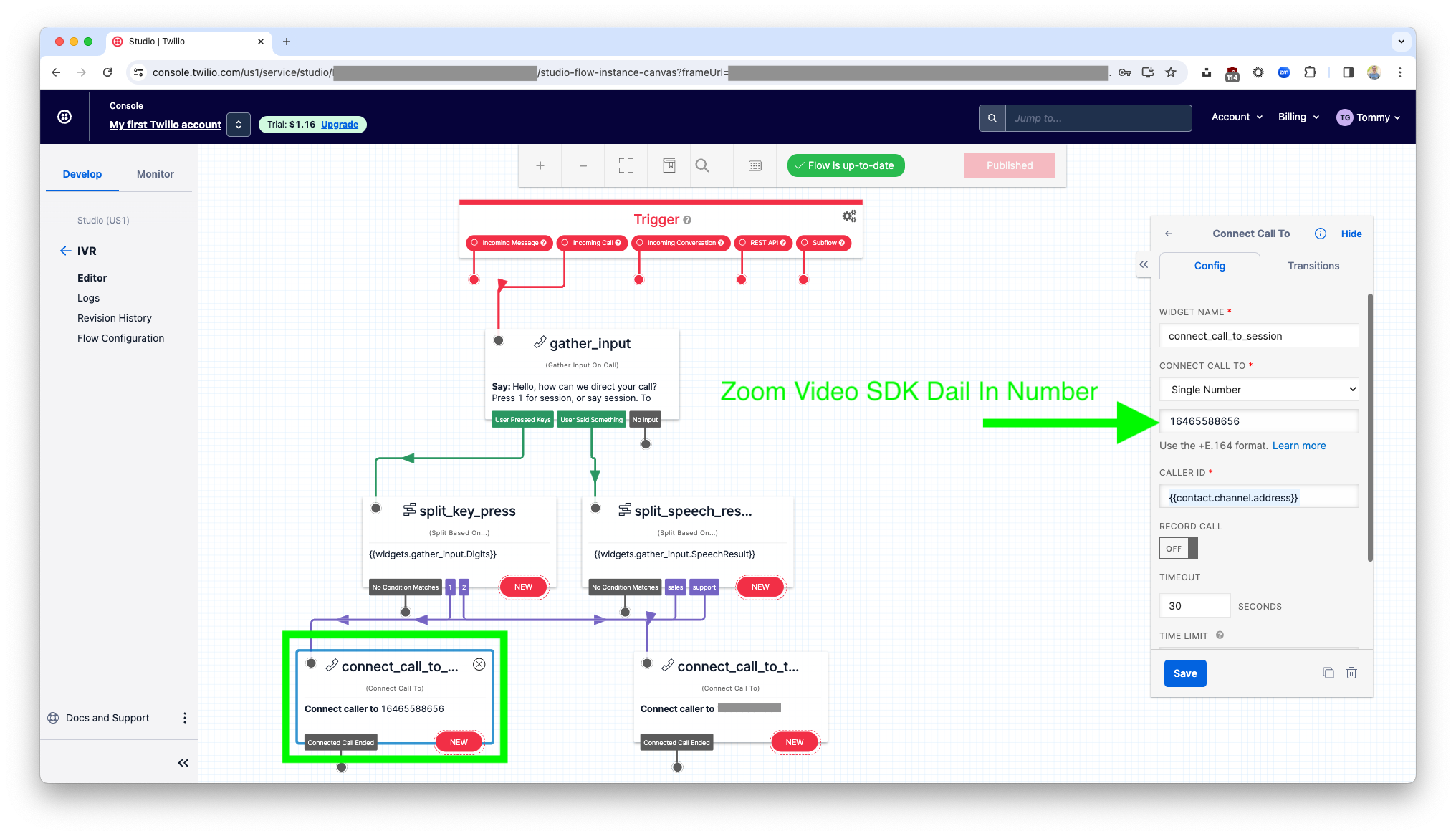
Setup the base IVR flow in Twilio studio.
-
Update the connect call number to your Video SDK session dial in number or SIP address.
Twilio Studio does not currently support including DTMF tones or pauses, which would allow you to auto dial the Video SDK session ID (
meetingId^) and passcode (password^). However, this is something you can do with Twilio TwiML™, see below for an example. -
Click save and publish.
IVR Dial Tree using Twilio TwiML™
-
Use the Twilio Voice SDK to connect the call to your Video SDK session dial in number or SIP address.
You can auto dial the Video SDK session ID (
meetingId^) and passcode (password^) using thesendDigitsproperty.TwiML™ example:
<?xml version="1.0" encoding="UTF-8"?>
<Response>
  <Dial>
     <Number sendDigits="wwww123456789#wwww#wwww1234#">
         11234567890
     </Number>
 </Dial>
</Response>
Node.js example:
const VoiceResponse = require("twilio").twiml.VoiceResponse;
const response = new VoiceResponse();
const dial = response.dial();
dial.number(
    {
        sendDigits: "wwww123456789#wwww#wwww1234#",
    },
    "11234567890",
);
console.log(response.toString());
TwiML™ SIP example:
<?xml version="1.0" encoding="UTF-8"?>
<Response>
  <Dial>
     <Sip>
      sip:123456789@zoomcrc.com
    </Sip>
 </Dial>
</Response>
Node.js example:
const VoiceResponse = require("twilio").twiml.VoiceResponse;
const response = new VoiceResponse();
const dial = response.dial();
dial.sip("sip:123456789@zoomcrc.com");
console.log(response.toString());
If successful, a PSTN or SIP user will have joined the Video SDK session.
If you are replacing Twilio Programmable Video with the Zoom Video SDK, simply update your <Connect><Room> flow, to the <Dial><Number> flow, passing in the Video SDK session dial in number.
You can auto dial the Video SDK session ID (meetingId ^) and passcode (password ^) using the sendDigits property.
Testing the tree
- Make a phone call to your Twilio number.
- Press 1. or the respective flow you designed to dial into your Video SDK session number.
- If successful, a PSTN user will have joined the Video SDK session.
If you are using Twilio Programmable Video, Twilio has chosen the Zoom Video SDK as the migration path for the Twilio Video deprecation. View the migration guides and feature map, migration services, or contact us.