To integrate the ZRC SDK, initialize the SDK, connect SDK with Zoom Rooms Client and control Zoom Rooms Client with provided APIs.
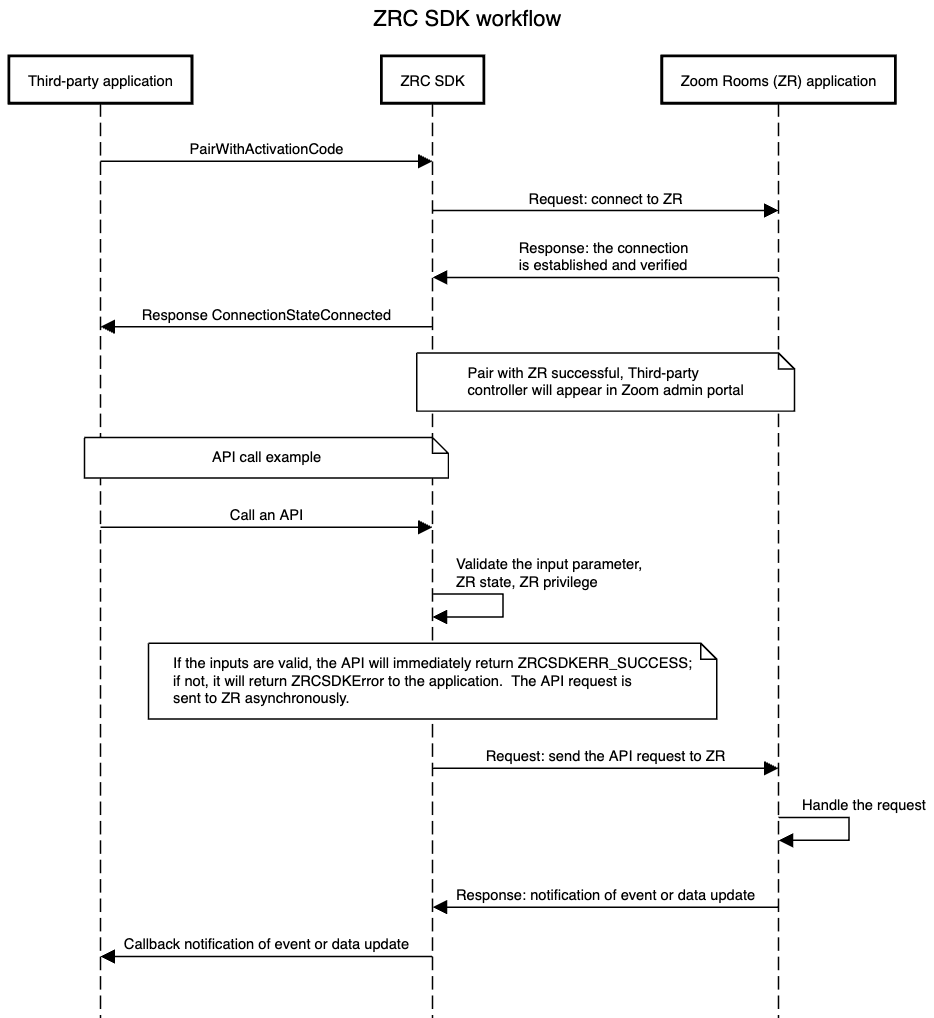
ZRC SDK workflow
Requirements
- The ZRC SDK must be able to reach Zoom cloud services in order to function. See Zoom network firewall or proxy server settings for specific requirements.
- The ZRC SDK must be able to connect to the Zoom Room over the network in order to function, the same as first-party Zoom Rooms Controller applications (e.g. ZRC for Android). See Firewall Configuration for Zoom Rooms for specific requirements.
- Zoom Rooms version 6.0.0 or higher
- The Zoom Rooms must be signed into the Zoom Account for the ZRC SDK to connect.
- The ZRC SDK cannot connect to an unactivated Zoom Rooms.
- Please call ZRC SDK APIs in your application's main UI thread for thread-safe operation
- When using the ZRC SDK for Linux, your application must call
IZRCSDK::HeartBeat()in the main UI thread to trigger the event loop. The recommended time interval is 150ms. - When using the ZRC SDK for Linux, Glibc version 2.27 or later is required.
Import the ZRC SDK libraries
As mentioned in the ZRC SDK file structure section, the header folder ./include and the libZRCSdk.so library are the files used to build an Application based on the ZRC SDK.
Assuming your project has a file structure similar to the example below, link the library SDK and include the library headers in your application code.
MyZRCApp
├── include
│   └── ServiceComponents
└── lib
    └── libZRCSdk.so
# Link directories
link_directories(
    ${CMAKE_SOURCE_DIR}/lib
)

include_directories(
    ${CMAKE_SOURCE_DIR}/include
    ${CMAKE_SOURCE_DIR}/include/ServiceComponents
)
Initialize the SDK
To initialize the SDK, include the header IZRCSDK.h, implement IZRCSDKSink and call RegisterSink to the SDK instance.
// implement the IZRCSDKSink and register to IZRCSDK
IZRCSDKSink *sdkSink = new CZRCSdkSink();
IZRCSDK *sdk = IZRCSDK::GetInstance();
sdk->RegisterSink(sdkSink);

// Optional. Currently not supported for Zoom for Government.
sdk->InitWebDomain(strWebDomain);
Setup a Logging Filepath
The ZRC SDK log files are configured with IZRCSDKSink::OnGetAppContentDirPath(). For example, you can configure as ${HOME}/Library/Logs/ZRCSDK. Logs will be written to ZPController_WebService_X.log files. X is the log file index and the current log file index can be found in last_log_file_id.txt. Each log file is limited to a maximum size of 20 MB, and the ZRC SDK will write to a maximum of 10 files before rotating to overwrite the first file. When the ZRC SDK stops and restarts, it will attempt to read the last_log_file_id.txt and use the incrementally next log file. The log files are encrypted and are intended for Zoom Support use only.
Pair to Zoom Rooms with ZRC SDK
REMINDER: To control a Zoom Rooms using the ZRC SDK, the Zoom Rooms must be signed in first. The ZRC SDK cannot connect to a Zoom Rooms that is not signed in.
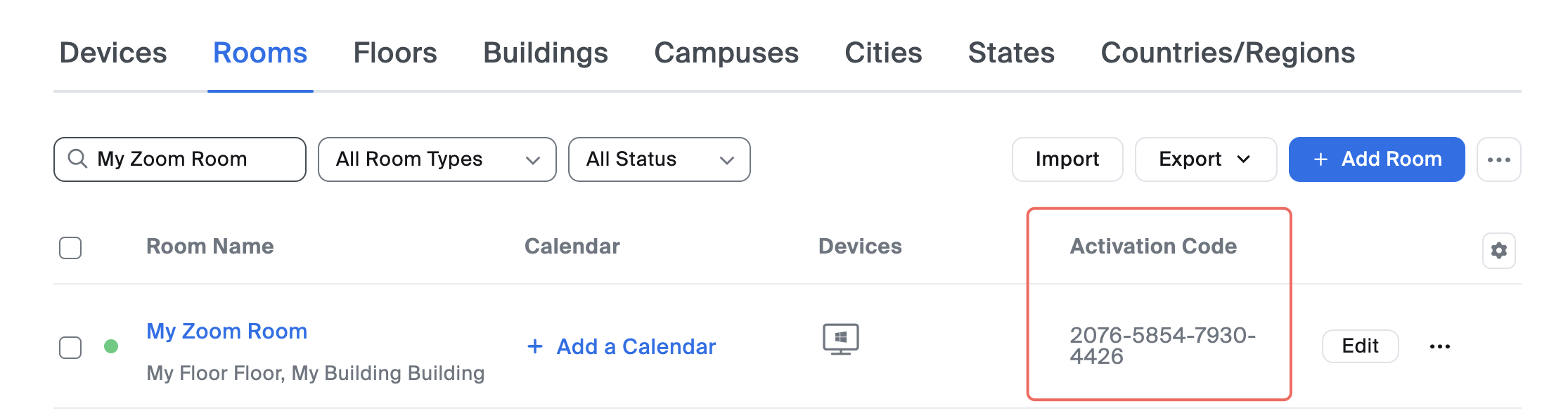
To connect to a Zoom Rooms and control it using the ZRC SDK, a Zoom Rooms Administrator with appropriate permissions must retrieve an activation code from the Zoom admin portal (or use the Zoom Rooms REST API to retrieve an activation code). Activation codes expire after 10 days, but are only required for your application's initial sign-in using the ZRC SDK.
-
Go to Zoom admin portal - Room Management - Zoom Rooms
-
Find the Zoom Rooms with which you wish to connect and note the Activation Code (if necessary, click Regenerate to regenerate the code, as shown below).
-
You can configure your application's information in
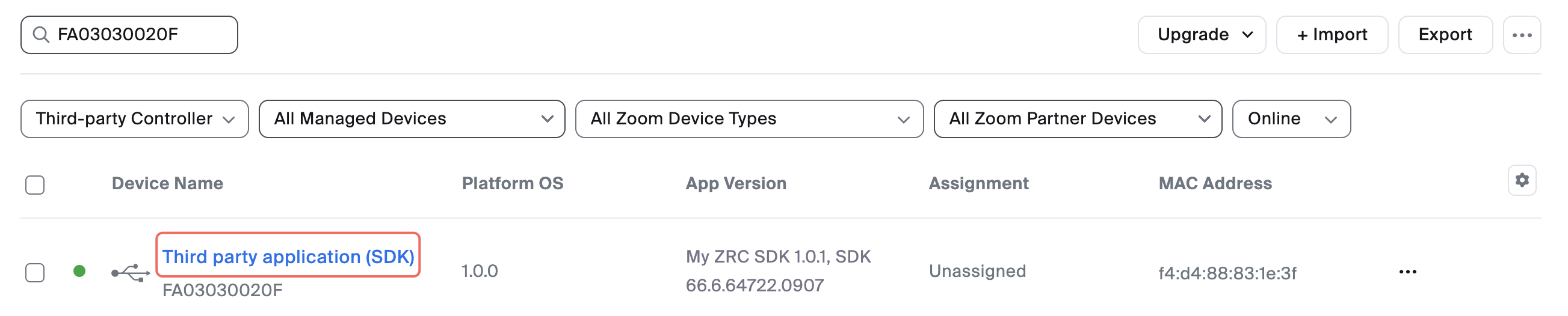
IZRCSDKSink. ZRC SDK will report your application information Zoom's backend, where it will appear in the Zoom Admin Portal - Device Management - Device List and Zoom Admin Portal - Room Management - Zoom Rooms administrative interfaces.# implementation example virtual std::string OnGetDeviceManufacturer() { return "My Manufacturer"; } virtual std::string OnGetDeviceModel() { return "My Model"; } virtual std::string OnGetDeviceSerialNumber() { return "My Serial Number"; } virtual std::string OnGetDeviceMacAddress() { return "00:11:22:33:44:55"; } virtual std::string OnGetDeviceIP() { return "192.168.0.100"; } virtual std::string OnGetFirmwareVersion() { return "1.0.0"; } virtual std::string OnGetAppName() { return "My ZRC SDK Application"; } virtual std::string OnGetAppVersion() { return "1.0.1"; } virtual std::string OnGetAppDeveloper() { return "My App Developer"; } virtual std::string OnGetAppContact() { return "my.email@zoom.us"; } -
Call
IZoomRoomsService::PairRoomWithActivationCodewith your current Activation Code to connect to the target Zoom Rooms. You will receive severalIPreMeetingServiceSink::OnZRConnectionStateChangedcallbacks. WhenConnectionStatebecomesConnectionStateConnected, the connection between the ZRC SDK and the Zoom Room has been established and verified.// create a ZoomRoomsService to control Zoom Rooms. // implement IZoomRoomsServiceSink and register to IZoomRoomsService IZoomRoomsService* pRoomService = sdk->CreateZoomRoomsService(); IZoomRoomsServiceSink* pRoomSink = new AutoIZoomRoomsServiceSink(); pRoomService->RegisterSink(pRoomSink); pRoomService->PairRoomWithActivationCode(strYourActivationCode); -
After the ZRC SDK is connected with a Zoom Rooms, your application will be represented as a Zoom Rooms Controller in the Zoom admin portal and your application's details will be shown in Zoom Admin Portal - Device Management - Device List. Select "Third-party Controller" in the "All Platform OS" drop-down to observe all third-party controllers, including your application.
Disconnected from Zoom Rooms
If you wish to disconnect your application from a Zoom Rooms, use the API IZoomRoomsService::UnpairRoom to unpair.
pRoomService->UnpairRoom();