Send, edit, and delete messages
Chabots can send, edit, and delete chatbot messages.
If you simply want to send a message to a user or channel without building a Chatbot, use incoming webhooks.
Send messages
To send a Chatbot message make a POST request to /im/chat/messages with your chatbot bearer token and the following request body:
| Key | Necessity | Type | Value |
|---|---|---|---|
robot_jid | Required | string | Your Bot JID found in the app build flow -> Features -> Surface -> Zoom Chat Subscription. |
account_id | Required | string | The account ID of the account that you want to send the message to. |
to_jid | Required | string | The user JID or channel JID of the user or channel that you want to send the message to. |
content | Required | object | Your Chatbot message card. |
visible_to_user | Admin-managed only, Optional | string | The user ID of a user if you only want that specific user to see the message in a channel. |
user_jid | User-managed only, Required | string | The user JID of the user who has authorized the app and who you want to see the message. |
is_markdown_support | Optional | boolean | If you are using Markdown Chatbot message card types. |
reply_to | Optional | string | You can use the parent message's ID to thread the reply. |
Example request
POST https://api.zoom.us/v2/im/chat/messages
Request header:
{ "Authorization": "Bearer <JWT_TOKEN>" }
Request body:
{
    "robot_jid": "Wk9PTV9ST0JPVF9KSUQ@xmpp.zoom.us",
    "to_jid": "Wk9PTV9VU0VSX0lE@xmpp.zoom.us",
    "account_id": "Wk9PTV9BQ0NPVU5UX0lE",
    "content": {
        "head": {
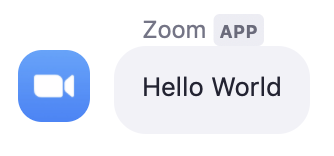
            "text": "Hello World"
        }
    }
}
If successful, the response body is a JSON representation of your Chatbot message:
{
    "message_id": "Wk9PTV9NRVNTQUdFX0lE",
    "robot_jid": "Wk9PTV9ST0JPVF9KSUQ@xmpp.zoom.us",
    "sent_time": "2019-06-17 17:08:55",
    "to_jid": "Wk9PTV9VU0VSX0lE@xmpp.zoom.us"
}
Chatbot message
Edit messages
To edit a Chatbot message make a PUT request to /im/chat/messages/MESSAGE_ID with your chatbot bearer token and the following request body:
| Key | Necessity | Type | Value |
|---|---|---|---|
robot_jid | Required | string | Your Bot JID found in the app build flow -> Features -> Surface -> Zoom Chat Subscription. |
account_id | Required | string | The account ID of the account that you want to send the message to. |
to_jid | Required | string | The user JID or channel JID of the user or channel that you want to send the message to. |
content | Required | object | Your Chatbot message card. |
visible_to_user | Admin-managed only, Optional | string | The user ID of a user if you only want that specific user to see the message in a channel. |
user_jid | User-managed only, Required | string | The user JID of the user who has authorized the app and who you want to see the message. |
is_markdown_support | Optional | boolean | If you are using Markdown Chatbot message card types. |
Example Request
PUT https://api.zoom.us/v2/im/chat/messages/Wk9PTV9NRVNTQUdFX0lE
Request header:
{ "Authorization": "Bearer <JWT_TOKEN>" }
Request body:
{
    "robot_jid": "Wk9PTV9ST0JPVF9KSUQ@xmpp.zoom.us",
    "to_jid": "Wk9PTV9VU0VSX0lE@xmpp.zoom.us",
    "account_id": "Wk9PTV9BQ0NPVU5UX0lE",
    "content": {
        "head": {
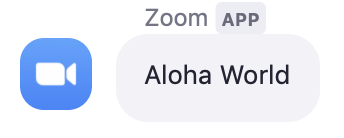
            "text": "Aloha World"
        }
    }
}
If successful, the response body is a JSON representation of your edited Chatbot message:
{
    "message_id": "Wk9PTV9NRVNTQUdFX0lE",
    "robot_jid": "Wk9PTV9ST0JPVF9KSUQ@xmpp.zoom.us",
    "sent_time": "2019-06-17 17:08:55",
    "to_jid": "Wk9PTV9VU0VSX0lE@xmpp.zoom.us"
}
Edited Chatbot message
Delete messages
To delete a Chatbot message make a DELETE request to /im/chat/messages/MESSAGE_ID with your chatbot bearer token and the following query parameters:
| Key | Necessity | Type | Value |
|---|---|---|---|
robot_jid | Required | string | Your Bot JID found in the app build flow -> Features -> Surface -> Zoom Chat Subscription. |
account_id | Required | string | The account ID of the account that you want to send the message to. |
user_jid | User-managed only, Required | string | The user JID of the user who has authorized the app and who you want to see the message. |
Example request
DELETE https://api.zoom.us/v2/im/chat/messages/Wk9PTV9NRVNTQUdFX0lE?robot_jid=Wk9PTV9ST0JPVF9KSUQ@xmpp.zoom.us&account_id=Wk9PTV9BQ0NPVU5UX0lE
Request header:
{ "Authorization": "Bearer <JWT_TOKEN>" }
If successful, the response body is a JSON representation of your deleted Chatbot message:
{
    "message_id": "Wk9PTV9NRVNTQUdFX0lE",
    "robot_jid": "Wk9PTV9ST0JPVF9KSUQ@xmpp.zoom.us",
    "sent_time": "2019-06-17 17:08:55",
    "to_jid": "Wk9PTV9VU0VSX0lE@xmpp.zoom.us"
}
Send messages via incoming webhooks
Zoom incoming webhooks are configured outside the Zoom developer portal using the Incoming Webhook chatbot. Zoom incoming webhooks use a static verification token that does not expire, or for more advanced security, a dynamic signature.
After installing the Incoming Webhook chatbot, enter this slash command to generate a URL:
/inc connect NAME
Request URL:
POST: https://integrations.zoom.us/chat/webhooks/incomingwebhook/Wk9PTV9JTkNPTUlOR19XRUJIT09LX0lE?format=full
Request header:
{ "Authorization": "Bearer ZOOM_INCOMING_WEBHOOK_TOKEN" }
Request body:
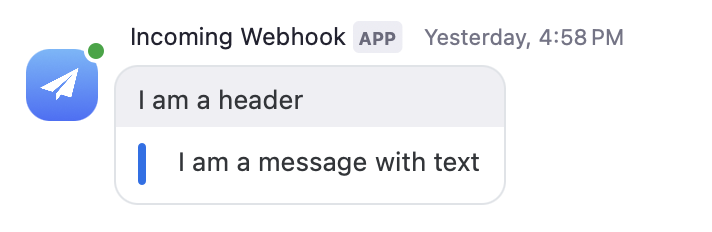
{
    "content": {
        "head": {
            "text": "I am a header"
        },
        "body": [
            {
                "type": "message",
                "text": "I am a message with text"
            }
        ]
    }
}
Getting to_jid, account_id, and user_jid values
Here are some tips for getting to_jid, account_id, and user_jid values for easier testing.
- The
to_jid,account_id, anduser_jid(if applicable) are present in the custom welcome message, slash command, or UI element webhook events. - Channel JID conventions are:
CHANNEL_ID@conference.xmpp.zoom.us. - User JID conventions are:
USER_ID@xmpp.zoom.us. - You can also get the
account_id,user_id, andchannel_id(if applicable) via:- Your
account_idis shown in the server to server app type build flow. - Your
user_idcan be found by JWT decoding the chatbot token -> body ->uid. - Your
user_idcan be found in the Zoom web portal when you view a user. - Your
user_idis returned from the Get User/s API. - A
channel_idcan be found by JWT decoding the channel URL's (copy channel URL in the Zoom Client) path -> header ->sid - A
channel_idcan be found in the Zoom web portal when you view a channel. - A
channel_idis returned from the Get Channel/s API.
- Your
JSON payloads for guest users
Be aware that guest users (users not signed in to Zoom or who are members of a different account) are assigned temporary IDs that are valid only for the duration of that meeting or chat channel. Data for guest users in JSON payloads is associated with these temporary IDs.