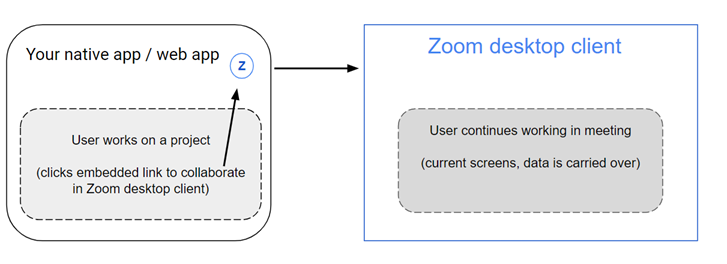
You can use Zoom's deep links to enable users to smoothly transition from working in their native or web apps to collaborating in Zoom meetings.
The diagram illustrates a scenario of a user working on a project in your native or web app. The deep link URL is embedded as a button, enabling the user to transition the project to the Zoom desktop client to collaborate with other participants during a meeting.
The following behaviors are available:
- Open your apps directly in Zoom meetings.
- Open your app's overview page in Zoom meetings.
- Open your apps in the Zoom desktop client outside of meetings.
- Open your app's overview page in the Zoom desktop client outside of meetings.
Requirements
- You have the app client ID.
- You have published your app in the Zoom Marketplace.
- Your users have added your app to their Zoom account. (If they don't have the app installed, Zoom opens the app overview page.)
Open your app in Zoom meetings
To open your app directly in a Zoom meeting, use this pattern: https://marketplace.zoom.us/zoomapp/APP\_CLIENT\_ID/context/meeting/target/launch/deeplink
Deep link context: meeting Deep link target: launch
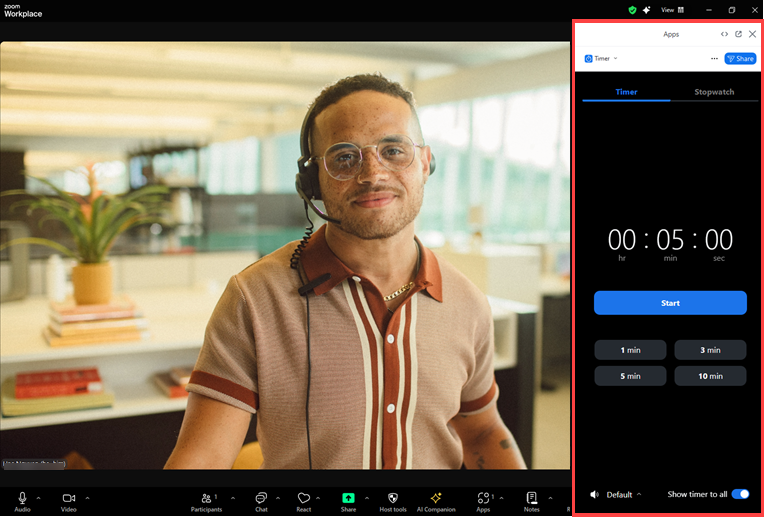
The Zoom desktop client displays the meeting panel in the center and the app in the side panel.
In this simple example, we are showing the Zoom Timer app.
Open your app's overview page in meetings
To open your app's overview page in a Zoom meeting, use this pattern:
https://marketplace.zoom.us/zoomapp/APP\_CLIENT\_ID/context/meeting/target/detail/deeplink
Deep link context: meeting Deep link target: detail
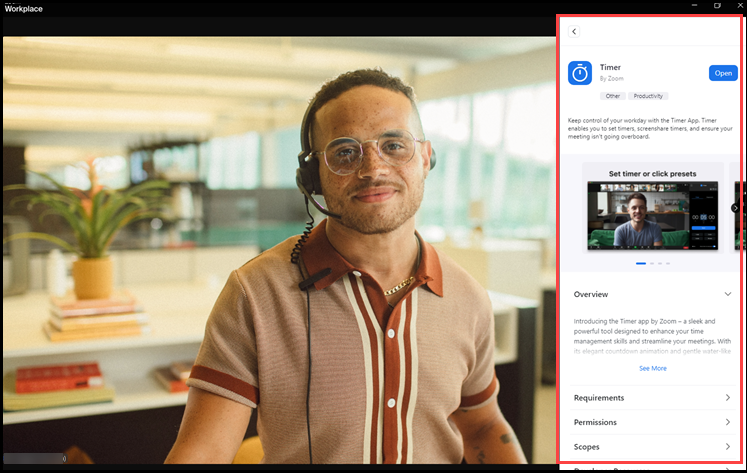
The Zoom desktop client displays the meeting panel in the center and the app in the side panel.
In this simple example, we are showing the Zoom Timer app.
Open your app outside of a meeting
To open your app in the Zoom desktop client outside of a meeting, use this pattern:
https://marketplace.zoom.us/zoomapp/APP\_CLIENT\_ID/context/panel/target/launch/deeplink
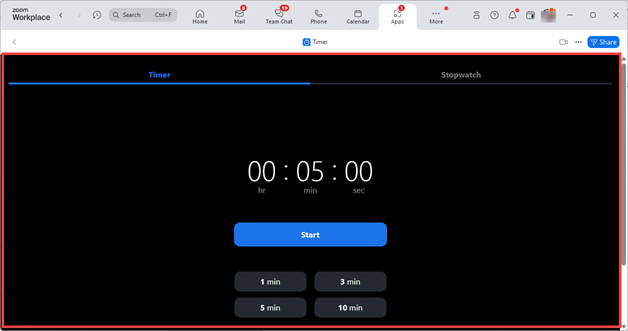
Deep link context: panel Deep link target: launch
The Zoom desktop client displays your app in the center panel.
In this simple example, we are showing the Zoom Timer app.
Open your app's overview page outside of a meeting
To open your app's overview page in the Zoom desktop client outside of a meeting, use this pattern: https://marketplace.zoom.us/zoomapp/APP\_CLIENT\_ID/context/panel/target/detail/deeplink
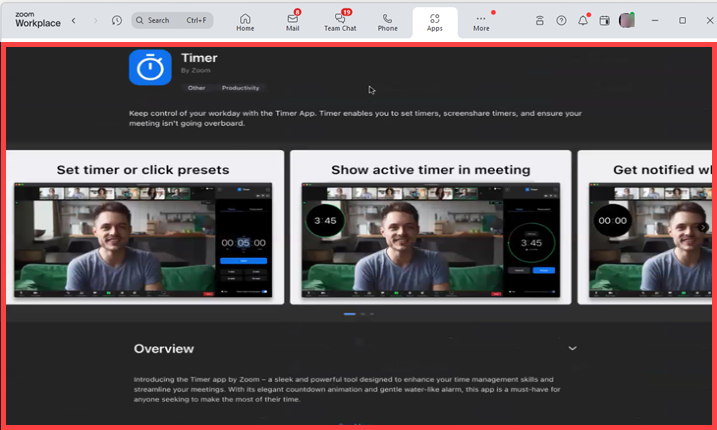
Deep link context: panel Deep link target: detail
The Zoom desktop client displays your app's overview page in the main panel.
In this simple example, we are showing the Zoom Timer app.
Get app client ID
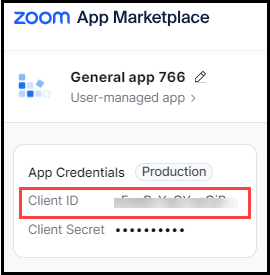
You can get the app client ID from your app's build flow screens.
-
Log into the Zoom Marketplace with the account that owns the app.
-
Go to Manage and select the app.
-
Make sure you select the Production view.

-
You can copy the Client ID from the App Credentials section.