Get started
The Zoom Video SDK for Windows allows you to build custom video meeting applications with access to raw video and audio data, enabling highly-interactive, custom user experiences. Learn more about Video SDK.
See Video SDK Plans & Pricing for Developer for pricing.
Build the sample app to quickly understand the capabilities of the Video SDK. To run the sample app, you must have:
- Visual Studio 2019 or later
- Windows Desktop Application: "Desktop development with C++" workload
- Windows version 10 or above
- Valid SDK Credentials
Authenticate
You will need a Native SDK Key and Secret to generate a JSON Web Token (JWT) that your application will pass into the Video SDK. For details, see Video SDK Authentication.
For security reasons, these credentials should not be stored in the application itself. You should generate this where you can securely store your Video SDK credentials, such as through a backend (server-side) function.
Build and run
Download the SDK package and open the project in Visual Studio.
-
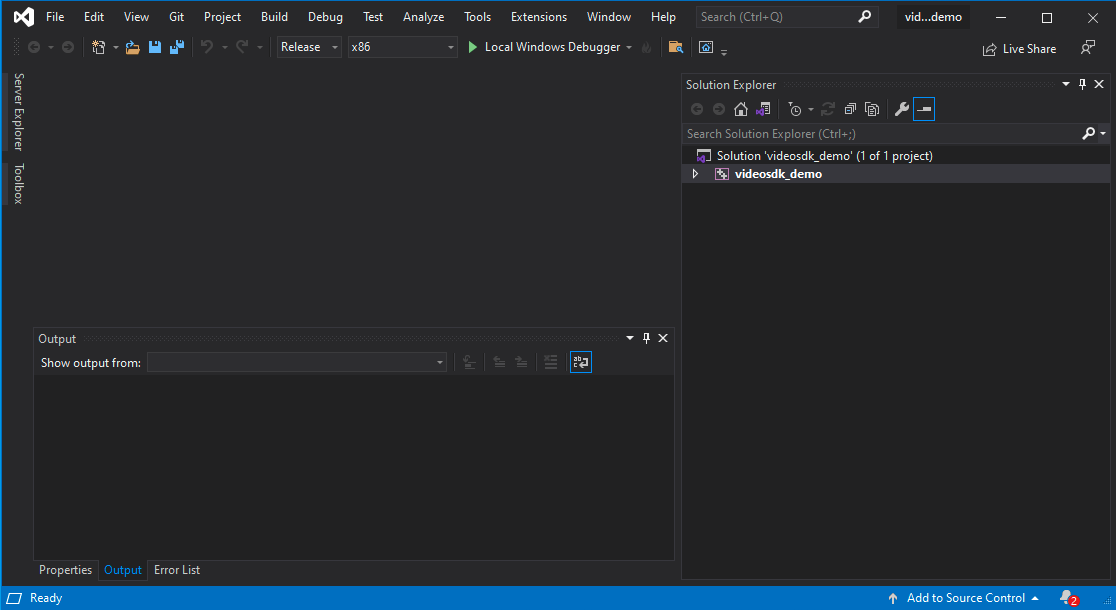
Once you have the demo project loaded in Visual Studio, look for the big green triangle named Local Windows Debugger in the upper middle area. Before you press the button, change the two options on the left to the following:
- Change Solution Configuration to Release and solution Platforms to x86 or x64.
Once everything is set, press the button "Local Windows Debugger" to build and launch the demo application.
-
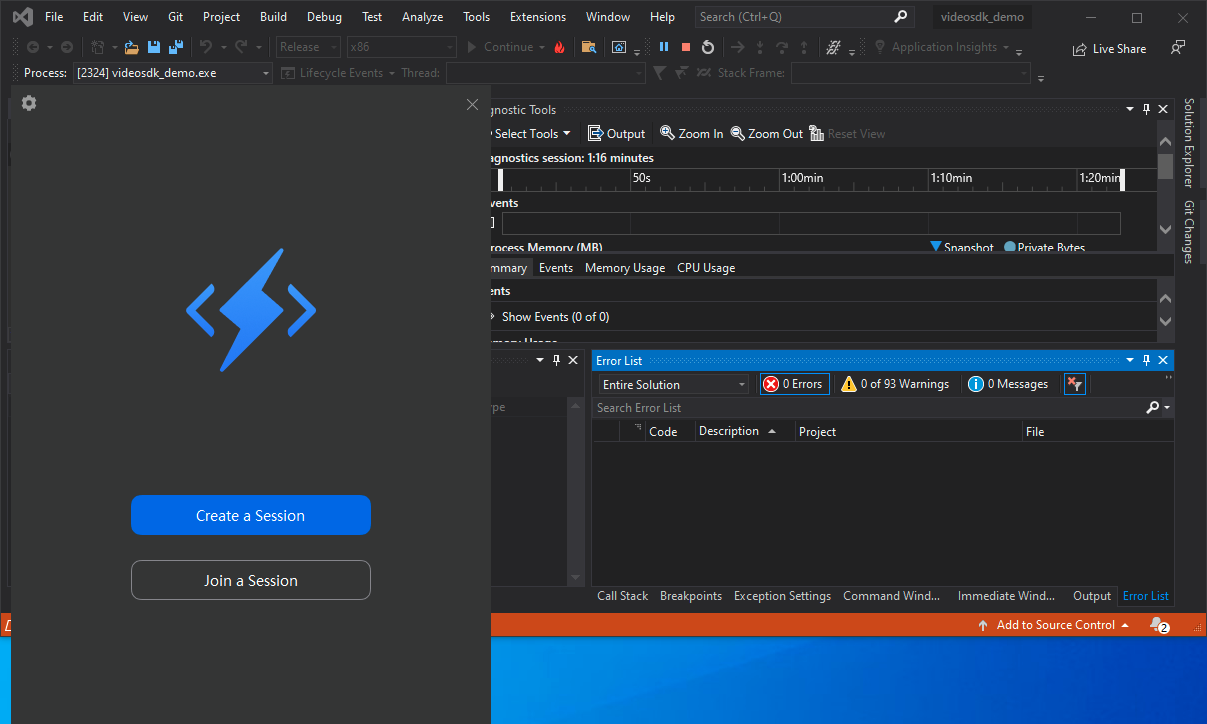
Once the demo application has been built, the first screen will prompt you to create a session or join a session. For this example, we will join a session.
-
The next screen will prompt you to enter your SDK JWT token:
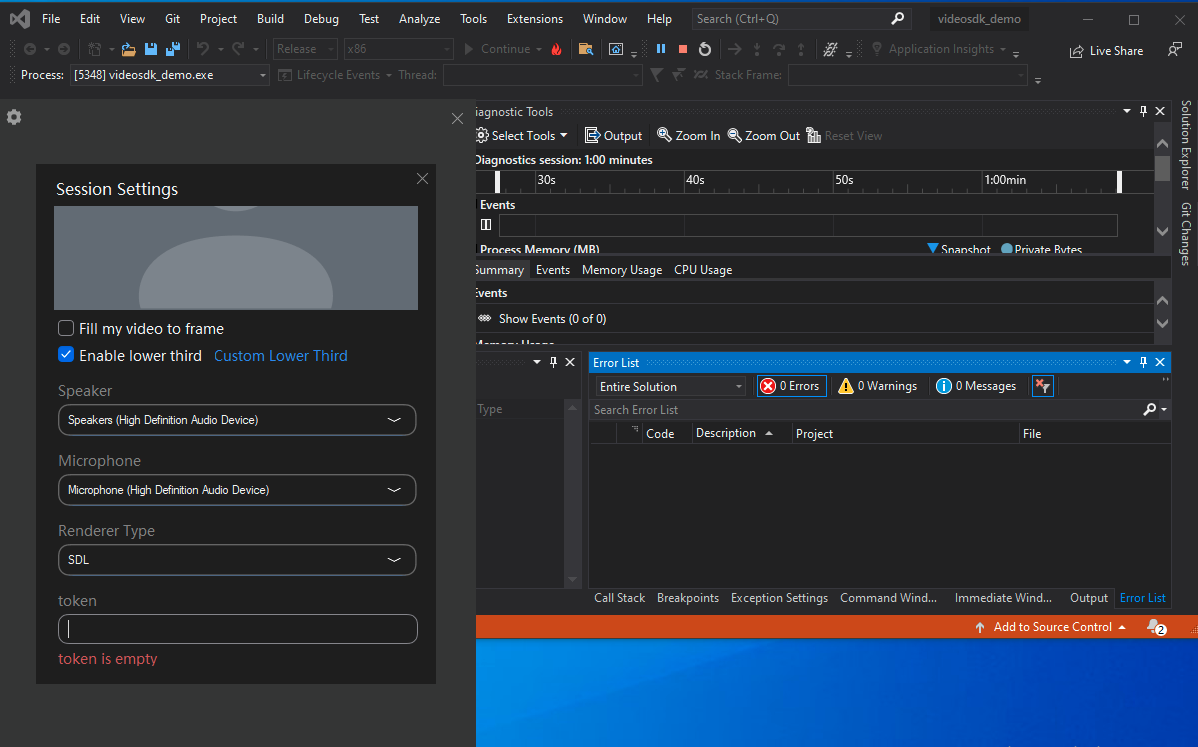
Then, you will need to authenticate the SDK with an encrypted SDK JSON Web Token (JWT) to start and join a Zoom Video SDK session. Use the SDK key and secret credentials from step 1 to generate the SDK JWT token.
The Header includes the specification of the signing algorithm and the type of token.
Header:
{
    "alg": "HS256",
    "typ": "JWT"
}
The payload of a JWT contains the claims of the token or the pieces of information being passed about the user and any metadata required.
Payload:
{
    "app_key": SDK_KEY,
    "version": 1,
    "role_type": 1,
    "user_key": "example.video.sdk@gmail.com",
    "session_key": "Session key",
    "iat": epoch_time,
    "exp": epoch_time_48hours_later,
    "tpc": sessionName
}
Example SDK JWT:
<JWT_TOKEN> -
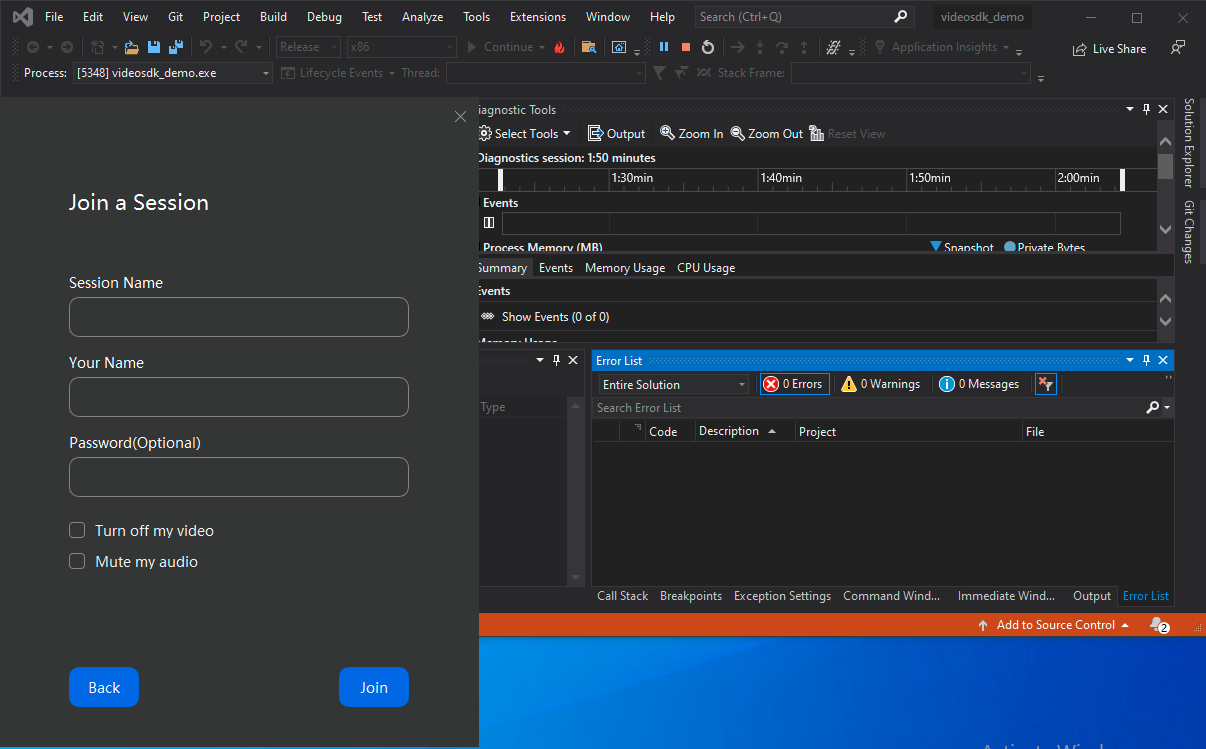
In the following screen, you will be asked to enter your Session Name, Name, and Password (optional).
-
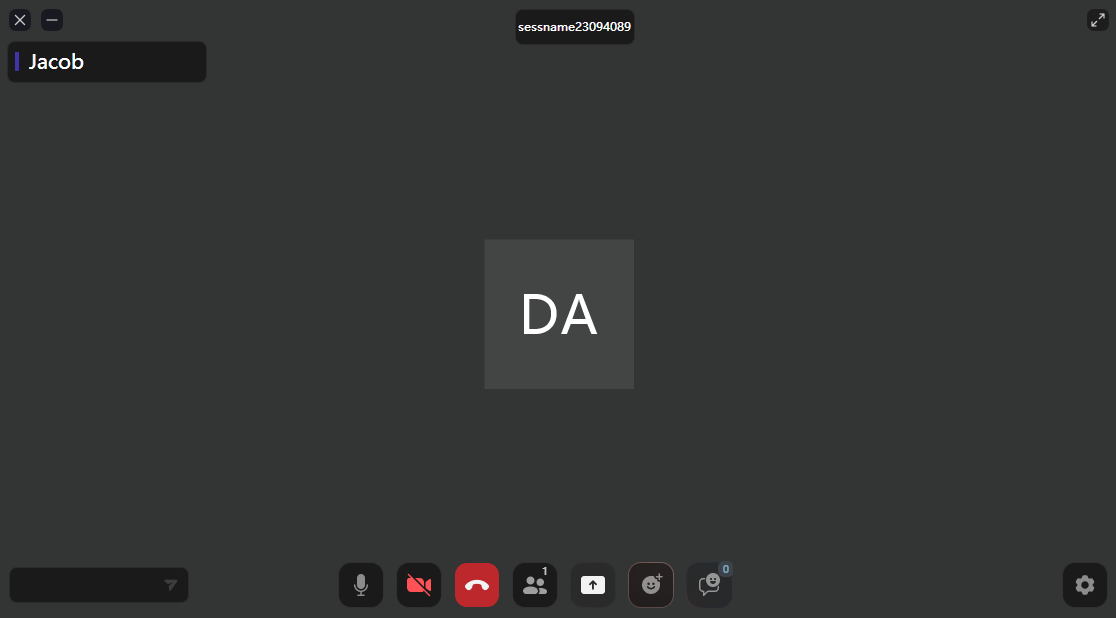
When the join button is pressed, the SDK will attempt to join the session. The session window will then be presented.
Integrate and add features
Now that you've gotten a feel for the Video SDK by running the sample, you can integrate it into your own app.
As part of the integration, you will need to Initialize the SDK. After initialization, you will have access to implement Video SDK features in your app, such as:
- listening for callbacks
- creating, joining, and leaving sessions
- rendering a user's video
- managing audio
- sending and receiving chat messages
See the Integrate for next steps and the guides under Add features for more.