Integrate Zoom Scheduler with your site
Use Zoom Scheduler to embed a booking page or routing form directly into your website with an iframe. This approach gives your visitors a seamless scheduling experience.
To capture submission data in real time, set an origin and use the postMessage API. This setup lets Scheduler send booking and form data securely to your site.
This guide shows you how to:
- Configure origin and postMessage.
- Embed a booking page or routing form.
- Receive and process submission data in real time.
Set up origin and postMessage
Origin defines the source (protocol, domain, and port) that your website allows to communicate with it. When you specify a valid origin (for example, booking.mycompany.com), you control which embedded iframes can send data to your site.
postMessage is a browser API that enables secure cross-origin communication between windows or iframes. Zoom Scheduler uses postMessage to send real-time notifications when a user submits a booking or routing form inside the embedded iframe.
Set a valid origin to start receiving submission data securely. For more information on how to use postMessage, see Window: postMessage() method.
Enable your domain to embed a booking page
To embed a booking page or routing form to your website:
- Choose Share on the booking page or routing form.
- Choose Add to Website.
- Scroll to Customize the look of your booking page.
- In Origin, enter your website domain (for example: booking.mycompany.com).
- Copy the generated iframe code and paste it into your website's HTML.
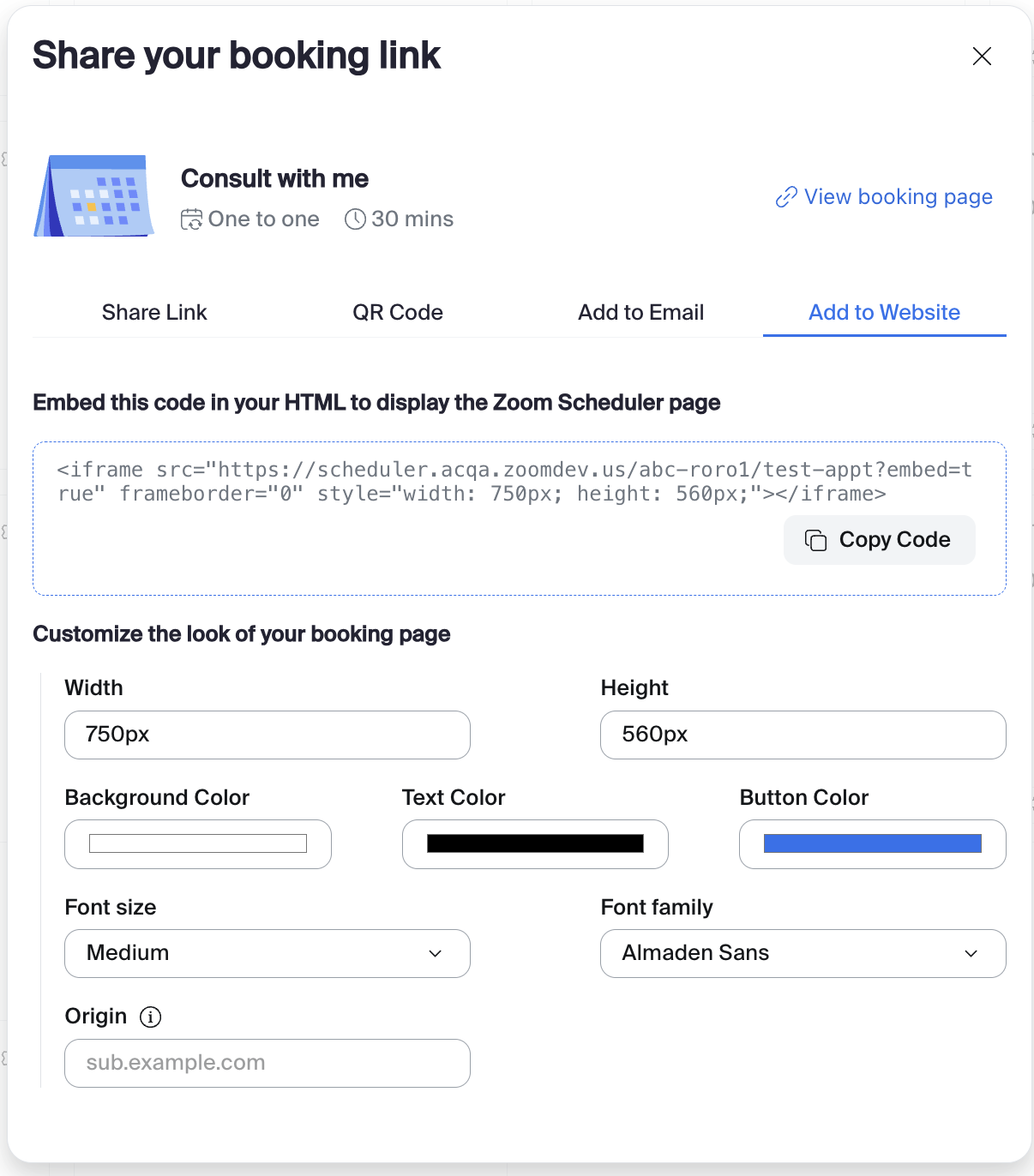
The iframe only accepts messages from the specified origin that matches its domain.
Send a Scheduler postMessage payload
The Scheduler sends postMessage events to the parent window when users submit forms. These messages include key IDs you can use to fetch additional details from the Scheduler API. The two main message types are as follows:
- Booking form submissions – triggers when a user schedules an event.
- Routing form submissions – triggers when a user completes a routing form.
Each message contains a type and a payload object with IDs for retrieving event, attendee, or form response data. Use these IDs with the Scheduler API endpoints to access detailed information.
Booking form submission
window.parent.postMessage(
    {
        type: "bookingForm",
        payload: {
            scheduledEventId: "eventId123", // Use this ID to fetch event details
            attendeeId: "attendeeId123", // Use this ID to fetch event details
        },
    },
    origin, // e.g., 'https://booking.mycompany.com'
);
You receive scheduledEventId and attendeeId. You can use these IDs to retrieve event and attendee details from the Scheduler API GET Scheduled Event Attendee: GET /scheduler/events/{eventId}/attendees/{attendeeId}. For more information, see Scheduler APIs.
Routing form submission
window.parent.postMessage(
    {
        type: "routingFormSubmitted",
        payload: {
            routingFormId: "myForm123",
            responseId: "myResponse123", // Use this ID to fetch routing form responses
        },
    },
    origin, // e.g., 'https://booking.mycompany.com'
);
You receive routingFormId and responseId. You can use these IDs to fetch the booker's responses through GET Routing Response: GET/scheduler/routing/forms/{formId}/response/{responseId}. For more information, see Scheduler APIs.
Receive and handle messages on your website
Once Zoom Scheduler sends data to your site, set up an event listener to catch it. Check the postMessage event, validate the origin, and then process the data.
Here's a basic example that listens for messages, checks the origin, and processes the data.
window.addEventListener("message", (event) => {
    // Note: if your admin has enabled vanity urls for your account, your event.origin may
    //  look like https://mycompany.zoom.us instead
    if (event.origin !== "https://scheduler.zoom.us") return;
    const { type, payload } = event.data;
    if (type === "bookingForm") {
        console.log("Booking submitted:", payload.scheduledEventId);
        console.log("Attendee:", payload.attendeeId);
        // Make API call to fetch event details
    }
    if (type === "routingFormSubmitted") {
        console.log("Routing form submitted:", payload);
        // Make API call to fetch routing form response
    }
});
Always validate the
event.originto ensure the message originates from a trusted source.