Working with streams
Each Realtime Media Streams (RTMS) stream follows a predictable flow that starts with at least one session being started; continues while your app connects to the required servers, receives stream data, and maintains connection; and ends when the stream ends. A stream can have multiple sessions happening within it, each session typically corresponds to an individual user.
Sessions can exist in the following states:
| State | |
|---|---|
| INACTIVE | Default state. The session is not active yet. |
| INITIALIZE | The session is initializing. |
| STARTED | The session has started. |
| PAUSED | The session has been paused either by the user or the host. |
| RESUMED | The paused session has been resumed. |
| STOPPED | The session is being stopped by the user, host, or the session ending. |
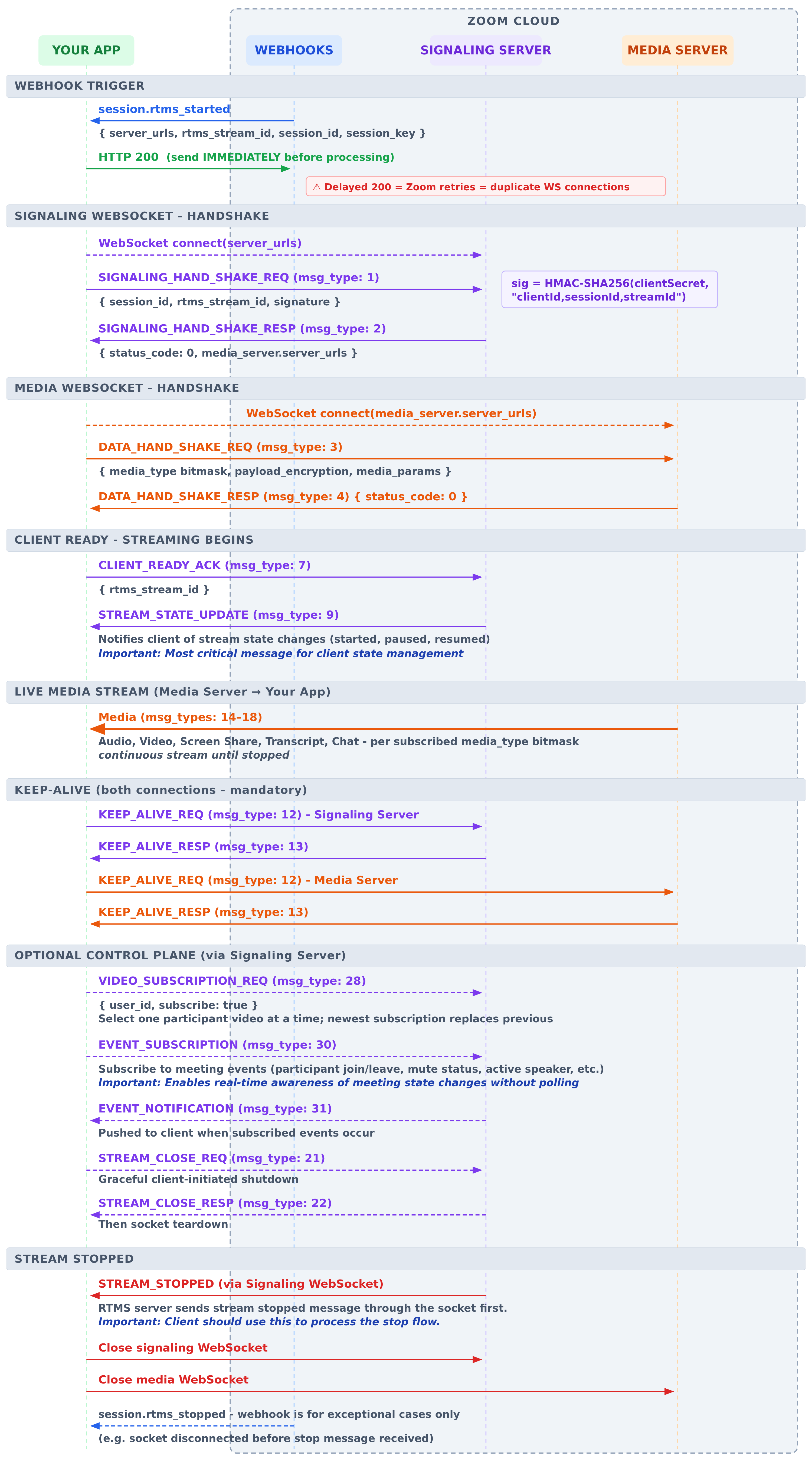
This diagram outlines the lifecycle of an RTMS stream during a session.
Prerequisites
To process RTMS data, you need to add RTMS features to your app. Your app needs the appropriate event subscriptions, scopes, and, optionally, the JavaScript SDK or REST APIs for starting and managing sessions. For more information, see Add RTMS features to your app.
Once your app is configured, RTMS sessions will follow these steps:
Step 1: RTMS is started
You can start the RTMS stream in-app using the ZoomVideoSDK object. For more information, see Use ZoomVideoSDK with your app.
Note
Your account has a concurrent stream limit based on your Zoom Build Platform subscription. Each RTMS session ID counts as one concurrent stream. For more information, see Concurrent stream limits.
Step 2: App receives streaming notification
Zoom sends session.rtms_started webhook events when RTMS streaming starts. You can then use the information in the event to establish a signaling connection in the next step.
To receive notifications when new streams are available, create an HTTP POST handler in your web app. This handler acts as the endpoint for incoming webhook events. In your app settings, provide the URL of this endpoint.
After you receive an event, verify the event's signature to ensure it's from a trusted source.
Step 3: App establishes signaling connection
Establishing a signal connection to an RTMS server enables your app to establish and manage a WebSocket connection with the RTMS server. It begins with a signed handshake and includes messages for session readiness, state updates, and stream control.
The signal connection provides lifecycle updates for the media connection, such as when it starts, stops, or encounters an event.
When you have the connection details and know a stream is available, you can start the connection to the signaling server.
-
Run the following command to create a signature that your app will use to securely connect to the RTMS server; replacing
client_idandsecretwith your app's Client ID and Client Secret, andsession_idandrtms_stream_idwith the session_id and rtms_stream_id from the streaming notification event.HMACSHA256(client_id + "," + session_id + "," + rtms_stream_id, secret); -
Your app sends a signaling handshake request with the
session_idandrtms_stream_idfrom the streaming notification event and the signature you just created. If the handshake is successful, your app will receive a signaling handshake response confirming the connection and containing the media server locations.If the handshake fails, the server responds with a
SIGNALING_HAND_SHAKE_RESPmessage containing a status code and reason. -
(Optional) Your app can Subscribe to events for participant changes and active speaker updates.
Once your app has successfully established a signaling connection, it can now establish a media connection.
Step 4: App establishes the media connection
Use one of the URLs list in media_server.server_urls in the signaling handshake response
to establish a media WebSocket connection.
Use integers for message and event types
For data type definitions, use the representative enum integers.
Example: Send
msg_type: 1✓ notmsg_type: SIGNALING_HAND_SHAKE_REQ✗
-
Your app sends a media handshake request with the
session_idandrtms_stream_idfrom the streaming notification and the signature you created in Step 3 above. If the handshake is successful, your app will receive a media handshake response confirming the connection and containing information about the available media.If the handshake fails, the server responds with a
SIGNALING_HAND_SHAKE_RESPmessage containing a status code and reason. -
Your app sends a client ready ACK message to the RTMS server media connection to indicate readiness to receive media.
Now that the connection is made, your app can receive media data.
Step 5: App receives media data
Once the connection is established, your app receives continuous streams of:
- Audio data from session participants
- Transcript data from spoken audio
- In-session events for participant changes and active speaker updates
For more information about working with media data, see Handling media data.
Step 6: App maintains connections
Throughout the session, your app must:
- Respond to keep-alive requests to maintain stable connections (sent every 10 seconds when no data is flowing)
- Monitor session state updates for pauses, resumes, or interruptions
- Handle stream state changes for connection issues or termination
Connection maintenance is critical: If your app fails to respond to three consecutive keep-alive requests (sent every 10 seconds during idle periods), the RTMS server will terminate the connection.
If a connection has been interrupted, see Failover and reconnection for more information on reestablishing the connection.
Step 7: Stream ends
The RTMS stream ends when:
- The session concludes
- The user manually stops streaming
- The host disables RTMS
- Connection issues cause termination
- App users leave the session
Your app receives a session.rtms_stopped notification indicating the stream has ended.