The Plugin SDK for Windows includes a demo application called PSDKTest.exe.
Before running the demo app, install Zoom Workplace and login. You also need an OAuth 2.0 access token for authentication.
Build and run the demo app
- Open
demo/windows/PSDKTest/PSDKTest.slnin Visual Studio 2019 or later. - Set the build configuration to Release and the platform to x64.
- Build the PSDKTest project, or build the full solution.
- After the build succeeds, run
PSDKTest.exefrom the build output folder. By default, the project writes binaries todemo/windows/PSDKTest/bin/. - In the app UI, select InitZMToolSuite and fill in the Token field and, if required by your deployment, the Domain.
- Start or join meetings from the PreMeeting tab.
- To start a meeting - enter the Meeting ID in the StartMeeting section, then select StartMeeting.
- To join a meeting - enter the Meeting ID, a display name, and a passcode if required in the JoinMeeting section, then select JoinMeeting.
- Use the other tabs to validate additional features.
- Before closing the app, select UninitZMToolSuite.
Play with the demo app
This demo is a functional test app for the PluginDevice SDK proxy interfaces. After entering the token or domain and initializing, you can interact with major meeting toolkits and see callback results in real time.
After launching your demo app, enter your access token and domain https://zoom.us, then select
InitSDK to establish an IPC connection with Zoom Workplace. Once the connection is
established, control Zoom Workplace through various API calls, such as starting a meeting.
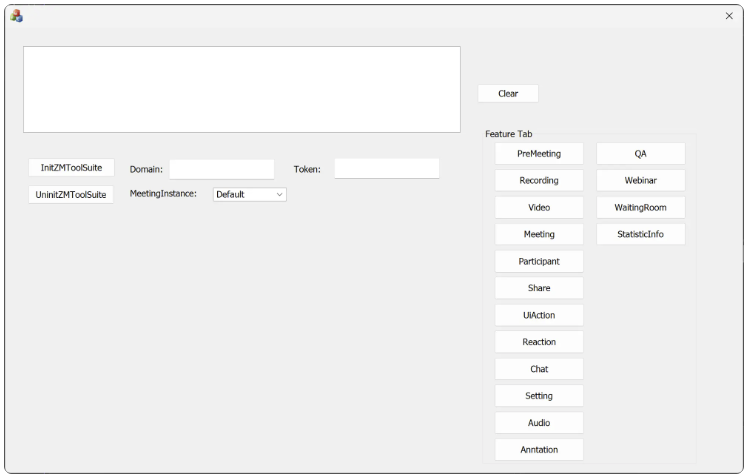
- Initialize and connect - Fill Token and Domain, select InitZMToolSuite. Observe auth or IPC connection status and callback logs.
- Pre-meeting actions - StartMeeting with meeting number, and JoinMeeting with meeting number, display name, and passcode.
- In-meeting controls - Meeting state related operations like status or listener verification; participant-related actions and status updates.
- Media controls - Video and audio operation testing, like on or off, or mute or unmute-related flows.
- Share capabilities - Start or share different content types like monitor, app, audio, or other share flows exposed by the SDK.
- Chat and reactions - Chat-related operations and unread/chat-window state callbacks; emoji or reaction-related callbacks.
- Recording - Local or cloud recording capability checks and start actions.
- UI, annotation, and settings test panels - UI action APIs, annotation APIs, and settings APIs exposed in separate tabs.
- Live callback and log verification - Every action writes direct-call result and async callback result to the output list, so customers can validate API behavior immediately.