After an account owner or admin purchases and assigns licenses to enable Zoom Phone and SMS, you can start building apps that integrate with Zoom Phone. These apps can access Zoom Phone data through the API to enable automation, reporting, and custom workflows.
Prerequisites
Before you create an Zoom Phone app, you should:
-
Read Before you start.
-
Have a Zoom account.
-
Be a Zoom account owner, admin, or have a Zoom for developers role.
To enable the Zoom for developers role, admins must:
- Log in to the Zoom web portal as admin.
- Go to User Management - Roles - Role Settings - Advanced features.
- Select the View and Edit checkboxes for Zoom for developers.
For more information, see Using role management .
Process
- Log in to Zoom Marketplace and choose to build a general (OAuth) app.
- Enter or update basic app information, such as the app name, access type, and OAuth.
- Choose the Zoom products and features to work with your app.
- Choose the Zoom API methods (scopes) the app uses to interact with the Zoom platform.
- Test and publish your app.
Step 1: Build a general app
-
Sign in to your developer account on the Zoom App Marketplace .
-
Select the Developers link in the lower left corner to open the Created Apps page. If you don't see the Created Apps page, verify that you have the correct permissions.
-
On the Created apps page, in the upper left corner, next to Developer, select the plus sign in the blue circle, and then select Build an app.
-
On the app creation screen, select General app and click Create.
Step 2: Add basic information
On the Basic information page, you can add or update your app's details, including its name, management options, credentials, and OAuth configuration.
-
Update your app's name. By default, the build flow generates a generic name for your app.
-
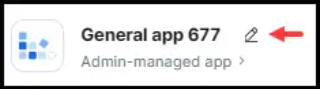
To change your app's name, select the edit icon (pencil) and update the name.
-
To save your changes, click anywhere outside of the app name field.
-
-
Confirm how you want your app to be managed. In Select how the app is managed, you can select:
-
Admin-managed
Account admins add and manage the app. Depending on the scope, the app can access and manage user data on their account.
-
User-managed
Individual users add and manage the app. The app has access to only the user's authorized data.
-
-
Create your app credentials.
In App Credentials, the build flow automatically generates app credentials (client ID and client secret) for your app. App credentials for development differ from app credentials for production.
- Use development credentials while you are building and testing your app.
- Use production credentials when you are ready to publish your app on the Marketplace.
-
Set up OAuth for your app.
In the OAuth Information, add the following information:
- OAuth redirect URL (Required): Enter your development redirect URL or endpoint to set up OAuth between your app and Zoom.
- Use Strict Mode URL (Optional): Allow only the redirects that exactly match the valid OAuth redirect URLs.
- Subdomain check (Optional): Only allow the redirects that exactly match the subdomain of the valid OAuth redirect URLs.
- OAuth allow lists (Required): Add any unique URLs that Zoom should allow as valid redirects for your OAuth flows. This additional security measure ensures that users are only redirected to the pre-approved endpoints you provided. Include either the complete URL (https://subdomain.domain.tld/path/to/oauth/callback ) or the base URL without the path and/or query parameters (https://subdomain.domain.tld ).
Step 3: Choose Zoom products and features
Features enables you to select the Zoom products and features you want to use for your app. You make these selections in: Access, Surface, and Embed.
Access
In Access, you can:
- Regenerate or copy the Secret Token and the Verification Token.
- Subscribe to events and Webhook notifications.
Surface
In Surface, you can select where you want to use your app and add in-client app features.
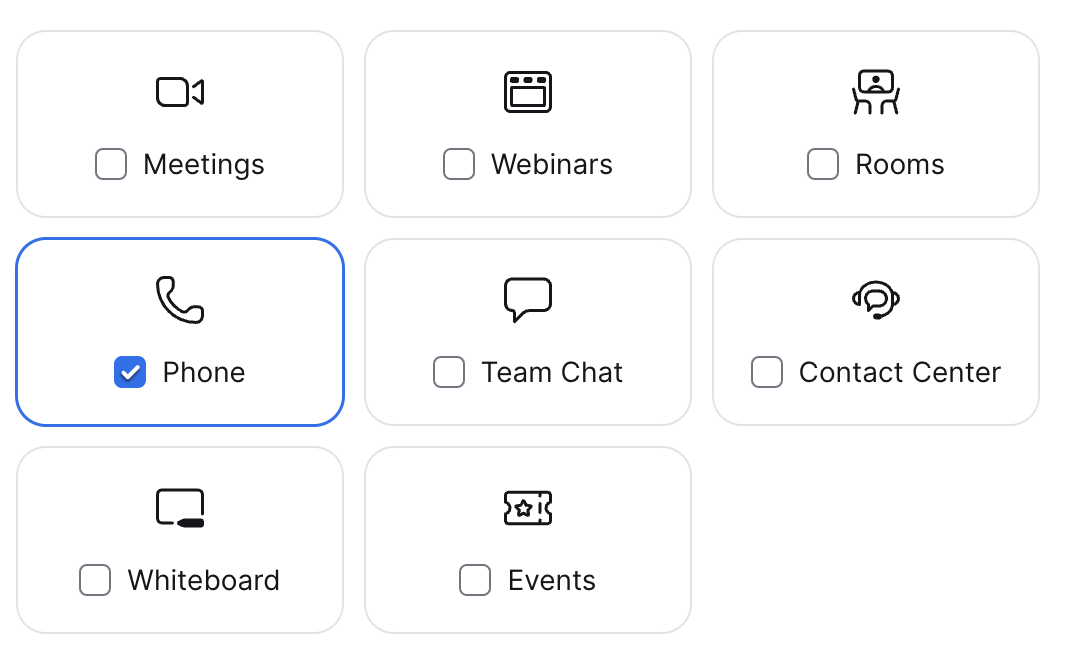
Select where to use your app
-
Choose where you want to use your app.
-
Provide the following URLs:
- An URL for the app home page
- URLs for the domain allow list
In-client App features
Choose the APIs and events you want to use and configure your Zoom Client support.
- Zoom App SDK
- You can select the APIs and events you want to add.
- In-Client OAuth
- Users can get authorization in the Zoom Client without opening the system browser.
- Zoom Client Support
- Users can access your app from:
- Zoom client for iOS, iPadOS, and Android
- Zoom Room clients
- Users can access your app from:
Embed
You can embed SDKs for Meeting, Contact Center, and Phone. For example, when you choose the Phone SDK, you can optionally add your app's FCM key, copy the App ID, view release notes, and download the SDK.
Step 4: Add scopes (API methods)
Scopes enable you to determine the API methods the app can call.
In Add Scopes, choose the Add Scopes icon.
In the Add Scopes module, choose Phone to display the available scope categories. You can open each category to specify the scope you want. The categories include:
- View all users' phone information
- View and manage your phone information
- View your call recording information
- View your phone information
Choose Done when you complete your selections.
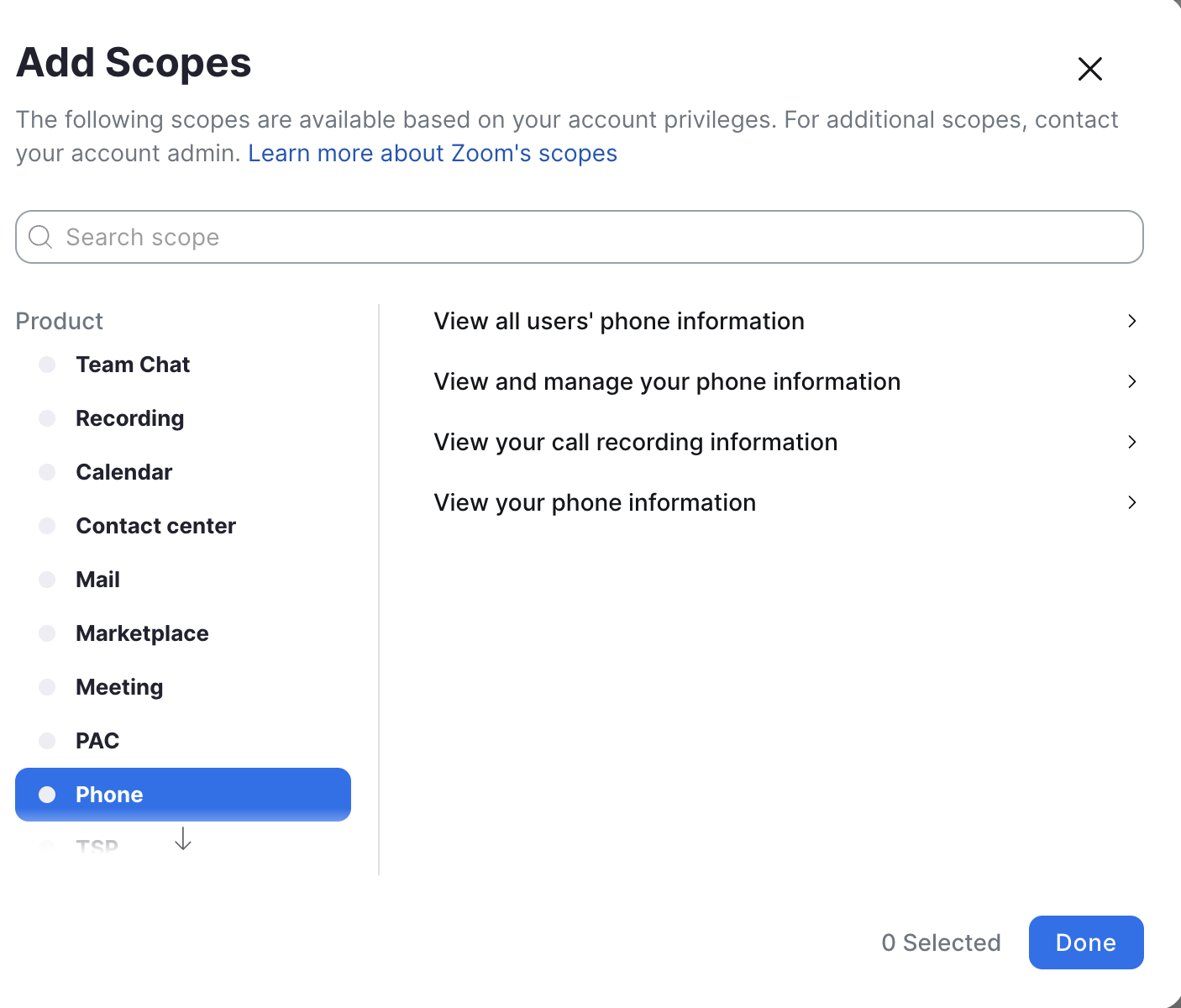
After completing your selections, you can see a list of them on the Add Scopes page.
Step 5: Test and preview your app
- On the Local Test page, add and preview your app. Then share it with internal users.
- To add the app for your own account, select Add App Now and then Allow.
- To see a summary of your app's details and a preview of your app's listing page on the Zoom App Marketplace, select Preview Your App Listing Page.
To share your app with other users on your account, go to the Authorization URL section, and select Generate and then Copy.
Step 6: Publish your app
App Submission
After you submit your app, Zoom performs a functional and security review. After a successful review, your app is ready to publish.