Explore the Meeting SDK for iOS by learning how to build a simple meeting app to join and start a meeting.
-
Join a meeting - A user with a Zoom meeting ID and meeting passcode can join a meeting anonymously without having to log into the app.
-
Start a meeting - A meeting host can start the meeting after logging into the app with their Zoom account credentials.
Find an existing sample application with these features in your Meeting SDK download from our Marketplace.
Prerequisites
- Xcode
- An iOS device (iOS 11 or later)
- Client ID and Client Secret, obtained by creating an SDK app.
Learn how to create an iOS project and integrate the Meeting SDK for iOS into the project.
Create a new iOS project
- Open Xcode and select Create a new Xcode project.
- Choose Single View App as the template and select Next.
- Fill out the relevant project information such as the project name, team and organization name.
- Choose Storyboard in the User Interface field, choose a programming language, and select Next.
- Specify the storage path for the project, and select Create.
- Finally, connect your iOS device to your computer.
Import the Zoom SDK libraries
If you have not already downloaded the Zoom Client iOS SDK, download the SDK from the Zoom Marketplace.
To build with this version of the SDK in Xcode 13 or later, validate your workspace by navigating to Build Settings and setting Validate Workspace to YES.
The downloaded package includes SDK libraries and sample apps. The SDK libraries are in the lib folders located inside the zoom-sdk-ios-master folder. Navigate to the downloaded SDK package, and select MobileRTC.framework and MobileRTCResources.bundle.
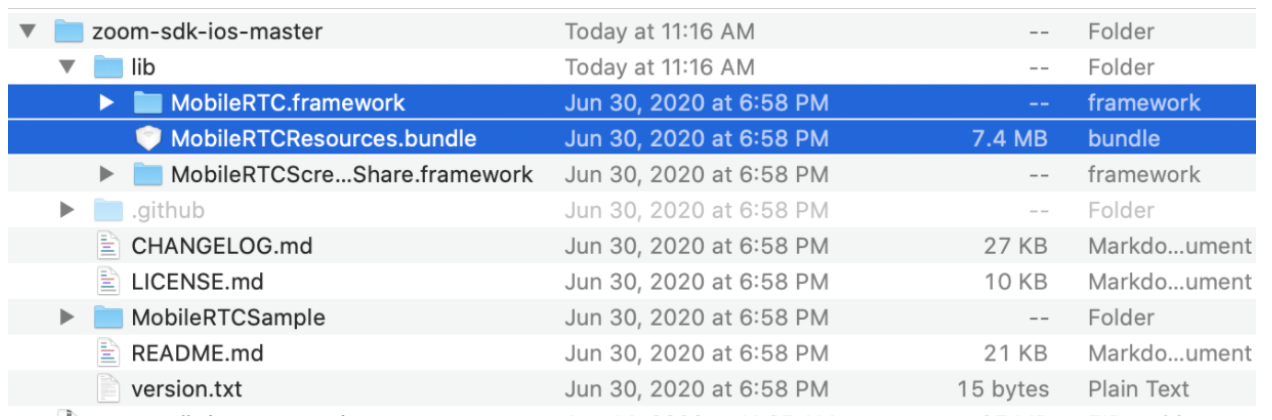
Next, copy the selected files into your Xcode project file.
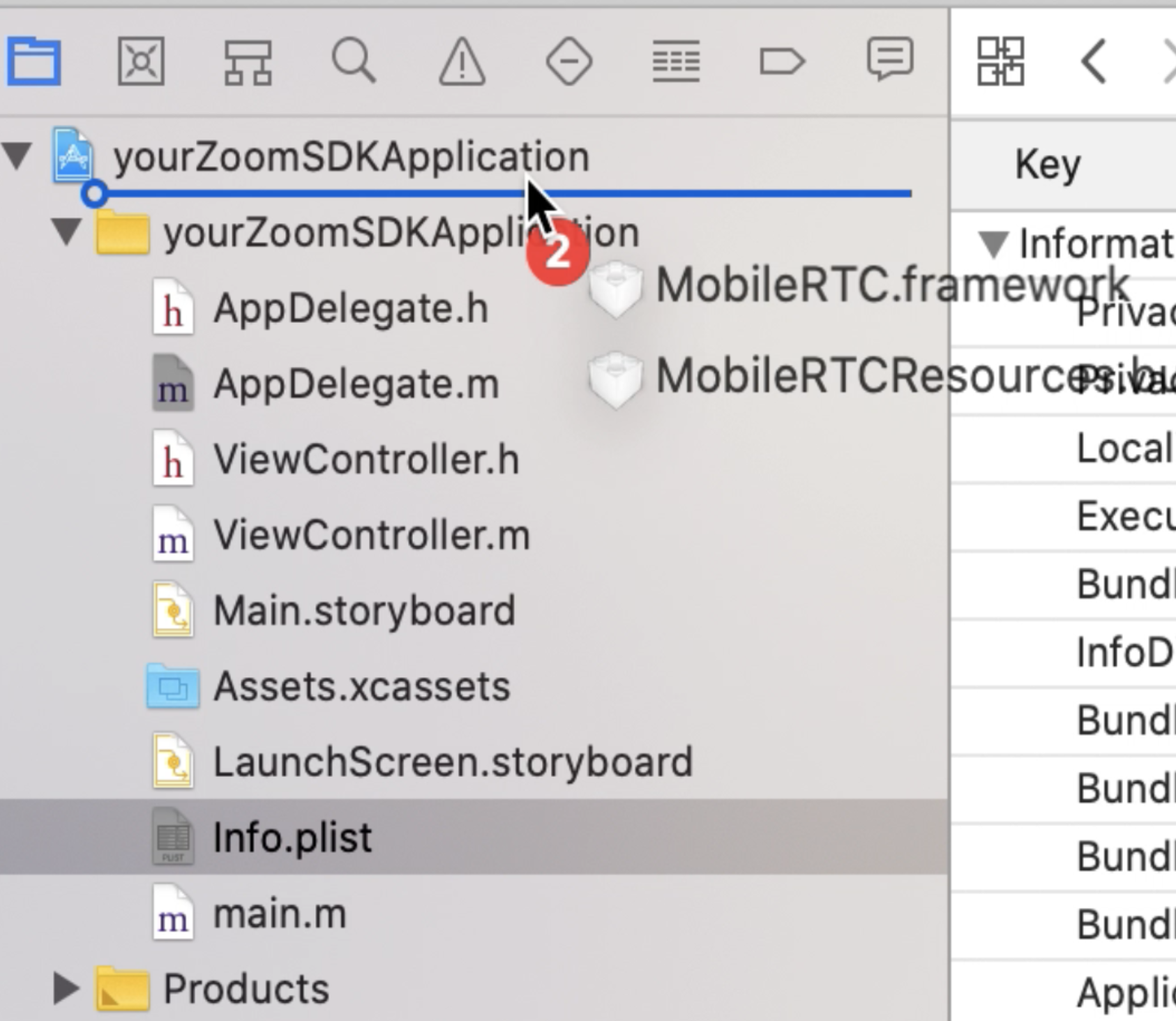
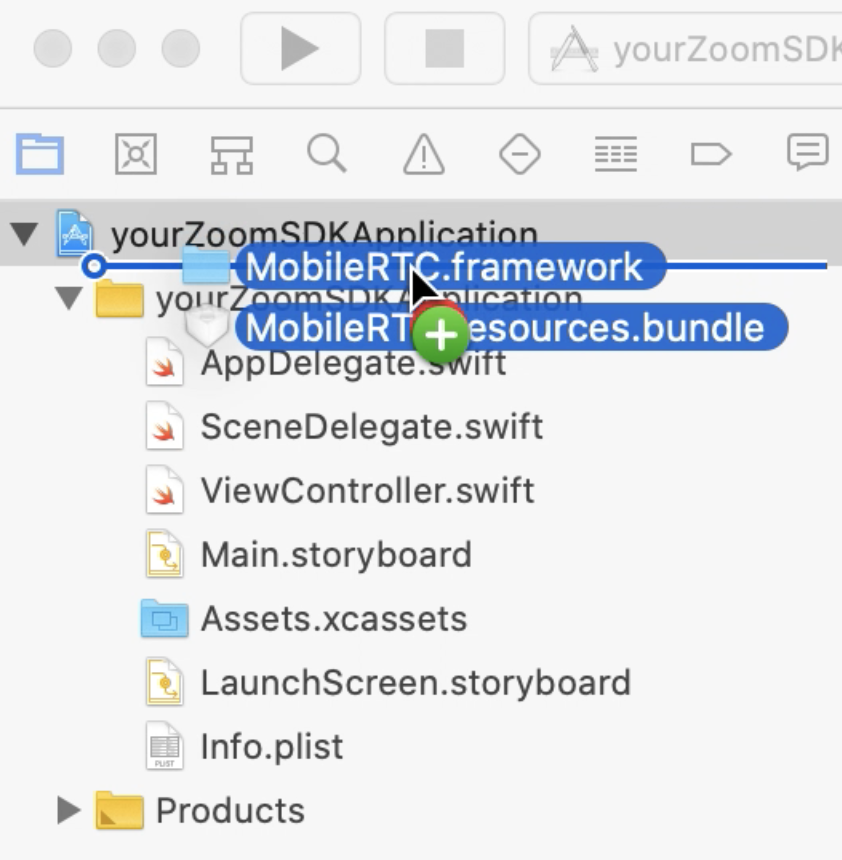
In the next screen, select Copy items if needed and Create folder references options and click Finish.
Next, embed and sign the framework by navigating to the Project file > Targets: > General > Frameworks, Libraries, and Embedded Content and setting the Embed attribute to Embed & Sign instead of Do Not Embed.
Change project configurations for SDK compatibility
If you built your project using Xcode version 11 or later, you may notice SceneDelegates being added to your project by default.
SceneDelegates are not compatible with the current version of the Zoom SDK. Thus, you must remove them from the iOS project. To do so, navigate to info.plist > Application Scene Manifest and delete it.
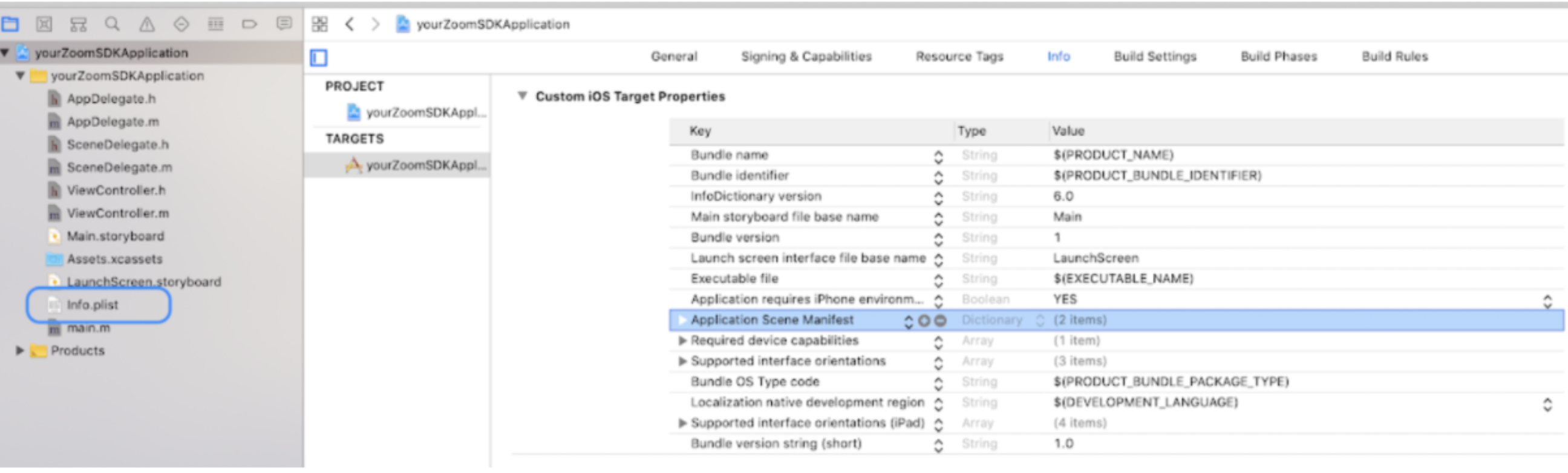
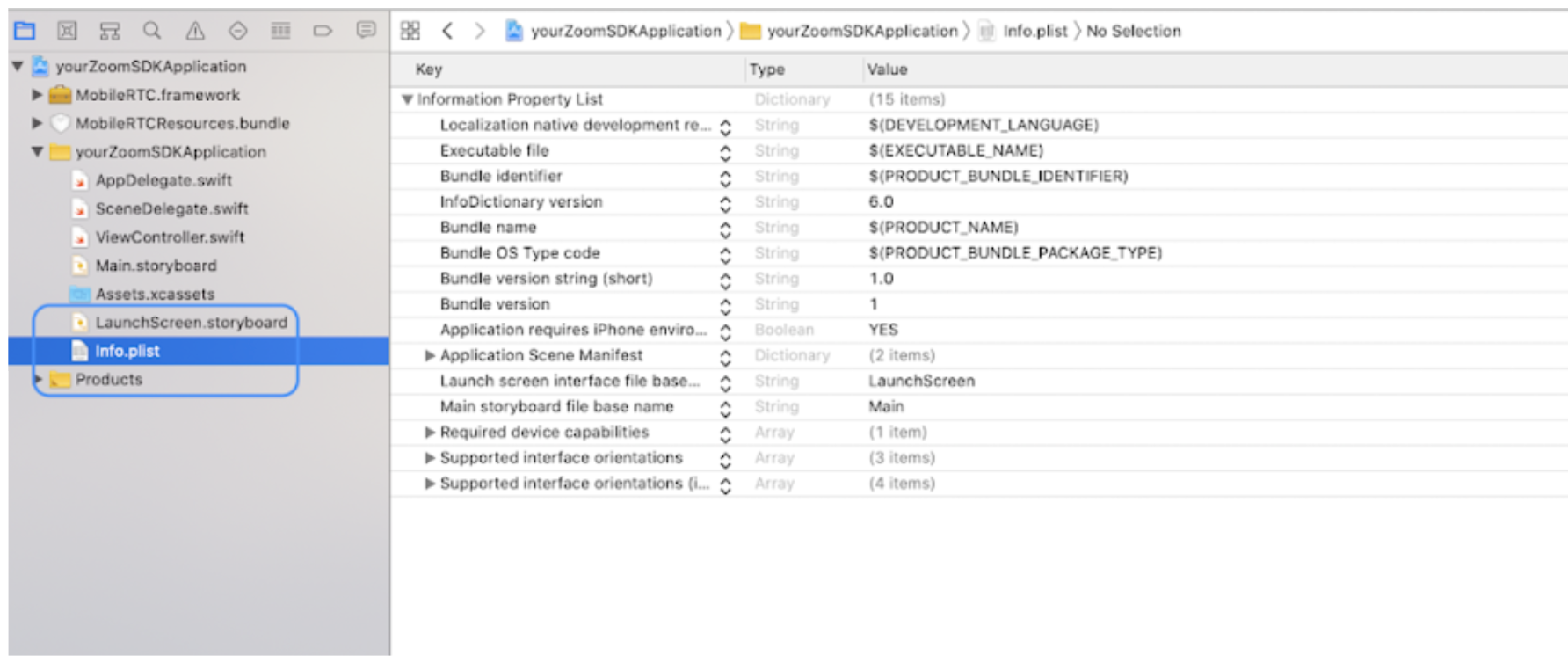
Next, delete the SceneDelegate files from the project navigator.
If you are using Objective-C for your project, delete SceneDelegate.m and SceneDelegate.h files from the project navigator. If you are using Swift, delete the SceneDelegate.swift file.
Lastly, navigate to AppDelegate file in the project navigator and remove the following UISceneSession code if it is present in the file.
// If you are using Objective-C, delete the following lines of code from your AppDelegate.m file.
#pragma mark - UISceneSession lifecycle
- (UISceneConfiguration *)application:(UIApplication *)application configurationForConnectingSceneSession:(UISceneSession *)connectingSceneSession options:(UISceneConnectionOptions *)options {
    return [[UISceneConfiguration alloc] initWithName:@"Default Configuration" sessionRole:connectingSceneSession.role];
}
- (void)application:(UIApplication *)application didDiscardSceneSessions:(NSSet<UISceneSession *> *) sceneSessions {
}
// If you are using Swift, delete the following lines of code from your AppDelegate.swift file.
// MARK: UISceneSession Lifecycle
func application(_ application: UIApplication, configurationForConnecting connectingSceneSession: UISceneSession, options: UIScene.ConnectionOptions) -> UISceneConfiguration {
    // Called when a new scene session is being created.
    // Use this method to select a configuration to create the new scene with.
    return UISceneConfiguration(name: "Default Configuration", sessionRole: connectingSceneSession.role)
}
func application(_ application: UIApplication, didDiscardSceneSessions sceneSessions: Set<UISceneSession>) {
    // Called when the user discards a scene session.
    // If any sessions were discarded while the application was not running, this will be called shortly after application:didFinishLaunchingWithOptions.
    // Use this method to release any resources that were specific to the discarded scenes, as they will not return.
}
The Zoom SDK also does not support Bitcode, and Xcode enables it by default. Navigate to your Xcode project file, select Project > Build Settings and then, search for Enable Bitcode option and set the value of the option to No.
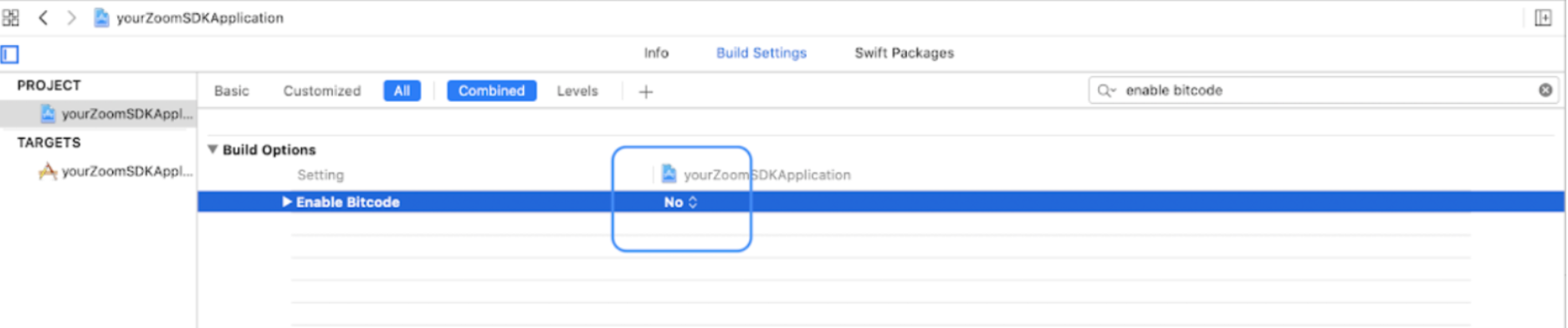
Add project permissions
Add the following permissions in the info.plist file to grant access to camera and microphone, needed for Zoom meetings to run on an iOS device. Navigate to info.plist, click the "+" icon next to Information Property List. Search for and select Privacy - Camera Usage Descriptions.
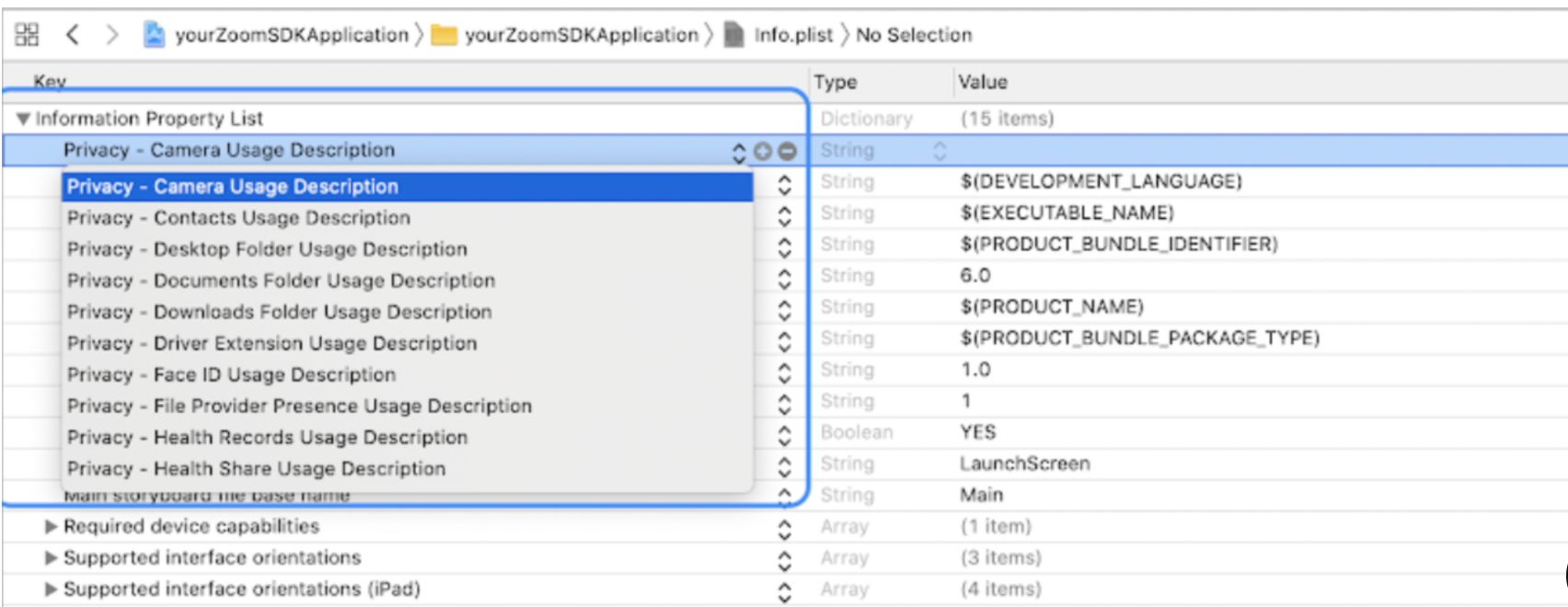
In the value of this field, provide a description to explain why you are requesting camera access, such as "To access the camera for a video meeting". Repeat this step for Privacy - Microphone Usage Description.
Now that the framework is installed and the project is set up, you can start setting up the SDK. The tabs below show instructions for both Objective-C and Swift. Follow the instructions that are relevant to you depending on the programming language that you are using for this project.
Initialize the SDK
Open the AppDelegate.h file. Since you disabled
SceneDelegates earlier, add a UIWindow to the
AppDelegate. Add this line of code to your
AppDelegate.h file.
#import <UIKit/UIKit.h>
@interface AppDelegate : UIResponder <UIApplicationDelegate>
// 1. Add UIWindow
@property (strong, nonatomic) UIWindow *window;
@end
The MobileRTC class exposes a generic interface to allow initialization, authentication,
and configuration of the Meeting SDK. In order to use the Meeting SDK, import the MobileRTC
class and provide your JWT Token for authentication while initializing the SDK.
First, open your AppDelegate.m file and import the SDK
framework by adding this line of code.
#import <MobileRTC/MobileRTC.h>
Next, create a method named setupSDK that handles the initialization
and authentication of the SDK. Add this code to AppDelegate.m.
// Provide JWT Token for authorization of SDK initialization.
- (void)setupSDK:(NSString *)jwtToken {
    MobileRTCSDKInitContext *context = [[MobileRTCSDKInitContext alloc] init];
    context.domain = @"zoom.us";
    context.enableLog = YES;
// Initialize the SDK
    BOOL sdkInitSuc = [[MobileRTC sharedRTC] initialize:context];
    if (sdkInitSuc) {
       // Get Auth Service
        MobileRTCAuthService *authService = [[MobileRTC sharedRTC] getAuthService];
        if (authService) {
       // Set up Auth Service
            authService.jwtToken = jwtToken;
            authService.delegate = self;
        // Call Authentication function to authenticate the SDK
            [authService sdkAuth];
        }
    }
}
Set up a delegate to listen to the SDK authorization updates. First,
import the Meeting SDK library and have the AppDelegate conform to
MobileRTCAuthDelegate by adding this code to AppDelegate.h.
#import <UIKit/UIKit.h>
// 1. Import Meeting SDK library
#import <MobileRTC/MobileRTC.h>
// 2. Declare that AppDelegate conforms to MobileRTCAuthDelegate
@interface AppDelegate : UIResponder <UIApplicationDelegate, MobileRTCAuthDelegate>
// 3. Call setUpSDK method.
-(void)setupSDK:(NSString *)jwtToken;
@property (strong, nonatomic) UIWindow *window;
@end
Next, in AppDelegate.m, set the delegate by declaring
authorizationService.delegate = self and include the delegate
functions to listen for changes in the SDK authorization state.
#import "ViewController.h"
#import <MobileRTC/MobileRTC.h>
@interface AppDelegate()
@end
@implementation AppDelegate
- (void)setupSDK:(NSString *)jwtToken {
    MobileRTCSDKInitContext *context = [[MobileRTCSDKInitContext alloc] init];
    context.domain = @"zoom.us";
    context.enableLog = YES;
    BOOL sdkInitSuc = [[MobileRTC sharedRTC] initialize:context];
    if (sdkInitSuc) {
        MobileRTCAuthService *authService = [[MobileRTC sharedRTC] getAuthService];
                if (authService) {
            authService.jwtToken = jwtToken;
           // Set the authService delegate.
            authService.delegate = self;
            [authService sdkAuth];
        }
    }
}
// Include MobileRTCAuthDelegate methods
#pragma mark - MobileRTCAuthDelegate
/**
* To monitor the status and catch errors that might occur during the authorization process, implement the onMobileRTCAuthReturn method
*/
- (void)onMobileRTCAuthReturn:(MobileRTCAuthError)returnValue {
    switch (returnValue) {
        case MobileRTCAuthError_Success:
            NSLog(@"SDK successfully initialized.");
            break;
        case MobileRTCAuthError_TokenWrong:
            NSLog(@"Client JWT Token Authentication is invalid.");
            break;
        default:
            NSLog(@"SDK Authorization failed with MobileRTCAuthError: %u", returnValue);
    }
}
In your AppDelegate.m file, under the didFinishLaunchingWithOptions method, add the
setupSDK method along with your JWT token.
- (BOOL)application:(UIApplication *)application didFinishLaunchingWithOptions:(NSDictionary *)launchOptions {
/*
  Obtain your JWT Token and paste it here.
Your JWT Token should NEVER be publicly accessible. Only use the JWT Token for testing this demo app. For your production level application, generate a JWT using the Client Keys and Secret on the server side instead of storing it directly on the Client.
*/
    [self @""]; // TODO: Enter your JWT token here
    return YES;
}
Compare your files with the following samples to ensure that you have everything set up properly so far.
#import <UIKit/UIKit.h>
#import <MobileRTC/MobileRTC.h>
@interface AppDelegate : UIResponder <UIApplicationDelegate, MobileRTCAuthDelegate>
-(void)setupSDK:(NSString *)jwtToken;
@property (strong, nonatomic) UIWindow *window;
#import "AppDelegate.h"
#import "ViewController.h"
#import <MobileRTC/MobileRTC.h>
@interface AppDelegate()
@end
@implementation AppDelegate
- (BOOL)application:(UIApplication *)application didFinishLaunchingWithOptions:(NSDictionary *)launchOptions {
    // Obtain your JWT Token and paste it here.
    // Your JWT Token should NEVER be publicly accessible. Only use the JWT Token for testing this demo app.
    // For your production level application, you must generate a JWT using the Client Key and Secret on the server side instead of storing it directly on the client.
    [self setupSDK:@"";] // TODO: Enter your JWT token here
    return YES;
}
/**
* Initialize the SDK with your credentials. This is required before joining
*/
- (void)setupSDK:(NSString *)jwtToken {
    MobileRTCSDKInitContext *context = [[MobileRTCSDKInitContext alloc] init];
    context.domain = @"zoom.us";
    context.enableLog = YES;
    BOOL sdkInitSuc = [[MobileRTC sharedRTC] initialize:context];
    if (sdkInitSuc) {
        MobileRTCAuthService *authService = [[MobileRTC sharedRTC] getAuthService];
        if (authService) {
            authService.jwtToken = jwtToken;
            authService.delegate = self;
            [authService sdkAuth];
        }
    }
}
#pragma mark - MobileRTCAuthDelegate
- (void)onMobileRTCAuthReturn:(MobileRTCAuthError)returnValue {
    switch (returnValue) {
        case MobileRTCAuthError_Success:
            NSLog(@"SDK successfully initialized.");
            break;
        case MobileRTCAuthError_TokenWrong:
            NSLog(@"Client JWT Token authentication is invalid.");
            break;
        default:
            NSLog(@"SDK Authorization failed with MobileRTCAuthError: %u", returnValue);
    }
}
@end
Open your AppDelegate.swift file. Since you disabled SceneDelegates, add a UIWindow to the AppDelegate. Add the following line of code in your AppDelegate.swift file.
import UIKit
@UIApplicationMain
class AppDelegate: UIResponder, UIApplicationDelegate {
// 1. Add UIWindow
var window: UIWindow?
func application(_ application: UIApplication, didFinishLaunchingWithOptions launchOptions: [UIApplication.LaunchOptionsKey: Any]?) -> Bool {
    return true
    }
}
The MobileRTC class exposes a generic interface to allow initialization, authentication, and configuration
of the Meeting SDK. To use the Meeting SDK, import the MobileRTC class and provide your JWT Token for authentication while initializing the SDK.
To do this, import the SDK framework by adding this line of code in AppDelegate.swift.
import MobileRTC
Next, store the JWT Token as a constant, and create a setupSDK method that handles the initialization and authentication of the SDK by adding these lines of code in AppDelegate.swift.
// Your JWT Token should NEVER be publicly accessible.
let jwtToken = ""
// Create a method that handles the initialization and authentication of the SDK
func setupSDK(jwtToken: String) {
    let context = MobileRTCSDKInitContext()
    context.domain = "zoom.us"
    context.enableLog = true
    let sdkInitializedSuccessfully = MobileRTC.shared().initialize(context)
    if sdkInitializedSuccessfully == true, let authorizationService = MobileRTC.shared().getAuthService() {
        authorizationService.jwtToken = jwtToken
        authorizationService.sdkAuth()
    }
}
Set up a delegate to listen to the SDK authorization updates by conforming AppDelegate to MobileRTCAuthDelegate in your AppDelegate.swift file.
if sdkInitializedSuccessfully == true, let authorizationService = MobileRTC.shared().getAuthService() {
            authorizationService.jwtToken = jwtToken
// Set the delegate
            authorizationService.delegate = self
            authorizationService.sdkAuth()
}
// MARK: - MobileRTCAuthDelegate
// Conform AppDelegate to MobileRTCAuthDelegate.
// MobileRTCAuthDelegate listens to authorization events like SDK authorization, user login, etc.
extension AppDelegate: MobileRTCAuthDelegate {
    // Result of calling sdkAuth(). MobileRTCAuthError_Success represents a successful authorization.
    func onMobileRTCAuthReturn(_ returnValue: MobileRTCAuthError) {
        switch returnValue {
        case MobileRTCAuthError_Success:
            print("SDK successfully initialized.")
        case MobileRTCAuthError_TokenWrong:
            assertionFailure("JWT Token Authentication is invalid.")
        default:
            assertionFailure("SDK Authorization failed with MobileRTCAuthError: \(returnValue).")
        }
    }
}
Now, within the didFinishLaunchingWithOptions in AppDelegate.swift, call the setupSDK function to initialize and authorize the SDK.
func application(_ application: UIApplication, didFinishLaunchingWithOptions launchOptions: [UIApplication.LaunchOptionsKey: Any]?) -> Bool {
	setupSDK(jwtToken: jwtToken)
	return true
}
Compare your AppDelegate.swift file with the following sample to ensure that you have everything set up properly so far.
import UIKit
import MobileRTC
@UIApplicationMain
class AppDelegate: UIResponder, UIApplicationDelegate {
    // Your JWT Token should NEVER be publicly accessible.
    // We are hardcoding these values here for demonstration purposes only.
    // For your production app, generate a JWT on the server side instead of storing it directly on the Client.
    let jwtToken = ""
    var window: UIWindow?
    func application(_ application: UIApplication, didFinishLaunchingWithOptions launchOptions: [UIApplication.LaunchOptionsKey: Any]?) -> Bool {
        setupSDK(jwtToken: jwtToken)
        return true
    }
    /// setupSDK Creates, initializes, and authorizes an instance of the Meeting SDK. Call this before calling any other SDK functions.
    /// - Parameters:
    ///   - jwtToken: A valid generated JWT.
    func setupSDK(jwtToken: String) {
        // Create a MobileRTCSDKInitContext. This class contains attributes for determining how the SDK will be used. You must supply the context with a domain.
        let context = MobileRTCSDKInitContext()
        // The domain we will use is zoom.us
        context.domain = "zoom.us"
        // Turns on SDK logging. This is optional.
        context.enableLog = true
        // Call initialize(_ context: MobileRTCSDKInitContext) to create an instance of the Zoom SDK. Without initialization, the SDK will not be operational. This call will return true if the SDK was initialized successfully.
        let sdkInitializedSuccessfully = MobileRTC.shared().initialize(context)
        // Check if initialization was successful. Obtain a MobileRTCAuthService, this is for supplying credentials to the SDK for authorization.
        if sdkInitializedSuccessfully == true, let authorizationService = MobileRTC.shared().getAuthService() {
// Supply the SDK with a JWT.
            authorizationService.jwtToken = jwtToken
            // Assign AppDelegate to be a MobileRTCAuthDelegate to listen for authorization callbacks.
            authorizationService.delegate = self
            // Call sdkAuth to perform authorization.
            authorizationService.sdkAuth()
        }
    }
}
// MARK: - MobileRTCAuthDelegate
// Conform AppDelegate to MobileRTCAuthDelegate.
// MobileRTCAuthDelegate listens to authorization events like SDK authorization, user login, etc.
extension AppDelegate: MobileRTCAuthDelegate {
    // Result of calling sdkAuth(). MobileRTCAuthError_Success represents a successful authorization.
    func onMobileRTCAuthReturn(_ returnValue: MobileRTCAuthError) {
        switch returnValue {
        case MobileRTCAuthError_Success:
            print("SDK successfully initialized.")
        case MobileRTCAuthError_TokenWrong:
            assertionFailure("JWT Token Authentication is invalid.")
        default:
            assertionFailure("SDK Authorization failed with MobileRTCAuthError: \(returnValue).")
        }
    }
  }
Select the Build and Run button in the top left corner. If the SDK has been initialized successfully, the app will deploy to your iOS device and you'll see a "SDK successfully initialized" message in the debugger.
If you run into Untrusted developer error on your device, resolve it by following these steps.
- Navigate to Settings > General > Device Management.
- Select the affected profile and trust it.
You've learned how to successfully integrate the Meeting SDK for iOS into your app.