Zoom can act as an MCP client through Zoom AI Companion (AIC ) and AI Studio.
In this setup, Zoom connects to an external MCP server, discovers the tools that server exposes, authenticates to it, and then allows Zoom AI agents to use those tools during conversations and workflows.
For example:
- A user asks Zoom AI Companion: “Show me open Jira tickets related to login failures.”
- Zoom, acting as the MCP client, calls the external Jira MCP server.
- The MCP server returns structured data.
- Zoom AI Companion uses that data in its response.
Procedure in brief
- Create an integration point on the Zoom platform by creating a general app on the Zoom App Marketplace.
- Connect the app to the MCP server by configuring it with the MCP server URL and authentication credentials.
- Make the app available to the public by publishing it on the Zoom App Marketplace.
Step 1: Create a general app
Create an integration point on the Zoom platform by creating a general app on the Zoom App Marketplace.
These abbreviated steps focus on the minimum you need to create an app to integrate with an external MCP server. For full instructions, see the Build your app - Quick start guide.
-
As an administrator or developer role, log onto the Zoom App Marketplace .
-
Click Develop > Build App.
-
Select General app and click Create.
-
Provide a name for your app. By default, the build flow generates a generic name for your app. To change your app's name, select the edit icon (pencil) and update the name. To save your changes, click anywhere outside of the app name field.

Step 2: Connect the app to the MCP server
In this step you need the external MCP server URL and authentication credentials.
- In the left-hand nav of your app, click Connect, and go to the MCP tab. Click Add MCP server.
- Enter the required information for the remote MCP server, and click Check server. After the URL is saved, Zoom automatically performs server discovery.
- If the MCP server supports dynamic client registration, developers can enable Use dynamic client registration, allowing Zoom to register a client automatically. The registered client details will appear in the Authentication tab.
- If dynamic client registration is not supported, developers must manually obtain and configure the client information in the Authentication tab and assign the appropriate authentication method to the MCP server.
Step 3: Publish the app to the Zoom App Marketplace
Make the app available to the public by submitting it to Zoom for review and publish to the Zoom App Marketplace.
- In your app, select the Production tab, and in the left nav pane, select App Submission. The app creation wizard displays a list of the required information to submit your app for publication.
- Click the links to open the respective entry-pages and provided the required information.
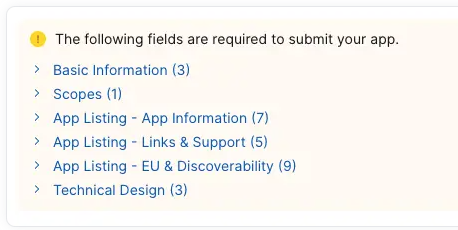
- When you've provided all the required, submit the app for review.
The information here is a condensed set of instructions and required information for submitting your app for publish to the Zoom App Marketplace. For more information, see App Submission, and the App Review Process.
Test the connection (optional)
To test your connection, follow these steps to set up a custom agent in AI studio.
- In the navigation menu, choose AI Studio, choose Custom Agents, and then select Create.
- In the Custom agent templates modal, choose Start from blank.
- In the Create agent modal, complete all required fields.
- Under Tools, choose Add Tools, select the MCP tool you created earlier, and then choose Next.
- On the next screen, if prompted, select Authorize to allow Zoom to load available tools.
- Select Confirm to complete the authorization.
- In the test interface, enter a prompt like the following.
Fetch PayPal transactions of the last 30 days
If the connection was successful, the prompt should return the requested information. In our case, PayPal transactions.
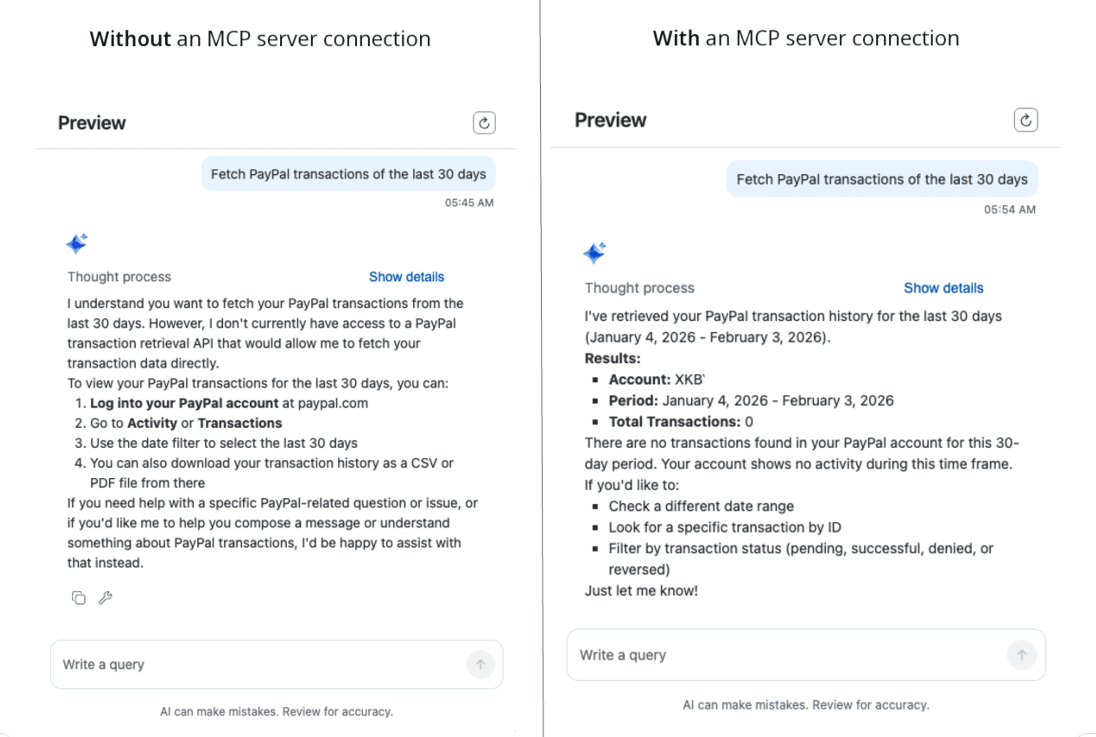
Your Zoom AI agent is now fully set up to populate responses using the external MCP server context.
Reference apps
These are Zoom integration apps available on the Zoom App Marketplace. You can use them as a reference for what is needed.