Create a Server-to-Server OAuth app
Prerequisites
- A Zoom account
- Permissions to view and edit server-to-server OAuth apps
- Permissions for scopes that you will add to the app
Steps to create a Server-to-Server OAuth app
Follow the steps below to create a Server-to-Server OAuth app to use with account credentials.
-
Use an account with developer permissions. Go to the Zoom App Marketplace, and sign-in.
-
In the lower-left navigation pane, click Developer.
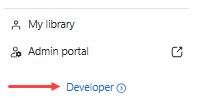
Developer link
The Marketplace only displays the Developer link when it detects that the user has the proper developer permissions. If you do not see it displayed, check with your admin that you have the correct permissions assigned.
-
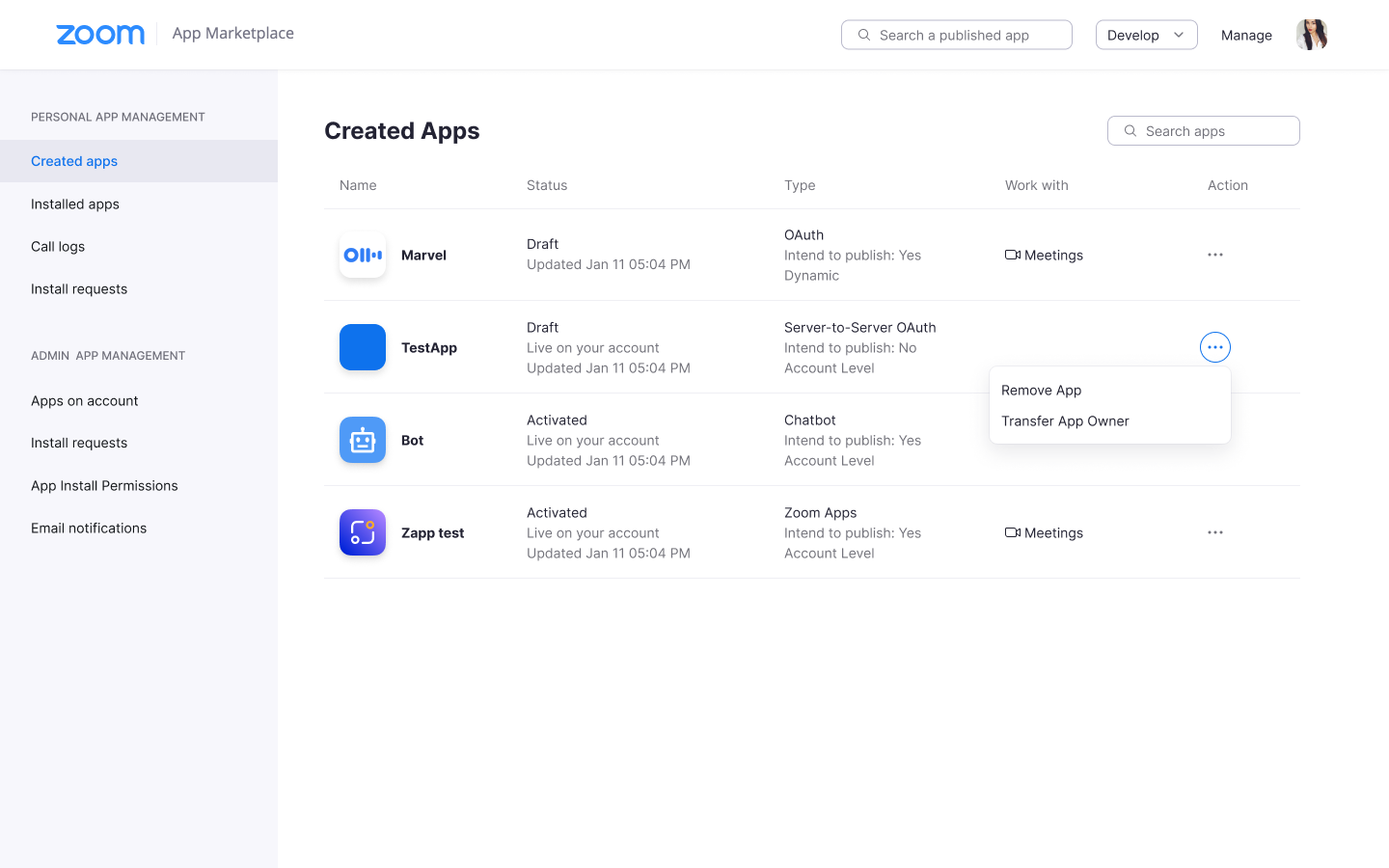
On the Created apps page, click Develop and select Build an app.
-
On the app creation screen, select Server-to-Server OAuth app and click Create.
-
App credentials - View your account ID, client ID and client secret. You'll use these credentials to authenticate with Zoom.
-
Information - Add information about your app, such as a short description, company name, and developer contact information (name and email address required for activation).
-
Feature - Toggle whether you'd like to enable event subscriptions. If enabled, choose the event subscriptions you'd like to use. See Using Zoom Webhooks for details.
-
Scopes - Choose Add Scopes to search for and add scopes.
Scopes define the API methods your app can call and determine the information and features available in Zoom. Scopes are limited to specific resources, such as channels or files. If you submit your app to Zoom for review, we'll verify each requested scope based on the app's functionality at that time. Request only the scopes your app needs.
The scopes you can add to your app depend on your role permissions. For example, you must have admin-level role permissions to add admin-level scopes to their S2S app.
Note
Changes to an app owner's role permissions also affect the scopes in apps they have already created.
For example, App_Owner_A has admin-level role permissions, creates an app with admin-level scopes. At a later point, their role permissions are changed to a non-admin level. The app build flow automatically removes any admin-level scopes in the app. To retain the admin-level scopes in the app, transfer the app ownership to a user with admin-level role permissions.
-
Activation: When activating your app, if you see errors that prevent activation, please address them. You will not be able to generate an access token to make API calls unless your app is activated. If your app is deactivated, existing tokens will no longer work. You can also choose to Deactivate your app in this section.
Remove server-to-server OAuth app
To remove an existing Server-to-Server OAuth app, go to App Management > Created apps and click Remove App in the Action menu.