Chatbot OAuth
Account-level OAuth apps can also be Chatbot apps, just as Chatbot apps can be account-level OAuth apps; however, OAuth apps and Chatbots have different authentication flows.
Combining OAuth and Chatbot functionality into one app will require you to implement two authorization flows for both OAuth and Chatbot tokens.
Requesting an OAuth and Chatbot token
Direct the user to https://zoom.us/oauth/authorize with the following query parameters:
| Query Parameter | Description |
|---|---|
response_type | Access response type being requested. The supported authorization workflow requires the value code. |
redirect_uri | URI to handle successful user authorization. Must match with Development or Production Redirect URI in your OAuth app settings. |
client_id | OAuth application's Development or Production Client ID. |
Example
https://zoom.us/oauth/authorize?response_type=code&client_id=U1RqQ9UsQo6hd6fJQWFLQ&redirect_uri=https://example.com
This URL is the same as the Add Button link on the Zoom App Marketplace.
If this is the first time that you are requesting authorization from a user, the user will be prompted by Zoom to authorize access for your app.
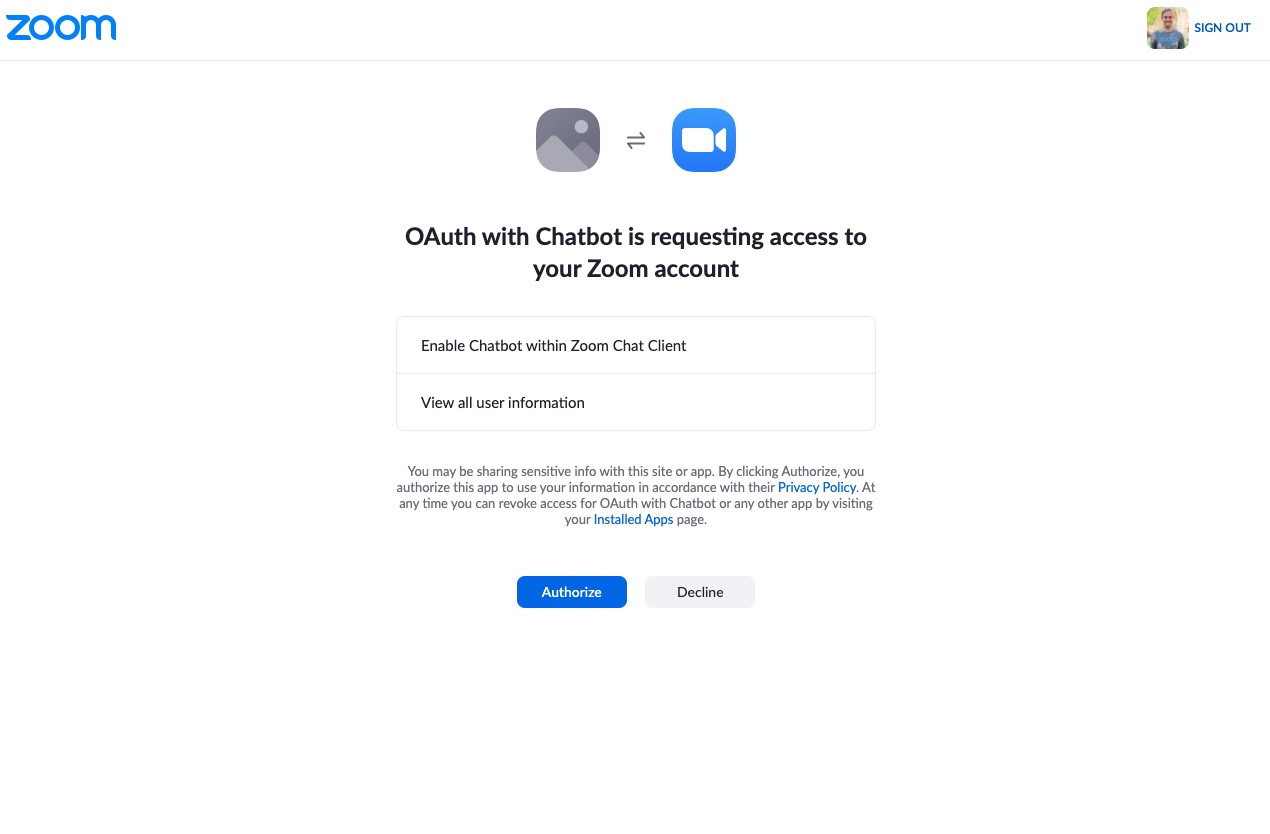
If authorized, the user will be redirected to the redirect_uri with the authorization code in the code query parameter.
https://example.com/?code=obBEe8ewaL_KdyNjniT4KPd8ffDWt9fGB
Notice the code returned in the redirect URL. Follow Step 2 in Requesting an access token to obtain an OAuth access token.
To get a Chatbot token, make a POST request to https://zoom.us/oauth/token with the following query parameters and authorization header:
| Query Parameter | Description |
|---|---|
grant_type | Value client_credentials. |
| Authorization Header | Description |
|---|---|
| Authorization | The string "Basic" with your Client ID and Client Secret with a colon (:) in between, Base64-encoded. For example, Client_ID:Client_Secret Base64-encoded is Q2xpZW50X0lEOkNsaWVudF9TZWNyZXQ=. |
Example request
POST https://zoom.us/oauth/token?grant_type=client_credentials
Request headers
{
    "Authorization": "Basic Q2xpZW50X0lEOkNsaWVudF9TZWNyZXQ="
}
If successful, the response body will be a JSON representation of the Chatbot token:
{
    "access_token": "<JWT_TOKEN>",
    "token_type": "bearer",
    "expires_in": 3599,
    "scope": "imchat:bot"
}
Chatbot tokens expire after one hour.
Using a Chatbot token
Make requests to the Chatbot API by sending the Chatbot token as the Authorization Bearer header:
"Authorization": "Bearer <CHATBOT_TOKEN>"
Example request
POST https://api.zoom.us/v2/im/chat/messages
Request headers
{
    "Authorization": "Bearer <JWT_TOKEN>"
}
Request body
{
    "robot_jid": "v1zx6cy00psoylshypvg-iuq@xmpp.zoom.us",
    "to_jid": "kdykjnimt4kpd8kkdqt9fq@xmpp.zoom.us",
    "account_id": "gVcjZnWWRLWvv_GtyGuaxg",
    "content": {
        "head": {
            "text": "Hello World"
        }
    }
}
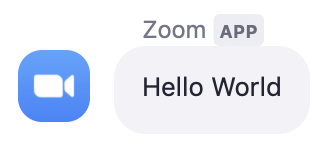
If successful, the response body will be a JSON representation of the sent Chatbot message:
{
    "message_id": "20191218175454248_UvRlxOz_aw1",
    "robot_jid": "v1zx6cy00psoylshypvg-iuq@xmpp.zoom.us",
    "sent_time": "2019-12-18 17:54:54",
    "to_jid": "kdykjnimt4kpd8kkdqt9fq@xmpp.zoom.us"
}
Refreshing a Chatbot token
Refreshing a Chatbot token is the same process as requesting a Chatbot token. Make a POST request to https://zoom.us/oauth/token with the following query parameters and authorization header:
| Query Parameter | Description |
|---|---|
grant_type | Value client_credentials. |
| Authorization Header | Description |
|---|---|
| Authorization | The string "Basic" with your Client ID and Client Secret with a colon (:) in between, Base64-encoded. For example, Client_ID:Client_Secret Base64-encoded is Q2xpZW50X0lEOkNsaWVudF9TZWNyZXQ=. |
Example request
POST https://zoom.us/oauth/token?grant_type=client_credentials
Request headers
{
    "Authorization": "Basic Q2xpZW50X0lEOkNsaWVudF9TZWNyZXQ="
}
If successful, the response body will be a JSON representation of your refreshed Chatbot token:
{
    "access_token": "<JWT_TOKEN>",
    "token_type": "bearer",
    "expires_in": 3599,
    "scope": "imchat:bot"
}
Chatbot tokens expire after one hour.