Manifests Overview
A manifest is a JSON-formatted file that contains the configuration for a Zoom App, and is an alternative to manually setting configurations in the app creation UI.
You define your app's configuration in the manifest JSON, then upload the JSON file using either the app build flow or an API to create a new general app with that predefined configuration or update the configuration of an existing general app.
Portability - Because manifest files are portable, they can be easily shared and reused across multiple apps.
Continuing development
The information here describes the currently available features and configuration options. As the Zoom platform evolves and new features become available, we will update the manifest schema accordingly. Be sure to check this page regularly for the latest information.
Exclusions
The following app information sections are intentionally excluded from the manifest JSON because they contain information used for app review and publishing, rather than settings that configure your app's features and functionality.
- Monetization
- Technical Design
- Beta Test
- Publish
Prerequisites
- You have a Zoom account.
- You are either the Zoom account owner, or account admin or have been assigned the Zoom for developers role.
- You have experience creating apps in the Zoom Marketplace.
- The app is a general app.
Create an app
-
Use an account with developer permissions. Go to the Zoom App Marketplace, and sign-in.
-
In the lower-left navigation pane, click Developer.
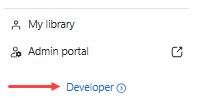
Developer link
The Marketplace only displays the Developer link when it detects that the user has the proper developer permissions. If you do not see it displayed, check with your admin that you have the correct permissions assigned.
-
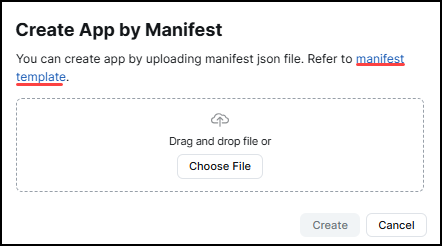
On the Created apps page, click Develop and select Build from an app manifest.
-
If you already have a manifest file ready, then select Choose file to upload it, and click Create.
If you don't have a manifest file, click the manifest template link to download it, modify the file as needed, then use Choose file to upload it, and click Create.
For information about fields in the manifest, see Manifest schema.
Updating an existing app
To update an existing app using manifest, download its manifest file, update it, and upload the updated manifest file.
-
Use an account with developer permissions. Go to the Zoom App Marketplace, and sign-in.
-
In the lower-left navigation pane, click Developer.
Developer link
The Marketplace only displays the Developer link when it detects that the user has the proper developer permissions. If you do not see it displayed, check with your admin that you have the correct permissions assigned.
-
On the Created apps page, click an app to open its Basic Information page.
-
Select a method of opening the manifest: in the persistent menu bar, or on the Basic Information page.
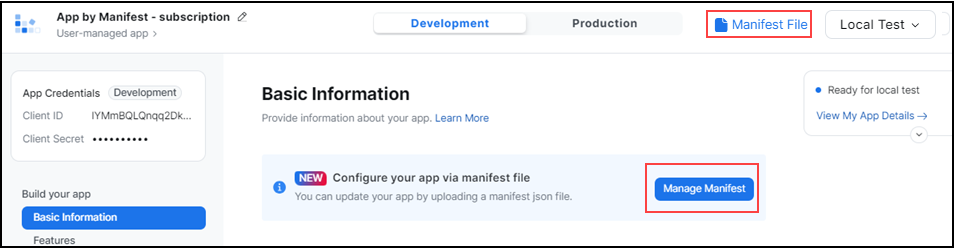
-
Select the download icon to download the manifest file to your local system.
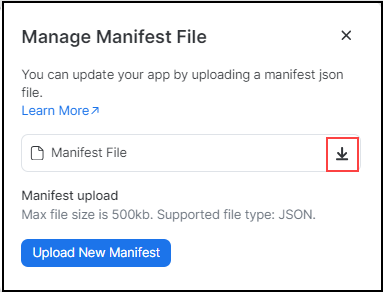
-
Open the manifest JSON file on your local system and update the app's fields and attributes.
-
Click Upload new manifest.
For information about fields in the manifest, see the Manifest schema and respective subsections.
Create new apps based on a template
Using the manifest file for an existing app as a template for new apps saves you time by not having to manually enter the same information for each app. Download the manifest file for an existing app, make a copy for each new app, and modify the file as needed.
- Go to the Created apps page and click the existing app.
- On the Basic Information page, click Manage manifest to download its manifest file.
- Make copies of the manifest file. One for each new app.
- Modify the manifest file for each new app as needed.
- Create the new app:
- On the Created apps page, click Develop and select Build from an app manifest.
- On the Create App by Manifest screen, select Choose file to upload it, and click Create.
Common mistakes
- JSON schema error. Values are entered incorrectly or missing.
- Unsupported custom values.
- Values are case-sensitive.
- The manifest file is not in valid JSON format.
- Entered values do not meet requirements. Check manifest format according to docs.
- You don't have permission to the app.
Validation error examples
- The display name can't be empty.
- The display name length should be less than 50 characters.
- The app name contains invalid characters.
- The description length should be less than 150 characters.
- The long description length should be less than 2000 characters.