Custom form
Custom forms provide a flexible, integrated way to manage app setup and configuration during the authorization process. Benefits include:
- Simplified configuration: Streamlines the setup process for end-users.
- Enhanced flexibility: Allows developers to gather necessary data at various stages of the app authorization and connection process.
- Marketplace integration: Provides a more native way to handle app settings within the Zoom ecosystem, reducing the need for external configuration pages for basic setup.
- Improved user experience: Guides users through setup with clear, contextual inputs.
- Admin controls: For app-level pre-authorizations, admins can set defaults and lock configurations for their users.
Key concepts & terminology
Understanding these terms will help you make the most of custom forms.
- Custom forms: The wrapper UI and navigation which house the custom fields.
- Custom fields: These are developer-defined input fields (like text boxes or dropdowns) within the forms UI that allow for tailored customization of an app or connector experience. They gather necessary information from users to make the app work as intended.
- App-level custom fields: These fields are set once for the entire app. Their values apply to all instances and connections of that app for a given user or account.
- Connection-level custom fields: These fields are specific to a particular connection within an app. Their values apply only to that individual connection.
- Pre-auth custom fields: These are configurations required before the app or connector undergoes the main authorization process (e.g., OAuth). They help gather essential data needed for the authorization itself or initial setup.
- Post-auth custom fields: These configurations are presented to the user after successful authorization. They can be used for settings that depend on an established connection.
- Dynamic fields: A special type of custom field where the input options (e.g., values in a dropdown) are dynamically populated based on the response of an API call. Currently, these are only available for post-auth configuration.
General flow
This is a brief overview of the developer experience creating custom forms and the end-user experience using custom forms.
-
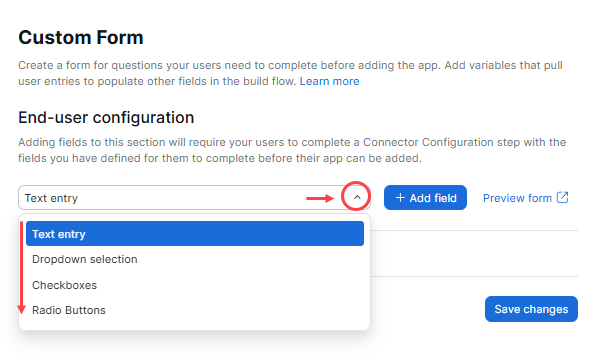
Developers create a new app or edit an existing app, and then add add custom fields to a custom form.
-
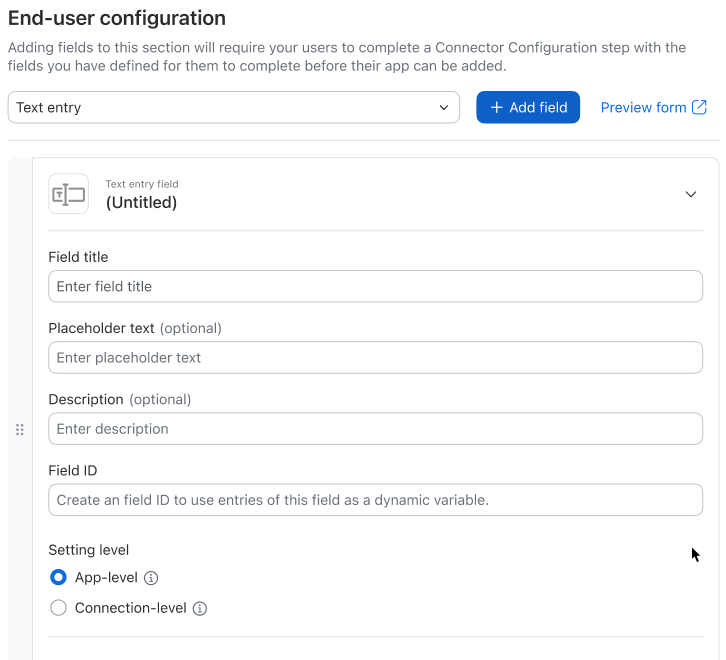
Developers configure the fields: are they required, are they applicable at the app-level or the connector-level, and whether they are displayed before authorization or after authorization.
-
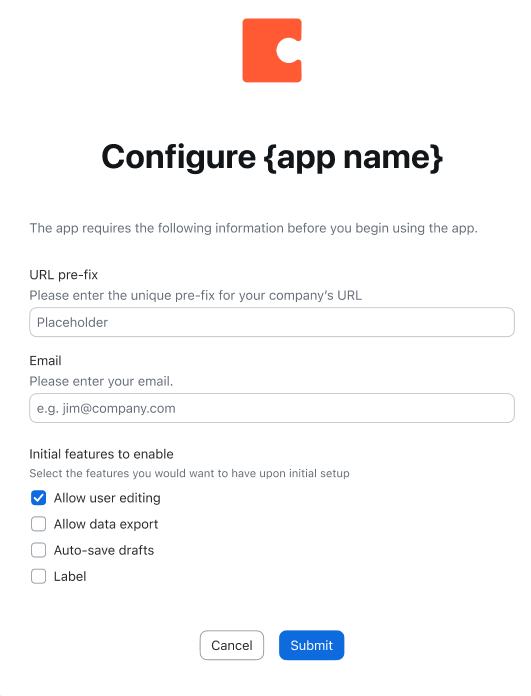
Zoom integrates the custom form into the app authorization flow and displays the custom form when users add the app.
For more information, see Creating custom forms.
Use case examples
These examples show the different information you can ask users to enter in custom forms.
CRM integration:
- Pre-auth (app-level): CRM instance domain (e.g., mycompany.crm.com).
- Pre-auth (connection-level): Default sync folder ID.
- Post-auth (dynamic field): After connecting to the CRM, dynamically load a list of available custom objects for the user to select for mapping.
Project Management Connector:
- Pre-auth (app-level): API Key for the project management tool.
- Post-auth (connection-level): Default project to associate new Zoom recordings with.
Constraints
Note
These are the current constraints for custom forms:
- Field ID variable usage: At the moment, custom field IDs can only be used as variables in the connect section of the app build flow. Expect this to change as we release more features and integrations.
- Dynamic fields location: Dynamic fields (where values are populated from an API call) are only supported as part of post-auth configuration. (A complete authorization is generally required to fetch the values needed to populate the dynamic fields).
- Supported field types: At the moment, the only available custom field types are text fields and dropdown selections.