Getting started with Zoom Video SDK for Android
Introduction
The Zoom Video SDK is a feature-rich, fully-customizable video conferencing experience that helps enhance the communication possibilities of your app. Now, the Android Video SDK API makes integrating the SDK easier than ever for native Android developers of all backgrounds and experience levels. As a compliment, the Jetpack Compose UIToolKit provides a reactive UI that meshes perfectly with the functionality of the Video SDK, enabling developers to quickly spin up a quality video conferencing application.
Here is a step-by-step guide to building an Android video conferencing app, built with Jetpack Compose and powered by the Zoom Video SDK for Android. You can reference the completed Android VideoSDK Quickstart app as you follow along.
- Prerequisites
- Marketplace configuration
- SDK installation
- App architecture
- Generating your JWT
- Joining a session
- Setup event listener
- Session layout
- Handling permissions
- User views
- Session controls
- Handling session events
- Handling orientation
- Session teardown
Prerequisites
- Android Studio IDE
- A Zoom Video SDK account with Video SDK credentials
Marketplace configuration
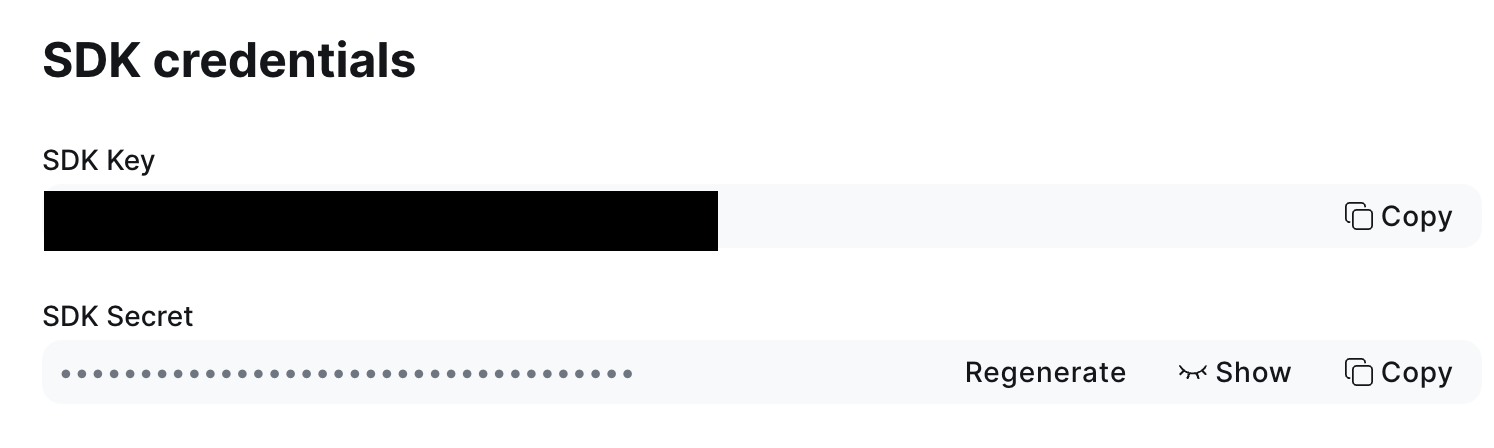
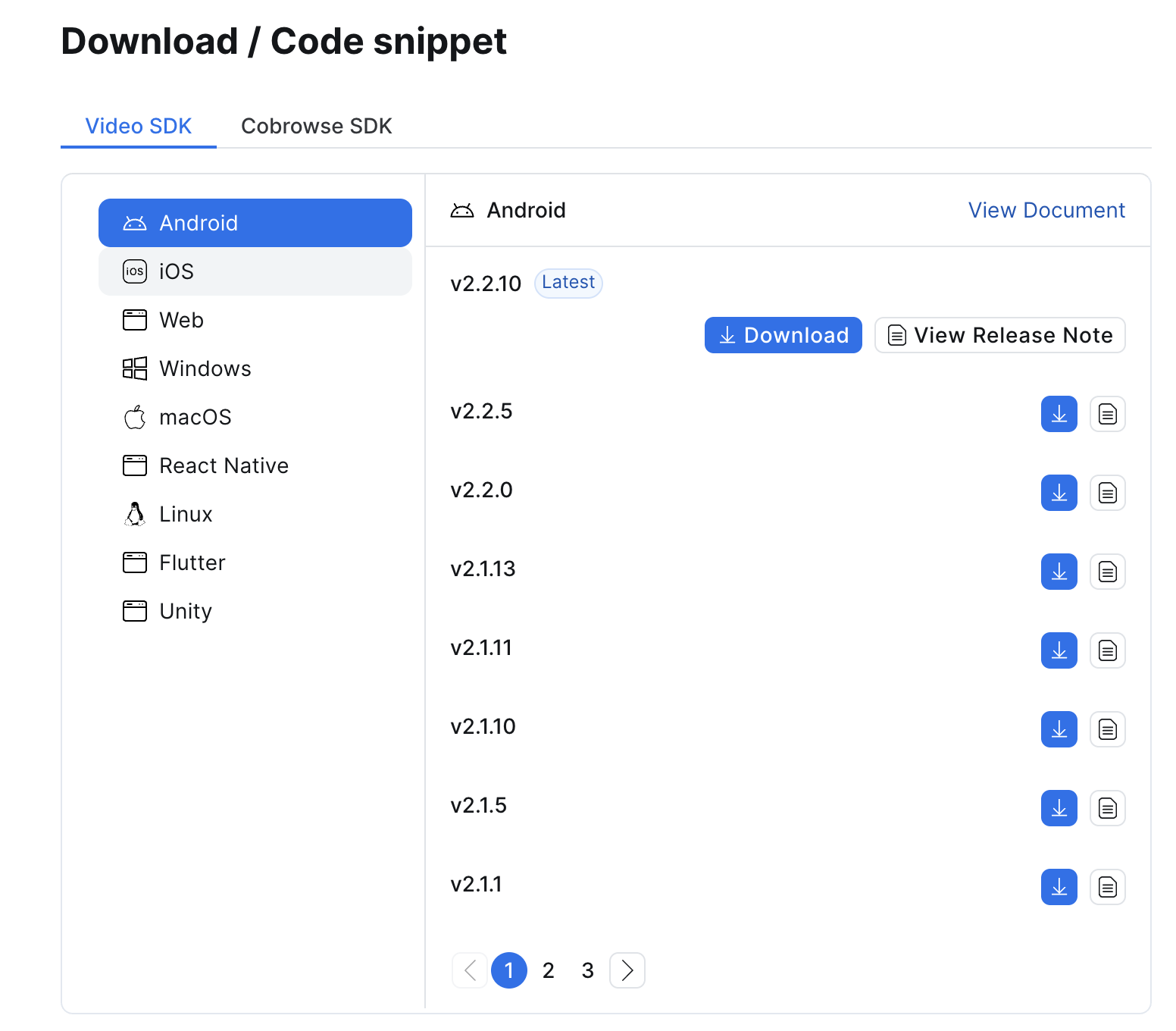
To Begin, we must sign in to our Video SDK Zoom Account where we'll retrieve our SDK credentials and download the Android Video SDK:
SDK installation
Next, you can reference this page for creating your Kotlin Compose app on Android Studio. Then we'll reference these steps for installing the Android Video SDK we downloaded into our Kotlin Compose application.
The file structure and configuration should like this:
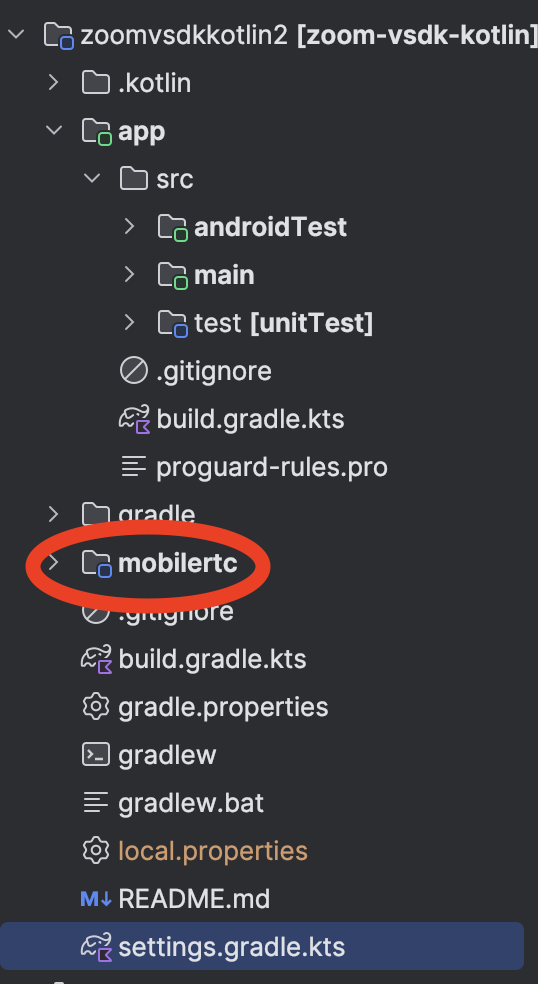
In settings.gradle.kts:
rootProject.name = "zoomvideosdkkotlin"
include(":app")
include(":mobilertc")
In build.gradle(app) dependencies:
implementation(libs.zoomvideosdk.core)
implementation(libs.zoomvideosdk.videoeffects)
In build.gradle(:mobilertc):
configurations.create("default")
artifacts.add("default", file('mobilertc.aar'))
dependencies.add("default","androidx.security:security-crypto:1.1.0-alpha03")
dependencies.add("default","com.google.crypto.tink:tink-android:1.5.0")
dependencies.add("default","androidx.appcompat:appcompat:1.3.0")
Sync your project to complete the import and your app should be ready to use the Video SDK libraries.
App architecture
This application uses a Model - View - ViewModel design where we will use Jetpack Compose to drive our views and a ViewModel to handle the SDK logic and update UI State behind the scenes. We will have two views: JoinSession, our starting point for entering the meeting details and InSession, where the in-session experience will live. We will incorporate helper functions to aid with API calls, Routing, and Token Generation as well.
First lets set up up our views where we'll interact with the app. We start in MainActivity.kt, the entry point of our application:
class MainActivity : ComponentActivity() {
    @RequiresApi(Build.VERSION_CODES.UPSIDE_DOWN_CAKE)
    override fun onCreate(savedInstanceState: Bundle?) {
        val zoomSessionViewModel by viewModels<ZoomSessionViewModel>()
        super.onCreate(savedInstanceState)
        enableEdgeToEdge()
        setContent {
            val navController = rememberNavController()
            NavHost(navController = navController, startDestination = Routes.JOINSESSION, builder = {
            composable(Routes.JOINSESSION){  JoinSession(navController, zoomSessionViewModel) }
            composable(Routes.INSESSION){ InSession(navController, zoomSessionViewModel) }
            })
        }
    }
}
Here, we set up routing for our two views using the NavHost composable. The routes are configured as string references in the Routes.kt file under the app/src/main/java/apppackagename/utils folder:
object Routes {
    const val JOINSESSION: String = "JoinSession"
    const val INSESSION: String = "InSession"
}
From there we pass to these views, a navController which is used to navigate between each other and the zoomSessionViewModel instance, which is our object for using the ViewModel of our application. We will dive more into that next.
ViewModel
The ViewModel handles all Android Video SDK interation and updating the UI State in our application. This approach is important both for minimizing complexity and keeping your data in a reusable store, not constrained to the lifecycle of the View that uses it.
First we set up our ZoomSessionUIState data class which will store any data that must be used by our view:
data class ZoomSessionUIState(
    val selfView: ZoomVideoSDKVideoView? = null,
    val currentUsersInViewCount: Int = 0,
    val sessionName: String = "",
    val userName: String = "",
    val password: String? = "",
    val sessionLoader: Boolean = true,
    val isVideoOn: Boolean = false,
    val muted: Boolean = false,
    val audioConnected: Boolean = false,
    val pageNumber: Int = 1,
    val maxPages: Int = 1,
    val participantVideoOn: List<Boolean> = listOf(false, false, false, false),
    val participantMuted: List<Boolean> = listOf(false, false, false, false)
)
For Jetpack Compose recomposition, it is absolutely crucial to ensure this data class only contains immutable data types. This includes primitive data types using val and lists. Compose recomposition can easily tell if the value of these types have changed and thus recompose the composables that read that state value. For objects and mutable data types using var, Compose cannot tell if these values have been updated and will either not recompose the composable reading of that value or will recompose the composable every time there is a recomposition of the view. This can lead to unexpected behavior and performance issues if recomposition is not managed appropriately. You can read more about this here.
Next, we create our ZoomSessionViewModel class, extending the AndroidViewModel class so we can access the context of our Application. Using MutableStateFlow, we instantiate a private mutable instance of the ZoomSessionUIState above, _zoomSessionUIState. This instance will be used by our viewmodel to update the state. We create another instance of zoomSessionUIState, this time as a public read-only StateFlow, to be used to display the latest UIState data to our Views. Finally, we implement the view-model methods that will interact with the Android Video SDK, which we'll cover each one as we go along:
class ZoomSessionViewModel(application: Application): AndroidViewModel(application) {
    @SuppressLint("StaticFieldLeak")
    private val context: Context = getApplication<Application>().applicationContext    private val _zoomSessionUIState = MutableStateFlow(ZoomSessionUIState())
    private var currentUsersInView: List<ZoomVideoSDKUser> = emptyList()
    val zoomSessionUIState: StateFlow<ZoomSessionUIState> = _zoomSessionUIState.asStateFlow()
    fun initZoomSDK () {}
    fun joinSession(config: Config) {}
    fun getMyself(): ZoomVideoSDKUser {}
    fun getCurrentUsersInView(): List<ZoomVideoSDKUser> {}
    fun closeSession(end: Boolean) {}
    fun updateState(state: ZoomSessionUIState) {}
    fun getState(): ZoomSessionUIState {}
    fun rotateVideo(rotation: Int) {}
    fun toggleCamera() {}
    fun startVideo() {}
    fun stopVideo() {}
    fun toggleMicrophone() {}
    private fun stopAudio() {}
    fun updateUsersInView(page: Int) {}
    fun renderView(user: ZoomVideoSDKUser, view: ZoomVideoSDKVideoView) {}
    fun stopRenderSelfView(user: ZoomVideoSDKUser) {}
}
Generating Your JWT
The Video SDK requires a JWT Signature Token each time you want to join or start a session. To generate this token, we have two methods. The first method, for testing purposes only, is to use a local function in our code to generate the token. This local function is called TokenGenerator.java, which we will place in app/src/main/java/apppackagename/utils:
public class TokenGenerator {
    public static String generateToken(@NotNull JWTOptions jwtOptions, @NotNull String sdkKey, @NotNull String sdkSecret) {
        Key signingKey = Keys.hmacShaKeyFor(sdkSecret.getBytes(StandardCharsets.UTF_8));
        Instant now = Instant.now();
        Map<String, Object> claims = new HashMap<>();
        claims.put("app_key", sdkKey);
        claims.put("role_type", jwtOptions.getRole());
        claims.put("tpc", jwtOptions.getSessionName());
        claims.put("version", 1);
        claims.put("iat", Date.from(Instant.now()));
        claims.put("exp", Date.from(now.plus(5, ChronoUnit.MINUTES)));
        claims.put("user_identity", jwtOptions.getUserIdentity());
        claims.put("geo_regions", jwtOptions.getGeo_regions());
        claims.put("cloud_recording_option", jwtOptions.getCloud_recording_option());
        claims.put("cloud_recording_election", jwtOptions.getCloud_recording_election());
        claims.put("telemetry_tracking_id", jwtOptions.getTelemetry_tracking_id());
        claims.put("video_webrtc_mode", jwtOptions.getVideo_webrtc_mode());
        claims.put("audio_webrtc_mode", jwtOptions.getAudio_webrtc_mode());
        return Jwts.builder()
                .header().add("typ", "JWT")
                .and()
                .claims(claims)
                .signWith(signingKey)
                .compact();
    }
}
This function takes your SDK key and secret from your Zoom web portal and a JWTOptions object to be used in the JWT payload. This method should only be used for testing purposes as it is bad practice to store sensitive on the client device.
The second and more secure method is to utilize a backend server that will generate a secure token and send it to the client device. In this application, we can use the Retrofit library to make a request to the server to retrieve this token:
// ApiClient.kt
import io.github.cdimascio.dotenv.dotenv
import retrofit2.Retrofit
import retrofit2.converter.gson.GsonConverterFactory
object RetrofitClient {
    val dotenv = dotenv {
             directory = "/assets"
             filename = "env"
            }
    private val BASE_URL = dotenv["ENDPOINT_URL"]
    val retrofit: Retrofit by lazy {
        Retrofit.Builder()
            .baseUrl(BASE_URL)
            .addConverterFactory(GsonConverterFactory.create())
            .build()
    }}
object ApiClient {
    val apiService: ApiService by lazy {
        RetrofitClient.retrofit.create(ApiService::class.java)
    }}
// ApiService.kt
import com.google.gson.JsonObject
import com.zoomvsdkkotlin.activities.JWTOptions
import retrofit2.Call
import retrofit2.http.Bodyimport retrofit2.http.Headersimport retrofit2.http.POSTimport retrofit2.http.Queryinterface ApiService {
    @Headers("Accept: application/json")
    @POST("zoomtoken")
    fun getJWT(@Query ("topic") topic: String,
               @Query ("name")  name: String,
               @Query ("password") password: String,
               @Body body: JWTOptions
    ): Call<JsonObject>
}
For the server portion you can reference this sample app to stand up generator in one click
Joining a session
In JoinSession.kt, we set up a form to take in session details as strings. These strings are then collected when the join session button is clicked and formed into a Config Object.
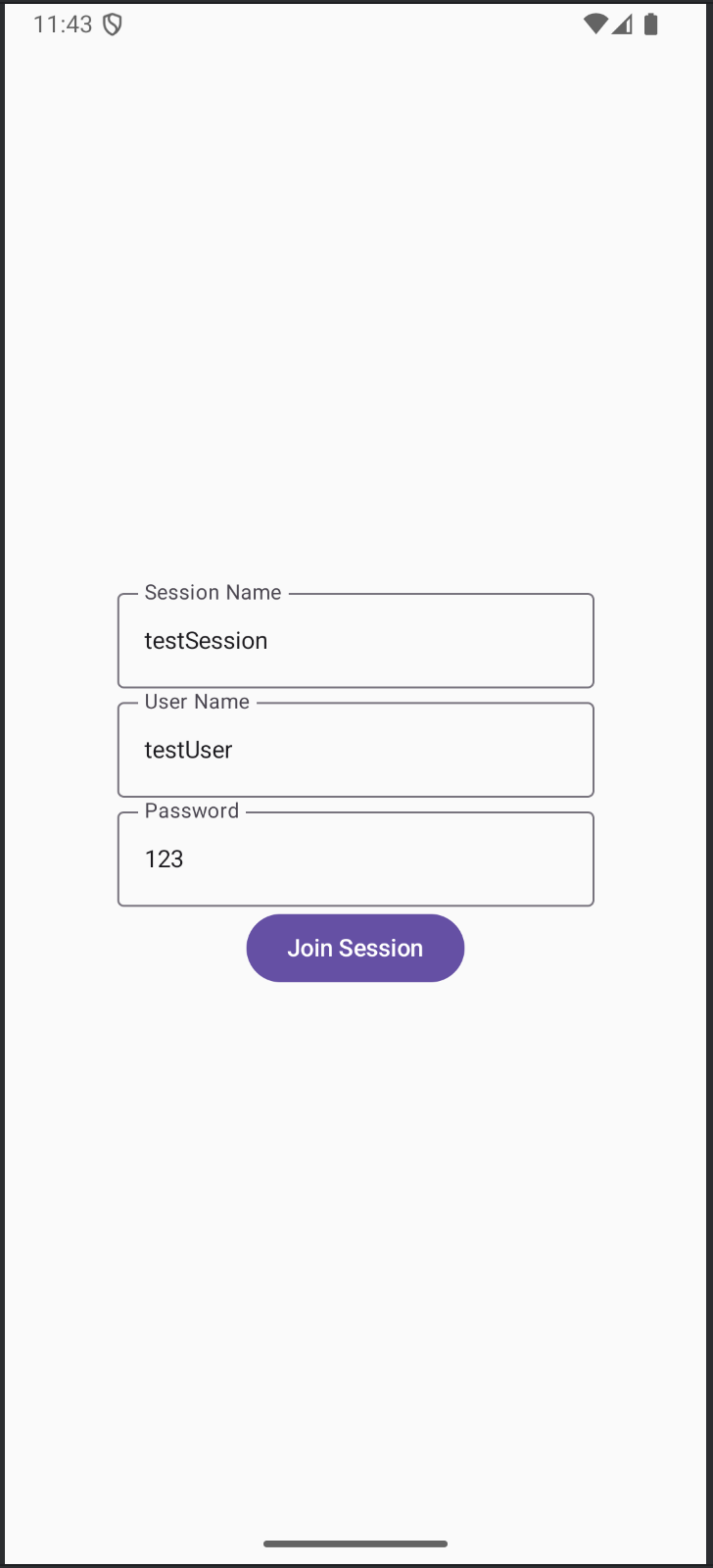
After successfully retrieving our JWT Token, we then initialize the SDK using the zoomSessionViewModel's .initZoomSDK() method and send our Config to the .joinSession() method to join the Video SDK session. Finally, we use navController to navigate to the InSession view:
val body = JWTOptions(
                sessionName = sessionName,
                role = 1,
                userIdentity = null.toString(),
                sessionkey = null.toString(),
                geo_regions = null.toString(),
                cloud_recording_option = 0,
                cloud_recording_election = 0,
                telemetry_tracking_id = "internal-dev5",
                video_webrtc_mode = 0,
                audio_webrtc_mode = 0
            )
val signature: String = TokenGenerator.generateToken(body, sdkKey, sdkSecret)
val config = Config(sessionName, userName, password, signature)
zoomSessionViewModel.initZoomSDK()
zoomSessionViewModel.joinSession(config)
navController.navigate(Routes.INSESSION)
In our ViewModel, here is the code for the .initZoomSDK() and .joinSession() methods:
fun initZoomSDK () {
    val initParams = ZoomVideoSDKInitParams().apply {
        domain = "https://zoom.us"
    }
    val sdk = ZoomVideoSDK.getInstance()
    val initResult = sdk.initialize(context, initParams)
    if (initResult == ZoomVideoSDKErrors.Errors_Success) {
        println("init success")
    } else {
        println("init fail")
    }
    val listener = EventListener(this).listener
    ZoomVideoSDK.getInstance().addListener(listener)
}
fun joinSession(config: Config) {
    val joinParams: ZoomVideoSDKSessionContext = ZoomVideoSDKSessionContext().apply {
       sessionName = config.sessionName
       userName = config.userName
       sessionPassword = config.password
       token = config.jwt
    }
    val session: ZoomVideoSDKSession? = ZoomVideoSDK.getInstance().joinSession(joinParams)
    if (session != null) {
        _zoomSessionUIState.update {
        it.copy(
                sessionName = config.sessionName,
                userName = config.userName,
                password = config.password
            )
        }
    }
}
fun updateState(state: ZoomSessionUIState) {
        _zoomSessionUIState.value = state
}
Setup event listener
To verify we have successfully joined the session, we have to set up a listener object that will listen for Zoom Events:
class EventListener(zoomViewModel: ZoomSessionViewModel) {
    val listener = object : ZoomVideoSDKDelegate {
        override fun onSessionJoin() {
            val state = zoomViewModel.getState()
            zoomViewModel.updateUsersInView(state.pageNumber)
            zoomViewModel.stopVideo()
            zoomViewModel.updateState( state.copy(sessionLoader = false))
        }
    // ...
    }
}
Session UI layout
InSession.kt is where we will host the in-session controls and views. These views will utilize UIState to determine when to compose and use zoomSessionViewModel when the app logic needs to use the SDK or update the state.
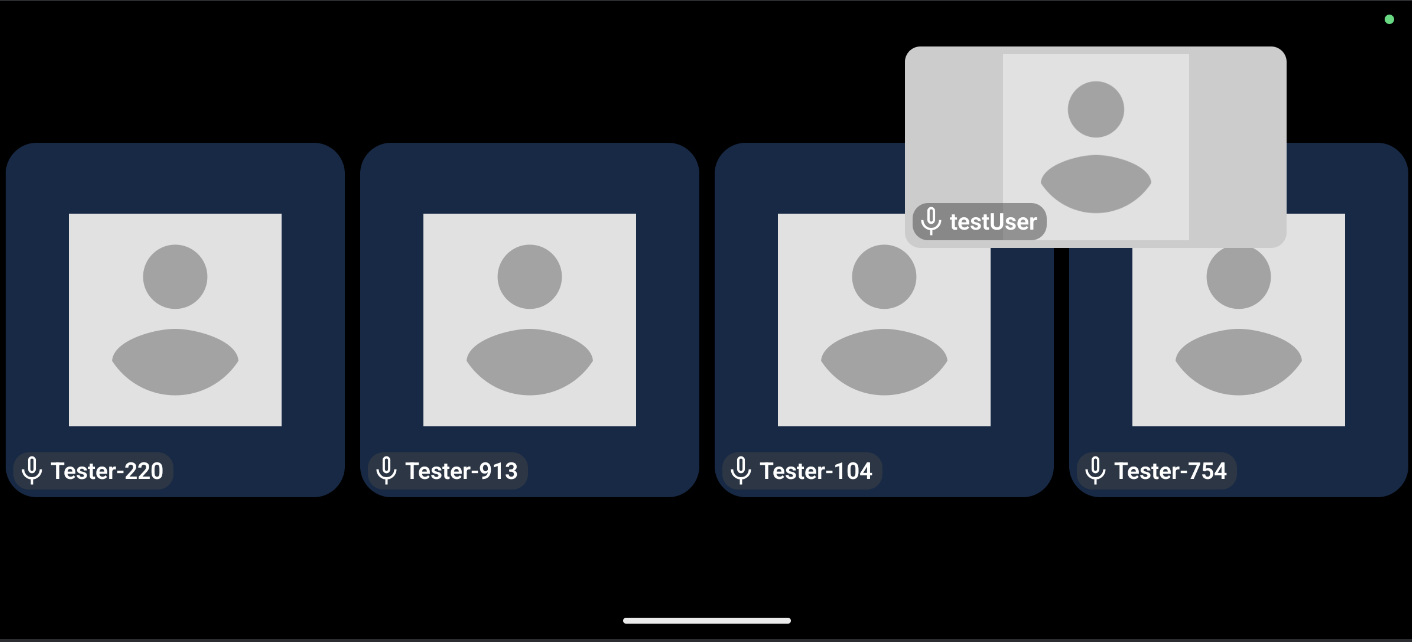
The UI Layout will start as a big self view that covers the entire screen when there is only 1 user in the session. When there is more than 1 user, the self view will be a small draggable window which will hover over a 2x2 grid, allowing up to 4 users in the view. If there are more than 5 users in the session, pagination buttons will be shown to click to the next user page.
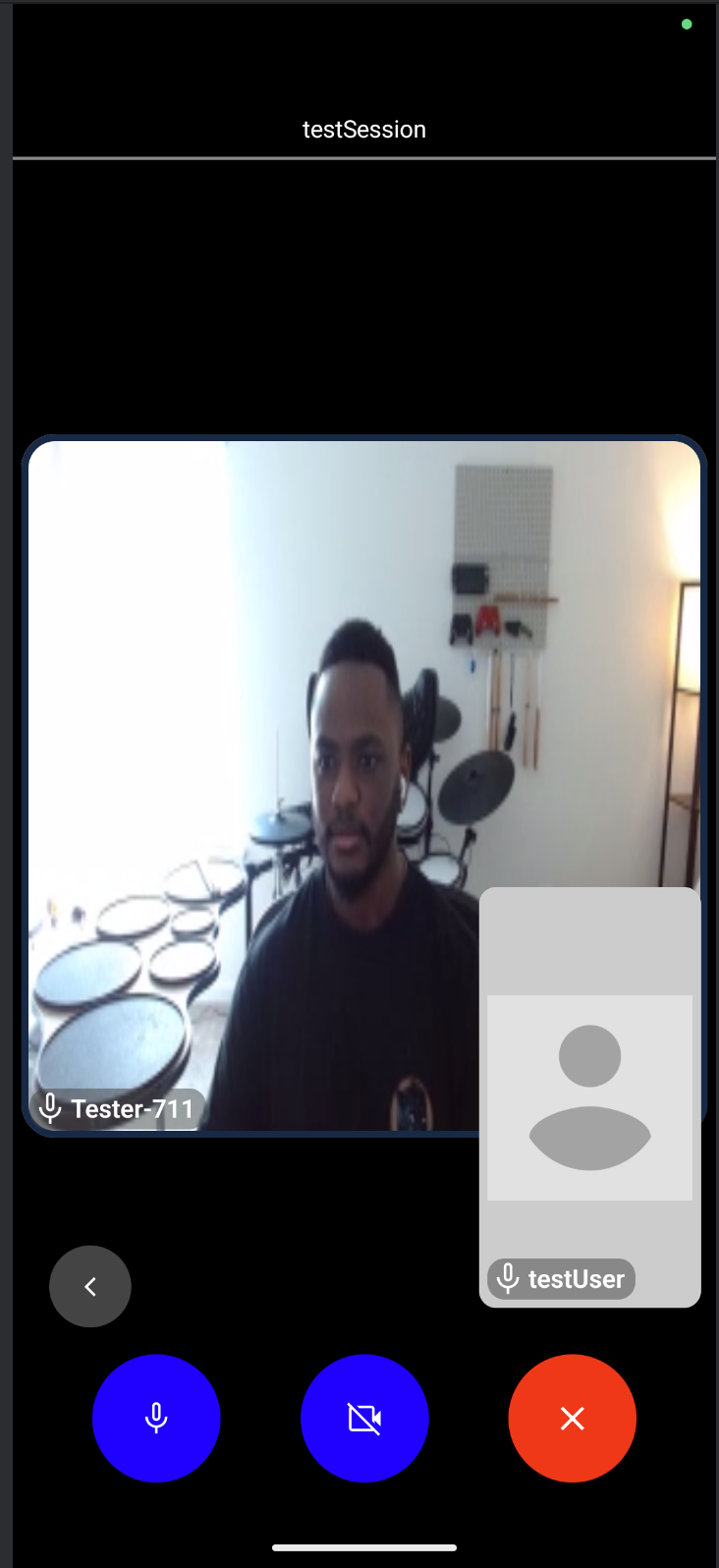
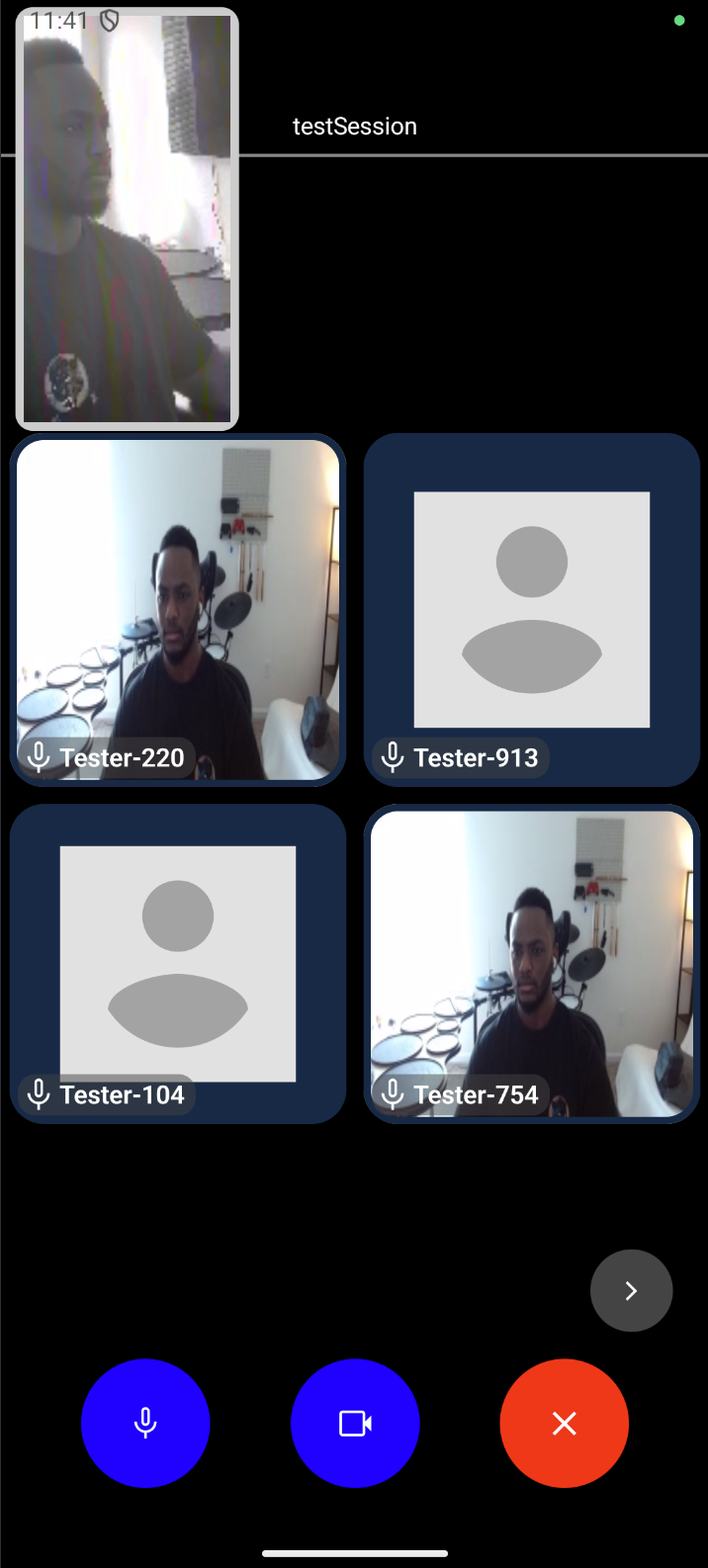
For our state declarations, we have an instance zoomSessionUIState which is the read-only observable from our zoomSessionViewModel. Next have permissionState, which returns a MultiplePermissionsState object that tracks the status of our permissions. Next is a visible boolean used for making the Controls View fade in and fade out.
The rest of our state declarations are remembered Lambdas that return a function. This ensures the code within the function is marked as stable by Compose, avoiding unnecessary recomposition of any composables that execute those functions. You can read more about this pitfall here
fun InSession(navController: NavController, zoomSessionViewModel: ZoomSessionViewModel) {
    var visible by remember { mutableStateOf(true) }
    val zoomSessionUIState by zoomSessionViewModel.zoomSessionUIState.collectAsState()
    val permissionState: MultiplePermissionsState = rememberMultiplePermissionsState(
        permissions = listOf(
            android.Manifest.permission.RECORD_AUDIO,
            android.Manifest.permission.CAMERA
        )
    )
    val user = remember(zoomSessionViewModel) {{
         zoomSessionViewModel.getMyself()
    }}
    // ...
}
Handling permissions
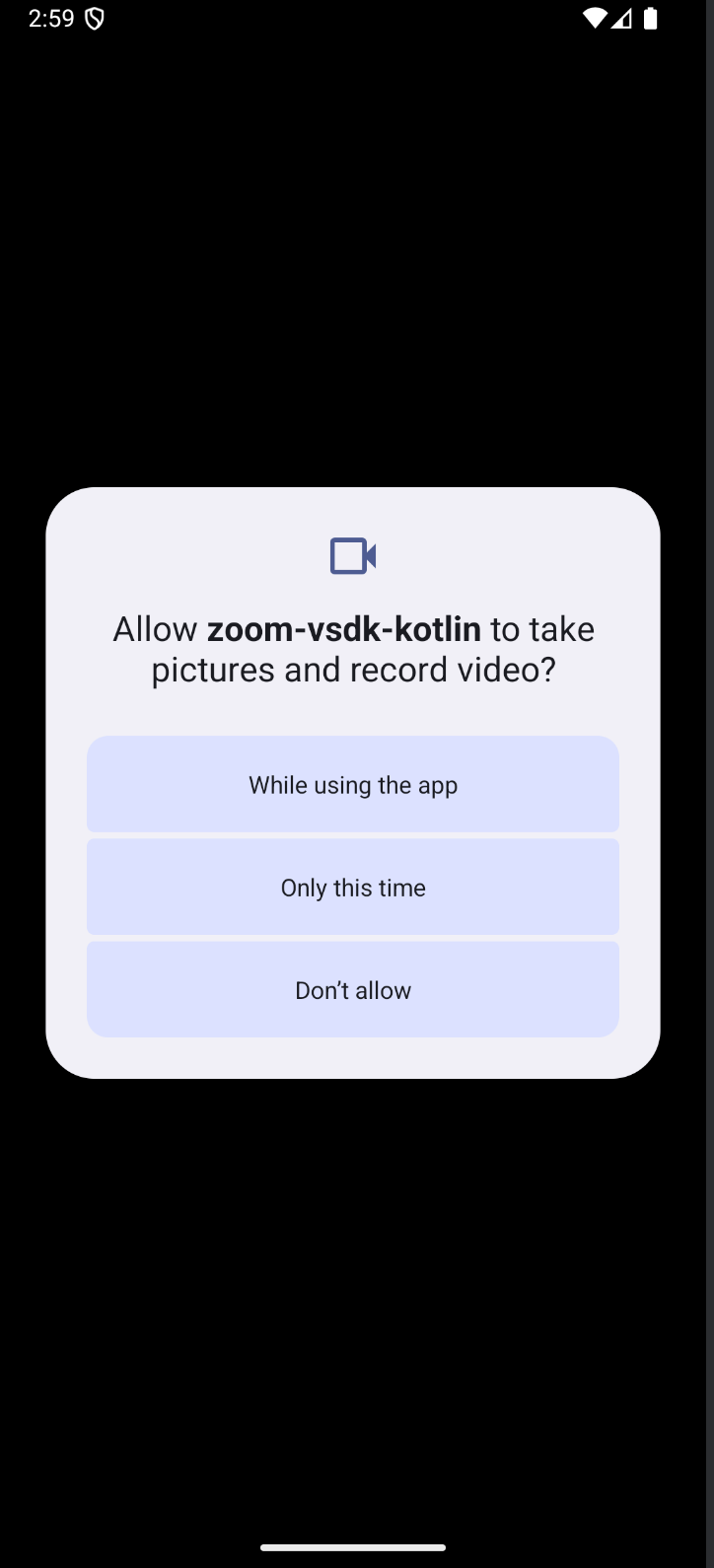
We handle permissions in LaunchedEffect, which is fired when the composable is added to the View. If RECORD_AUDIO and/or CAMERA permissions are not allowed, the prompts will fire for whichever needs to be allowed.
LaunchedEffect(key1 = permissionState) {
    if (!permissionState.allPermissionsGranted) {
        permissionState.launchMultiplePermissionRequest()
    }
}
User views
Lets take a look at the views used for displaying video and audio data for our users:
Here, we implement the first view that shows either the users video as a full screen feed or a profile picture with a black background if the video is off. This composable takes the isVideoOn boolean, a function that returns the ZoomVideoSDKUser object for the desired user, and 2 functions that will call the .renderView() and .rotateVideo() methods from our zoomSessionViewModel. We use an AndroidView to create a ZoomVideoSDKVideoView instance to place in our view and use the update callback to retrieve the ZoomVideoSDKVideoView by its id and pass that to the renderView function with the ZoomVideoSDKUser object. This logic is the same for participant views as well.
fun BigSelfView(
    user: () -> ZoomVideoSDKUser,
    isVideoOn: Boolean,
    renderView: (ZoomVideoSDKUser, ZoomVideoSDKVideoView) -> Unit,
    rotateVideo: (Int) -> Unit
) {
    val rotation: Int = LocalContext.current.display.rotation
    if (isVideoOn) {
        AndroidView(
            factory = { context: Context ->
                ZoomVideoSDKVideoView(context).apply {
                    setId(4)
                }
            },
            update = {
                val myselfView: ZoomVideoSDKVideoView = it.findViewById(4)
                rotateVideo(rotation)
                renderView(user(), myselfView)
            }
        )
    } else {
        Box(
            modifier = Modifier
                .fillMaxSize()
                .background(Color.Black),
            contentAlignment = Alignment.Center
        ) {
            AsyncImage(
                model = "https://upload.wikimedia.org/wikipedia/commons/7/7c/Profile_avatar_placeholder_large.png",
                contentDescription = "Profile Pic Placeholder when video off",
            )
        }
    }
}
// in ZoomSessionViewModel
fun rotateVideo(rotation: Int) {
        val videoHelper = ZoomVideoSDK.getInstance().videoHelper
        videoHelper.rotateMyVideo(rotation)
}
fun renderView(user: ZoomVideoSDKUser, view: ZoomVideoSDKVideoView) {
        val canvas: ZoomVideoSDKVideoCanvas = user.videoCanvas
        canvas.subscribe(
            view,
            ZoomVideoSDKVideoAspect.ZoomVideoSDKVideoAspect_Full_Filled,
            ZoomVideoSDKVideoResolution.VideoResolution_720P
        )
}
DraggableSelfView.kt, mirrors the above logic with the additional of using positional offsets and the detectDragGestures listener to enable dragging.
Box(
        modifier = Modifier
            .fillMaxSize()
            .fillMaxWidth(),
    ) {
        var offsetX by remember { mutableFloatStateOf(0f) }
        var offsetY by remember { mutableFloatStateOf(0f) }
        Box(
            modifier = Modifier
                .offset { IntOffset(offsetX.roundToInt(), offsetY.roundToInt()) }
                .width(width + 10.dp)
                .height(height + 10.dp)
                .background(
                    color = Color.LightGray,
                    shape = RoundedCornerShape(10.dp)
                )
                .pointerInput(Unit) {
                    detectDragGestures { change, dragAmount ->
                        change.consume()
                        offsetX += dragAmount.x
                        offsetY += dragAmount.y
                    }
                }
                .align(Alignment.CenterEnd),
            contentAlignment = Alignment.Center
        ) {
            if (isVideoOn) {
                Box(
                    modifier = Modifier
                        .width(width)
                        .height(height)
                ) {
                    AndroidView(
                        factory = { context: Context ->
                            ZoomVideoSDKVideoView(context).apply {
                                // ...
                            }
                        }
                    )
                }
            }
        }
    }
// in ZoomSessionViewModel
fun rotateVideo(rotation: Int) {
        val videoHelper = ZoomVideoSDK.getInstance().videoHelper
        videoHelper.rotateMyVideo(rotation)
}
fun renderView(user: ZoomVideoSDKUser, view: ZoomVideoSDKVideoView) {
        val canvas: ZoomVideoSDKVideoCanvas = user.videoCanvas
        canvas.subscribe(
            view,
            ZoomVideoSDKVideoAspect.ZoomVideoSDKVideoAspect_Full_Filled,
            ZoomVideoSDKVideoResolution.VideoResolution_720P
        )
}
Session controls
For controls we have 3 buttons for in-session: Mute/Unmute, Video On/Off, and End/Leave the session. These buttons are placed in a row composable and you can tap anywhere on the screen to hide or show the controls toolbar. When you click a media button, it will check if its corresponding permission has been allowed. If so, it will call the zoomSessionViewModel function related to its functionality. For example, the video icon:
// Video (Audio has the same structure)
IconButton(
    onClick = {
        if (!cameraPermission()) { //audio = microphonePermission
            launchMultiplePermissionRequest()
        } else {
            toggleCamera() //zoomSessionViewModel.toggleCamera() or .toggleMicrophone()
        }
    },
    modifier = Modifier
        .then(Modifier.size(75.dp))
        .clip(CircleShape)
        .background(Color.Blue)
) {
    if (cameraPermission()) {
        if (isVideoOn) { //audio = muted
            Icon(
                painter = painterResource(R.drawable.videocam_24px),
                tint = Color.White,
                contentDescription = null
            )
        } else {
            Icon(
                painter = painterResource(R.drawable.videocam_off_24px),
                tint = Color.White,
                contentDescription = null
            )
        }
    } else {
        Icon(
            painter = painterResource(R.drawable.videocam_alert_24px),
            tint = Color.White,
            contentDescription = null
        )
    }
}
// in ZoomSessionViewModel
fun toggleCamera() {
    val user: ZoomVideoSDKUser = ZoomVideoSDK.getInstance().session.mySelf
    val videoHelper = ZoomVideoSDK.getInstance().videoHelper
    val isVideoOn: Boolean? = user.videoCanvas?.videoStatus?.isOn
    if (isVideoOn != null) {
        if (isVideoOn) {
            videoHelper.stopVideo()
            _zoomSessionUIState.update { it.copy(isVideoOn = false) }
        } else {
            videoHelper.startVideo()
            _zoomSessionUIState.update { it.copy(isVideoOn = true) }
        }
    }
}
fun toggleMicrophone() {
    val user: ZoomVideoSDKUser = ZoomVideoSDK.getInstance().session.mySelf
    val audioHelper: ZoomVideoSDKAudioHelper = ZoomVideoSDK.getInstance().audioHelper
    val audioType: ZoomVideoSDKAudioStatus.ZoomVideoSDKAudioType? = user.audioStatus?.audioType
    if (audioType == ZoomVideoSDKAudioStatus.ZoomVideoSDKAudioType.ZoomVideoSDKAudioType_None) {
        audioHelper.startAudio()
        _zoomSessionUIState.update { it.copy( audioConnected = true, muted = true )}
    } else {
        val muted: Boolean? = user.audioStatus?.isMuted
        if (muted != null) {
            if (muted) {
                audioHelper.unMuteAudio(user)
            } else {
                audioHelper.muteAudio(user)
            }
        }
    }
}
Handling session events
In EventListener.kt, we listen for the following event corresponding to our media buttons:
The onUserVideoStatusChanged button, which calls updateUsersInView, ensures the right user video and audio status icon are displayed in the view depending on the current page number in our UIState data class.
override fun onUserVideoStatusChanged(
    videoHelper: ZoomVideoSDKVideoHelper?,
    userList: MutableList<ZoomVideoSDKUser>?
) {
    val state = zoomViewModel.getState()
    val user: ZoomVideoSDKUser = zoomViewModel.getMyself()
    if (userList?.get(0)?.userID != user.userID)
        zoomViewModel.updateUsersInView(state.pageNumber)
}
onUserAudioStatusChanged checks the status of the current user's audio and updates the UIState data class to reflect the correct value. This ensures our audio button shows the right icon.
override fun onUserAudioStatusChanged(
    audioHelper: ZoomVideoSDKAudioHelper?,
    userList: MutableList<ZoomVideoSDKUser>?
) {
    pp("onUserAudioStatusChanged")
    for (user in userList!!) {
        val state = zoomViewModel.getState()
        val myself: ZoomVideoSDKUser = zoomViewModel.getMyself()
        if (user.userID == myself.userID) {
            val audioType: ZoomVideoSDKAudioStatus.ZoomVideoSDKAudioType? =
                user.audioStatus?.audioType
            if (audioType == ZoomVideoSDKAudioStatus
                    .ZoomVideoSDKAudioType.ZoomVideoSDKAudioType_None) {
                zoomViewModel.updateState(state.copy(audioConnected = false))
            } else {
                val muted: Boolean = user.audioStatus?.isMuted == true
                zoomViewModel.updateState(state.copy(audioConnected = true, muted = muted))
            }
        }
    }
}
The updateUsersInView updates the currentUserInView List which holds ZoomVideoSDKUser objects for the up to 4 users that should be displayed in the view. It also updates the participantVideoOn and participantMuted Lists which ensures the correct media status is displayed on the view for participants UserViews. The function determines the right users by using the page number given as a parameter. It uses the Video SDK .getRemoteUsers() function to retrieve a userList of remote users. From there, we calculate the starting index using the page number and start iterating through the userList at that starting up to 4 times, adding the ZoomVideoSDKUser and their media data to the respective lists. Finally, we update all relevant state values to reflect this change in the GalleryView.
fun updateUsersInView(page: Int) {
        val userList = ZoomVideoSDK.getInstance().session.remoteUsers
        val newState = ArrayList<ZoomVideoSDKUser>()
        val newParticipantVideoOn = ArrayList<Boolean>()
        val newParticipantMuted = ArrayList<Boolean>()
        val start: Int = (page - 1) * 4
        val size: Int = userList.size
        if (userList.isNotEmpty()) {
            for (i in 0..3) {
               if (start + i < size) {
                   newState.add(userList[start + i])
                   newParticipantVideoOn.add(userList[start + i].videoCanvas.videoStatus.isOn)
                   newParticipantMuted.add(userList[start + i].audioStatus.isMuted)
               }
               else break
            }
            this.currentUsersInView = newState.toList()
            _zoomSessionUIState.update {
                it.copy( currentUsersInViewCount = this.currentUsersInView.size)
            }
        } else {
            this.currentUsersInView = emptyList()
            _zoomSessionUIState.update {
                it.copy( currentUsersInViewCount = 0)
            }
        }
        _zoomSessionUIState.update { it.copy(
            pageNumber = page,
            maxPages = ceil((size.toDouble() / 4)).toInt(),
            participantVideoOn = newParticipantVideoOn.toList(),
            participantMuted = newParticipantMuted.toList()
        )
    }
}
We use the onUserJoined listener to call updateUsersInView, adding a user to the view. We also switch from the BigSelfView to the DraggableSelfView if there is more than 1 user in the meeting:
override fun onUserJoin(
    userHelper: ZoomVideoSDKUserHelper?,
    userList: MutableList<ZoomVideoSDKUser>?
) {
    pp("onUserJoin")
    val sdkSession: ZoomVideoSDKSession = ZoomVideoSDK.getInstance().session
    val state = zoomViewModel.getState()
    val remoteUsers: List<ZoomVideoSDKUser> = sdkSession.remoteUsers
    zoomViewModel.updateUsersInView(state.pageNumber)
    if (remoteUsers.size == 1) {
        val user: ZoomVideoSDKUser = zoomViewModel.getMyself()
        zoomViewModel.stopRenderSelfView(user)
        if (state.isVideoOn) zoomViewModel.startVideo()
    }
}
Similarly, we use onUserLeave to call updateUsersInView, removing the user from the view. We also switch from the DraggableSelfView to the BigSelfView if there is only 1 user (current user) in the meeting:
override fun onUserLeave(
    userHelper: ZoomVideoSDKUserHelper?,
    userList: MutableList<ZoomVideoSDKUser>?
) {
    pp("onUserLeave")
    val sdkSession: ZoomVideoSDKSession = ZoomVideoSDK.getInstance().session    val remoteUsers: List<ZoomVideoSDKUser> = sdkSession.remoteUsers    val state = zoomViewModel.getState()
    zoomViewModel.updateUsersInView(state.pageNumber)
    if (remoteUsers.isEmpty()) {
        val user: ZoomVideoSDKUser = zoomViewModel.getMyself()
        zoomViewModel.stopRenderSelfView(user)
        if (state.isVideoOn) zoomViewModel.startVideo()
    }
}
Handling orientation
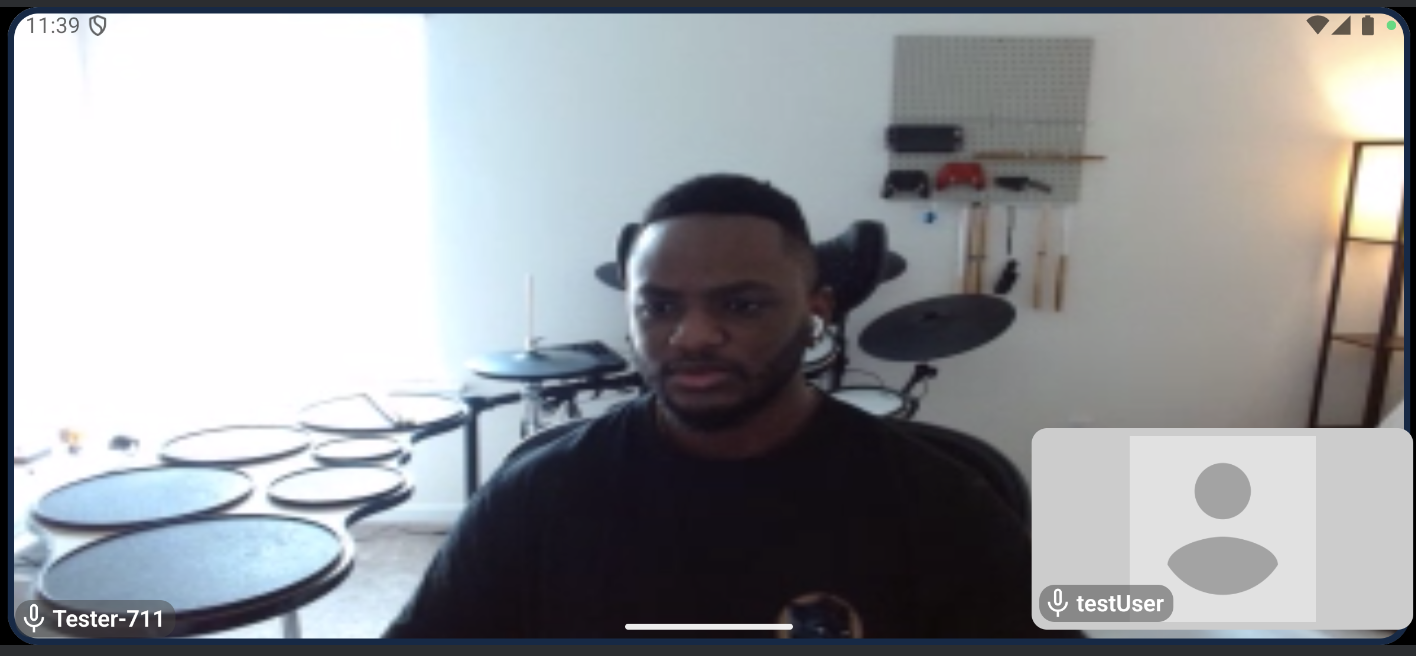
Now we need to handle landscape and portrait changes since the ViewModel is holding our UIState. Only the UIs view dimensions will have to be updated to match the landscape layout. For the video orientation, we call the .rotateVideo() method and pass a Surface.ROTATION integer we retrieve from our composable to reflect the correct orientation in the Video SDK:
fun DraggableSelfView( ... ) {
    val isPortrait = LocalConfiguration.current.orientation == Configuration.ORIENTATION_PORTRAIT
    val rotation: Int = LocalContext.current.display.rotation
    val width = if (isPortrait) 120.dp else 236.dp
    val height = if (isPortrait) 236.dp else 120.dp
    // ...
}
// In ZoomSessionViewModel.kt
fun rotateVideo(rotation: Int) {
    val videoHelper = ZoomVideoSDK.getInstance().videoHelper
    videoHelper.rotateMyVideo(rotation)
}
Session teardown
The End/Leave session button, when clicked, launches the LeavePopup composable which prompts the user to either leave or end the session (if they are the host). In the .closeSession() method, we stop all media, reset all UI State and private Lists back to their original values and call the .leaveSession(end) function to leave the session and navigate back to the JoinSession page:
fun LeavePopup(
    modifier: Modifier,
    user: () -> ZoomVideoSDKUser,
    closeSession: (Boolean) -> Unit,
    navigate: (String) -> Unit
) {
    Box(
        modifier = modifier
    ) {
        val color = ButtonDefaults.buttonColors(containerColor = Color.Red)
        if (user().isHost) {
            Popup(alignment = Alignment.Center) {
                Column(
                    verticalArrangement = Arrangement.Center,
                    horizontalAlignment = Alignment.CenterHorizontally
                ) {
                    Button(
                        colors = color,
                        onClick = {
                        closeSession(false)
                        navigate(Routes.JOINSESSION)
                    }) { Text("Leave Session") }
                    Button(
                        colors = color,
                        onClick = {
                        closeSession(true)
                        navigate(Routes.JOINSESSION)
                    }) { Text("End Session") }
                }
            }
        } else {
            Popup(alignment = Alignment.Center) {
                Button(
                    colors = color,
                    onClick = {
                    closeSession(false)
                    navigate(Routes.JOINSESSION)
                }) { Text("Leave Session") }
            }
        }
    }
}
// in ZoomSessionViewModel
fun closeSession(end: Boolean) {
        this.stopVideo()
        this.stopAudio()
        _zoomSessionUIState.update {
            it.copy(
                selfView = null,
                currentUsersInViewCount = 0,
                sessionName = "",
                userName = "",
                password = "",
                sessionLoader = true,
                isVideoOn = false,
                muted = false,
                audioConnected = false,
                pageNumber = 1,
                participantVideoOn = listOf(false, false, false, false),
                participantMuted = listOf(false, false, false, false)
            )
        }
        this.currentUsersInView = emptyList()
        ZoomVideoSDK.getInstance().leaveSession(end)
}
With that, you now have a great starting point for building out a fully featured Android Video Conferencing App powered by the Zoom Video SDK!