# Preview
You can offer the ability for users to locally preview their audio and video before joining a session and preview their video during a session. Including virtual backgrounds. Access the local video and audio track through the `ZoomVideo` import. During a session users can change their speaker or microphone, but there is no concept of in-session preview of their speaker or microphone. Changes to your speaker or microphone device set that speaker or microphone.
## Pre-session preview
The rest of this page describes how to offer pre-session previews, except for the [in-session video preview](#in-session-video-preview) section, which describes how to enable users to preview their video and virtual backgrounds privately during a session.
## Preview camera
To preview a camera, create a custom HTML video-player-container and inside it, a custom video-player element where you want the video preview to be displayed. You can also preview a camera with a virtual background, but you must first initialize the Video SDK and render the video.
```html
```
Then filter through the available cameras and start the camera.
```javascript
import ZoomVideo from "@zoom/videosdk";
let client = ZoomVideo.createClient();
let videoDevices;
let localVideoTrack;
client.init("en-US", "Global", { patchJsMedia: true }).then(() => {
ZoomVideo.getDevices().then((devices) => {
videoDevices = devices.filter((device) => {
return device.kind === "videoinput";
});
localVideoTrack = ZoomVideo.createLocalVideoTrack(
videoDevices[0].deviceId,
);
});
// turn on camera preview
localVideoTrack.start(document.querySelector("#local-preview-video"));
// turn on camera preview with blur or virtual background image url
localVideoTrack.start(document.querySelector("#local-preview-video"), {
imageUrl: "blur",
});
// turn off camera preview
localVideoTrack.stop();
// to change the camera, stop the track and recreate it with a new cameraId
localVideoTrack.switchCamera(cameraId);
});
```
### Mobile browser cameras
Specifying mobile or tablet browser cameras is different from desktop browsers. Mobile browsers and WebRTC only support the built-in front and back cameras and not external USB cameras.
To specify the mobile or tablet browser camera, you must use the [`facingMode`](https://marketplacefront.zoom.us/sdk/custom/web/enums/MobileVideoFacingMode.html) of either `user` for the front camera, or `environment` for the back camera (instead of the `deviceId`).
By default, the SDK uses the front camera. If the mobile device is rotated, the camera will automatically rotate.
```javascript
var mobileDevice;
if (/iPhone|iPad|iPod|Android/i.test(navigator.userAgent)) {
mobileDevice = true;
}
if (videoDevices.length && mobileDevice) {
videoDevices = [
{
label: "Front Camera",
deviceId: "user",
},
{
label: "Back Camera",
deviceId: "environment",
},
];
}
// front camera
localVideoTrack.switchCamera(videoDevices[0].deviceId);
// back camera
localVideoTrack.switchCamera(videoDevices[1].deviceId);
```
## Preview microphone
To preview a microphone, filter through the available microphones, choose one, and start the microphone. To change the microphone, stop the track and recreate it with a new `microphoneId`.
```javascript
import ZoomVideo from '@zoom/videosdk'
let microphoneDevices
let localAudioTrack
ZoomVideo.getDevices().then((devices) => {
microphoneDevices = devices.filter((device) => {
return device.kind === 'audioinput'
})
localAudioTrack = ZoomVideo.createLocalAudioTrack(microphoneDevices[0].deviceId)
localAudioTrack.start()
})
// turn on microphone preview
function previewMicrophoneButton() {
localAudioTrack.unmute()
// add logic to display microphone volume level using localMicrophoneTrack.getCurrentVolume()
}
// turn off microphone preview
function stopPreviewMicrophoneButton() {
localAudioTrack.mute()
}
// to change the microphone stop the track and recreate it with a new microphoneId
switchMicrophone(microphoneId) {
localAudioTrack.stop().then(() => {
localAudioTrack = ZoomVideo.createLocalAudioTrack(microphoneId)
localAudioTrack.start().then(() => {
this.localAudioTrack.unmute()
})
})
}
```
```javascript
import ZoomVideo from '@zoom/videosdk'
let microphoneDevices
let localAudioTrack
let devices = await ZoomVideo.getDevices()
microphoneDevices = devices.filter((device) => {
return device.kind === 'audioinput'
})
localAudioTrack = ZoomVideo.createLocalAudioTrack(microphoneDevices[0].deviceId)
localAudioTrack.start()
// turn on microphone preview
function previewMicrophoneButton() {
localAudioTrack.unmute()
// add logic to display microphone volume level using localMicrophoneTrack.getCurrentVolume()
}
// turn off microphone preview
function stopPreviewMicrophoneButton() {
localAudioTrack.mute()
}
// to change the microphone stop the track and recreate it with a new microphoneId
switchMicrophone(microphoneId) {
await localAudioTrack.stop()
localAudioTrack = ZoomVideo.createLocalAudioTrack(microphoneId)
await localAudioTrack.start()
this.localAudioTrack.unmute()
}
```
### Visualize and play microphone audio
To visualize the microphone feedback, you can display a microphone volume bar that reacts to the state of the input.
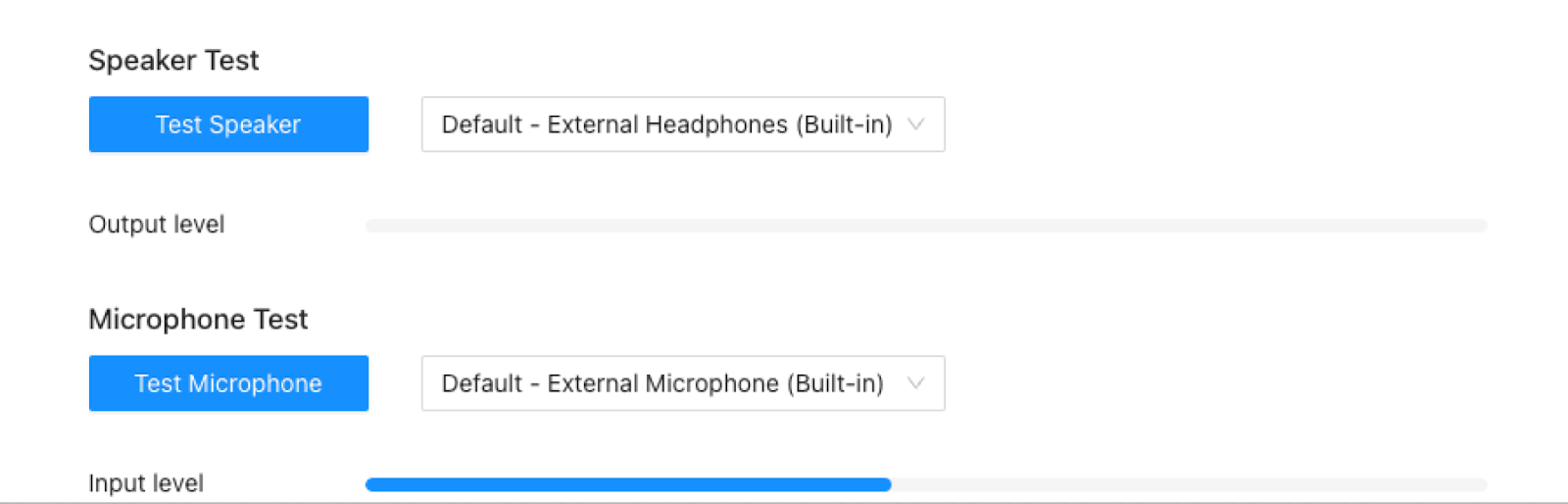
In the HTML, add a progress bar to visualize the audio input level and a button to test the microphone.
```html
```
The `testMicrophone` function is designed to record a piece of your voice, then play it back. This function has three states.
- Initial state - Undefined.
- Recording - When someone presses the button, it triggers the recording process.
- Playing the recorded audio - Once the recording ends, it automatically plays the recorded audio.
The button's state changes based on the method's callback. By default, the SDK records 10 seconds of audio. At this point, the button's status changes to "playing". After the audio playback, the user can click the button again to stop the microphone test. See the following code for an example.
```javascript
let microphoneTester = undefined;
document.body.addEventListener("click", (event) => {
const target = event.target;
const inputLevelElm = document.querySelector("#mic-input-level");
if (target.classList.contains("test-microphone")) {
const value = target.dataset["start"];
/**
* 0 - undefined - init
* 1 - start
* 2 - recording
* 3 - playing recording
*/
if (value === "1" || value === "3") {
if (microphoneTester) {
microphoneTester.stop();
target.dataset["start"] = "0";
target.textContent = "Test Microphone";
}
} else if (!value || value === "0") {
microphoneTester = localAudioTrack.testMicrophone({
microphoneId: microphoneDevices[0].deviceId,
speakerId: speakerDevices[0].deviceId,
onAnalyseFrequency: (v) => {
inputLevelElm.value = v;
},
recordAndPlay: true,
onStartRecording: () => {
target.textContent = "Recording";
target.dataset["start"] = "2";
},
onStartPlayRecording: () => {
target.textContent = "Playing";
target.dataset["start"] = "3";
},
onStopPlayRecording: () => {
target.textContent = "Stop test";
target.dataset["start"] = "1";
},
});
target.dataset["start"] = "1";
target.textContent = "Stop test";
} else if (value === "2") {
microphoneTester.stopRecording();
}
}
});
```
## Preview speaker
To preview a speaker, filter through the available speakers, choose one, and start the speaker. To change the speaker, stop the track and recreate it with a new `speakerId`.
```javascript
import ZoomVideo from "@zoom/videosdk";
let speakerDevices;
let localAudioTrack;
ZoomVideo.getDevices().then((devices) => {
speakerDevices = devices.filter((device) => {
return device.kind === "audiooutput";
});
});
```
```javascript
import ZoomVideo from "@zoom/videosdk";
let speakerDevices;
let localAudioTrack;
let devices = await ZoomVideo.getDevices();
speakerDevices = devices.filter((device) => {
return device.kind === "audiooutput";
});
```
### Visualize and play speaker
To visualize the speaker audio, you can display a speaker volume bar that reacts to the state of the input.

In the HTML, add a progress bar to visualize the audio input level and a button.
```html
```
For audio, you can use the test MP3 file URL or the default ringtone. You can also specify the audio output device.
There are two states for the button. The default state is the initial state. When someone presses the button, it changes to the "playing" state. The user can press the button again to stop the test.
```javascript
let speakerTester = undefined;
document.body.addEventListener("click", (event) => {
const target = event.target;
const outputLevelElm = document.querySelector("#speaker-output-level");
if (target.classList.contains("test-speaker")) {
const value = target.dataset["start"];
if (value === "1") {
if (speakerTester) {
speakerTester.destroy();
target.dataset["start"] = "0";
target.textContent = "Test Speaker";
}
} else {
speakerTester = localAudioTrack.testSpeaker({
speakerId: speakerDevices[0].deviceId,
onAnalyseFrequency: (v) => {
outputLevelElm.value = v;
},
});
target.dataset["start"] = "1";
target.textContent = "Stop test";
}
}
});
```
## Device changes
To detect a device being connected or disconnected, use the `navigator.mediaDevices.ondevicechange` event.
```javascript
let videoDevices;
let audioDevices;
let speakerDevices;
// ...
navigator.mediaDevices.ondevicechange = (event) => {
ZoomVideo.getDevices().then((devices) => {
// update device lists
videoDevices = devices.filter((device) => {
return device.kind === "videoinput";
});
audioDevices = devices.filter((device) => {
return device.kind === "audioinput";
});
speakerDevices = devices.filter((device) => {
return device.kind === "audiooutput";
});
});
};
```
```javascript
let devices
let videoDevices
let audioDevices
let speakerDevices
// ...
navigator.mediaDevices.ondevicechange = ((event) => {
devices = await ZoomVideo.getDevices()
// update device lists
videoDevices = devices.filter((device) => {
return device.kind === 'videoinput'
})
audioDevices = devices.filter((device) => {
return device.kind === 'audioinput'
})
speakerDevices = devices.filter((device) => {
return device.kind === 'audiooutput'
})
})
```
See the [preview functions in the Video SDK Reference](https://marketplacefront.zoom.us/sdk/custom/web/modules/ZoomVideo.default.html#createLocalAudioTrack) for details.
You can use the selected devices, background, and even self view mirroring preferences to pre-set your in session experience. Simply call `startVideo` and `startAudio` and pass in your desired options.
## In-session video preview
After the user joins a session, you can let them preview their camera or virtual background without turning the published video on or off so it doesn't publish the video stream to remote users. However, there is no concept of in-session preview for speakers or microphones.
### Display preview
Create a custom HTML video-player-container and inside it, a custom video-player element to display the video preview.
```html
```
### Preview camera with virtual background in session
```javascript
stream.previewVirtualBackground(
document.querySelector("#in-session-preview-video"),
imageSrc,
false,
deviceID,
);
```
### Preview camera without virtual background in session
```javascript
stream.previewVirtualBackground(document.querySelector(document.querySelector('#in-session-preview-video'), '', false, deviceID)
```
### Preview video in session
```javascript
// mirror your self video
stream.mirrorVideo(true);
// stop mirroring your self video
stream.mirrorVideo(false);
// check your self view mirrored video status
stream.isVideoMirrored();
// stop in session preview camera
stream.stopPreviewVirtualBackground();
```
See [`previewVirtualBackground`](https://marketplacefront.zoom.us/sdk/custom/web/modules/ZoomVideo.Stream.html#previewVirtualBackground) and [`stopPreviewVirtualBackground`](https://marketplacefront.zoom.us/sdk/custom/web/modules/ZoomVideo.Stream.html#stopPreviewVirtualBackground) for details.
_**Remember that [on mobile you have to pass in the user or environment](#mobile-browser-cameras).**_