Integrate the SDK into your app
The Zoom Video SDK for iOS allows you to add real-time voice, video, and chat capabilities to your app.
Prerequisites
To build and run the SDK you must have the following prerequisites.
- Xcode.
- A physical 64-bit iOS device (iPhone or iPad) with iOS version 15.0 or above. For iOS 26 and Xcode 26 or later, you may need to remove the "-ld_classic" in other link flags from your project.
- As of version 1.4.0, Video SDK for iOS does not support 32-bit devices.
- Versions 1.11.0 and later follow Apple's requirement to provide a privacy manifest and signatures.
- As of version 2.5.0 or later, Video SDK for iOS does not support x86 architecture simulator.
- A Zoom account with Video SDK credentials.
- A validated provisioning profile certificate.
- Downloaded the Video SDK for iOS package.
In addition to the Zoom App Marketplace, you can use the Swift Package Manager (using this PackageDescription) or CocoaPods (using the podspec for your version) to install the SDK.
Note: As of version 1.4.0, Video SDK for iOS does not support 32-bit devices.
Feature framework bundles
Some features have been separated from the main SDK to make the file size smaller if you do not want to include these features. Find these bundles under the /Sample-Libs/lib folder of the SDK package and these are the mandatory xcframework files.
ZoomVideoSDK.xcframeworkandZoomTask.xcframework: Video SDK iOS interfaces to support all services related to Video SDK sessions, such as initialize SDK, create and join a session, in-session services, and others.
Add these xcframework files, as needed.
CptShare.xcframework: Supports receiving screen sharing and sharing a view.zm_annoter_dynamic.xcframework: Supports the annotation service during screen sharing.zoomcml.xcframework: Interfaces to support virtual background filter and 3D avatar.ZoomVideoSDKScreenShare.xcframework: Interfaces to support the screen share service through broadcasting the device screen.
Set up your development environment
Follow these steps to integrate the SDK into your app:
-
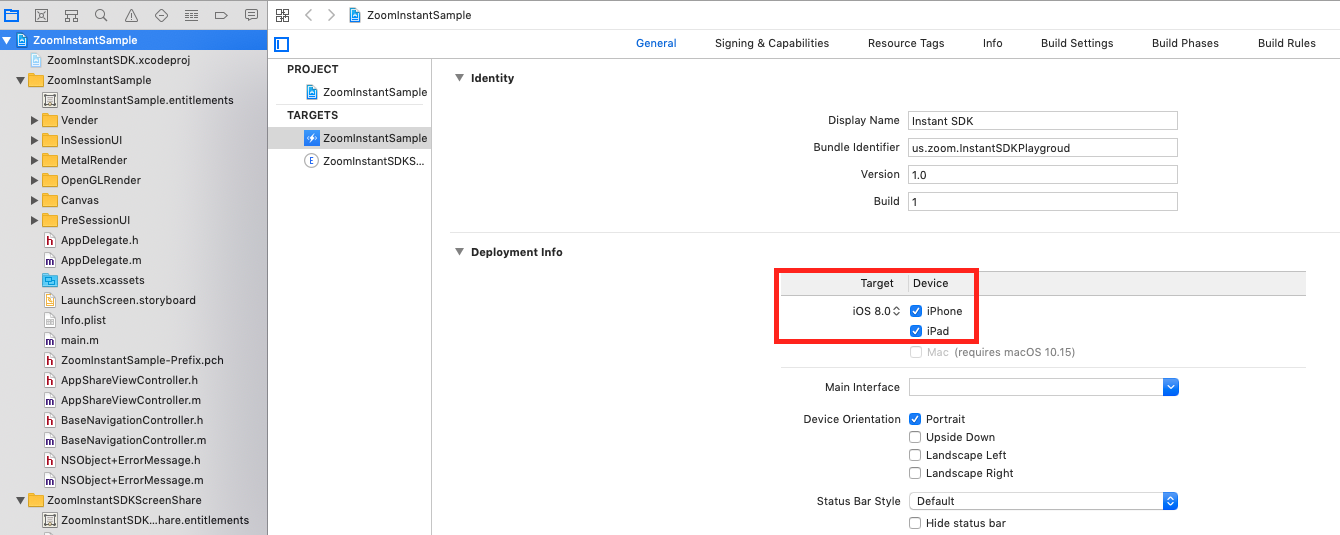
Open your project in Xcode and select the current target.
-
Set the iOS deployment target to a minimum of iOS 15.0. See Prerequisites for details.
-
Open the Video SDK package and navigate to the
/Sample-Libs/libfolder. -
Copy the
ZoomVideoSDK.xcframeworkandZoomTask.xcframeworklibraries into your Xcode project folder. -
If you want to add other functionality to your app, add the other framework bundles, as necessary.
-
The iOS Video SDK is a dynamic library. You must include it in your project under Embedded Binaries. Navigate to the General tab. Expand the Embedded Binaries section to add libraries. Click the + button to add the
ZoomVideoSDK.xcframeworkandZoomTask.xcframeworklibraries.
Add Required Project Permissions
The Video SDK requires the following permissions:
| Permission | Required / Optional | Permission Key | Description |
|---|---|---|---|
| Camera | Required | NSCameraUsageDescription | Required for Video |
| Microphone | Required | NSMicrophoneUsageDescription | Required for Audio |
| Bluetooth | Required | NSBluetoothPeripheralUsageDescription | Required for Bluetooth audio devices |
| Photo Library | Optional | NSPhotoLibraryUsageDescription | Used for sharing images from the photo library |
To grant permissions to the SDK, open the info.plist of your project
and click the '+' button to add the following:
<key>NSBluetoothPeripheralUsageDescription</key>
<string>bluetoothDecription</string>
<key>NSCameraUsageDescription</key>
<string>cameraDesciption</string>
<key>NSMicrophoneUsageDescription</key>
<string>microphoneDesciption</string>
<key>NSPhotoLibraryUsageDescription</key>
<string>photoLibraryDescription</string>
Set Build Options
The Video SDK does not support Bitcode, as library optimization disables the possibility to provide Bitcode builds.
Set Enable Bitcode in Build Settings > Build Options to No when you build an app with the Zoom SDK.
Build and test
With these configurations, you should be able to build and test your app with the Zoom SDK.
Initialize the SDK
SDK Initialization is required before calling any other functions of the SDK. To initialize the SDK, create an instance of ZoomVideoSDKInitParams object and set the domain of the context to "zoom.us". Optionally, you may also enable logging for debugging.
Note that you must call the Video SDK from the main thread.
let initParams = ZoomVideoSDKInitParams()
initParams.domain = "zoom.us"
initParams.enableLog = true
ZoomVideoSDKInitParams *initParams = [[ZoomVideoSDKInitParams alloc] init];
initParams.domain = @"zoom.us";
initParams.enableLog = YES;
Initialization parameters
The following table describes each property in ZoomVideoSDKInitParams.
| Property | Type | Description |
|---|---|---|
domain | NSString * | Required. The domain of the Video SDK. |
enableLog | BOOL | Optional. Enable or disable SDK logging. The log path is AppData/tmp. |
logFilePrefix | NSString * | Optional. The prefix of the log file name. |
appGroupId | NSString * | Optional. Required for screen share. Create a group ID in your Apple developer account. |
audioRawdataMemoryMode | ZoomVideoSDKRawDataMemoryMode | Optional. The audio raw data memory mode. Default is ZoomVideoSDKRawDataMemoryModeStack. |
videoRawdataMemoryMode | ZoomVideoSDKRawDataMemoryMode | Optional. The video raw data memory mode. Default is ZoomVideoSDKRawDataMemoryModeStack. |
shareRawdataMemoryMode | ZoomVideoSDKRawDataMemoryMode | Optional. The share raw data memory mode. Default is ZoomVideoSDKRawDataMemoryModeStack. |
extendParam | ZoomVideoSDKExtendParams * | Optional. The SDK extend parameters. |
For more information on how to use the ZoomVideoSDKRawDataMemoryMode object, see Raw data.
Verify initialization
After creating your ZoomVideoSDKInitParams object with the domain, call the initialize function on the SDK and verify that it was correctly initialized.
let sdkInitReturnStatus = ZoomVideoSDK.shareInstance()?.initialize(initParams)
switch sdkInitReturnStatus {
case .Errors_Success:
    print("SDK initialized successfully")
default:
    if let error = sdkInitReturnStatus {
        print("SDK failed to initialize: (error)")
    }
}
ZoomVideoSDKERROR ret = [[ZoomVideoSDK shareInstance] initialize:initParams];
switch (ret) {
    case Errors_Success:
        NSLog(@"SDK initialized successfully");
        break;
    default:
        NSLog(@"SDK failed to initialize with error code: %lu", (unsigned long)ret);
        break;
}
Once the SDK is successfully initialized, you will be able to call the SDK functions. You will also be able to set up a delegate to listen for events such as when a user joins a session or leaves a session.
Initialize with debug log
You can enable the debug log feature when initializing the SDK with the following method.
let context = ZoomVideoSDKInitParams()
context.domain = kAppDomain
context.appGroupId = "<#Group ID#>"
context.enableLog = true
ZoomVideoSDK.shareInstance()?.initialize(context)
ZoomVideoSDKInitParams *context = [[ZoomVideoSDKInitParams alloc] init];
    context.domain = kAppDomain;
    context.appGroupId = @"<#Group ID#>";
    context.enableLog = YES;
    [[ZoomVideoSDK shareInstance] initialize:context];
Once you've initialized the log feature, the SDK creates an encrypted log file in your application's sandbox. To retrieve the log file:
- Open the sandbox. In Xcode, select Devices and Simulators in the Window menu.
- Download the sandbox contents. Locate your application, press the gear icon, and select Download Container.
- Select a path to store the container contents. The SDK creates an
xcappdatafile. - Locate log file. Right-click the
xcappdatafile and select Show Package Contents. - Find the log file in the
/AppData/tmp/directory.
The log file has a 5MB fixed maximum storage capacity. Once it reaches the maximum capacity, it automatically re-records from the beginning and overrides the previous data.
To find the crash log, see the Apple Developer article, Acquiring crash reports and diagnostic logs.
Implement a delegate
The ZoomVideoSDKDelegate of the Video SDK allows you to subscribe to callback events that provide status updates on the operations performed
in your app that are related to the SDK. For example, you might want to be notified when a user has successfully joined or left a session.
To subscribe to these events, you must create an instance of the ZoomVideoSDKDelegate and have your class conform to the ZoomVideoSDKDelegate protocol.
See the following for how to implement this delegate and assign it to the SDK instance.
Conform to the ZoomVideoSDKDelegate
class YourClass: ZoomVideoSDKDelegate {
  // Add any of the following callback functions here as needed for your app.
}
ZoomVideoSDK.shareInstance()?.delegate = self
@interface YourClass : NSObject <ZoomVideoSDKDelegate>
// Add any of the following callback functions here as needed for your app.
[ZoomVideoSDK shareInstance].delegate = self;
Callbacks
The following example shows how to implement a callback function. You can implement additional operations as needed after receiving the result of the callback. See the documentation under Add features for each feature for callbacks relevant to the feature.
Get notified of operation results and SDK errors
func onError(_ ErrorType: ZoomVideoSDKERROR, detail details: Int) {
  	switch ErrorType {
    	case .Errors_Success:
      // Your ZoomVideoSDK operation was successful.
      print("Success")
      default:
      // Your ZoomVideoSDK operation raised an error.
      // Refer to error code documentation.
      print("Error \(ErrorType) \(details)")
      return
    }
}
- (void)onError:(ZoomVideoSDKERROR)ErrorType detail:(NSInteger)details {
    switch (ErrorType) {
        case Errors_Success:
            // Your ZoomVideoSDK operation was successful.
            NSLog(@"Success");
            break;
        default:
            // Your ZoomVideoSDK operation raised an error.
            // Refer to error code documentation.
            NSLog(@"Error %lu %ld", (unsigned long)ErrorType, (long)details);
            break;
    }
}
See Error codes for a list of error codes, descriptions, and troubleshooting suggestions.