Add Realtime Media Streams features to your app
Once Realtime Media Streams (RTMS) has been added to your account, you need to create a new general or server-to-server app and add RTMS to it, or add RTMS to an existing app. For more information on creating an app, see Quick start guide in the Build your app guide.
To add RTMS to your app, you'll need to add
This video walks you through marketplace and account configuration to create and use ZCC RTMS apps.
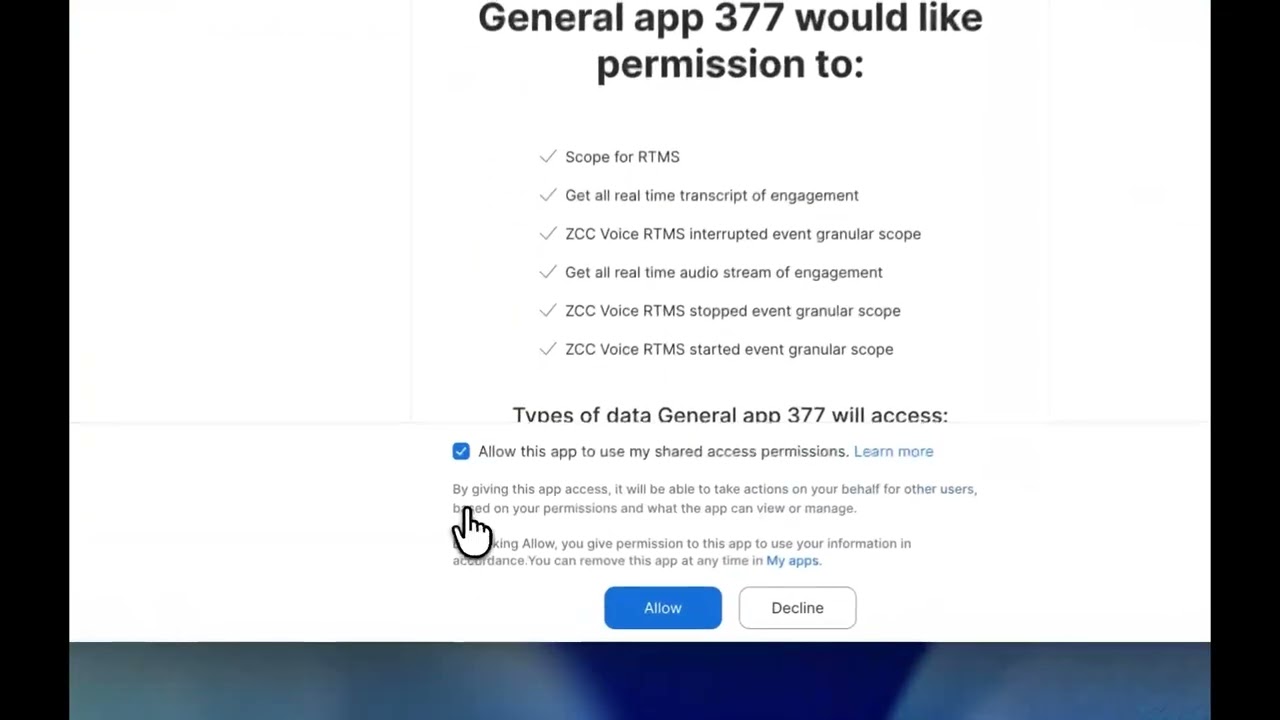
The demo video walks through set up for a user-managed application. If using admin-level scopes, select "admin-managed" on your marketplace app homepage.
Create an app
To use RTMS, you'll need to create a General app on the Zoom App Marketplace that you can then add RTMS features to. For more information on creating an app, see Quick start guide in the Build your app guide.
Subscribe to RTMS started and stopped events
RTMS uses event subscriptions to notify your app when a session starts and stops in Zoom Contact Center (ZCC) engagements. Use these events to work with RTMS streams.
To subscribe to RTMS events
-
Sign into the Zoom App Marketplace.
-
To go to the app, in the upper-right of the screen, choose Manage.

-
Select your app from the list.
-
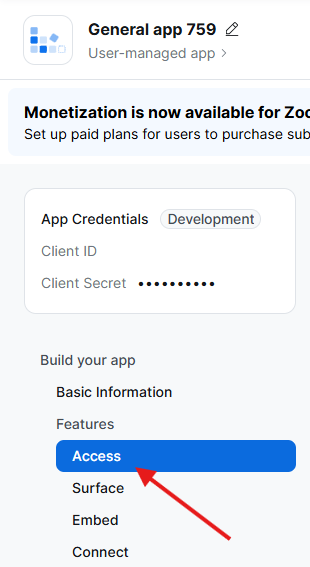
In the navigation pane, choose Access.
-
In the General Features section, turn on Event Subscription.
-
Set up the event subscription
- Give your subscription a name.
- Choose Add Events, search for RTMS, and select the events you want to subscribe to. We recommend subscribing to all of the available ones, but you'll need RTMS Started and RTMS Stopped for RTMS to work.
- Choose Done.
-
Enter the Event notification endpoint URL where you'll receive events.
-
Choose Save.
Now that you've added event subscriptions to your account, you'll need to add RTMS scopes.
Add RTMS scopes to your app
Your app will also require scopes to receive audio data. Scopes tell the media servers which data to send from ZCC engagements.
Your app will need Granular scopes to use RTMS scopes. Granular scopes are the default for new apps, but older apps might need them to be enabled. Update your app if you do not see RTMS scopes in your list of available scopes.
To add scopes to your app
- Sign into the Zoom App Marketplace.
- To go to the app, in the upper-right of the screen, choose Manage.
- Select your app from the list.
- In the navigation pane, choose Scopes.
- Choose + Add Scopes, search for RTMS, and select the scopes you want to add. For example, if you want to get audio data from a ZCC engagement, add the
contact_center:read:zcc_voice_audioscope.
(Optional) Add REST APIs for session status
RTMS can also be started and stopped using a REST API call from your app to Update engagement Real-Time Media Streams (RTMS) app status. This allows your app to start an RTMS session for a participant with an access token.
Using this endpoint requires the contact_center:update:engagement_rtms_app_status scope. For more information about adding scopes, see Add ZCC RTMS scopes to your app.