Creating apps for Zoom Room Controllers follows the standard process for creating a Zoom app. In this article, we call out only information specific to creating apps for Zoom Room Controllers.
Ensure you have read Create a Zoom app before continuing.
Prerequisites
-
You have read Before you start .
-
You have read Create OAuth client apps for users.
-
You have a Zoom account .
-
Zoom Apps SDK 0.16.8 or higher.
-
Zoom Rooms client 5.13.1 or later.
-
Zoom Desktop client 5.13 or later.
-
You are either the Zoom account owner, account admin, or have been assigned the Zoom for developers role.
-
The administrator has enabled view and edit permissions for the Zoom for developers role.
To enable permissions for roles, log into the Zoom web portal and go to User Management > Roles > Role Settings > Advanced features, and select the View and Edit checkboxes for Zoom for developers.
For more information, see Using role management .

Step 1 - Create a general Zoom app
Follow the instructions in Quick Start Guide to create a general app. Make these selections to create an app for Zoom Room Controllers:
-
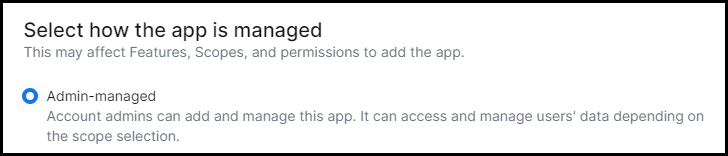
On the Basic Information page, under Select how the app is managed, select Admin-managed.
-
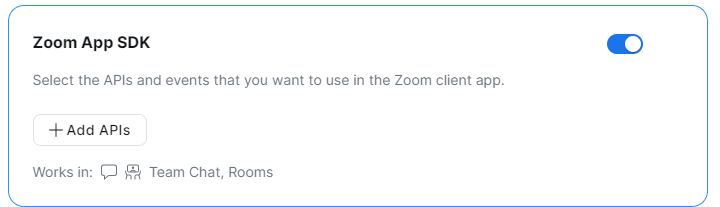
On the Features page, Surface, In-client App Features, enable Zoom App SDK. Select Add APIs and add the APIs and events used by your app.
-
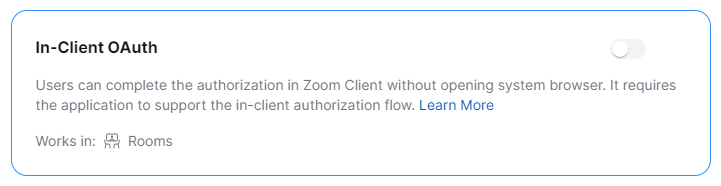
(optional) Enable In-client OAuth to allow users to complete the authorization process in the client.
-
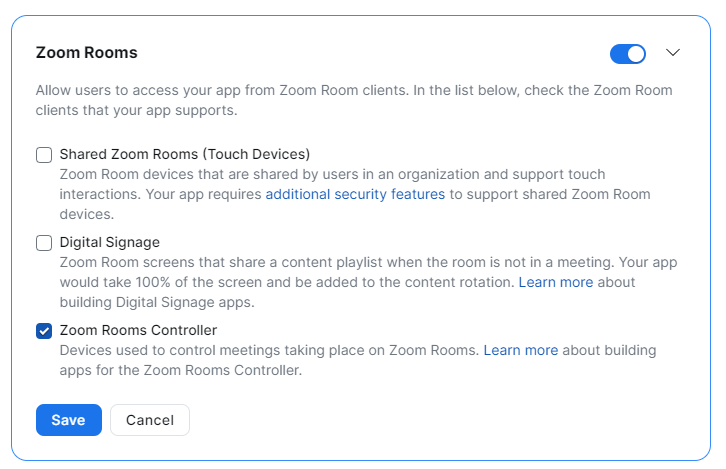
On the **Features **page, go to Surface > Zoom Client Support, enable Zoom Rooms, and select Zoom Rooms Controller.
Complete the steps in Create OAuth client apps for users and then proceed to Step 2.
Step 2 - Download and install the Zoom Apps SDK
Download and install the Zoom Apps SDK .
Step 3 - Get the Zoom Room context
In your app, use the getZoomRoomContext() method to get the device ID and room information from the Zoom Room device.
Example usage: zoomSdk.getZoomRoomContext()
Data inputs: None
Data outputs:
deviceId(string) - id of the Zoom Room deviceroomId(string) - id of the Zoom Room
Step 4 - Get the Zoom Room Controller credentials
In your app, use the getZoomRoomControllerCredentials method to request configuration credentials for in-room control processors.
Example usage: zoomSdk.getZoomRoomControllerCredentials()
Data outputs: Response if app is configured with username/password/URL credentials:
{
    type: zrcUsernamePassword,
    token: {
        appConfigUserName: string,
        appConfigPassword: string,
        appConfigDeviceUrl: string,
    },
}
Response if app is configured with authToken/URL credentials:
{
    type:   zrcAuthToken,
    token: {
        appConfigAuthToken:  string,
        appConfigDeviceUrl:  string,
    },
}