# Zoom Rooms Control System API
## ZR-CSAPI Features: Version 1.1
The ZR-CSAPI is a stand-alone process that runs on the Zoom Rooms machine. The process exposes an SSH interface that accepts a CLI terminal connection from an external automation controller. The ZR-CSAPI then connects to the Zoom Rooms process via a proprietary Zoom Room API. The ZR-CSAPI translates the SSH CLI commands from the automation controller to the proprietary Zoom Room API commands for the Zoom Room. Features of the ZR-CSAPI:
- The API supports SSH only, via port `2244`. It supports a single SSH connection at a time. Starting with Zoom Rooms 5.17.0, it only supports the `rsa-sha2-512` and `rsa-sha2-256` host key algorithms (support for `ssh-rsa` and `ssh-dss` was removed to enhance security).
- The standard Zoom Room Controller (iPad / Android tablet) cannot be connected to the Zoom Room simultaneously while ZR-CSAPI is running.
- `RS-232` connection is not supported.
- For interactive terminal command line editing, ZR-CSAPI supports Arrow up/down/left/right, Del, and Backspace.
- The CLI can return either CLI-style reply text or JSON reply structures.
- The SSH interface does **not** support SSH exec commands; the interaction is strictly plain text.
## Installing and launching
Because the automation controller needs to connect to the Zoom Room over Ethernet to establish an SSH connection, the automation controller will likely need to connect to the Zoom Room machine over the corporate LAN. For security purposes, you can setup a VLAN to isolate the communication between the automation controller and the Zoom Room. You can also add a separate USB NIC, to be used just with your automation controller, for total isolation; the SSH API listens on all NICs.
Install the Zoom Room on a Mac or Windows. The Zoom Room install package will install the ZR-CSAPI executable. After the Zoom Room installer finishes, it will launch the Zoom Room. Log in to the Zoom Room as you normally would to activate the Zoom Room.
## Enabling the ZR-CSAPI per-Zoom Room
The ZR-CSAPI process must be launched by the Zoom Room process; it's not possible to manually launch the ZR-CSAPI process.
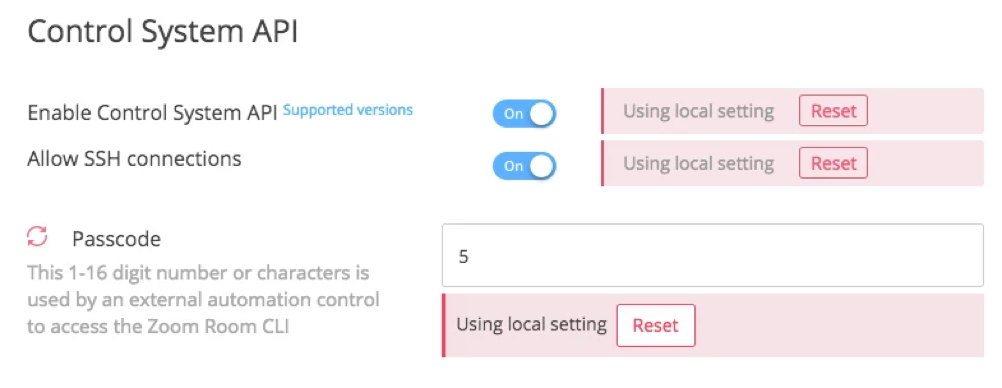
On the Zoom Web portal, in the configuration section for a Zoom Room, there is a UI to enable the ZR-CSAPI:

The customer can enable/disable the ZR-CSAPI, and set the SSH passcode, on a per-Zoom-Room basis. The Zoom Room will download this information, and launch the ZR-CSAPI with the desired SSH passcode. If the customer has many Zoom Rooms, it is possible to configure settings for a group of Zoom Rooms in bulk, at one time, using the location feature of the Web Portal.
## ZR-CSAPI Process verification
After the Zoom Rooms launches, you can verify that the ZR-CSAPI process is running on the Mac, and using the `ps` command:
```shell
ps | grep ZAAPI
```
And you will see a process that looks like this:
```shell
/Applications/ZoomPresence.app/Contents/Frameworks/ZAAPI.app/Contents/MacOS/ZAAPI -ssh -p zoomus123 -a rlb|pkg|tcp://127.0.0.1:9090 -t wxxaMzYuMDEISZyqto8LfA4r0HjYTeRepUKDu-nIb_Y.DgEWVS15Z3F0M0hTdFNtYlkxSmZZVy1PQR90Y3B8cGtnfHJsYjovLzEwLjEwLjE3LjIzMjo5MDkw
```
To run the `ps` command: Enable SSH login on the Mac, then remotely SSH into the Mac using the normal SSH port `22`, then issue the `ps` command in the SSH terminal.
## Connecting the automation controller to ZR-CSAPI
When ZR-CSAPI is running, you can connect to it via SSH, over port `2244`. It does not use the standard SSH port `22`.
Starting with Zoom Rooms 5.17.0, the ZR-CSAPI only supports the `rsa-sha2-512` and `rsa-sha2-256` host key algorithms (support for `ssh-rsa` and `ssh-dss` was removed to enhance security).
When logging into the ZR-CSAPI, Use the SSH username `zoom`.
You can set the SSH password on the Zoom web portal, under the Zoom Room configuration section.
Currently, when you turn on the ZR-SCAPI functionality, the default password is blank (the empty string). Please immediately change the password to a non-empty string.
It is possible to use the location configuration feature on the Zoom Portal to place multiple Zoom Rooms in a Location, then change the settings for all Zoom Rooms in the same location at once. Online instructions for setting up locations is here: [https://support.zoom.us/hc/en-us/articles/115000342983-Zoom-Rooms-Location-Hierarchy](https://support.zoom.us/hc/en-us/articles/115000342983-Zoom-Rooms-Location-Hierarchy)
Example SSH connection test: If your Zoom Room is at IP address `10.10.1.5`, connect to the ZR-CSAPI using:
```shell
ssh -p 2244 zoom@10.10.1.5
```
The ZR-CSAPI supports a subset of the SSH PTY pseudo-terminal, for command line interactivity. The interactive features include:
- Arrow up/down to go backward / forward in the history.
- Arrow left/right to go left/right on a command line.
- Del to delete a character after the cursor.
- Backspace to delete a character before the cursor.
The ZR-CSAPI SSH interface supports only one SSH connection at a time.
> **Note**
>
> The ZR-CSAPI SSH interface does not support SSH exec commands; the interface is strictly plain text.
While the ZR-CSAPI process is running, it's not possible to simultaneously use a Zoom Rooms controller: be sure to quit the Zoom Rooms Controller (your iPad / Android tablet) before using the ZR-CSAPI.
## ZR-CSAPI basic commands
There are several basic CLI commands:
| Command | Functionality |
| ----------------- | ------------------------------------------------------ |
| `bye` | Exit the session. |
| `echo on/off` | Turn terminal echo on/off. Upon entry, the echo is on. |
| `format json/cli` | Switch between JSON format reply and CLI format reply. |
## JSON format reply structure
At login, the default reply structure is CLI format. To switch to JSON reply format, issue the command:
```shell
format json
```
For this command:
```shell
zStatus SystemUnit
```
This is an example return structure in JSON format:
```json
{
"Status": {
"message": "",
"state": "OK"
},
"Sync": true,
"SystemUnit": {
"email": "scott.firestone_U-ygqt3HStSmbY1JfYW-OA@parasync.com",
"login_type": "work_email",
"meeting_number": "5526136251",
"platform": "Mac OS X, 10.11.6",
"room_info": {
"account_email": "room@kanovia.com",
"is_auto_answer_enabled": true,
"is_auto_answer_selected": false,
"room_name": "ZR-ScottFirestone2"
},
"room_version": "4.0.58637.1228"
},
"topKey": "SystemUnit",
"type": "zStatus"
}
```
JSON structures have these top level keys:
- `topKey` — The name of the top level keyword in the command hierarchy; the keyword also appears at the top level of the structure.
- `Status` — Error information, with a possible error message. A state of OK means success.
- `Sync` — If true, this structure is a synchronous response to a command. If false, it is an asynchronous notification.
- `type`
- If `Sync` = `true`, the structure is a synchronous response, and this type will be `zCommand`, `zConfiguration`, or `zStatus`, corresponding to the original command type that triggered this response.
- If `Sync` = `false`, the structure is an asynchronous reply, and this type will be `zCommand`, `zConfiguration`, or `zStatus` if the notification was triggered by a corresponding synchronous reply. The type will be `zEvent` if the notification does not have a corresponding synchronous reply. One example reply with the type of zEvent is `IncomingCallIndication`; that notification does not have a corresponding synchronous command or reply.
## ZR-CSAPI CLI commands
There are several categories of commands:
- **zCommands** — Perform an action, or retrieve dynamic user-centric information.
- **zConfiguration** — Get/Set read/write configuration settings: Only the CLI can change these values, not external events.
- **zStatus** — Get read-only status settings. Some of these values never change, but some values can change based on external events.
- **zEvents** — Also, asynchronous notifications can alert the CLI to changes: these are called **zEvents**.
Each command specifies a path hierarchy, like the Windows registry. All commands and parameter names are case-insensitive. However, values may be case-sensitive.
## `zCommand`
zCommands either perform an action or retrieve dynamic user-centric information. The parameters must be provided in the order shown in the command reference. For most zCommands, all parameters are required. Boolean parameters can have values of `on` or `off`.
**Example:**
```shell
zCommand Call MuteParticipant mute: on Id: 16778240
```
In this case, the path heirarchy for this command is `Call MuteParticipant`, and the two required parameters are `mute` (with a value of `on`) and `Id` (with a value of `16778240`). Example reply text for this command is:
```shell
OK
*r CallMuteParticipantResult (status=OK):
** end
```
Command responses generally consist of `OK`, followed by a status, followed by return values, if any, followed by `**end`. For zCommands, the status and reply values are preceded by `*r`.
Some zCommands are In-meeting only: they can only be used when a meeting is in progress. They return an error if you attempt to call them when a meeting is not active. To find out whether the Zoom Room is in a meeting, use the zStatus command:
```shell
zStatus Call Status
```
After you issue a zCommand, you may receive asynchronous zEvent notifications if the command changes the state of the Zoom Room.
## `zConfiguration`
A zConfiguration command can get or set a single configuration setting value on the Zoom Room.
To get a value, specify the path hierarchy, down to the leaf parameter, but do not specify a value.
**Example:**
```shell
zConfiguration System mute_av_begin
```
And the reply is:
```shell
*c zConfiguration System mute_av_begin: off
** end
OK
```
In this case, the path is `System`, and the parameter is `mute_av_begin`. The return value is a Boolean, with a value of `off`. To set this value, specify a value for the parameter:
```shell
zConfiguration System mute_av_begin: on
```
And the reply is:
```shell
** end
OK
```
zConfiguration reply text consists of `**end` followed by `OK`. Also, if the value changes, you will get an asynchronous notification that is value has changed, in the form of a zEvent. The zEvent has the same format as the original zConfiguration command and starts with `*c`. the zEvent will not end in an `OK`. An example of a zEvent for the `zConfiguration sytem mute_av_begin` parameter:
```shell
*c zConfiguration System mute_av_begin: on
** end
```
Some zConfiguration commands are In-meeting only: they get/set values for a meeting in progress; they return an error if you attempt to call them when a meeting is not active.
## `zStatus`
A zStatus command gets one or more read-only values. Specify the path hierarchy.
**Example:**
```shell
zStatus Call Status
```
In this example, the path is `Call`, and the parameter is `Status`. The reply is:
```shell
*s Call Status: NOT_IN_MEETING
** end
OK
```
For zStatus commands, you must specify the path down to a certain terminal path level in the command hierarchy. The ZR-CSAPI will return all values for that level and below. The reference guide specifies the terminal path. For instance, To get a list of Audio Input devices, specify the zStatus hierarchy down to `audio Input Line`:
```shell
zStatus Audio Input Line
```
And you will get parameters for that level in the hierarchy, and below. This reply returns an array of devices:
```shell
*s Audio Input Line 1 id: Sennheiser SC70 USB CTRL
*s Audio Input Line 1 Name: Sennheiser SC70 USB CTRL
*s Audio Input Line 1 Alias:
*s Audio Input Line 2 id: HD Pro Webcam C920
*s Audio Input Line 2 Name: HD Pro Webcam C920
*s Audio Input Line 2 Alias:
*s Audio Input Line 3 id: Built-in Input
*s Audio Input Line 3 Name: Built-in Input (Line In)
*s Audio Input Line 3 Alias:
** end
OK
```
Each zStatus reply line has the `*s` prefix. zStatus values are read-only but can change from external changes to the state of the Zoom Room. If the value changes, you will get an asynchronous notification that the value has changed, in the form of a zEvent. The zEvent has the same format as the zStatus command and starts with `*s`. The zEvent will not end in an `OK`. An example of a zEvent for the zStatus `Call Status` parameter:
```shell
*s Call Status: CONNECTING_MEETING
** end
```
## `zEvent`
zEvents are asynchronous notifications. They can come in several forms:
- Changes to zStatus parameters.
- Changes to zConfiguration parameters.
- Events triggered by zCommands.
- Other asynchronous events, such as a remote participant attempting to join a conference.
As an example, if a remote participant attempts to join a meeting hosted by the Zoom Room, and if the Zoom Room is not configured to auto-accept new meeting participants, the ZR-CSAPI will issue this zEvent notification to indicate that the participant requests to enter the conference:
```shell
*e IncomingCallIndication callerJID: thqrasdqs4wzdnch4kcbiw@example.com
*e IncomingCallIndication calleeJID:
*e IncomingCallIndication meetingID: g
*e IncomingCallIndication password:
*e IncomingCallIndication meetingOption: 6
*e IncomingCallIndication meetingNumber: 5351459175
*e IncomingCallIndication callerName: Bob Smith
*e IncomingCallIndication avatarURL:
*e IncomingCallIndication lifeTime: 60
** end
```
zEvent notifications that are not triggered by changes to zStatus or zConfiguration changes will have an `*e` prefix.
## Arrays
Some hierarchical paths include an array index for a level in the path. In the Command Reference, this array level is indicated by a `n` in the path specification. For example, when retrieving a list of PhoneBook entries, it is possible to Ask for a range of entries, starting at an offset index, and spaning a maximum number of return values. In this case, the return information contains an array of multiple parameters underneath it, with the index array value preceding the values under the array level:
```shell
zcommand phonebook list offset: 2 Limit: 2
OK
*r PhonebookListResult (status=OK):
*r PhonebookListResult resultInfo Offset: 2
*r PhonebookListResult resultInfo Limit: 2
*r PhonebookListResult resultInfo TotalRows: 2
*r PhonebookListResult Contact 3 jid: hap3piapreqhiqztagcrsq@example.com
*r PhonebookListResult Contact 3 screenName: AlexBaker
*r PhonebookListResult Contact 3 firstName: AlexBaker
*r PhonebookListResult Contact 3 lastName:
*r PhonebookListResult Contact 3 phoneNumber:
*r PhonebookListResult Contact 3 email: rooms_hAP3piAPRrqHIQzXAgCRsQ@gmail.com
*r PhonebookListResult Contact 3 avatarURL:
*r PhonebookListResult Contact 3 presence: ZoomIMPresence_Offline
*r PhonebookListResult Contact 3 onDesktop: off
*r PhonebookListResult Contact 3 onMobile: off
*r PhonebookListResult Contact 4 jid: lkfetphqtnyarhkofk4baa@example.com
*r PhonebookListResult Contact 4 screenName: ZR-FifthFloor
*r PhonebookListResult Contact 4 firstName: ZR-FifthFloor
*r PhonebookListResult Contact 4 lastName:
*r PhonebookListResult Contact 4 phoneNumber:
*r PhonebookListResult Contact 4 email: Bob.Smoth_lkFETpHqTnycRHKOFk4BaA@parasync.com
*r PhonebookListResult Contact 4 avatarURL:
*r PhonebookListResult Contact 4 presence: ZoomIMPresence_Offline
*r PhonebookListResult Contact 4 onDesktop: off
*r PhonebookListResult Contact 4 onMobile: off
** end
```
## Call Participants IDs
When a meeting is active, you can get a list of participants. Each participant has a meeting participant ID. However, the bottom 10 bits of the ID are ignored. To compare two IDs, you must mask off the bottom 10 bits.
## Controller connections
The Zoom Room can support either the ZR-CSAPI, or a Zoom Room Controller, but not both. If one type of controller connects, the other will disconnect.
Normally, the ZR-CSAPI maintains a pipe connection to the Zoom Room. But if the Zoom Room Controller connects to the same Zoom Room, then the ZR-CSAPI will disconnect its pipe from the Zoom Room. If the SSH login is active, then the ZR-CSAPI will issue this zEvent to the SSH terminal:
```shell
*e Pipe OtherControllerLogin
** end
```
If the SSH login is not active, then the ZR-CSAPI will still disconnect its pipe.
There are two ways to re-establish the ZR-CSAPI pipe connection of the ZR:
1. Log in to the ZR-CSAPI. If you are currently logged in, you can log out, and then log back in again.
2. Issue any ZR-CSAPI command. The command will not execute, but you will get this zEvent message:
```shell
*e Pipe Reconnecting
** end
```
This message indicates that the ZR-CSAPI has re-connected its pipe to the ZR. You can then re-issue your previous command to execute it.
## Web Portal UI
On the Zoom Portal website, under the Zoom Room settings, there is a UI to enable/disable ZR-CSAPI, enable/disable the SSH connection, and set the password of the SSH connection.
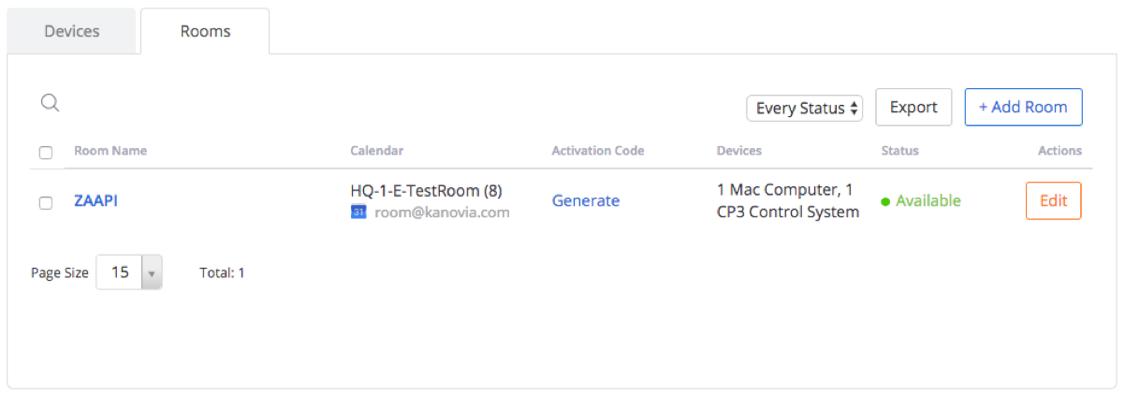
On the Zoom Portal website, under the Zoom Room settings, the Room tab will list some details on the API for that Zoom Room. In this case, the automation controller using the API has set deviceSystem to CP3:
You will also see **Zoom Rooms Automation Controllers** on the list. An external automation control system will send the Zoom Room the **App version** and **Device System** for the control system, and the Zoom Room will forward that information to the Web Portal to be listed as info for the device. For instance, to show App Version **1.45**, and Device System **CP3**, issue these ZR-CSAPI CLI commands:
```shell
zConfiguration Client appVersion: 1.45
zConfiguration Client deviceSystem: CP3
```
And those values will be displayed on the Devices tab on the web portal:
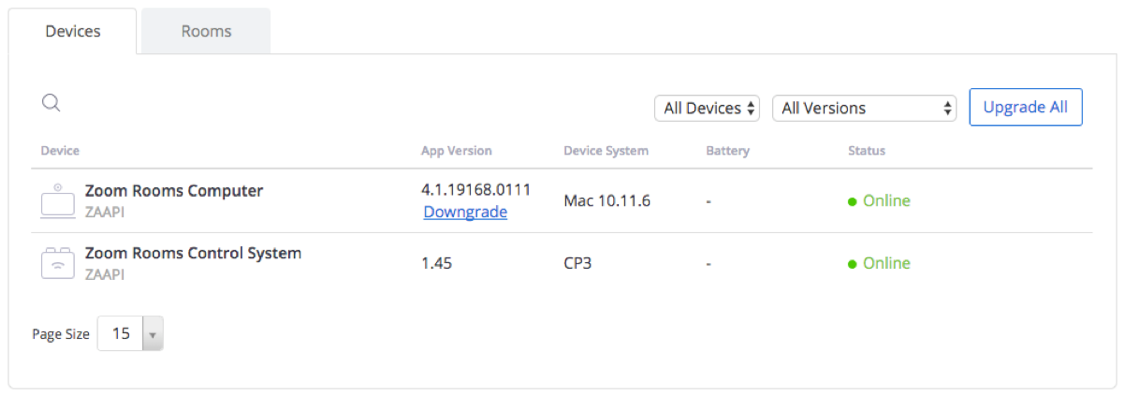
Also, the status of **Online** will appear, if an automation controller is connected to ZR-CSAPI via SSH.
## ZR-CSAPI log files
Log files are created automatically, to capture all severity levels.
Every time the ZR-CSAPI launches, the old log files are deleted, and a new log file is created.
When a log file reaches 20 MB in size, the logs continue with a new file; up to 4 log files at 20 MB in size may exist. The log files will be located here:
- **Mac:** `~/Library/Logs/zoom.us/zaapi/zaapi_XXX.log`
- **Windows:** `%APPDATA%\ZoomRooms\logs\zaapi_xxx.log`
Please IGNORE the files that start with the uppercase `ZAAPI_XXX`.