Set up and initialize
Set up the development environment, and initiate the SDK.
Set up the development environment
- Download or clone the package.
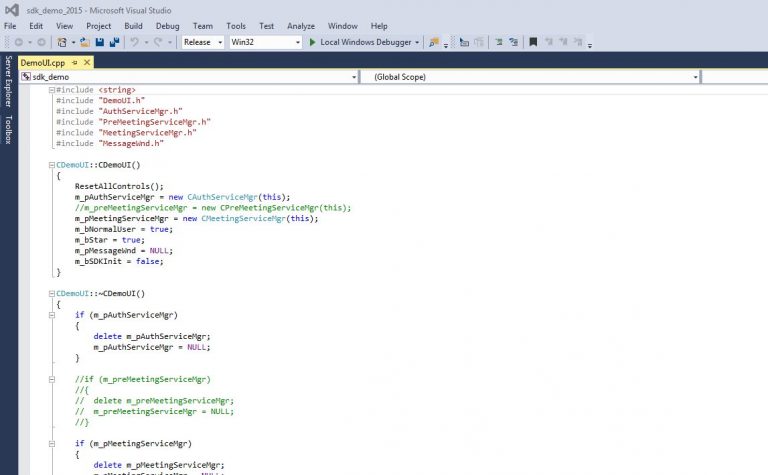
- Launch the visual studio and open the project file.
- Change the project configuration to Release.
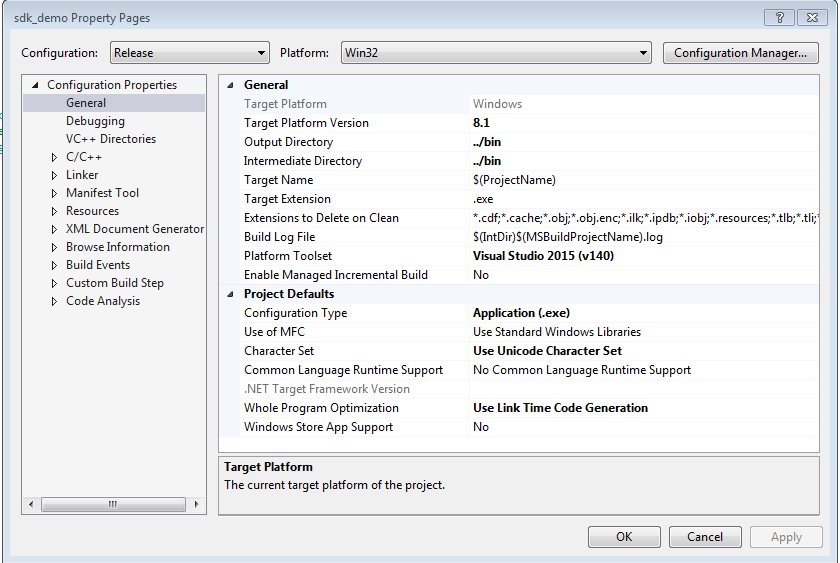
Set the sdk_demo properties as follows:
- In the Configuration Properties tab, go into the General subtab. Then set the Output Directory to the Bin folder.
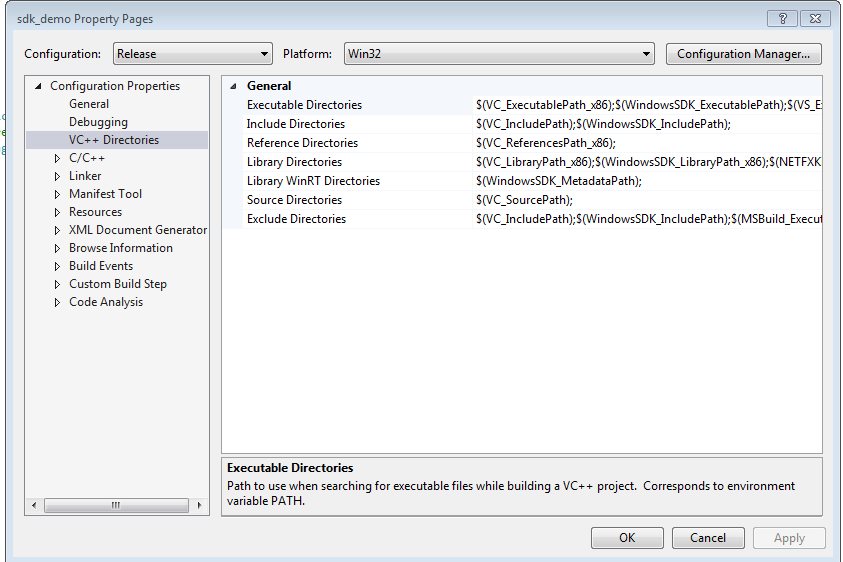
- In the Configuration Properties tab, go into the VC++ Directories subtab. Set the Include Directories option to the "h" folder and set the Library Directories option to the "lib" folder.
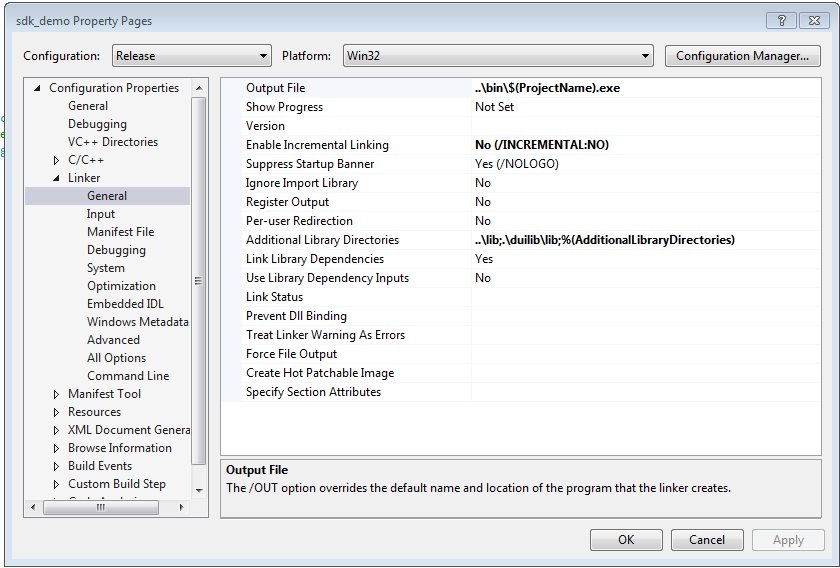
- In the Linker tab, click the General subtab. Set the Output File to where you want the output "exe" file to be.
- Get the App Key and Secret from your account - check the Credential tab.
- You might need the API Key and Secret for making REST calls as well.
Our Windows SDK exposes four different services described below. Further detail on how to use these services can be found in the Developer Guide that is bundled inside the download.
-
The Authentication service is used for authenticating users. This is done by passing the account App Key and Secret or by passing Zoom login credentials.
-
The Pre-Meeting service is used to schedule, edit or delete meetings.
-
The Meeting service is used to create scheduled or impromptu meetings and exposes several controller interfaces to control the meetings.
-
The Setting service is used to enable or disable in-meeting controls.
The app can follow the same steps for managing webinars.
Initialize the SDK
To initialize the Meeting SDK for Windows, authenticate the SDK, create a JWT token, authenticate the users, and enable logging.
Authenticate the SDK
To authenticate the SDK, initialize the Meeting SDK for Windows and create the authentication service. Find the APIs in zoom_sdk.h, and then call Zoom SDK APIs in the main UI thread for thread-safe operation.
To authenticate the SDK, initialize the Meeting SDK for Windows, create the authentication service, and call the SDKAuth method. Include the header files auth_service_interface.h and zoom_sdk.h and call the SDKAuth method from the main UI thread for thread-safe operation.
Do not use a raw IP address as the web domain. This will expose your app to vulnerability issues. For more information, see our security practices.
void AuthenticateSDK()
{
   // Initialize SDK with InitParam object
   ZOOM_SDK_NAMESPACE::InitParam initParam;
   ZOOM_SDK_NAMESPACE::SDKError initReturnVal(ZOOM_SDK_NAMESPACE::SDKERR_UNINITIALIZE);
   // Set web domain to zoom.us
   initParam.strWebDomain = L"https://zoom.us";
   initReturnVal = ZOOM_SDK_NAMESPACE::InitSDK(initParam);
   // Check if InitSDK call succeeded
   if (initReturnVal == ZOOM_SDK_NAMESPACE::SDKError::SDKERR_SUCCESS)
   {
       // Create IAuthService object to perform Auth actions
       ZOOM_SDK_NAMESPACE::IAuthService* authService;
       ZOOM_SDK_NAMESPACE::SDKError authServiceInitReturnVal = ZOOM_SDK_NAMESPACE::CreateAuthService(&authService);
       if (authServiceInitReturnVal == ZOOM_SDK_NAMESPACE::SDKError::SDKERR_SUCCESS)
       {
           // Create IAuthServiceEvent object to listen for Auth events from SDK
           ZOOM_SDK_NAMESPACE::IAuthServiceEvent* authListener;
           // Auth SDK with AuthContext object
           ZOOM_SDK_NAMESPACE::AuthContext authContext;
           ZOOM_SDK_NAMESPACE::SDKError authCallReturnValue(ZOOM_SDK_NAMESPACE::SDKERR_UNAUTHENTICATION);
           // Call SetEvent to assign your IAuthServiceEvent listener
           yourAuthServiceEventListener = new YourAuthServiceEventListener();
           authListener = yourAuthServiceEventListener;
           authService->SetEvent(authListener);
           // Provide your JWT to the AuthContext object
           authContext.jwt_token = L"Your JWT token here";
           authCallReturnValue = authService->SDKAuth(authContext);
           if (authCallReturnValue == ZOOM_SDK_NAMESPACE::SDKError::SDKERR_SUCCESS)
           {
                   // SDK Auth in progress
           }
       }
   }
}
void yourAuthServiceEventListener::onAuthenticationReturn(ZOOM_SDK_NAMESPACE::AuthResult ret) {
 if (ret == ZOOM_SDK_NAMESPACE::SDKError::AUTHRET_JWTTOKENWRONG)
 {
   // SDK Auth call failed because the JWT token is invalid.
 } else if (ret == ZOOM_SDK_NAMESPACE::SDKError::SDKERR_SUCCESS)
 {
   // SDK Authenticated successfully
 }
}
Create a JWT token
Next, create a JWT token using your Client ID and Client Secret app credentials. Generate your JWT token in the production environment on your backend server. Do not generate the JWT token on your front end or production application, as this risks exposing your credentials. See Meeting SDK authorization for details.
Authenticate the user
Before you start using the Meeting SDK for Windows, authenticate the user first.
- To log in an end user, see Support OAuth in SDK app for details.
- To log out an end user, use this code:
void logoutUser()
{
   // Call Logout on your IAuthService instance
   ZOOM_SDK_NAMESPACE::SDKError logoutCallReturnValue(ZOOM_SDK_NAMESPACE::SDKERR_UNKNOWN);
   logoutCallReturnValue = yourSDKInstance->authService->Logout();
   if (logoutCallReturnValue == ZOOM_SDK_NAMESPACE::SDKError::SDKERR_SUCCESS)
   {
       // Logout call succeeded, listen for logout result using the onLogoutRet callback
   }
}
Enable logging
To enable logging, set the enableLogByDefault parameter in your InitParam object to true.
initParam.enableLogByDefault = true;
Once the log feature is initialized, the log file appears under %appdata%/zoomsdk/logs/.