Resizing
As of version 2.2.0, the Meeting SDK for web component view has resizing capabilities. End users can resize the video component and developers can resize it on init. You can also disable resizing.
Sizing components at init
In the client.init() function's customize property, you can configure resizing for the video container. The width and height apply to the container HTML Canvas element that the videos are rendered in, not necessarily the videos themselves.
The two sizing objects are default and ribbon.
defaultapplies to speaker view and gallery view.ribbonapplies to the vertical ribbon view.
For example, this sample code shows how you can make gallery view and speaker view 1000px wide and 600px high, ribbon view 300px wide and 700px high, and allow the user to resize with the dragger on the bottom right corner.
let meetingSDKElement = document.getElementById("meetingSDKElement");
client.init({
    zoomAppRoot: meetingSDKElement,
    language: "en-US",
    customize: {
        video: {
            isResizable: true,
            viewSizes: {
                default: {
                    width: 1000,
                    height: 600,
                },
                ribbon: {
                    width: 300,
                    height: 700,
                },
            },
        },
    },
});
Video aspect ratio behavior
Since the videos render in a 16/9 aspect ratio, they will always adjust to maintain the aspect ratio. The video container will be the size you specify. In some cases the SDK will adjust the height of the container to render the videos as large as possible, but the width you set will always be respected.
Minimum and maximum sizes
Dragging to resize has minimum and maximum values. It is possible to set a custom width and height outside these values, but it is not recommended.
| View | Minimum | Maximum |
|---|---|---|
| Speaker | Width 240px, Height 135px | Width 1440px, Height 810px |
| Gallery | Width 720px, Height 411px | Width 1440px, Height 720px |
| Ribbon | Width 240px, Height 135px multiplied by the number of participants (up to 5 videos with pagination) | Width 316px, Height 720px (up to 5 videos with pagination) |
Resizing components after init
Use updateVideoOptions to update video attributes after initialization. This also re-renders the UI with the updates. For example, on the initial join, you set the video tiles to take up a majority of the web page, but later, you want to reduce the size of the video tile to show some additional content.
client.updateVideoOptions({
    viewSizes: {
        default: {
            width: 500,
            height: 300,
        },
    },
});
Resizing examples with visuals
See below for examples.
Resize the speaker view
Dragging to resize is not locked to a 16/9 aspect ratio.
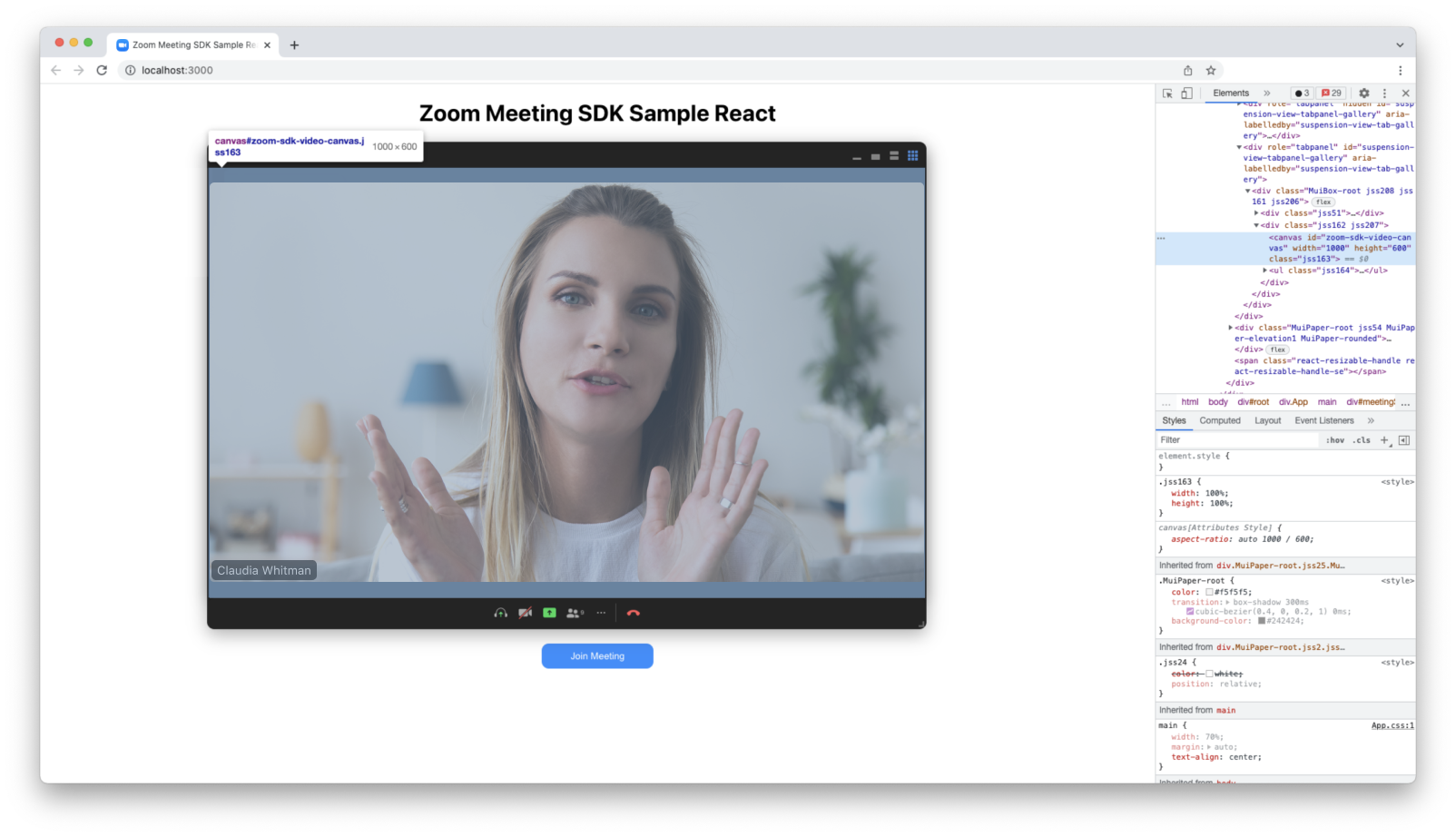
In this example, the width and height has been set to 1000px by 600px.
Resize the gallery view
Dragging to resize is not locked to a 16/9 aspect ratio.
Video layout logic: the Gallery view renders up to 25 videos. Depending on the width and height, the layout adjusts to render the videos as large as possible.
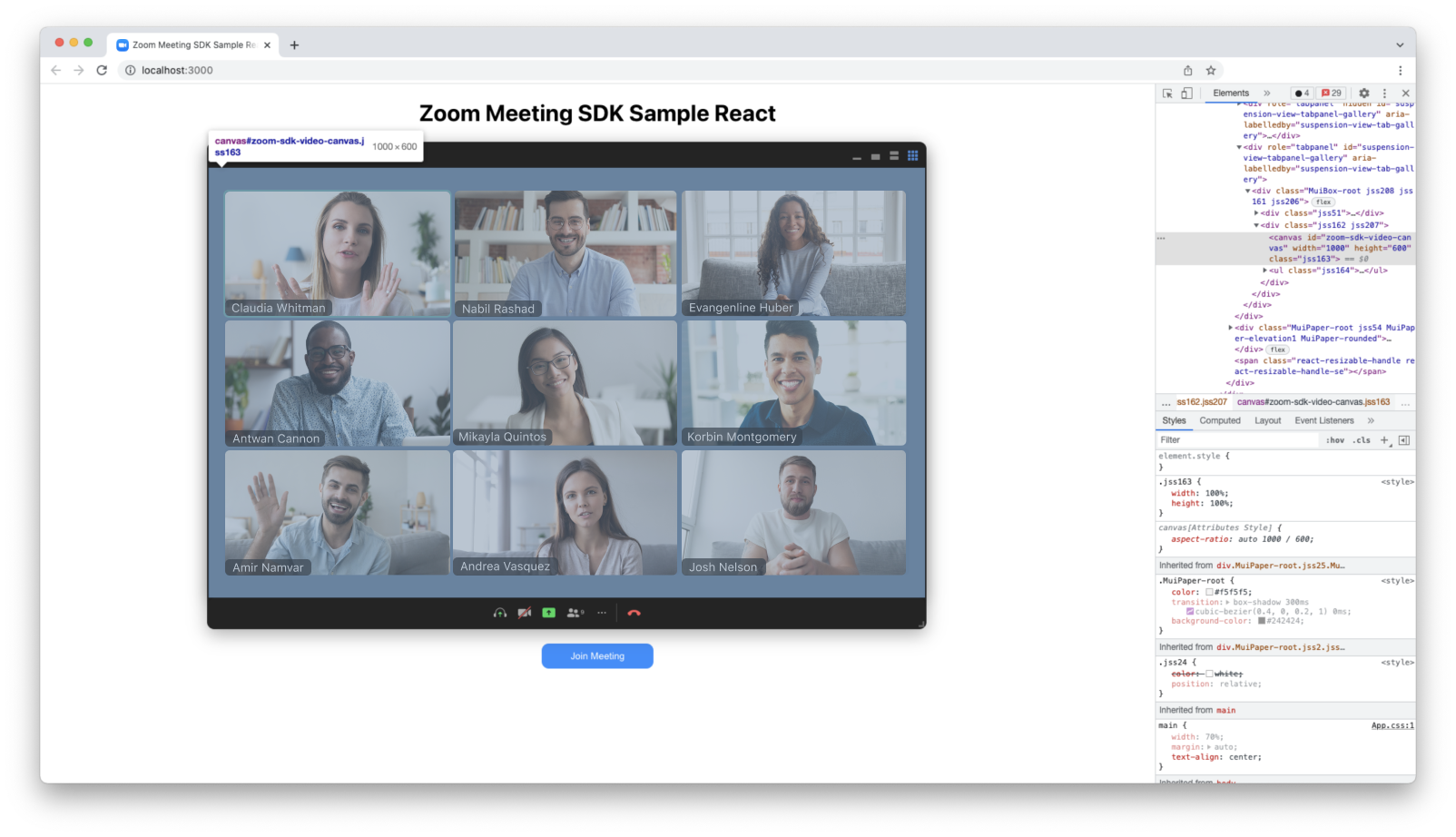
In this example, the width and height has been set to 1000px by 600px.
Resize the ribbon view
Dragging to resize is locked to a 16/9 aspect ratio.
Video layout logic is that the ribbon view defaults to 4 videos. If the height is 684px or higher, it will add a 5th video. Ribbon view can render up to 9 videos if the custom height is large enough.
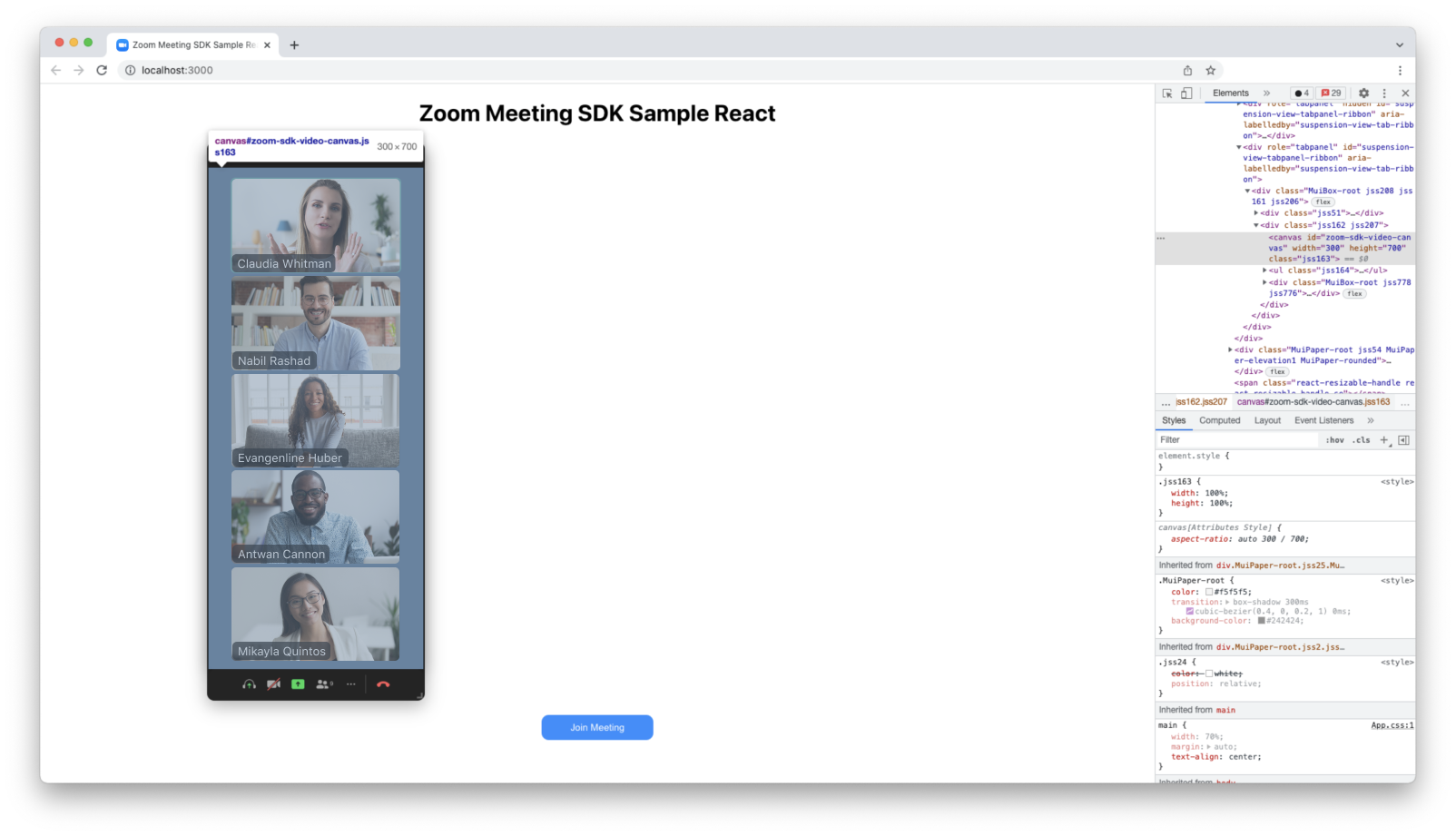
In this example, the width and height has been set to 300px by 700px.
For more information, see the Meeting SDK Web component view reference.