UI notices in the Meeting SDK
Important
At Zoom, it's crucial that we are transparent about how a user's data is shared when they use certain features in Zoom meetings. In order to provide this transparency and fulfill our regulatory obligations, we require that you incorporate certain Zoom Legal Notices in your app. These notices are mandatory; if you don't include them, we reserve the right to suspend your access to the Zoom Meeting SDKs.
Learn about the Zoom Legal Notices and how to display them in your app using the SDK. This only applies to the Meeting SDKs for Android, iOS, macOS, Windows, and Electron.
Calling sequence
This is the SDK calling sequence, using Android as an example.
- First, call the
isXYZLegalNoticeAvailable()interface when you are displaying the custom UI widget for the Zoom meeting feature where a legal notice is required.isXYZLegalNoticAvailable()will check whether the corresponding feature is being used, for example, the legal notice annotation when the SDK is using annotation feature. If the current state is not using annotation, this interface will returnfalse. - If the call returns
true, then callgetXYZLegalNoticesPrompt()next to retrieve the internationalized string for the notice prompt, for example, "Who can see your questions?" - When the user clicks on the prompt, call
getXYZLegalNoticesExplained()to display the full content of the tooltip for the specific zoom feature the user is using.
Use cases
The SDK includes legal notices for over half a dozen use cases, each with their own unique section and details. Navigate directly to any use case from the right-hand navigation. Each use case section describes its features in detail.
For design details, see the Disclaimer notice UI design guidelines.
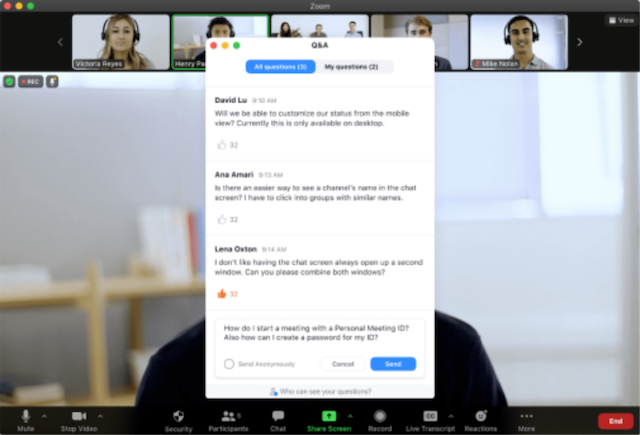
Q&A
Q&A - Notice
Who can see your questions?
Q&A - When to display
When a host launches a Q&A, the webinar participant should see this notice in the Q&A widget. The contents of the tooltip displayed when a participant clicks on this notice will vary based on whether the Q&A is public, standard (i.e. questions only visible to the account owner, hosts, and panelists), or anonymous.
Q&A - Related SDK methods
- boolean isQALegalNoticeAvailable()
- String getQALegalNoticesPrompt()
- String getQALegalNoticesExplained()
- (BOOL)isQALegalNoticeAvailable;
- (NSString *_Nullable)getQALegalNoticesPrompt;
- (NSString *_Nullable)getQALegalNoticesExplained;
virtual bool IsQALegalNoticeAvailable() = 0;
virtual const wchar_t* getQALegalNoticesPrompt() = 0;
virtual const wchar_t* getQALegalNoticesExplained() = 0;
- (NSString *)getQALegalNoticesPrompt;
- (NSString *)getQALegalNoticesExplained;
- (BOOL)isQALegalNoticeAvailable;
Q&A - Notice style
Persistent disclaimer notice, with Disclaimer Notice icon, docked at the bottom of the Q&A widget.
Q&A - Legal notice copy
Standard
The account owner, host, and panelists will be able to see who you are, your contact information (if you're logged in or you provided it) and your question - and can share them with apps and others.
If your question is selected, it will be visible to all attendees.
Standard with option to submit question anonymously
Unless you submit anonymously, the account owner, host, and panelists will be able to see who you are, your contact information (if you're logged in or you provided it) and your question - and can share them with apps and others.
If your question is selected, it will be visible to all attendees.
Public
This Q&A is public, so everyone can see your questions.
The account owner, host, and panelists will be able to see who you are, your contact information (if you're logged in or you provided it) and your question. They can also share that with apps and others.
Public with option to submit question anonymously
This Q&A is public, so everyone can see your questions.
The account owner, host, and panelists will be able to see who you are, your contact information (if you're logged in or you provided it) and your question. They can also share them with apps and others.
If you submit your questions anonymously, nobody can see who submitted your questions.
Q&A - Example
In-meeting chat
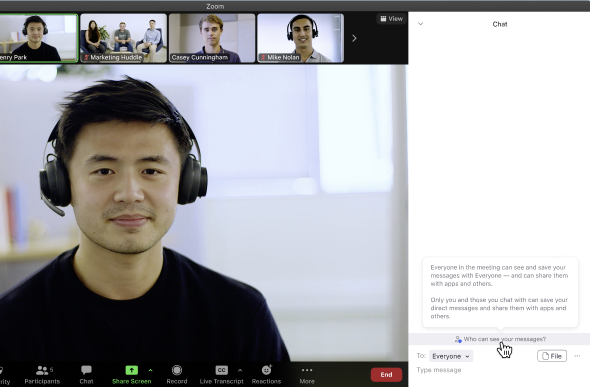
In-meeting chat - Notice
Who can see your messages?
In-meeting chat - When to display
This notice appears in the chat box when a participant initiates the chat feature.
In-meeting chat - Related SDK methods
- boolean isMeetingChatLegalNoticeAvailable()
- String getChatLegalNoticesPrompt()
- String getChatLegalNoticesExplained()
- (BOOL)isMeetingChatLegalNoticeAvailable;
- (NSString *_Nullable)getChatLegalNoticesPrompt;
- (NSString *_Nullable)getChatLegalNoticesExplained;
virtual bool IsMeetingChatLegalNoticeAvailable() = 0;
virtual const wchar_t* getChatLegalNoticesPrompt() = 0;
virtual const wchar_t* getChatLegalNoticesExplained() = 0;
- (BOOL)isMeetingChatLegalNoticeAvailable;
- (NSString *)getChatLegalNoticesPrompt;
- (NSString *)getChatLegalNoticesExplained;
In-meeting chat - Notice style
Persistent disclaimer notice, with Disclaimer Notice icon, stacked over the chat text field in the chat module.
In-meeting chat - Legal notice copy
Everyone in the meeting can see and save your messages with Everyone, and can share them with apps and others.
Only you and those you chat with can save your direct messages and share them with apps and others.
In-meeting chat - Example
Archivable meeting chat
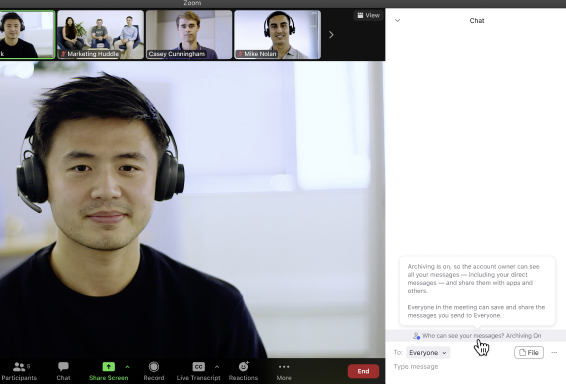
Archivable meeting chat - Notice
Who can see your messages? Archiving On
Archivable meeting chat - When to display
This notice appears in the chat box when a participant initiates the chat feature and the host has turned on the archiving option.
Archivable meeting chat - Related SDK methods
- boolean isMeetingChatLegalNoticeAvailable()
- String getChatLegalNoticesPrompt()
- String getChatLegalNoticesExplained()
- (BOOL)isMeetingChatLegalNoticeAvailable;
- (NSString *_Nullable)getChatLegalNoticesPrompt;
- (NSString *_Nullable)getChatLegalNoticesExplained;
virtual bool IsMeetingChatLegalNoticeAvailable() = 0;
virtual const wchar_t* getChatLegalNoticesPrompt() = 0;
virtual const wchar_t* getChatLegalNoticesExplained() = 0;
- (BOOL)isMeetingChatLegalNoticeAvailable;
- (NSString *)getChatLegalNoticesPrompt;
- (NSString *)getChatLegalNoticesExplained;
Archivable meeting chat - Notice style
Persistent disclaimer notice, with Disclaimer Notice icon, stacked over the chat text field in the chat module.
Archivable meeting chat - Legal notice copy
Archiving is on, so the account owner can see all your messages - including your direct messages - and share them with apps and others.
Everyone in the meeting can save and share the messages you send to Everyone.
Archivable meeting chat - Example
Recorded meeting chat
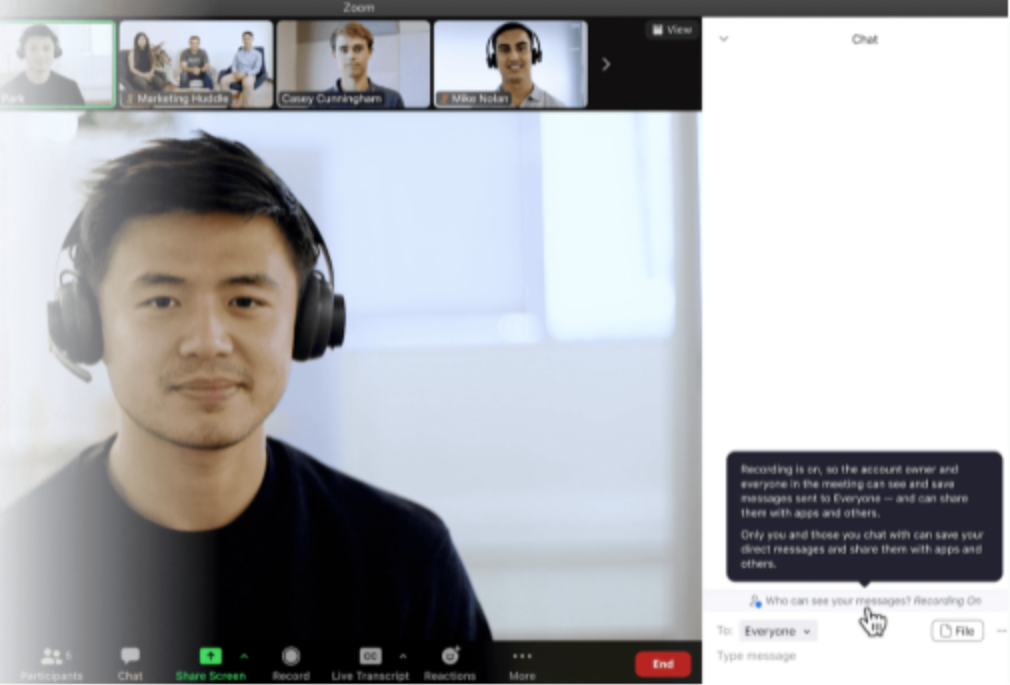
Recorded meeting chat - Notice
Who can see your messages? Recording On
Recorded meeting chat - When to display
This notice appears in the chat box when a participant initiates the chat feature and the meeting is being recorded.
Recorded meeting chat - Related SDK methods
- boolean isMeetingChatLegalNoticeAvailable()
- String getChatLegalNoticesPrompt()
- String getChatLegalNoticesExplained()
- (BOOL)isMeetingChatLegalNoticeAvailable;
- (NSString *_Nullable)getChatLegalNoticesPrompt;
- (NSString *_Nullable)getChatLegalNoticesExplained;
virtual bool IsMeetingChatLegalNoticeAvailable() = 0;
virtual const wchar_t* getChatLegalNoticesPrompt() = 0;
virtual const wchar_t* getChatLegalNoticesExplained() = 0;
- (BOOL)isMeetingChatLegalNoticeAvailable;
- (NSString *)getChatLegalNoticesPrompt;
- (NSString *)getChatLegalNoticesExplained;
Recorded meeting chat - Notice style
Persistent disclaimer notice with Disclaimer Notice icon, stacked over the chat text field in the chat module.
Recorded meeting chat - Legal notice copy
Recording is on, so the account owner and everyone in the meeting can see and save messages sent to Everyone and can share them with apps and others.
Only you and those you chat with can save your direct messages and share them with apps and others.
Recorded meeting chat - Example
Whiteboard or screen share
Whiteboard or screen share - Notice
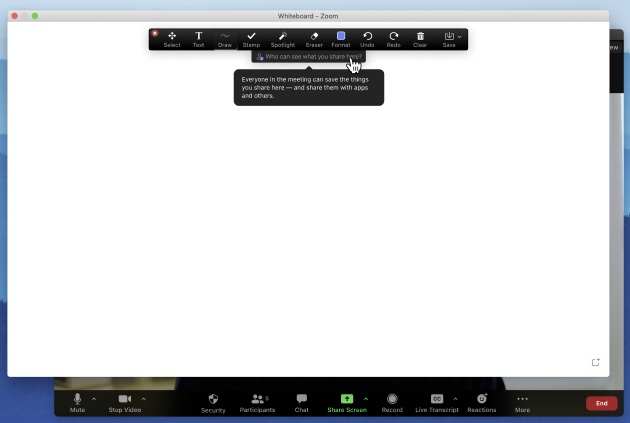
Who can see what you share here?
Whiteboard or screen share - When to display
This notice is displayed in the Whiteboard option of the Share screen feature.
Whiteboard or screen share - Related SDK methods
- boolean isWhiteboardLegalNoticeAvailable()
- String getWhiteboardLegalNoticesPrompt()
- String getWhiteboardLegalNoticesExplained()
- (BOOL)isWhiteboardLegalNoticeAvailable;
- (NSString *_Nullable)getWhiteboardLegalNoticesPrompt;
- (NSString *_Nullable)getWhiteboardLegalNoticesExplained;
virtual bool IsWhiteboardLegalNoticeAvailable() = 0;
virtual const wchar_t* getWhiteboardLegalNoticesPrompt() = 0;
virtual const wchar_t* getWhiteboardLegalNoticesExplained() = 0;
- (BOOL)isWhiteboardLegalNoticeAvailable;
- (NSString *)getWhiteboardLegalNoticesPrompt;
- (NSString *)getWhiteboardLegalNoticesExplained;
Whiteboard or screen share - Notice style
Persistent disclaimer notice with Disclaimer Notice icon, docked underneath the whiteboard toolbar.
Whiteboard or screen share - Legal notice copy
Everyone in the meeting can save the things you share here - and share them with apps and others.
Whiteboard or screen share - Example
Whiteboard or screen share recording on
Whiteboard or screen share recording on - Notice
Who can see what you share here? Recording On
Whiteboard or screen share recording on - When to display
This notice is displayed in the Whiteboard option of the Share screen feature when the meeting is being recorded. The text displayed in the tooltip varies based on whether the meeting is recorded locally or to the cloud.
Whiteboard or screen share recording on - Related SDK methods
- boolean isWhiteboardLegalNoticeAvailable()
- String getWhiteboardLegalNoticesPrompt()
- String getWhiteboardLegalNoticesExplained()
- (BOOL)isWhiteboardLegalNoticeAvailable;
- (NSString *_Nullable)getWhiteboardLegalNoticesPrompt;
- (NSString *_Nullable)getWhiteboardLegalNoticesExplained;
virtual bool IsWhiteboardLegalNoticeAvailable() = 0;
virtual const wchar_t* getWhiteboardLegalNoticesPrompt() = 0;
virtual const wchar_t* getWhiteboardLegalNoticesExplained() = 0;
- (BOOL)isWhiteboardLegalNoticeAvailable;
- (NSString *)getWhiteboardLegalNoticesPrompt;
- (NSString *)getWhiteboardLegalNoticesExplained;
Whiteboard or screen share recording on - Notice style
Persistent disclaimer notice with Disclaimer Notice icon, docked underneath the whiteboard toolbar.
Whiteboard or screen share recording on - Legal notice copy
Cloud recording
Recording is on, so the account owner and everyone in the meeting can save the things you share here - and can share them with apps and others.
Local recording
Recording is on, so everyone in the meeting can save the things you share here - and can share them with apps and others.
Live transcription enabled
Live transcription enabled - Notice
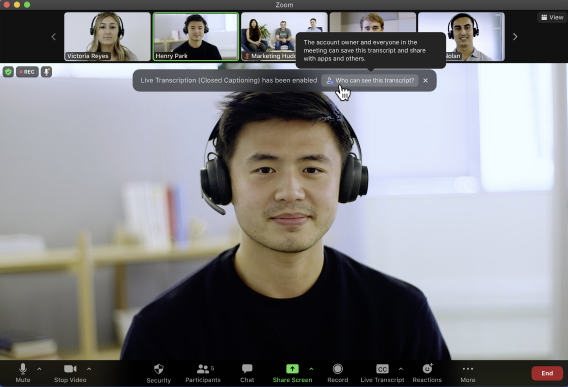
Live transcription has been enabled. Who can see this transcript?
Live transcription enabled - When to display
This notice is displayed when live transcription has been enabled.
Live transcription enabled - Related SDK methods
- boolean isLiveTranscriptLegalNoticeAvailable()
- String getLiveTranscriptLegalNoticesPrompt()
- String getLiveTranscriptLegalNoticesExplained()
- (BOOL)isLiveTranscriptLegalNoticeAvailable;
- (NSString *_Nullable)getLiveTranscriptLegalNoticesPrompt;
- (NSString *_Nullable)getLiveTranscriptLegalNoticesExplained;
virtual bool IsLiveTranscriptLegalNoticeAvailable() = 0;
virtual const wchar_t* getLiveTranscriptLegalNoticesPrompt() = 0;
virtual const wchar_t* getLiveTranscriptLegalNoticesExplained() = 0;
- (BOOL)isLiveTranscriptLegalNoticeAvailable;
- (NSString *)getLiveTranscriptLegalNoticesPrompt;
- (NSString *)getLiveTranscriptLegalNoticesExplained;
Live transcription enabled - Notice style
Disclaimer notice with a disclaimer notice icon, embedded in a dismissible floating alert.
Live transcription enabled - Legal notice copy
The account owner and everyone in the meeting can save this transcript and share it with apps and others.
Live transcription enabled - Example
Meeting or webinar registration
Meeting or webinar registration - Notice
Information you provide when registering will be shared with the event host and can be used and shared by them in accordance with their Terms and Privacy Policy.
Meeting or webinar registration - When to display
This notice is displayed on the form that the participant uses to input their data and register for a meeting or webinar.
Meeting or webinar registration - Related SDK methods
- String getWebinarRegistrationLegalNoticesPrompt()
- WebinarRegistLegalNoticeContent getWebinarRegistrationLegalNoticesExplained()
- (NSString *_Nullable)getWebinarRegistrationLegalNoticesPrompt;
- (MobileRTCWebinarRegistLegalNoticeContent *_Nullable)getWebinarRegistrationLegalNoticesExplained;
virtual const wchar_t* getWebinalLegalNoticesPrompt() = 0;
virtual bool getWebinalLegalNoticesExplained(WebinarLagelNoticesExplainedInfo& explained_info) = 0;
(NSString *)getWebinarRegistrationLegalNoticesPrompt;
- (ZoomSDKWebinarRegistrationExplainInfo *)getWebinarRegistrationLegalNoticesExplained;
Meeting or webinar registration - Notice style
Grey text above the Register button on the meeting and webinar registration forms. The links should go to the developer's Terms of Use or Privacy Policy as appropriate.
Meeting or webinar registration - Legal notice copy
Not applicable - not a tooltip.
Active Apps Notifier (AAN)
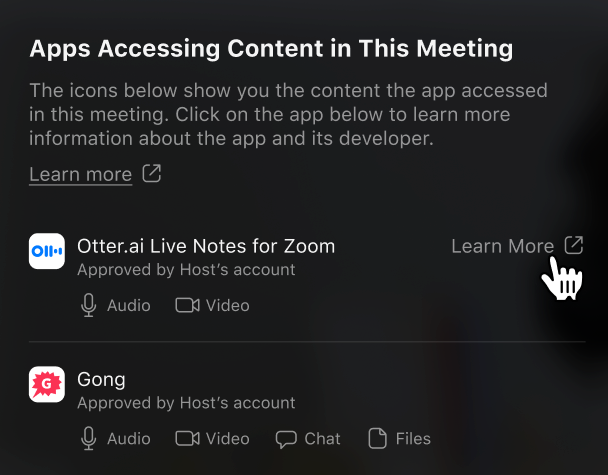
The Active Apps Notifier (AAN) provides a notice to meeting and webinar participants when a host or other participant is using an app that accesses meeting or webinar content, such as video, audio, chat, or meeting files during a meeting.
See Active Apps Notifier in the Zoom Help Center for more details, or see the Active App Notifier developer pages in any Meeting SDK platform's documentation.
The AAN must be visible and easy for an end user to find. You could display it in the top corner, as it appears in the Zoom client.
Selecting the AAN icon during a meeting or webinar displays the name of all 3rd-party apps, integrations, or services that are currently accessing meeting or webinar content, the type of content the app has access to, and which participants approved the app for their own use in the meeting or webinar.
Clicking any listed app opens the Marketplace page for that integration, and shows more information about that app.
AAN - Related SDK methods
InMeetingAANController getInMeetingAANController()
- MobileRTCSDKError showAANPanel(FragmentActivity activity)
- MobileRTCSDKError hideAANPanel()
- (MobileRTCANNError)showAANPanelInView:(UIView *_Nullable)containerView originPoint:(CGPoint)originXY;
- (MobileRTCANNError)hideAANPanel;
virtual SDKError ShowAANPanel(unsigned int x, unsigned int y) = 0;
virtual SDKError HideAANPanel() = 0;
- (ZoomSDKError)showAANPanel:(NSPoint)point parentWindow:(NSWindow*)parentWindow;
- (ZoomSDKError)hideAANPanel;
AAN - SDK workflow
- Call the
GetMeetingAANControllerwhile in a meeting with Custom UI enabled to get the AAN controller. - You must display the Active Apps Notifier icon in your meeting UI.
- If the user clicks the Active Apps Notifier icon, call the
ShowAANPanel()interface to show the AAN notification UI panel. Whenever you call this interface, the SDK will receive the latest AAN information. - If the user indicates to your app that they want to dismiss the AAN panel, call the
hideAANPanel()interface to hide it.
AAN - icon
It's your responsibility to render this icon in your custom UI implementation.

AAN - panel
The AAN panel should display when the user clicks the AAN icon.
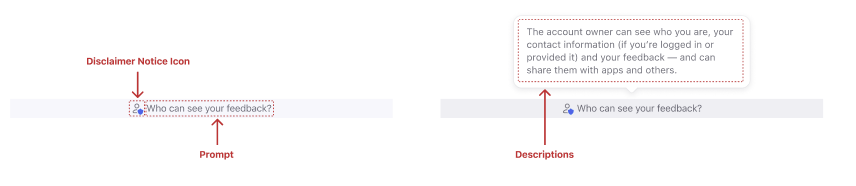
Disclaimer notice UI design guidelines
The disclaimer notice consists of three elements: a disclaimer notice icon, prompt, and descriptions.
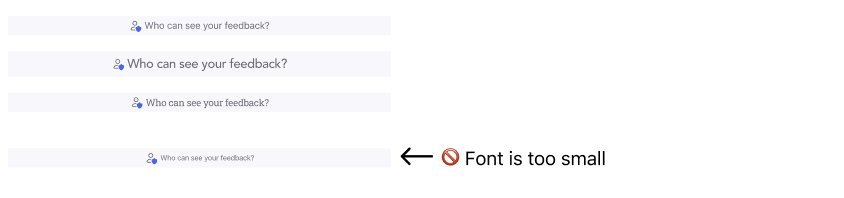
Fonts
You can use the same typeface as whatever you used in your app. Font size equivalent to 12px or greater is recommended for legibility.
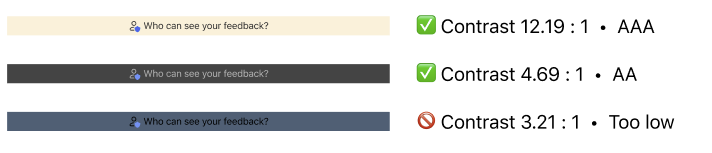
Colors
You can use colors that suit the overall style of your app. Check the contrast ratio between the colors of the text and the background to make sure the text is easily readable.
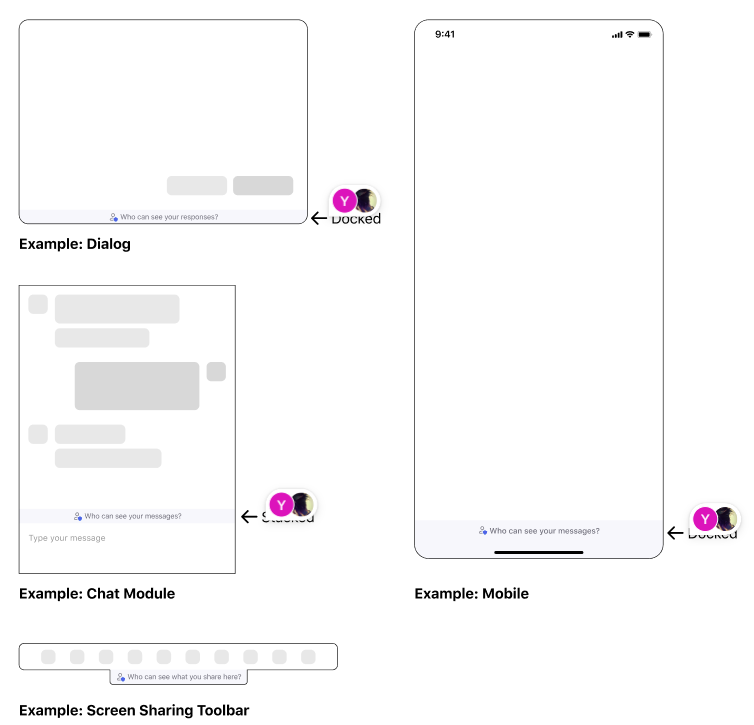
Docked placement
The disclaimer notice can be docked at the bottom of the container component, or stacked over another element. This keeps the disclaimer notice persistently visible.
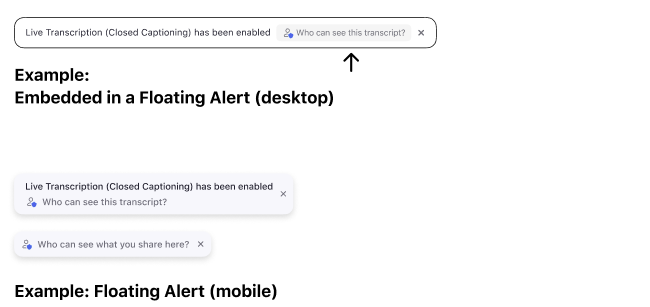
Floating placement
The disclaimer notice can either float on its own, or be embedded inside another floating component.
A floating disclaimer notice is useful when it can be dismissed, so that it doesn't distract the user from the immersive experience. For example, it can be associated with a notification that can be dismissed.
Even if dismissed by the user, the disclaimer notice must be presented again in future meetings.
Desktop example
When the user clicks on the disclaimer notice, the detailed descriptions appear in a popover.
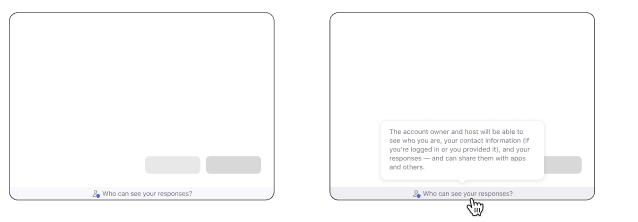
To dismiss the popover, the user can click anywhere outside the notice.
Mobile example
When the user taps on the disclaimer notice, the detailed descriptions appear in an alert box.
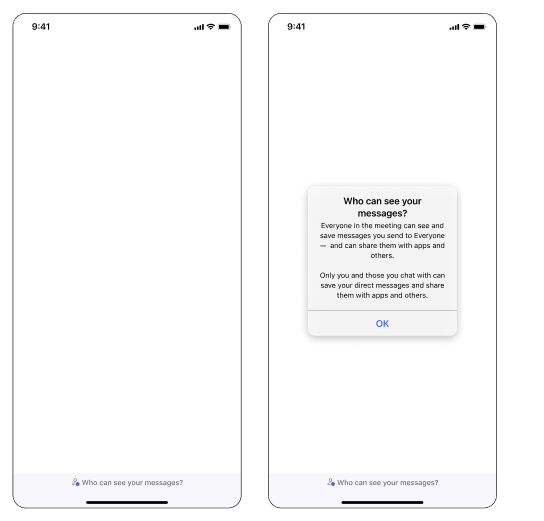
The mobile keypad temporarily obscures the disclaimer notice.