# Integrate with your app
> The code on this page works with either the **default UI** or the **custom UI**.
After getting some hands-on experience with our SDK, integrate our Meeting SDK for iOS with your own applications.
## Prerequisites
To use the Meeting SDK 7.0.0 and later, you'll need to meet these requirements.
- Xcode version 26 or later.
- A physical 64-bit iOS device (iPhone or iPad) with iOS version 15.0 or above. For iOS 26 and Xcode 26 or later, you may need to remove the `-ld_classic` in other link flags from your project.
- As of version 5.11.9, the Meeting SDK for iOS does not support 32-bit devices.
- As of version 6.0.2, the Meeting SDK for iOS follows Apple's requirement to provide [privacy manifest and signatures](https://developer.apple.com/support/third-party-SDK-requirements/).
- As of version 6.7.5, the Meeting SDK for iOS does not support x86 architecture for the iOS simulator.
## Add framework bundles
Using our iOS SDK requires the following frameworks:
- `MobileRTC.xcframework` - Meeting SDK iOS interfaces to support all services related to Zoom meetings, such as initialize SDK, create and join a meeting, in-meeting services, and others.
- `MobileRTCResources.bundle` - Zoom UI components.
The Zoom SDK frameworks are located in the `lib` folder of the downloaded files.
```plaintext
lib
├── MobileRTC.xcframework
├── MobileRTCResources.bundle
├── MobileRTCScreenShare.xcframework
└── zoomcml.xcframework
```
### Feature framework bundles
Some features have been separated from the main SDK to make the file size smaller if you do not want to include these features. To include these features, add following additional XCFramework bundles as appropriate:
- `zoomcml.xcframework` - Interfaces to support virtual background filter and 3D avatar.
- `MobileRTCScreenShare.xcframework` - Interfaces to support the screen share service.
Import them into your project as needed.
## Add the iOS library to your project
In your project setting, navigate to the **General** section.

Since our Meeting SDK for iOS is a dynamic library, import
it into **Embedded Binaries** and **Linked Frameworks and Libraries**.
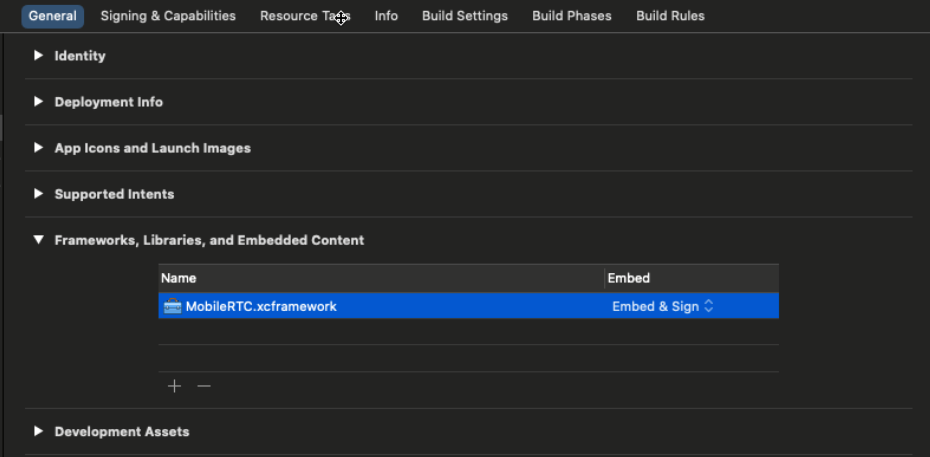
Then, navigate to **Build Phases > Copy Bundle Resources**, and add
`MobileRTCResources.bundle`.
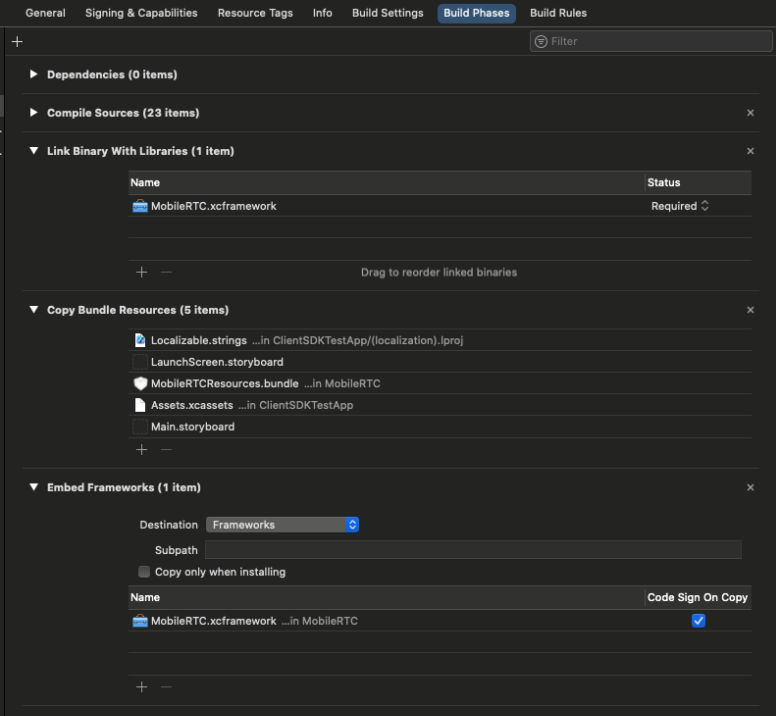
Add any additional frameworks that you want to use. After importing the framework and bundle, start using Zoom services inside your own applications.
> **We do not support Bitcode.** Our SDK library is heavily optimized, and we will not be able to provide Bitcode builds. Set **Enable Bitcode** in **Build Settings \> Build Options** to **No** when you are trying to build your application.
## Set project build setting
Set `ALWAYS_EMBED_SWIFT_STANDARD_LIBRARIES` to `YES`.
## Required permissions
Our video conferencing requires the **Microphone**, **Camera**, **Bluetooth**, and **Photo Library** permissions.
Specify these permissions in your project settings `Info.plist`.
1. Open your `Info.plist`, right click at the empty space, and select
**Add Row**.
1. A new row will be added, for key, select **Privacy - Camera Usage
Description**, input any descriptions for your permission request in the value column.
1. Add other rows for **Microphone, Bluetooth, and Photo Library**.
You can also refer to this XML code, also from `info.plist`.
```xml
NSBluetoothPeripheralUsageDescription
We will use your Bluetooth to access your Bluetooth headphones.
NSCameraUsageDescription
For people to see you during meetings, we need access to your camera.
NSMicrophoneUsageDescription
For people to hear you during meetings, we need access to your microphone.
NSPhotoLibraryUsageDescription
For people to share, we need access to your photos
```
## Add AppDelegate calls in the file
In the project's `AppDelegate` file - either `AppDelegate.swift` or `AppDelegate.m` -
add the SDK-related delegate calls to ensure that the SDK responds to the correct app state.
```objectivec
- (void)applicationWillResignActive:(UIApplication *)application
{
// Sent when the application is about to move from active to inactive state. This can occur for certain types of temporary interruptions such as an incoming phone call or SMS message or when the user quits the application and the app transitions to the background state.
// Use this method to pause ongoing tasks, disable timers, and throttle down OpenGL ES frame rates. Games should use this method to pause the game.
[[MobileRTC sharedRTC] appWillResignActive];
}
- (void)applicationDidEnterBackground:(UIApplication *)application
{
// Use this method to release shared resources, save user data, invalidate timers, and store enough application state information to restore your app to its current state in case it is terminated later.
// If your app supports background execution, this method is called instead of applicationWillTerminate: when the user quits.
[[MobileRTC sharedRTC] appDidEnterBackground];
}
- (void)applicationDidBecomeActive:(UIApplication *)application
{
// Restart any tasks that were paused or not yet started while the app was inactive. If the app was previously in the background, optionally refresh the user interface.
[[MobileRTC sharedRTC] appDidBecomeActive];
}
- (void)applicationWillTerminate:(UIApplication *)application
{
// Called when the app is about to terminate. Save data if appropriate. Also see applicationDidEnterBackground:.
[[MobileRTC sharedRTC] appWillTerminate];
}
```
```swift
func applicationWillTerminate(_ application: UIApplication) {
// Notify MobileRTC of appWillTerminate call.
MobileRTC.shared().appWillTerminate()
}
func applicationWillResignActive(_ application: UIApplication) {
// Notify MobileRTC of appWillResignActive call.
MobileRTC.shared().appWillResignActive()
}
func applicationDidBecomeActive(_ application: UIApplication) {
// Notify MobileRTC of appDidBecomeActive call.
MobileRTC.shared().appDidBecomeActive()
}
func applicationDidEnterBackground(_ application: UIApplication) {
// Notify MobileRTC of appDidEnterBackgroud call.
MobileRTC.shared().appDidEnterBackgroud()
}
```
## Deploy your app
If you are ready to put your application that integrated our Meeting SDK in
production, here are some suggested configurations:
1. Set **Targeted Device Family** to **iPhone/iPad**.
2. Set **iOS Deployment Target** to **iOS 15.0** or later.
3. Add **-ObjC** in **Other Linker Flags** of the **Build** settings.
---