# Get started with the Meeting SDK for iOS
> **Beginning March 2 2026**, apps joining meetings outside their account must be authorized. Authorize apps by using either ZAK or OBF tokens, or RTMS. [Learn more](/docs/meeting-sdk/obf-faq/).
> The code on this page works with either the **default UI** or the **custom UI**.
Explore the Meeting SDK by running the sample iOS apps that Zoom has built for you to test out the features in the iOS SDK.
## Prerequisites
Using the Zoom Meeting SDK for iOS is very easy with [Xcode](https://developer.apple.com/xcode/). In this documentation, we'll use Xcode as our default IDE.
See the [Changelog](/changelog) for the latest supported Meeting SDK version. See our [Minimum version policy](/docs/meeting-sdk/minimum-version) for the minimum supported SDK version.
To use the Meeting SDK 7.0.0 and later, you'll need to meet these requirements.
- Xcode version 26 or later.
- A physical 64-bit iOS device (iPhone or iPad) with iOS version 15.0 or above. For iOS 26 and Xcode 26 or later, you may need to remove the `-ld_classic` in other link flags from your project.
- As of version 5.11.9, the Meeting SDK for iOS does not support 32-bit devices.
- As of version 6.0.2, the Meeting SDK for iOS follows Apple's requirement to provide [privacy manifest and signatures](https://developer.apple.com/support/third-party-SDK-requirements/).
- As of version 6.7.5, the Meeting SDK for iOS does not support x86 architecture for the iOS simulator.
> **Requirements for external meeting access**
>
> To join meetings outside of your developer account, your app must:
>
> - Be [reviewed by Zoom](/docs/build-flow/submitting-apps-for-review/).
> - Authenticate with either a ZAK or On Behalf Of (OBF) token to attribute to a user in a meeting.
>
> You can:
>
> - [Publish the approved app on the Zoom App Marketplace](/docs/distribute/).
> - Set your app to [unlisted](/docs/build-flow/app-listing/eu-and-discoverability/#app-discoverability).
> - Contact the [Integrated Software Vendor (ISV) sales team](https://explore.zoom.us/en/isv/#isv) for other options.
### Supported iOS and Xcode versions
Here are the minimum and maximum iOS system versions supported by the SDK.
- Meeting SDK 6.0.2 and later:
- Minimum supported iOS version: iOS 15
- Maximum supported iOS version: iOS 26
### Supported iOS device and simulator types
Our SDK & our SDK demo will only work in these environments.
- Meeting SDK 5.11.10 and later:
- Real iOS Device
- Type: iPhone, iPad, iPod
- OS: iOS 15 or later
- Simulator
- Type: iPhone, iPad
- OS: iOS 15 or later
> **Note:** The iOS SDK framework is provided as an XCFramework. The XCFramework can run on both simulator and physical devices. Find the packages for each one inside the XCFramework.
## Download and install
To access the SDK download files, you must be logged in to your Zoom App Marketplace developer account, and you need at least one app registered on the Zoom App Marketplace.
If you **don't already have at least one registered app**, follow these steps to create an app and download the SDK files.
- Sign in to your developer account on the [Zoom App Marketplace](https://marketplace.zoom.us/?ampDeviceId=cf401538-835f-45ce-a7f1-1035e348c982&SessionId=1771892802618).
- Select **Develop > Build App > General app**, and then select **Create**.
- Go to **Features** and select **Embed**.
- On the **Embed** page, enable **Meeting SDK**.
- Under the **Meeting SDK** section, configure the settings as appropriate for your app.
-
To download the SDK files, select the platform **iOS**. This page displays
available SDK versions for the selected platform, along with links to their
corresponding release notes.
- Finally, select the **Download** button.
If you **already have at least one registered app**, follow these steps to download the SDK files using your existing app.
- Sign in to your developer account on the [Zoom App Marketplace](https://marketplace.zoom.us/?ampDeviceId=cf401538-835f-45ce-a7f1-1035e348c982&SessionId=1771892802618).
- Select **Manage**, and open your SDK app.
- Go to **Features** and select **Embed**.
- On the **Embed** page, go to the **Meeting SDK** section.
-
To download the SDK files, select the platform **iOS**. This page displays
available SDK versions for the selected platform, along with links to their
corresponding release notes.
- Finally, select the **Download** button.
### Verify files
After you unzipped your downloaded file, you should have the following files:
```plaintext
.
├── CHANGELOG.md
├── LICENSE.md
├── [lib] - Contains frameworks.
├── [MobileRTCSample] - Contains demo app.
├── README.md
└── version.txt
```
If you have different file structures or have missing files, download the SDK package from the [App Marketplace](https://marketplace.zoom.us/) again.
#### MobileRTC = Zoom SDK
You will see the term "MobileRTC" in our iOS library. This is the technical name of our SDK library.
Treat it the same as the term "Meeting SDK".
#### How to get version number?
In the downloaded files, find the file `version.txt`. The number inside that file is the version number of the SDK that you downloaded.
Include the version number whenever you post a question or get support on our [community forum](https://devforum.zoom.us/).
### Load the project
Go to the downloaded SDK package and open the **MobileTRCSample** folder. Next, double-click on the **MobileTRCSample.xcodeproj** file to launch Xcode and load the project.
Once the project is loaded, you'll see a demo app and an extension.
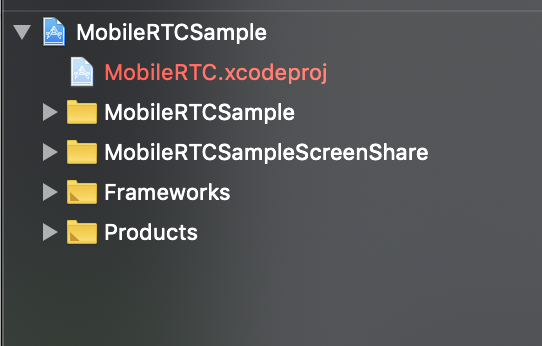
The project includes:
- **MobileRTCSample** - An iOS app that has all basic features for both logged in users and non-logged in users.
- **MobileTRCSampleScreenShare** - An iOS extension that extends the above sample app to have screen sharing feature.
### Use the custom meeting UI
By default, when you build an app with the Meeting SDK, the app's in-meeting UI is similar to Zoom.
To customize the UI instead of using the default UI, enable the **Custom Meeting** option.
To see an implementation of the custom meeting feature, run the **MobileRTCSample** app on your device. In the first screen of the app, select the **Settings** icon.
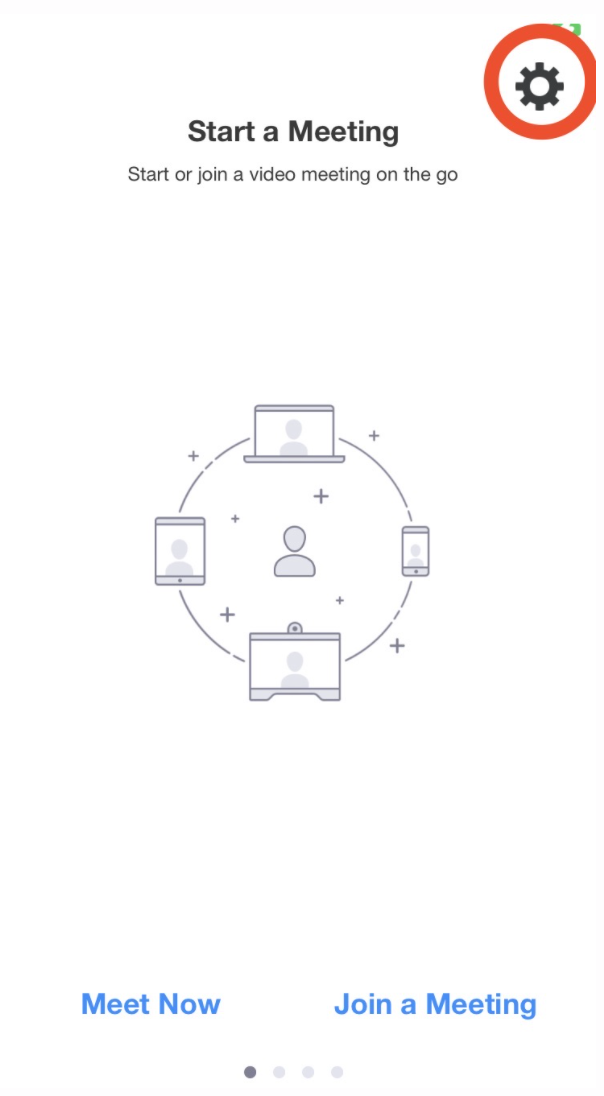
Next, select **Meeting Settings** and enable the **Custom Meeting** option to experience the **Custom Meeting UI** in the sample app.