Zoom Mail plugins are hosted web apps built using the Zoom Apps (JavaScript library) SDK, enabling custom functionality within the Mail tab of the Zoom Client. These plugins integrate as Zoom Apps, activate in specific contexts, and can be published on the Zoom Marketplace for discovery, purchase, and installation.
Prerequisites
In order to develop with Zoom Mail plugins, ensure your Zoom account meets these requirements:
- Workplace Business or higher license type
- Zoom Mail Service enabled (including mail service onboarding)
- End-to-End encryption (E2EE) for mail service is disabled
- Mailbox is provisioned
- A Zoom App is created and functional
How it works
Zoom Mail Plugins add custom functionality and context-aware actions to the Mail tab within the Zoom client, enhancing the user experience.
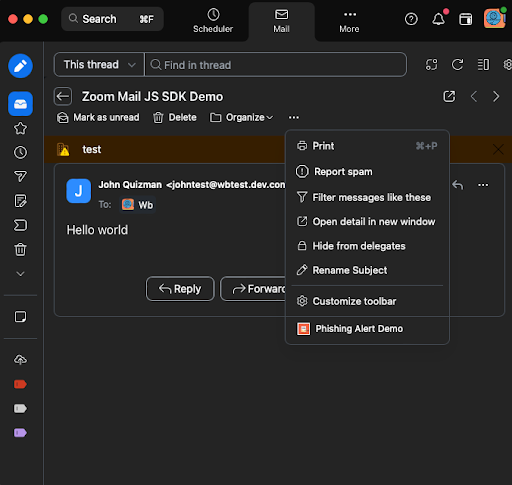
When a user opens the Mail tab, the plugin can detect its environment using zoomSdk.getRunningContext(), which confirms if the user is in the inMail context. If so, the Zoom Client automatically generates context buttons for your app. These buttons, labeled with your app's name and logo, appear inside the "..." (ellipsis) menu within the Mail tab.
These context buttons serve as entry points to your plugin. When clicked, they trigger a launchContext code path, which determines how your app interacts with the user's email.
There are two supported launch contexts:
-
thread-detail– When the user is viewing an email thread, this context provides access to the entire conversation. -
message-detail– When the user is viewing a specific email, this context provides access to the individual message.Once a context is triggered, your plugin can retrieve email data using
zoomSdk.getMailContext()to: -
Call getMailThread()to access details about the entire email thread. -
Call getMailMessage()to fetch details of a single email.
Note: This Zoom Apps SDK JavaScript library provides front-end access to contextual data. To access data through the Zoom REST API, handle it on the server side. Learn more about data access here.
Getting Started with Zoom Mail Plugins
Step 1: Set up your Zoom app
-
Follow the Quick Start Guide to create a general user-managed app.
-
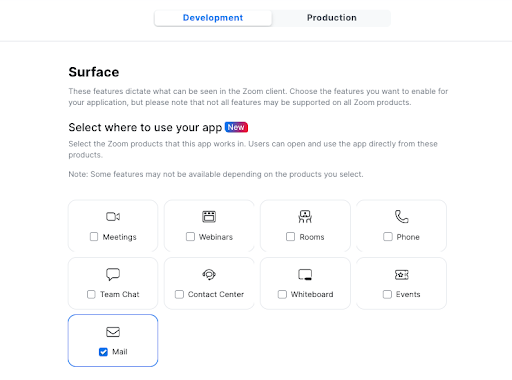
In your Zoom App, go to Features > Surface, then select Mail under "Where to use your app." This enables your app within the Mail tab.
-
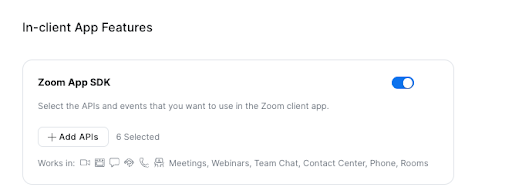
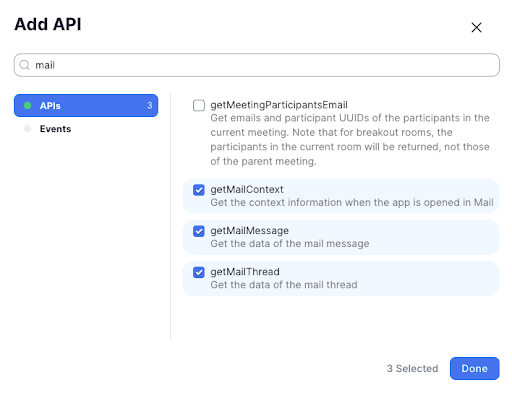
Scroll down to In-client App Features, select Zoom App SDK, and enable the following APIs:
getSupportJsApisgetRunningContextgetMailContextgetMailMessagegetMailThreadonRunningContextChange
Step 2: Install the Zoom Apps SDK
The APIs above will be accessed via the Zoom Apps JavaScript SDK (reference doc ). If you're starting from scratch, follow this simple tutorial using our basic Zoom App sample app. If you prefer to customize on your own, use the following command in your computer terminal or IDE of choice:
npm install @zoom/appssdk
Do you already have a Zoom App created that you'd like to configure for Zoom Mail Plugins? If so, skip this step entirely and continue configuring your app.
Step 3: Configure the SDK
Locate your zoomSDK.config object and add the required capabilities :
const configure = async () => {
    setConfig(await zoomSdk.config({
        capabilities: [
            "getRunningContext",
            "getMailContext",
            "getMailThread",
            "getMailMessage"
        ]
    }))
};
What this Does?
-
getRunningContext: Identifies whether the app is running in the Mail tab (inMailcontext). For Mail plugins, we are specifically interested in theinMailcontext, which occurs when the user navigates to the Mail section of Zoom Client.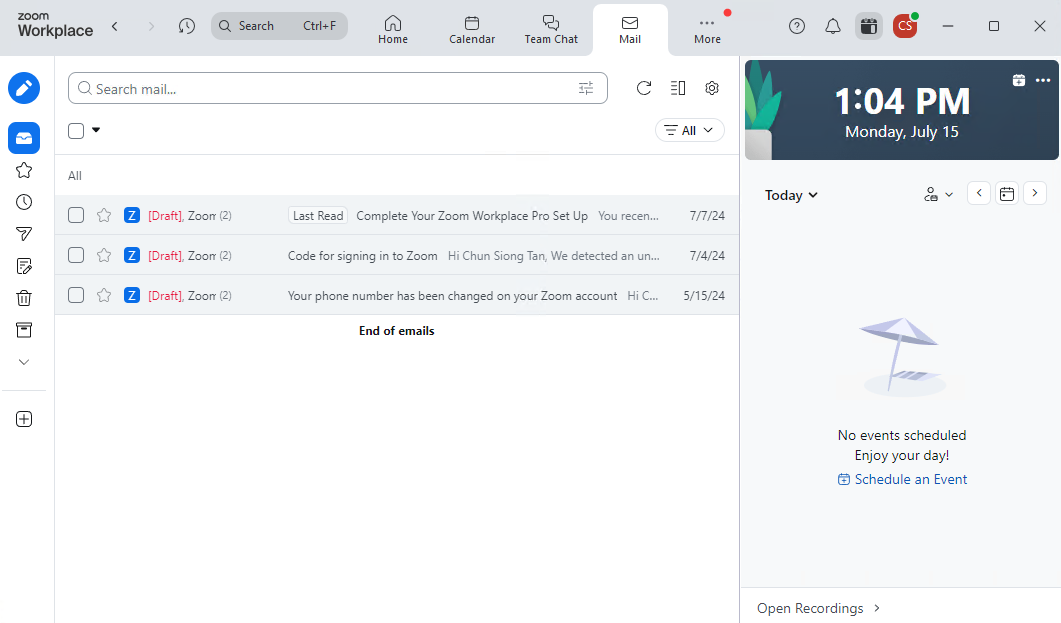
-
getMailContext: Retrieves details about the current email view. -
getMailThread & getMailMessage: Fetch thread or message details when applicable.
Step 4: Understanding Context Buttons
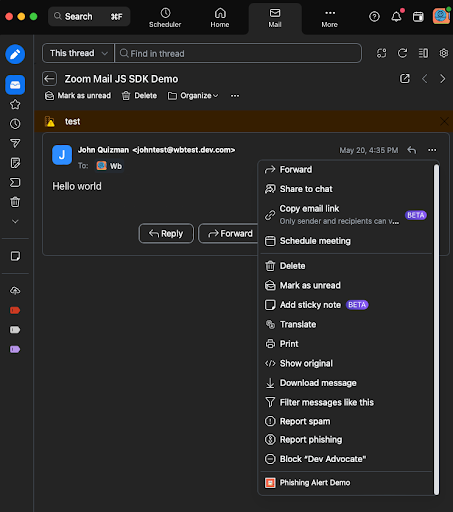
The launchContext will give us further information on which specific area within the Mail section the user is clicking the context buttons. When your app is active in the Mail tab, the Zoom Client generates context buttons inside the "..."(ellipsis menu). These buttons trigger specific views based on user interaction.
-
Thread Detail (thread-detail)
- Appears in the ellipsis menu of an email thread view.
- Only visible if all messages in the thread are unencrypted.
-
Message Detail (message-detail)
-
Appears in the ellipsis menu of a single email message.
-
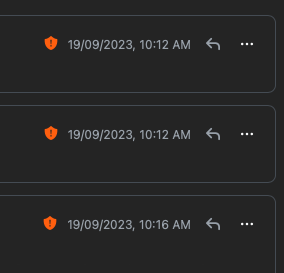
Only visible if the specific email is unencrypted (check for the shield icon next to the timestamp).
-
Within t1hread-detail and message-detail, you can use the zoomSdk object to get information related to mail by first using the zoomSdk.getMailContext, and subsequently using either zoomSdk.getMailThread or zoomSdk.getMailMessage method.
Limitations
Zoom Mail Plugin context buttons will not show in the following scenarios:
-
Server-side encrypted emails (red shield)
-
E2E encrypted emails (green shield) do not support context buttons.
Step 5: Test Your Zoom Mail Plugin
-
Complete your app details and ensure your app is hosted on a public URL (e.g., https://yourapp.com ).
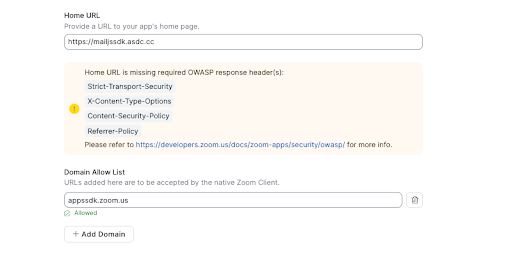
- Use ngrok or a cloud hosting service if needed.
- If you encounter an OWASP response header missing error, check our sample code at the end of this page for guidance.
-
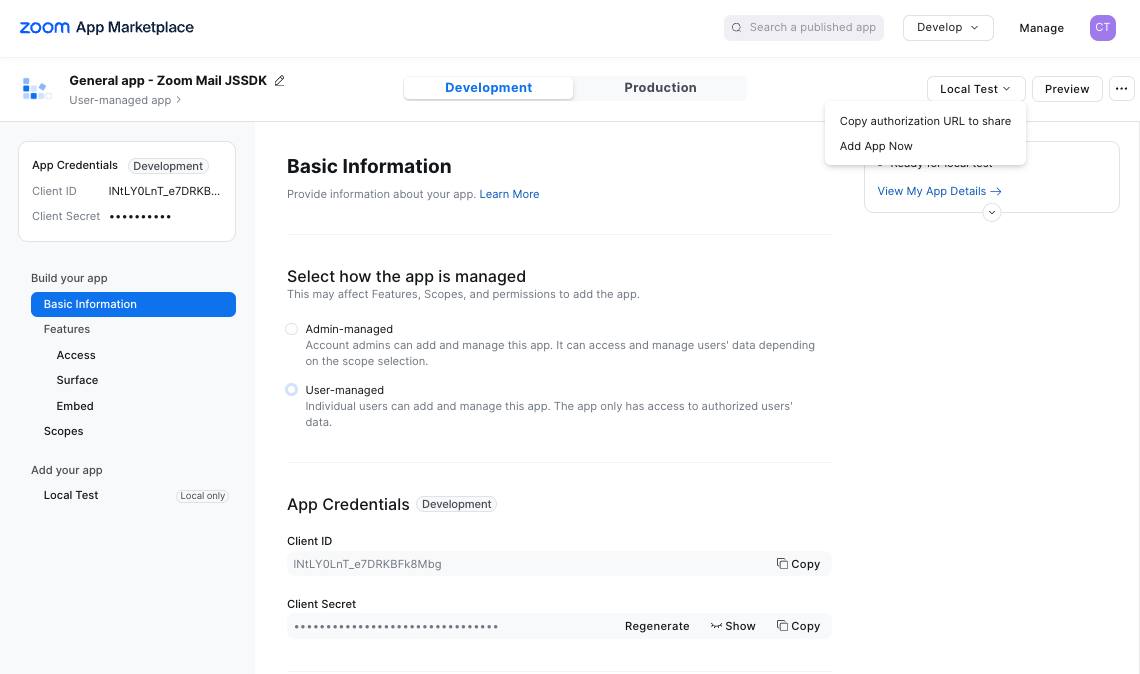
Click Local Test in the Zoom Marketplace to install and use your app with Zoom Mail Plugins.
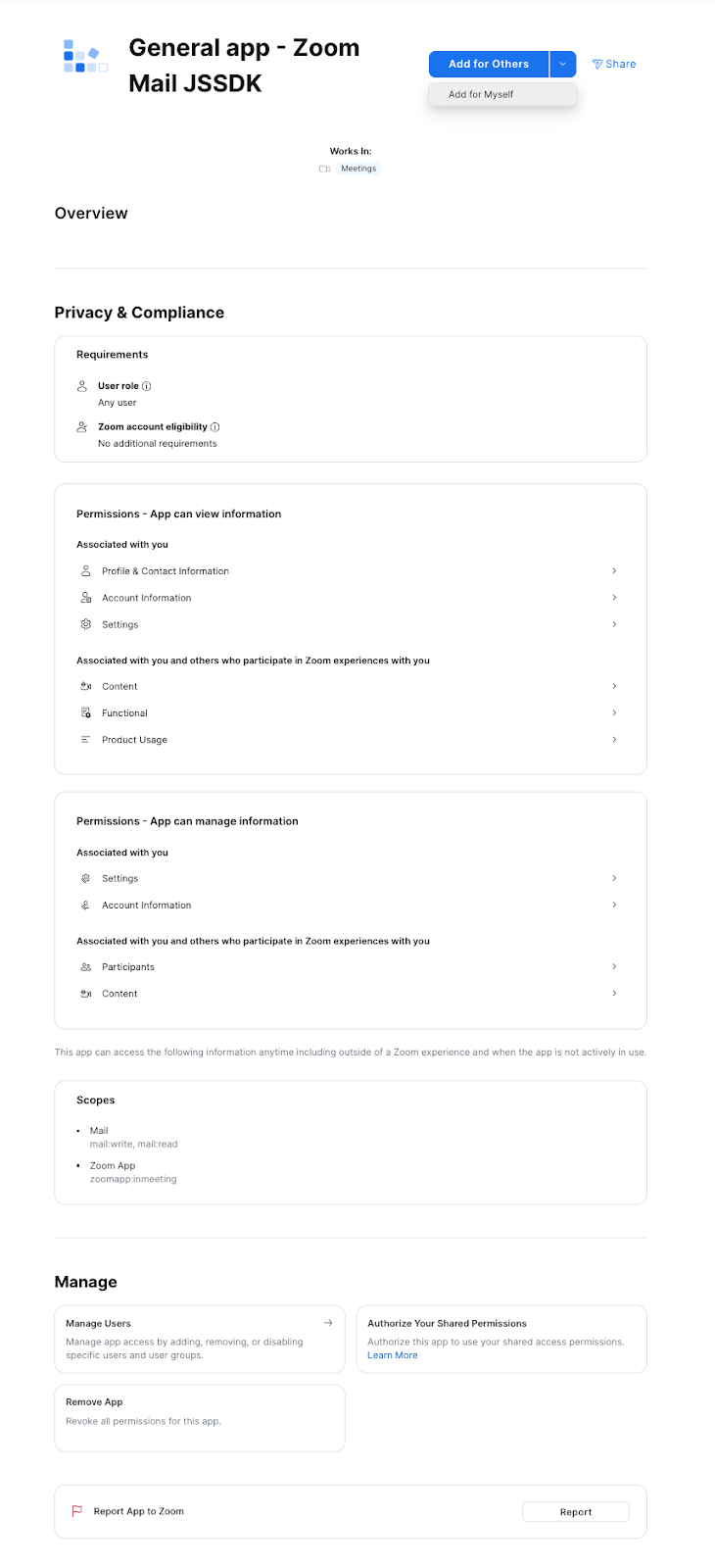
Your Zoom Client will now be able to launch your Zoom Mail Plugin within the Mail tab. Your Zoom Mail Plugin's context buttons will show in the "..." (ellipsis menu) when navigating unencrypted threads and messages
Remember Webview in Zoom Mail does not support the In-Client OAuth process. Here are 3 alternatives to authenticate a user:
- Initiate OAuth flow within the Webview of the Apps Marketplace on the Client.
- Initiate the OAuth flow later after distinguishing via getRunningContext that the host is not "inMail" but in a supported app Webview.
- Initiate OAuth from an external browser when installing the app from marketplace.zoom.us .
Code Sample
This is a pure JavaScript sample code with 2 files. index.html and the https://appssdk.zoom.us/sdk.js saved locally as js/sdk.js file.
If you are hosting nginx, you will need to validate that these parameters are added to your nginx configuration to fix the OWASP response header missing message.
server {
    listen 80;
    server_name mailjssdk.asdc.cc;
    root /var/www/mailjssdk.asdc.cc;
    index index.html;
    location / {
        # First attempt to serve request as file, then
        # as directory, then fall back to displaying a 404.
        try_files $uri $uri\/ =404;
        proxy_http_version 1.1;
        proxy_set_header Upgrade $http_upgrade;
        proxy_set_header Connection "upgrade";
    }

    # Enable HTTP Strict Transport Security (HSTS)
    add_header Strict-Transport-Security "max-age=31536000; includeSubDomains" always;

    # Prevent MIME types security risk
    add_header X-Content-Type-Options "nosniff" always;

    # Enable Referrer Policy
    add_header Referrer-Policy "no-referrer-when-downgrade" always;

    # Set the Content-Security-Policy header with the nonce and allowlist the Zoom SDK
    add_header Content-Security-Policy "default-src 'self'; script-src 'self' 'nonce-your-nonce-value' https://appssdk.zoom.us; style-src 'self' 'nonce-your-nonce-value'; object-src 'none';" always;
}
index.html
<!DOCTYPE html>
<html lang="en">
<head>
    <meta charset="UTF-8">
    <meta name="viewport" content="width=device-width, initial-scale=1.0">
    <title>Your Zoom App</title>
    <script nonce="your-nonce-value">
        function initializeZoomApp() {
            console.log("initializeZoomApp called");

            // Define variables to hold messages and errors
            let messages = [];
            let error = null;

            // Define functions to set messages and error
            function setMessages(newMessages) {
                console.log("setMessages called with messages:", newMessages);
                messages = newMessages;

                // Create or select the container for messages
                const appRoot = document.getElementById('appRoot');
                let messagesContainer = document.getElementById('messagesContainer');
                if (!messagesContainer) {
                    console.log("Creating messagesContainer");
                    messagesContainer = document.createElement('div');
                    messagesContainer.id = 'messagesContainer';
                    messagesContainer.style.width = '80%';
                    appRoot.appendChild(messagesContainer);
                }

                // Generate HTML content for messages
                messagesContainer.innerHTML = ''; // Clear previous messages
                messages.forEach(message => {
                    const messageElement = document.createElement('div');
                    messageElement.className = 'message';
                    messageElement.innerHTML = `

                        <p><strong>From:</strong> ${message.from.email}</p>
                        <p><strong>To:</strong> ${message.to}</p>
                        <p><strong>cc:</strong> ${message.cc}</p>
                        <p><strong>bcc:</strong> ${message.bcc}</p>
                        <p><strong>labels:</strong> ${message.labels}</p>
                        <p><strong>Date:</strong> ${new Date(message.date).toLocaleString()}</p>
                        <p><strong>Subject:</strong> ${message.subject}</p>
                        <p><strong>Content:</strong> ${message.body}</p>

                    `;
                    messagesContainer.appendChild(messageElement);
                });
            }

            function setError(newError) {
                console.log("setError called with error:", newError);
                error = newError;

                // Create or select the container for errors
                const appRoot = document.getElementById('appRoot');
                let errorContainer = document.getElementById('errorContainer');
                if (!errorContainer) {
                    console.log("Creating errorContainer");
                    errorContainer = document.createElement('div');
                    errorContainer.id = 'errorContainer';
                    errorContainer.style.color = 'red';
                    errorContainer.style.marginTop = '20px';
                    appRoot.appendChild(errorContainer);
                }

                errorContainer.textContent = `Error: ${error.message}`;
            }

            window.configureApp = async function() {
                console.log("configureApp called");
                try {
                    const configRes = await zoomSdk.config({
                        capabilities: [
                            'getRunningContext',
                            'getMailContext',
                            'getMailThread',
                            'getMailMessage',
                        ],
                    });
                    console.log("zoomSdk.config response:", configRes);
                    const { launchContext, runningContext } = configRes;

                    if (runningContext !== 'inMail') {
                        throw new Error('This App can only work in Mail, please open it in Mail.');
                    }

                    let messages = [];

                    switch (launchContext?.section) {
                        case 'thread-detail': {
                            console.log("Handling thread-detail section");
                            const getMailContextRes = await zoomSdk.getMailContext();
                            const { threadIds: [threadId] } = getMailContextRes;
                            const thread = await zoomSdk.getMailThread({ threadId });
                            console.log("getMailContext response:", getMailContextRes);
                            console.log("getMailThread response:", thread);

                            messages.push(
                                ...(await Promise.all(
                                    thread.messages.map(({ id }) =>
                                        zoomSdk.getMailMessage({
                                            messageId: id,
                                            filter: ['all'],
                                        }).then((message) => {
                                            console.log("getMailMessage response for id", id, message);
                                            return message;
                                        })
                                    )
                                ))
                            );
                            break;
                        }
                        case 'message-detail': {
                            console.log("Handling message-detail section");
                            const getMailContextRes = await zoomSdk.getMailContext();
                            const { messageIds: [messageId] } = getMailContextRes;
                            const message = await zoomSdk.getMailMessage({
                                messageId,
                                filter: ['all'],
                            });
                            console.log("getMailContext response:", getMailContextRes);
                            console.log("getMailMessage response:", message);

                            messages.push(message);
                            break;
                        }
                        default:
                            throw new Error(
                                `The app is opened in the wrong location: ${launchContext?.section}. It only supports mail thread and mail message locations.`
                            );
                    }

                    setMessages(messages.sort((a, b) => a.date - b.date));
                } catch (e) {
                    console.error("Error in configureApp:", e);
                    setError(e);
                }
            };

            // Call it on page load
            configureApp().catch(setError);
        }

        document.addEventListener('DOMContentLoaded', (event) => {
            console.log("DOMContentLoaded event fired");
            const script = document.createElement('script');
            script.src = "js/sdk.js";  // Change this to the path where you saved the SDK locally
            script.defer = true;
            script.onload = initializeZoomApp;
            document.head.appendChild(script);
            console.log("Zoom SDK script added to head and load event listener attached");
        });
    </script>
    <style nonce="your-nonce-value">
        .message {
            border: 1px solid #ccc;
            padding: 10px;
            margin: 10px 0;
            border-radius: 5px;
        }
        #appRoot {
            width: 100%;
            height: 100vh;
            display: flex;
            flex-direction: column;
            align-items: center;
        }
        #messagesContainer {
            width: 80%;
        }
        #errorContainer {
            color: red;
            margin-top: 20px;
        }
    </style>
</head>
<body>
    <div id="appRoot">
        <h1>Welcome to My Zoom App</h1>
    </div>
</body>
</html>
Summary of References
Zoom Apps
- Create a Zoom App: https://developers.zoom.us/docs/zoom-apps/create/
- Zoom App Javascript library reference doc: https://appssdk.zoom.us/classes/ZoomSdk.ZoomSdk.html
- Capabilities: https://appssdk.zoom.us/classes/ZoomSdk.ZoomSdk.html#config
Zoom Mail Plugins related methods