# Add chat client to the Contact Center SDK for web
> These Contact Center SDK docs are for developers who may not be Contact Center users or admins. To learn to configure campaigns, use flows, and other admin tasks, go to [Zoom's user support docs](https://support.zoom.com/hc/en/search?id=search#q=Contact%20Center&t=All&sort=relevancy).
Let users engage with agents directly through chat without leaving your web page.
## Embed the chat client with an entry ID
1. Get the entry ID embed code from your Contact Center admin and add it to your site. Your admin can find this under **Contact Center Management** > **Flows** > **(name of a chat flow)** > **Start** > **Manage Entry Point** > **Import SDK**.
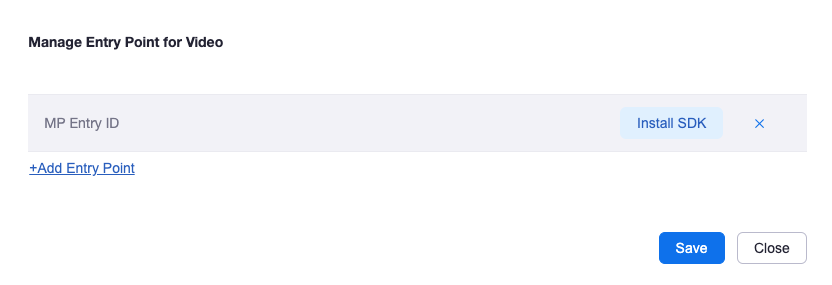
An entry ID chat script may look like this:
```html
```
2. Reload your page to see the icon at the bottom corner to start the video or chat client. No additional code is required. See the [Contact Center documentation](https://support.zoom.us/hc/en-us/categories/4423802887949)
for instructions on how to set up your agent workflows.
## Embed the chat client with a campaign ID
Add a snippet of code one time, and then use the **Campaign** feature in the admin portal to choose which chat flow to launch and on what pages.
1. Get the campaign ID embed code from your Contact Center admin and add it to your site. Your admin can find this under **Contact Center Management** > **Campaigns** > **Embed Web Tag**. A campaign chat script may look like this:
```html
```
2. After you add the campaign embed code to your page, have your Contact Center admin deploy your web chat or video experience from **Contact Center Management** > **Campaigns** > **Add Campaign**.
When adding a campaign, your admin controls several aspects of the campaign chat, including when the experience
should start, how the chat experience launches, and specific URLs to include.
> The Contact Center SDK for web is effective for most adblockers on Google Chrome,
> but there are some situations where the SDK may be blocked. For example, deploying
> the SDK through Google Tag Manager (GTM) may result in the SDK not loading properly
> because GTM is blocked by default by UBlock Origin.
## Add Zoom campaigns when using Google Tag Manager
When using Google Tag Manager, use this script to inject Zoom campaigns into your GTM pages.
```html
```
To use advanced prioritization, see [Google Support's Prioritization](https://support.google.com/tagmanager/answer/2772421?hl=en) documentation.
## Debugging
Use an API key to better develop and debug SDK integration.
### HTML
Import the SDK through script tags and copy parameters directly in the admin backend. When importing with script tags, directly pass data on the tag properties. Convert the naming format.
`someParamItem → data-some-param-item`
For some websites, using jQuery to load a script tag to introduce the SDK may result in the web SDK being unable to read the `apikey` parameter, causing it to fail to function properly. To fix this, add parameters globally so that the SDK can read the relevant parameters.
```javascript
window.zoomCampaignSdkConfig = {
env: "us01",
apikey: "your_apikey",
};
```
### JavaScript
Import the SDK using JavaScript.
```html
```
### Development mode
In development mode only, concatenate parameters after the URL.
```plaintext
https://xx.example.com/test.html?apikey=your_apikey
```
## Parameters
| Parametername | Defaultvalue | Description | Script | Javascript | URL parameters(dev only) |
| ------------- | -------------- | ------------------------------------------------------------------ | ------ | ---------- | ------------------------ |
| `apiKey` | null | your API key | ✅ | ✅ 3.7.0 | ✅ |
| >`env` | `us01`, `eu01` | The runtime environment. Usually choose the default option `us01`. | ✅ | ✅ 3.7.0 | ✅ |
## Troubleshooting
### When importing the SDK with the script tag, the script doesn't load properly when clicking on third-party website link.
When the `defer` attribute is added to the script tag, triggering a link click to open a third-party app when the page loads may cause the script's execution to be canceled. Removing `defer` or changing it to `async` can resolve the issue.
### Why can't the menu in the upper right corner be displayed when I click it?
Check if there is a style definition for the body or HTML elements
```css
body,
html {
overflow: hidden;
}
```
Due to CSS level issues, if either the `body` or `html` element have `overflow:hidden` attributes, the popup layer may not be displayed correctly.