Rejoin a meeting with the Contact Center SDK for iOS
When a Contact Center video call gets connected, the Contact Center SDK sends the user a Rejoin link in a text message. The user then opens the link in a browser, sees a webpage displaying the rejoin link, and follows that link to reconnect them to that video call in the your Contact Center-integrated app for iOS.
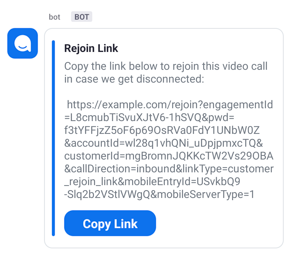
Configure the Rejoin video call function
To have your users open their rejoin app using a browser, create a web page or site displaying a link with a fixed host address and additional parameters. The Contact Center SDK generates the parameters used in the rejoin link displayed on this site.
-
In the Zoom web portal, select Contact Center Management > Preferences > Account > Voice and Video Engagements > Rejoin Video Expiration.
-
Switch on and select Edit > Edit Rejoin Link. Enter the link, such as
http://example.com/rejoin. The link containshttporhttps, the host domain, and the path to the file, such ashttp://host/pathorhttps://host/path. The configured link must go to a functioning, publicly-visible page.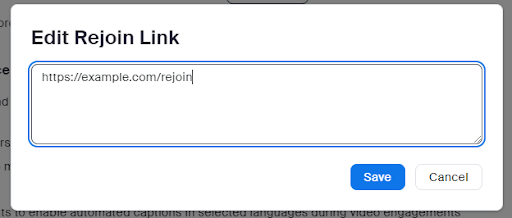
-
To configure the scheme in Xcode, select Target > Info > URL Types > URL Schemes. URL schemes can be things like
zmccorother.
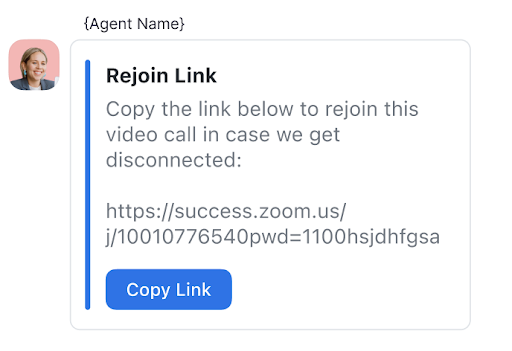
Call this function when a user selects Open on the rejoin page.
- (BOOL)application:(UIApplication *)app openURL:(NSURL *)url options:(NSDictionary<UIApplicationOpenURLOptionsKey,id> *)options {
    /**
     ensure that ZoomCCContext is initialized in advance
     */
     return [self.rootVC handleRejoinVideoOpenURL:url];
}
func application(_ app: UIApplication, open url: URL, options: [UIApplication.OpenURLOptionsKey : Any] = [:]) -> Bool {
    /**
     ensure that ZoomCCContext is initialized in advance
     */
     return self.rootVC!.handleRejoinVideoOpenURL(url)
}
Handle the rejoin URL and rejoin the meeting.
- (BOOL)handleRejoinVideoOpenURL:(NSURL *)rejoinURL {
    __weak typeof(self) wself = self;
    /**
     Initialize ZoomCCContext n advance. Then create an instance of ZoomCCItem configured with a video channel and the entry ID registered from Zoom Contact center.
     */
    ZoomCCItem *item = [ZoomCCItem new];
    item.sdkType = ZoomCCIInterfaceType_Video;
    item.entryId = self.sdkInfo.appVideoEntryID;;
    /**
     Next, handle the "rejoinURL".
     When a user is in a video session, pop up an alert when they leave or rejoin. The current video session ends and the user joins a new video session created internally from the "rejoinURL", and the complete block is called.
     When the user selects the alert's cancel option, they remain in the current video session.
     When the user isn't in a video session, create a video session user from the "rejoinURL" and call the complete block. See details of method "[ZoomCCVideoService handleRejoinVideoOpenURL]"
     */
    return [[[ZoomCCInterface sharedInstance] videoService] handleRejoinVideoOpenURL:rejoinURL item:item videoDelegate:self complete:^(UIViewController * _Nonnull viewController) {
        [wself directShow:viewController];
    }];
}
func handleRejoinVideoOpenURL(_ rejoinURL : URL) -> Bool {
        /**
         Initialize ZoomCCContext in advance.Then create an instance of ZoomCCItem configured with a video channel and the entry ID registered from Zoom Contact center.
         */
        let item = ZoomCCItem()
        item.sdkType = .video
        item.entryId = APP_CHAT_ENTRY_ID
        /**
         Next, handle the "rejoinURL".
         When the user is in a video session, pop up an alert when they leave and rejoin. The current video session ends and the user joins a new video session created internally from the "rejoinURL", and the complete block is called.
         When the user selects the alert's cancel option, they remain in the current video session.
         When the user isn't in a video session, create a video session user from the "rejoinURL" and call the complete block. See details of method "[ZoomCCVideoService handleRejoinVideoOpenURL]"
         */
        return ZoomCCInterface.sharedInstance().videoService().handleRejoinVideoOpen(rejoinURL ,item : item, videoDelegate: self) { vc in
            self.navigationController?.pushViewController(vc, animated: true)
        }
    }