Prerequisites
-
You have read Before you start .
-
You have a Zoom account.
-
Zoom Apps SDK 0.16.27 or higher.
-
Zoom Desktop client 6.0.0 or later.
-
To support Zoom Contact Center engagement switching, an app backend is recommended to store engagement state.
-
You are either the Zoom account owner, account admin, or have been assigned the Zoom for developers role.
To enable the Zoom for developers role, log into the Zoom web portal as admin and go to User Management > Roles > Role Settings > Advanced features, and select the View and Edit checkboxes for Zoom for developers.

For more information, see Using role management .
Creating a Zoom App
-
Follow the steps in the Quick Start Guide to create an app.
-
On the Scopes page, select the scopes specific to Zoom Apps:
zoomapp:inmeetingto make the app available in Meetings.zoomapp:inwebinarto make the app available in Webinars.
-
In the In-client App Features section, select the Zoom features available to your app users in the Zoom client. To build Contact Center apps, it is mandatory to use Zoom App SDK ; enable Zoom App SDK and select + Add APIs to add APIs and events.
These are the Zoom App SDK APIs and events are commonly used with Contact Center apps. You can add additional Zoom App SDK scopes and features, such as calling Zoom Marketplace OpenAPIs and received Marketplace Webhooks. The additional features will vary depending on your app requirements.
Contact Center specific Zoom Apps SDK APIs:
Contact Center specific Zoom Apps SDK Events:
We recommend you review the Zoom Apps SDK reference for any other APIs and events that you may need to include in your app, such as:
Enabling iframes in Zoom Workplace App
The Zoom Workplace app uses native webviews. In some cases, this causes PWA apps pop-over iframes to be covered by the app's native webview. Do the following to enable iframes to be displayed full-screen in Zoom Workplace.
Prerequisites
- Zoom PWA client 7.2.0 or higher.
- Zoom Apps SDK 0.16.41 or higher.
-
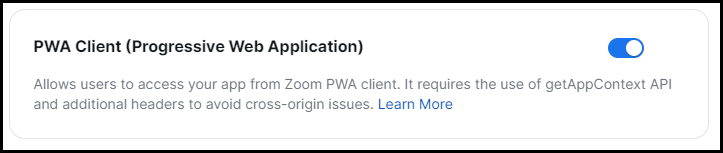
Enable PWA client support. Go to the Features page > Surface section. Enable PWA Client.
-
Download and install the Zoom Apps SDK . Add appssdk.zoom.us to the script-src in Content-Security-Policy. See sample code for headers below.
-
Get the app context token.
Use the
getAppContext()API to get the latest app context token from the PWA client. The API returns a token that contains signed app context data for secure backend validation.- Call
getAppContext()API after config(). - Pass the context via a
GETrequest to the backend. - Decrypt the app context in the backend, and use the decrypted app context information as required.
Add cross-origin headers:
cross-origin-embedder-policy":"require-corp" cross-origin-resource-policy":"cross-origin" - Call
-
Add frame-ancestors to CSP (merge into existing CSP)
frame-ancestors https://*.zoom.us https://*.zoomdev.us; -
Remove X-Frame headers from your app configuration:
X-Frame-Options "DENY";
frame-ancestors 'none'; Content-Security-Policy
Example Context Security Policy
Frontend:
add_header Content-Security-Policy "default-src 'none'; object-src 'none'; worker-src 'none'; connect-src 'self'; script-src 'self' appssdk.zoom.us";
add_header Strict-Transport-Security "max-age=31536000";
add_header X-Content-Type-Options "nosniff";
add_header Referrer-Policy "strict-origin-when-cross-origin";
add_header Cross-Origin-Resource-Policy "cross-origin";
add_header Cross-Origin-Embedder-Policy "require-corp";
Backend:
securityHeaders: {
    strictTransportSecurity: 'max-age=31536000',
    xContentTypeOptions: 'nosniff',
    contentSecurityPolicy: 'default-src 'none'; object-src 'none'; worker-src 'none'; connect-src 'self' ${isDevelopment ? ' ws: wss:' : '' }; script-src 'self' appssdk.zoom.us ; font-src 'self'; img-src 'self';
    referrerPolicy: 'no-referrer',
    crossOriginResourcePolicy: 'cross-origin',
    crossOriginEmbedderPolicy: 'require-corp',
},
Cookie sessions
Make these changes if you have set up a Cookie Session.
- Add
sameSite: 'none'in Cookie Session. - Add
secure: true, in Cookie Session. - Remove
httpOnly: truefrom Cookie Session (if present).