# Use Zoom Apps SDK to power modals in Chat
In this section, you’ll configure the Zoom App to surface a custom webview inside Zoom Team Chat using the Zoom Apps SDK. This modal can be launched using app shortcuts and enables direct interaction with users inside the Zoom client—such as composing messages or viewing context.
By the end of this section, you’ll have:
- A custom webview that runs inside the Zoom Team Chat modal
- SDK integration to send messages or display chat context
- Secure headers and domain permissions to integrate a third-party app into the Zoom client
---
## Configure domain allow list
To enable Zoom to render your app in the Zoom client, you must allowlist the domains used for your webview.
1. Go to the **Surface** tab in your Zoom App configuration.
2. Set the **Home URL** to the path hosting your webview (e.g., `https://example.ngrok.app/webview`).
3. Under **Domain Allow List**, add:
- `ngrok.app` — required for local development
- `appssdk.zoom.us` — required to load the Zoom Apps SDK.
**Example UI:**
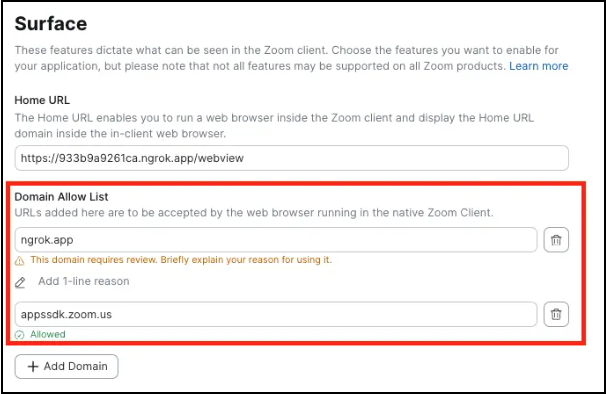
> 💡 **Note:** Provide a reason for each custom domain if prompted by the marketplace interface.
---
## Create the Webview Interface
Create an HTML interface that initializes the Zoom SDK, enables users to compose messages, and displays chat context. This modal provides the interactive UI that users will engage with directly inside Zoom.
This setup leverages Zoom App SDK methods—including `sendMessageToChat`, `getRunningContext`, and `getChatContext`—to deliver a seamless, native experience within Chat. The SDK enables your app to display interactive modals with full context awareness and message-sending capabilities, powering rich, embedded workflows directly inside Zoom.
### File Path
`views/webview.html`
### Code Snippet
```html
Zoom Workplace Chatbot Demo
⚠️ Zoom Client Required
This page is designed to run inside the Zoom desktop or mobile
client.
Please open this URL from within a Zoom chat or meeting to access
the full functionality.
🚀 Zoom Workplace Chatbot Demo
Enter any text you want to send as a message to the
current chat
This demo shows how Zoom Apps can interact with
chat conversations