# Verify your domains
We perform a one-time verification to make sure that the domains where you receive Zoom callbacks are owned by you.
The domain validation for app submissions is account-based. If you have multiple apps and they use the same domain, verification is required only once.
## Prerequisite
You have filled out all the required fields for **App Information** and **Link & Support** on the **App Listing** page.
---
## Process
1. In the build flow select **Production** view, and in the left navigation pane go to **Publish your app** > **App Submission**.
The build flow reads these URL fields, which you've entered as part of the app listing information for your app:
- Privacy Policy URL
- Terms of Use URL
- Redirect URL for OAuth
- Zoom Chat Subscription Bot URL
- Webhook Callback URL
- Home URL
And displays the unique domains under **Verify Domains**.
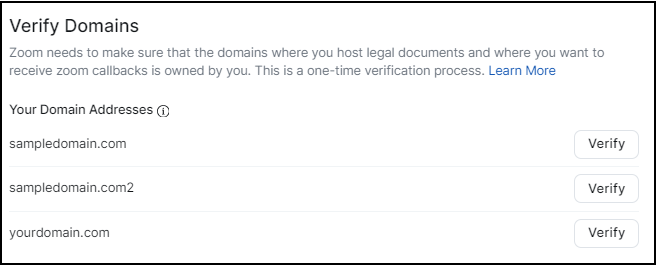
2. Select **Verify** for each domain address.
The build flow provides several methods to verify your domain addresses.
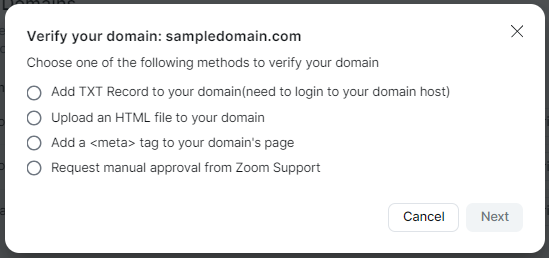
3. Select the method to use to verify the domain, and complete the steps in the instructions.
- **Add TXT record to your domain**. Requires you to have permission to login to your domain host and update the TXT record.
- **Upload an HTML file to your domain**. Requires you to have permission to login to your domain's web server and upload the HTML file to the root folder.
- **Add a `` tag to your domain's page**. Requires you to have permission to login to your domain's homepage and add `` data to the `` section.
- **Request manual approval from Zoom support**. This is a good option to choose if you do not have permission to update your domain host, web server, or homepage, or if you need multiple verifications on a single domain.
---
## Add TXT record to your domain
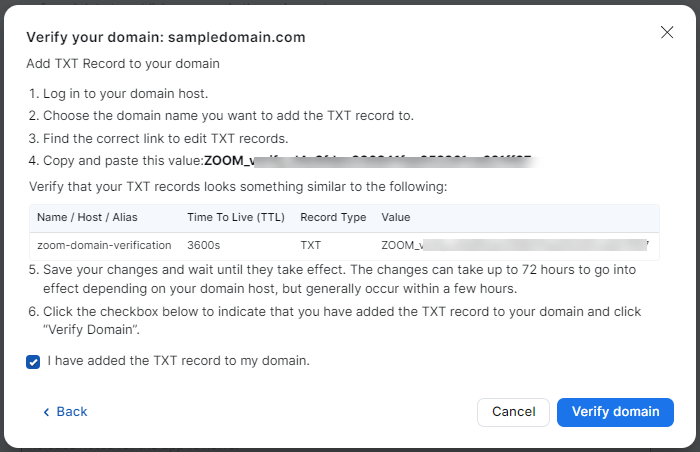
Add a TXT record to your domain with Zoom's domain verification value string.
1. Login to your domain host and update the TXT record for your domain with Zoom's domain verification value string.
2. Save the changes.(The time it takes for the changes to take effect on your domain host varies, but generally happens within minutes to a few hours.)
3. Once the changes have taken effect, select the checkbox to confirm you have added the TXT record to your domain, and select Verify domain.
---
## Upload an HTML file to your domain
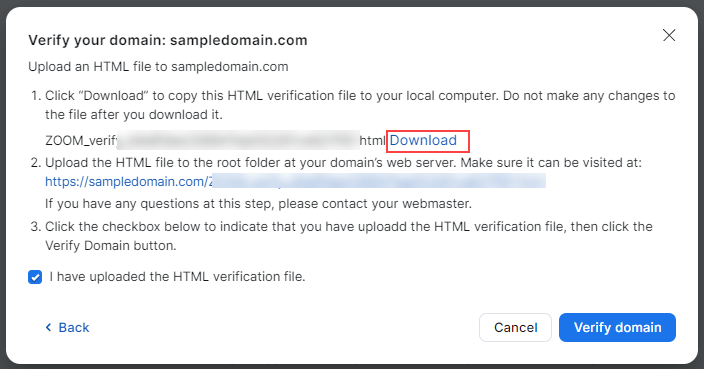
Download an HTML file with Zoom's verification string and upload it to your domain.
1. Click **Download** to download an HTML file with Zoom's verification string to your local computer.
2. Login to your domain's web server and upload the HTML file to the root folder.
3. Select the checkbox to confirm you have uploaded the HTML verification file and select **Verify domain**.
---
## Add `` tag to your domain's page
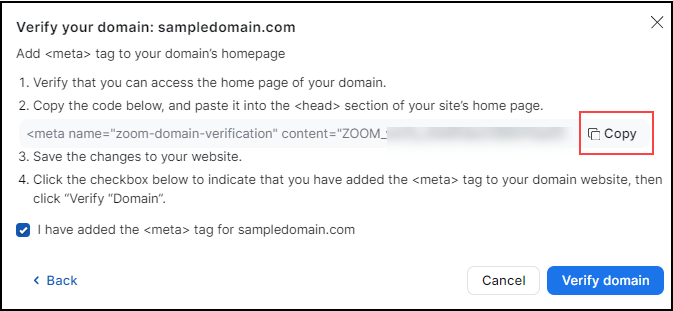
Add a `` tag containing Zoom's domain verification string to your domain's homepage.
1. Access your domain's homepage.
2. Select **Copy** to copy Zoom's domain verification string.
3. Paste the string into the `` section of the homepage, and save it.
4. Select the checkbox to confirm you have added the meta tag to your domain website, and then **Verify domain**.
---
## Request manual approval from Zoom Support
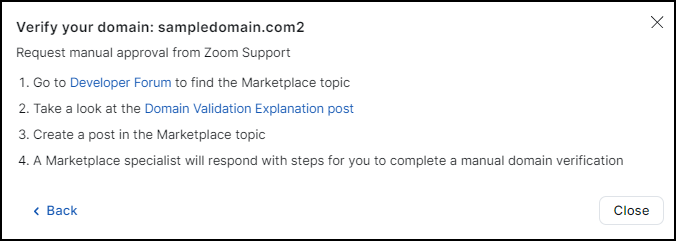
You can request a manual approval from Zoom Support by going to the [Zoom devForum](https://devforum.zoom.us/) and creating a post.
A member of the Zoom Support team will be happy to assist you within 48 hours.
For more information, see the [Domain Validation Explanation](https://devforum.zoom.us/t/domain-validation-explanation/87699) post on the Zoom devForum.
---
## Resources
[Build flow overview](/docs/build-flow/)
[Create OAuth client apps for users](/docs/build-flow/create-oauth-apps/)
[Publish your apps](docs/distribute/app-submission/submit-apps-review/)
[Check app review status](/docs/build-flow/check-review-status/)
[Persistent info](/docs/build-flow/persistent-app-info/)