# How to add cloud calling to your web app using Zoom Phone
## Introduction
Zoom Phone is a cloud-based phone system that delivers VoIP (Voice of Internet Protocol) capabilities to developers, allowing full management of telephony needs online. With its unified communication platform, Zoom Phone seamlessly integrates into workflows, allowing organizations to handle business demands with scalability, reliability, and enhanced productivity.
In this guide, we’ll explore how to get started with [Zoom Phone’s Smart Embed](/docs/phone/smart-embed/) option which is a fast and flexible solution that enables developers to embed a softphone for Zoom Phone Services in their third-party Web application.
## Zoom Phone: when and why
When addressing _why_ you might use Zoom phone as your cloud-based telephony solution, here are some reasons that make it a standout choice:
- **Cost Savings** - Zoom Phone [starts at $10](https://www.zoom.com/en/products/voip-phone/)
- **Scalability** - Easily add or remove phone lines without a need for additional hardware
- **Enhanced security and compliance** - Enterprise-grade encryption offered to ensure data protection and compliance
- **Robust API library** - With the available API library for Zoom phone, developers can access features such as call logs, usage reports, and recordings, and easily integrate with tools like ServiceNow and Salesforce
- **Global Reach** - Zoom Phone supports global calling plans, making communication scaling easy as businesses grow
- **Zoom Platform Integration** - Working with other platform products (like Zoom Contact Center), Zoom phone can integrate with video conferencing, messaging, and productivity tools
- **Smart Embed and SDK support** - Two options for easy integration and full customization into your thridparty applications
- **Workflow automation** - Automate processes such as call routing, customer interactions, and transcriptions
With Zoom Phone, benefits and possibilities go hand in hand. Let’s explore these opportunities by examining _when_ this product may be a great choice.
- Scenario 1 - CRM Integrations:
Running a sales-driven business requires seamless communication and efficient workflows to close deals faster, often supported by customer relationship management (CRM) software.
- Scenario 2 - Human Resources and Recruitment Platforms:
Running an efficient recruitment process requires seamless communication and workflows, often supported by an applicant tracking system (ATS) or recruitment platform.
- Scenario 3 - Healthcare Systems:
Running an efficient healthcare operation requires seamless communication and secure workflows, often supported by electronic health record (EHR) systems or healthcare management platforms.
With Zoom Phone API and Zoom Phone Smart Embed, developers of these products can easily improve the experience of their customers, with access to features such as:
- Make and receive calls: stay within your CRM, ATS or EHR system, no need to switch tools
- Automatically log calls: ensure all interactions are tracked seamlessly in CRM, ATS or EHR systems
- Enable inbound contact pop-up based on caller number: provide instant context on incoming calls by displaying relevant data based on caller's number
- Access real-time analytics: gain actionable insights from calls to optimize performance
These are just a few ways Zoom Phone helps businesses of all types streamline communication and improve efficiency. Now that we understand then when and why of Zoom Phone, let's review getting started with the product.
## Getting started with Zoom Phone
We'll walk through, step-by-step, the prerequisites needed to use Zoom Phone Smart Embed, and how to integrate the product into your code.
1. Add phone license to your Zoom account
Head over to Zoom.us, login, and navigate to 'my account'. On the 'profile' tab, scroll down to 'Account', where you'll see your license type.
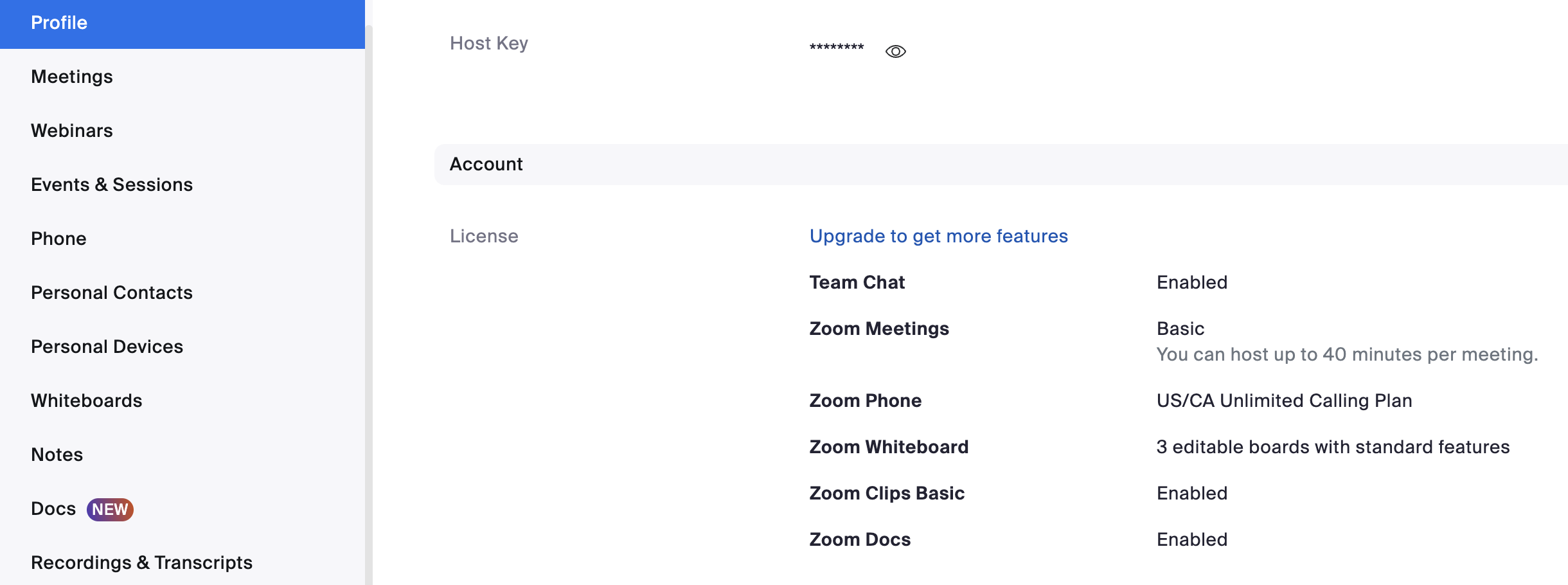
If you do not see "Zoom Phone" available, you'll need to request this plan for your account. You can do so by heading to our [product page for Zoom Phone](https://www.zoom.com/en/products/voip-phone/), and purchase the most appropriate plan for your needs.
2. Set up Zoom phone and enable for the appropriate account
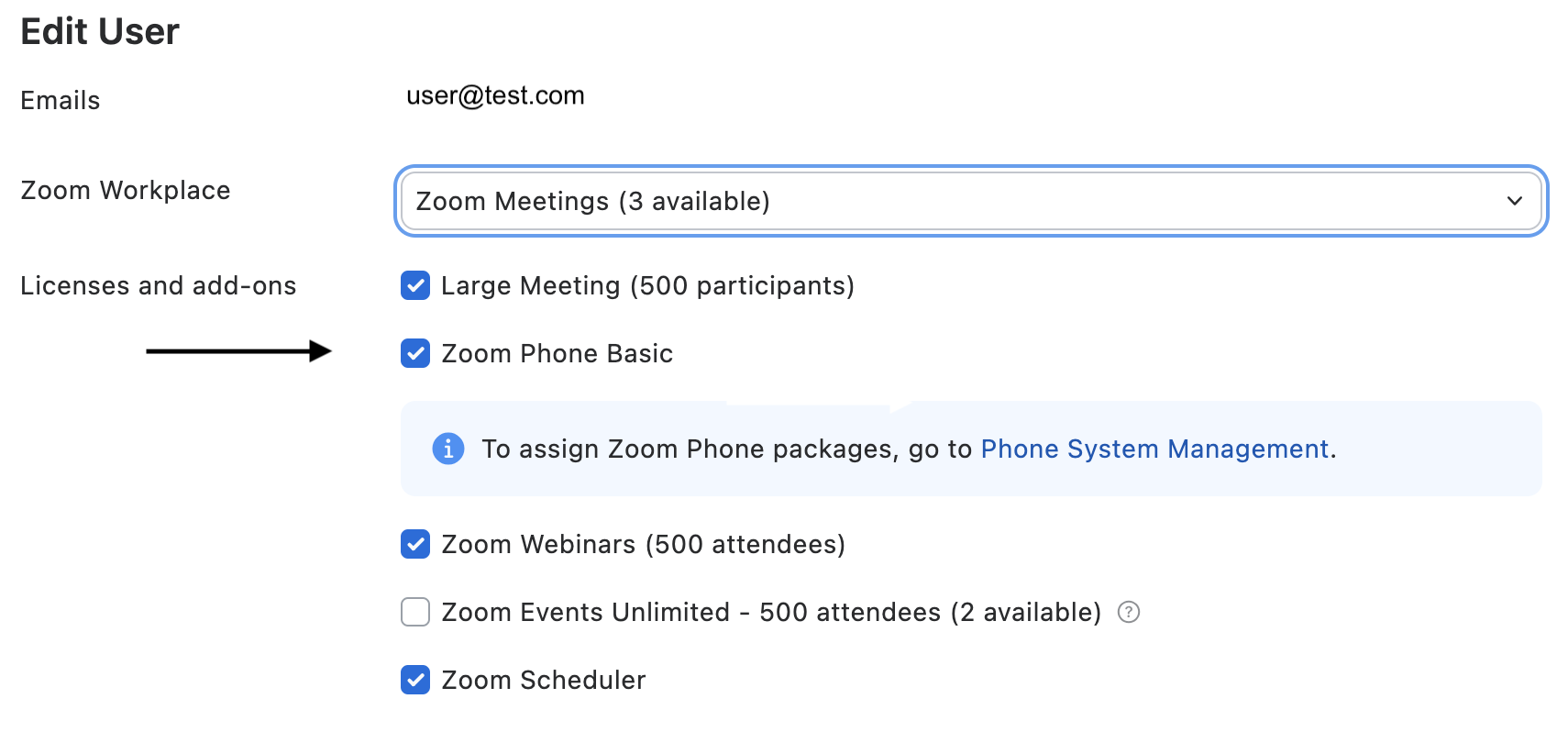
Back on your account page on Zoom.us, you'll be able to select the "Phone" tab once the license is added to your account. Once selected, you'll run through setup steps. Additionally, if you are admin, you'll add specific licenses to users on your account.
Head to the Admin tab > User Management > Users, and click Edit next to the user you want to assign a phone license to. You will then be able to assign the license to that user.
3. Install Zoom Phone Smart Embed App from the marketplace
Head over to the [Zoom marketplace](https://marketplace.zoom.us/) and access the Zoom Phone Smart Embed app (tip: search "smart embed" in the search and select the matching result). You'll see a blue dropdown, where you'll select "Add for Myself". Selecting this option will redirect you to a page reading "Sign in Successfully!" If you do not see this message, ensure that you Zoom Phone has been properly added and enabled on your account.

4. Edit your domain list
To ensure your application can access Zoom Phone, you'll need to add your 'Approved Domains'. On the [Smart Embed app homepage](https://marketplace.zoom.us/apps/jnMbv3s2TaCBYMFz5yvzkA), scroll down to the 'Manage' section and select 'Configure App'. From there, click the 'Edit' button and add in your application domain. **Without this step, you'll run into connection errors after embedding.**

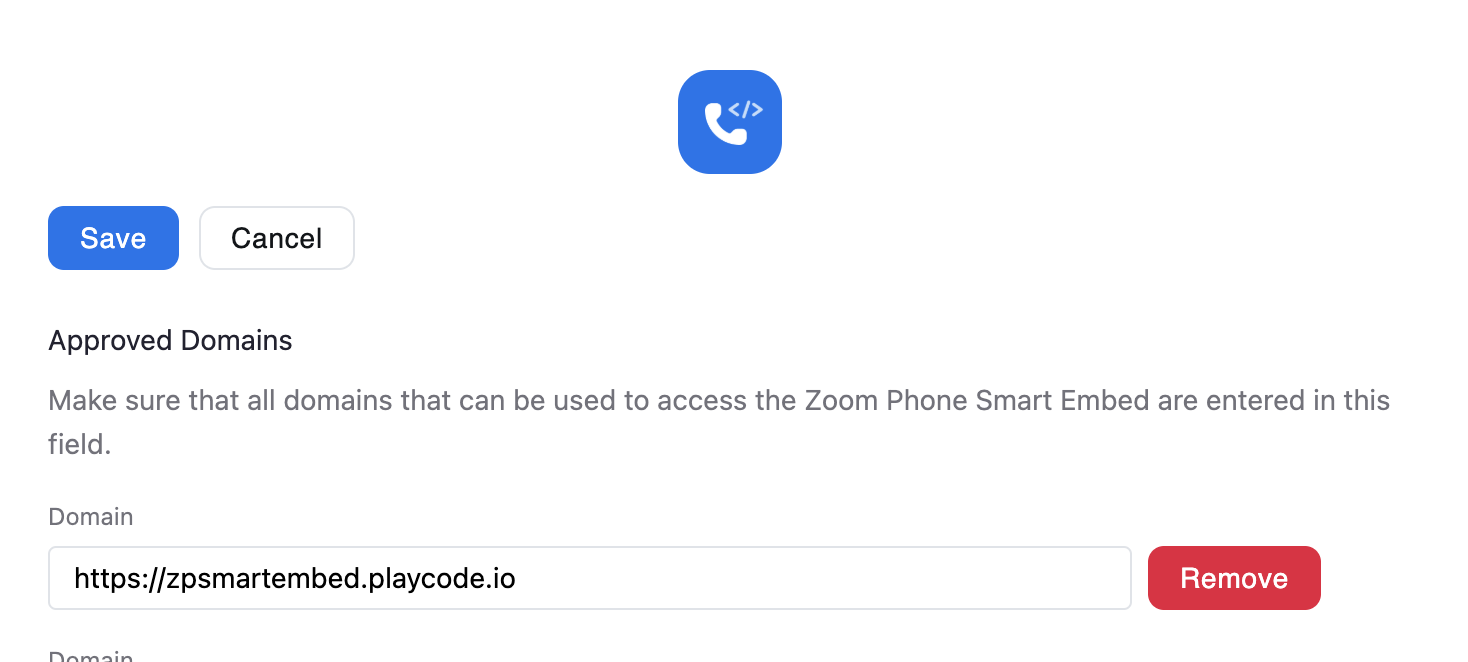
Note: Make sure you are using a secure HTTPS domain. If you are testing, you can use a secure tunnel for communication.
5. Embed Zoom Phone into your application
Once Zoom Phone is set up and your "Allowed Domain" list has been updated, you're ready to embed Zoom Phone into your application. Embedding can be done using either a script tag, or iframe tag. We'll walk through these steps as though we were using a Vanilla JavaScript application. In your index.html (or equivalent) file, you'll simply copy the appropriate line of code in:
Script (best for deep integration and customization):
```
```
iframe (best for straightforward integration):
```
```
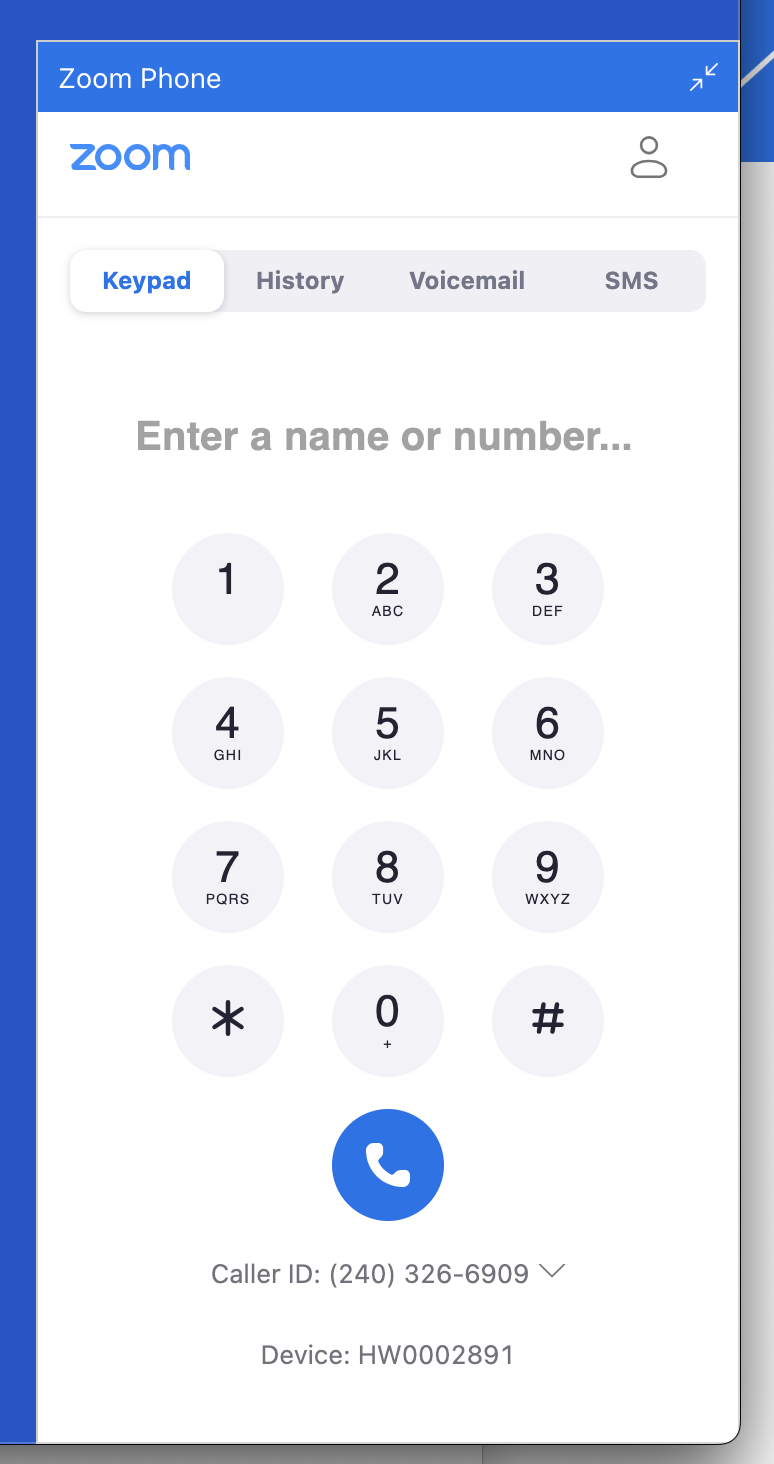
At this point, you have access to the Smart Embed panel within your application. From here, you can utilize [APIs and events](docs/zoom-phone/smart-embed-guide/#api-and-events-widgets-to-control-the-smart-embed) to access even more features.
Important:
- To use Zoom Phone Smart Embed, the Zoom client must be installed, logged in, and open while your application is running.
If you want to use SMS through smart embed, make sure to review [this article](https://support.zoom.com/hc/en/article?id=zm_kb&sysparm_article=KB0059336&_device_id=9eae5719-24c3-4430-b070-aa402349b67e&_ics=1741018281261&irclickid=~46Z6WPIHyrifg8cgefmsjab71Z6739b-c7067XYWRLDvkg9ZPJGx&_gl=1*1gl7nza*_gcl_au*MTc1NjI1MDYzMC4xNzQxMDE2MDIy*_ga*MTE0MjUxNTY0OC4xNzQxMDE2MDM0*_ga_L8TBF28DDX*MTc0MTAxODI4MC4yLjEuMTc0MTAxODI4MS4wLjAuMA..) to set up a SMS 10DLC campaign
## Conclusion
Enabling Zoom Phone Smart Embed helps organizations better utilize Zoom Phone telephony capabilities and optimize business operations. With its robust API suite, easy to use integrations, and global scalability, Zoom Phone empowers organizations to enhance productivity and streamline workflows. While this article touched the surface of what is possible with Zoom Phone, look forward to further content exploring [Zoom Phone SDK for Android](/docs/phone/android/get-started/) and [Zoom Apps for Zoom Phone](/docs/zoom-apps/guides/zoom-apps-for-zoom-phone/) for more use case and implementation guidance.