Review, annotate, and collaborate with users directly in your app's video chat
Introduction
Previously, in the iOS (UIKit) quickstart sample app blog, we provided a step-by-step guide on integrating Zoom's Video SDK (VSDK) and adding essential features like core audio and video, along with some basic functionalities.
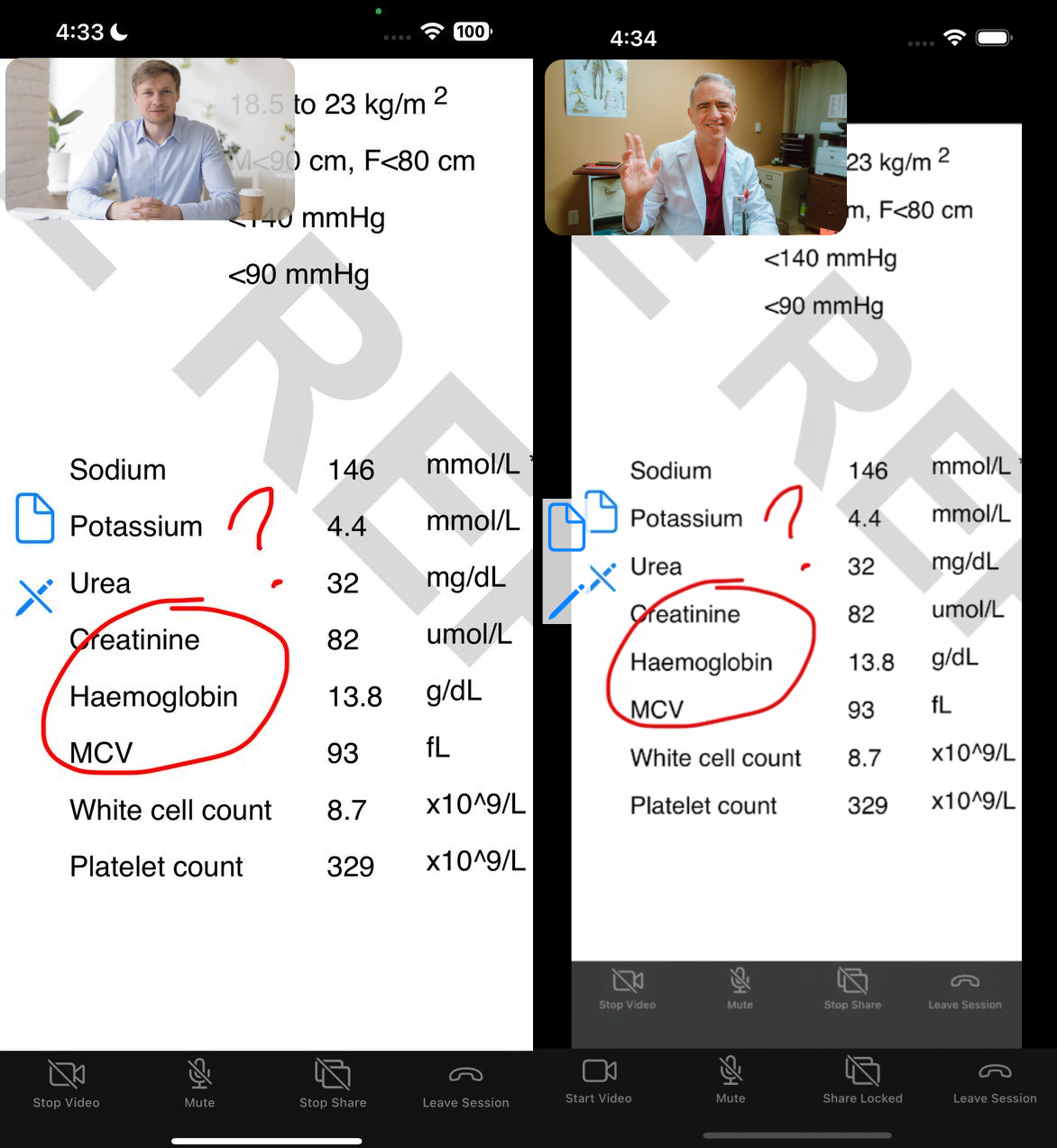
In this tutorial, we'll build upon the same sample app to explore screen sharing and annotation features, using a realistic scenario—such as a digital consultation with your family doctor when reviewing your annual health report (PDF).
Zoom VSDK supports several screen sharing methods. In this blog, we'll introduce two types: ShareWithView and InAppScreenShare, each with corresponding annotation options.
ShareWithView: Shares a specific UIView from your app—only the chosen view is visible to others.InAppScreenShare(Introduced in the recent version 2.3.10): Shares the whole app interface, including system elements like Apple's File Explorer and alert dialogs.
For ShareWithView we will be adding the sample PDF (sample_health_report.pdf) and using Apple's UniformTypeIdentifiers and PDFKit API to display the PDF for local user while for InAppScreenShare we will be allowing the local user to open up the file explorer and select the same PDF.
Note: Zoom VSDK also supports screen sharing via Apple's ReplayKit; however, due to certain restriction, annotation is not available when using ReplayKit for screen sharing.
You should familiarize yourself with the iOS (UIKit) quickstart sample app blog before proceeding. In this blog, we'll discuss some of the recent changes as well as cover the following topics:
- SDK contents
- Quickstart app contents
- Integrating the SDK
- Setup for share button and PDFKit
- Setup for annotation
- Bonus section
You can find the completed project on GitHub.
SDK contents
The Video SDK for iOS package includes the following XCFramework bundles under /Sample-Libs/lib that can be added to your project as needed:
ZoomVideoSDK.xcframeworkandZoomTask.xcframework: Interfaces to support all services related to Zoom sessions, such as initializing the SDK, creating and joining sessions, in-session services, and more.CptShare.xcframework: Interfaces to support screen sharing a singleUIView. Required to receive annotation by others when sharing a single UIView, as opposed to full broadcasting.zm_annoter_dynamic.xcframework: Interfaces to support the annotation service when sharing.
For this tutorial, we do not need these xcframeworks:
ZoomVideoSDKScreenShare.xcframework: Interfaces to support the full screen share service, for broadcasting a device screen.zoomcml.xcframework: Interfaces to support virtual background filter and 3D avatar.Whiteboard.xcframework: Interfaces to support whiteboard.
Quickstart app contents
StartViewController is the entry point for the app where the Video SDK is initialized. There is no change for this.


Previously, the SessionViewController contains a UITabBar which holds the controls for toggling the user's video, toggling audio and ending the Zoom session. We've added one more additional "Screen Share" button on the UITabBar.

The four options are tracked in the ControlOption enum.
enum ControlOption: Int {
    case toggleVideo, toggleAudio, toggleShare, leaveSession
}
Integrating the SDK
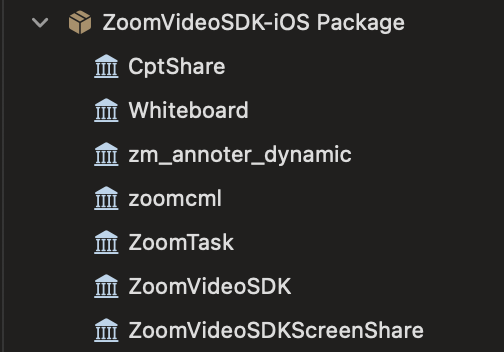
Starting from version 2.3.10, the Zoom VSDK SPM consists of each of the xcframeworks instead of coupling all into 1. Hence, you have the option to choose which xcframeworks you need.
If you used Swift Package Manager to add the Zoom Video SDK, your Xcode project's Package Dependencies should now look like this:
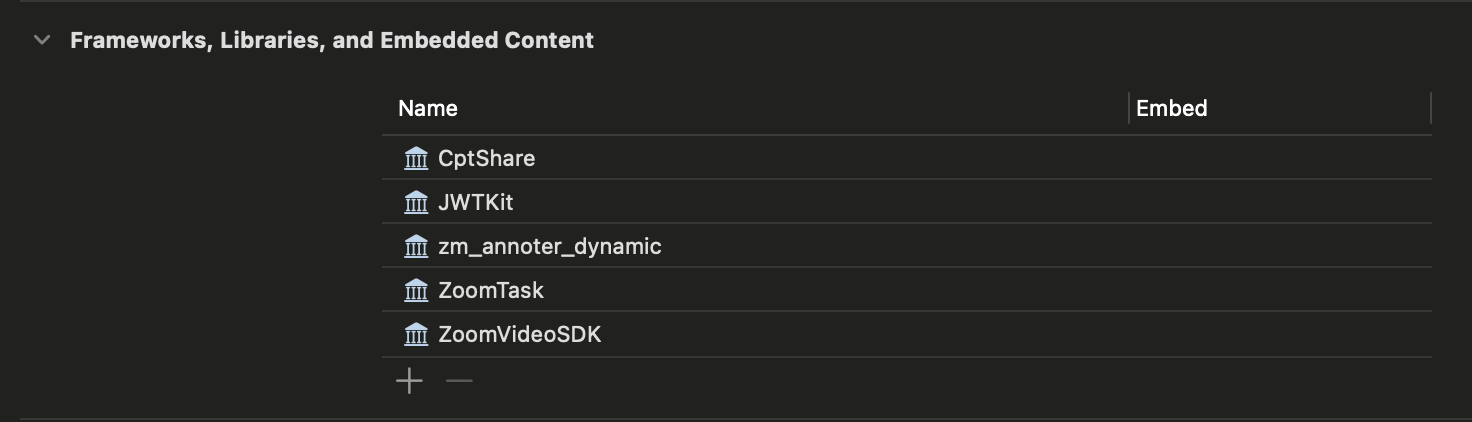
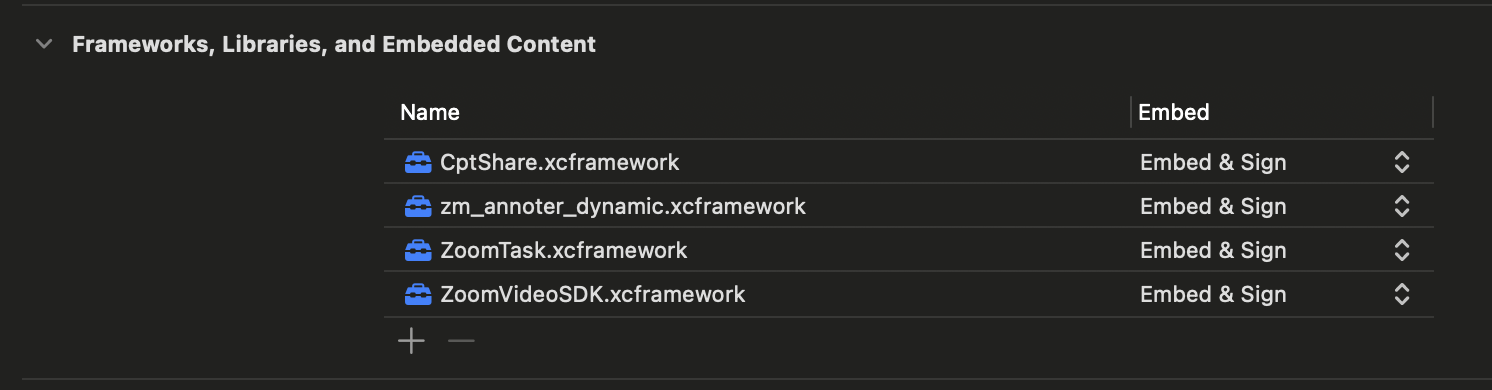
The General > Frameworks, Libraries, and Embedded Content settings should look like this:
If you added the Zoom Video SDK manually, do the following:
In the Video SDK package that was downloaded from the Zoom Marketplace, navigate to /Sample-Libs/lib.
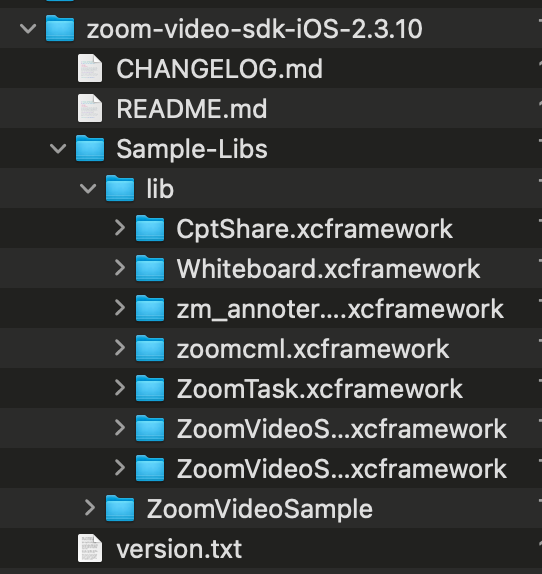
The Video SDK is a dynamic library, so it must be included in the project as an embedded binary. In your Xcode project, navigate to your app's target and then General > Frameworks, Libraries, and Embedded Content and add ZoomVideoSDK.xcframework, ZoomTask.xcframework, CptShare.xcframework and zm_annoter_dynamic.xcframework for the main SDK interfaces and set to Embed & Sign.
Setup for share button and PDFKit
We will be adding one more button (screen share) to the tab bar under SessionViewController, add in some conditional check to see if shares are allowed and also a new ShareSelection enum.
import UIKit
import PDFKit // Add
import ZoomVideoSDK
enum ControlOption: Int {
    case toggleVideo, toggleAudio, toggleShare, leaveSession
}
enum ShareSelection {
    case InAppScreenShare
    case ShareWithView
}
class SessionViewController: UIViewController {
    // ...
    var toggleVideoBarItem: UITabBarItem = .init(title: "Stop Video", image: UIImage(systemName: "video.slash"), tag: ControlOption.toggleVideo.rawValue)
    var toggleAudioBarItem: UITabBarItem = .init(title: "Mute", image: UIImage(systemName: "mic.slash"), tag: ControlOption.toggleAudio.rawValue)
    // Add the toggleShareBarItem below the other video and audio toggle bar item
    var toggleShareBarItem: UITabBarItem = .init(title: "Share Locked", image: UIImage(systemName: "rectangle.on.rectangle.slash"), tag: ControlOption.toggleShare.rawValue)
    // For Screen Share and Annotation purpose
    var sharerView: UIView = .init() // Share view when remote user is sharing
    var localViewDuringShare: UIView = .init() // Container (UIView) for actualLocalViewDuringShare
    var actualLocalViewDuringShare: (view: UIView, placeholder: UIView)? // Local user video view or placeholder view
    var chosenShareType: ShareSelection? // InAppScreenShare and ShareWithView
    var shareBtnStackView: UIStackView = .init() // StackView for holding PDF and Draw buttons
    var sharePDFBtn = UIButton(type: .system)
    var shareDrawBtn = UIButton(type: .system)
    let sharedPDFView = PDFView() // PDFView for local sharer
    var annotationStarted: Bool = false
    var annotationHelper: ZoomVideoSDKAnnotationHelper?
    // ...
    // Replace the onSessionJoin with the following one with screen share check logic and also a more simplified onSessionJoin logic
    func onSessionJoin() {
        addLocalViewToGrid()
        actualLocalViewDuringShare = addLocalViewDuringShare() // Add local video view during screen share
        self.loadingLabel.isHidden = true
        self.tabBar.isHidden = false
        // Check if the local user is host, if yes then enable share and disable multi share.
        if let localUserIsHost = ZoomVideoSDK.shareInstance()?.getSession()?.getMySelf()?.isHost(), localUserIsHost {
            ZoomVideoSDK.shareInstance()?.getShareHelper()?.enableMultiShare(false)
            ZoomVideoSDK.shareInstance()?.getShareHelper()?.lockShare(false)
        }
        // For local and remote user, check if share is enabled.
        if let shareHelper = ZoomVideoSDK.shareInstance()?.getShareHelper() {
            if shareHelper.isMultiShareEnabled() == false && !shareHelper.isShareLocked() {
                toggleShareBarItem.title = "Start Share"
                toggleShareBarItem.image = UIImage(systemName: "rectangle.on.rectangle")
            }
        }
    }
    // Replace the onUserVideoStatusChanged with the following one with screen share subscribe/unsubscribe logic and also a more simplified onUserVideoStatusChanged logic
    func onUserVideoStatusChanged(_: ZoomVideoSDKVideoHelper?, user: [ZoomVideoSDKUser]?) {
        guard let users = user,
            let myself = ZoomVideoSDK.shareInstance()?.getSession()?.getMySelf() else { return }
        for user in users {
            if user.getID() == myself.getID() {
                if let canvas = user.getVideoCanvas(),
                let isVideoOn = canvas.videoStatus()?.on {
                    Task(priority: .background) {
                        if isVideoOn {
                            canvas.subscribe(with: self.localView, aspectMode: .panAndScan, andResolution: ._Auto)
                            canvas.subscribe(with: self.actualLocalViewDuringShare?.view, aspectMode: .panAndScan, andResolution: ._Auto)
                        } else {
                            canvas.unSubscribe(with: self.localView)
                            canvas.unSubscribe(with: self.actualLocalViewDuringShare?.view)
                        }
                        self.localPlaceholder?.isHidden = isVideoOn
                        self.toggleVideoBarItem.title = isVideoOn ? "Stop Video" : "Start Video"
                        self.toggleVideoBarItem.image = UIImage(systemName: isVideoOn ? "video.slash" : "video")
                        self.actualLocalViewDuringShare?.placeholder.isHidden = isVideoOn
                    }
                }
            } else {
                if let canvas = user.getVideoCanvas(),
                let isVideoOn = canvas.videoStatus()?.on,
                let views = remoteUserViews[user.getID()] {
                    Task(priority: .background) {
                        views.placeholder.isHidden = isVideoOn
                    }
                }
            }
        }
    }
    // Add the Zoom VSDK's onShareSettingChanged callback to listen for changes
    func onShareSettingChanged(_ setting: ZoomVideoSDKShareSetting) {
        if setting == .singleShare {
            toggleShareBarItem.title = "Start Share"
            toggleShareBarItem.image = UIImage(systemName: "rectangle.on.rectangle")
        }
    }
    func onUserShareStatusChanged(_ helper: ZoomVideoSDKShareHelper?, user: ZoomVideoSDKUser?, shareAction: ZoomVideoSDKShareAction?) {
        guard let user = user, let myself = ZoomVideoSDK.shareInstance()?.getSession()?.getMySelf(), let shareAction = shareAction else { return }
        let shareStatus = shareAction.getShareStatus()
        if user.getID() == myself.getID() {
            // Local user share status changed
            if shareStatus == .start || shareStatus == .resume {
                sharerView.isHidden = true
                shareBtnStackView.isHidden = false
            } else {
                sharedPDFView.isHidden = true
                shareBtnStackView.isHidden = true
            }
        } else {
            // Remote user share status changed
            if shareStatus == .start || shareStatus == .resume {
                shareAction.getShareCanvas()?.subscribe(with: sharerView, aspectMode: .letterBox, andResolution: ._Auto)
                sharerView.isHidden = false
                shareBtnStackView.isHidden = false
                toggleShareBarItem.title = "Share Locked"
                toggleShareBarItem.image = UIImage(systemName: "rectangle.on.rectangle.slash")
            } else {
                shareAction.getShareCanvas()?.unSubscribe(with: sharerView)
                sharerView.isHidden = true
                shareBtnStackView.isHidden = true
            }
        }
        localViewDuringShare.isHidden = !(shareStatus == .start || shareStatus == .resume)
    }
    // ...
}
/*
Under the UITabBarDelegate, we will have to do the following:
1. Add the ControlOption.toggleShare.rawValue and handleShareToggle
2. Add handleShareToggle - Method that contains the share button logic when local user click onto it
3. Add handleShareSelection - Method that contains handling of the share selected (InAppScreenShare or ShareWithView)
*/
extension SessionViewController: UITabBarDelegate {
    func tabBar(_ tabBar: UITabBar, didSelect item: UITabBarItem) {
        tabBar.selectedItem = nil
        switch item.tag {
        case ControlOption.toggleVideo.rawValue:
            handleVideoToggle(tabBar)
        case ControlOption.toggleAudio.rawValue:
            handleAudioToggle(tabBar)
        case ControlOption.toggleShare.rawValue:
            handleShareToggle(tabBar)
        case ControlOption.leaveSession.rawValue:
            tabBar.isUserInteractionEnabled = false
            ZoomVideoSDK.shareInstance()?.leaveSession(false)
        default:
            break
        }
    }
    // ...
    private func handleShareToggle(_ tabBar: UITabBar) {
        #if targetEnvironment(simulator)
        showError(message: "Simulator detected, share is not supported", dismiss: false)
        #else
        guard let shareHelper = ZoomVideoSDK.shareInstance()?.getShareHelper() else { return }
        // 1. Check if share is enabled.
        guard shareHelper.isMultiShareEnabled() != true || shareHelper.isShareLocked() else {
            showError(message: "Screen sharing is locked. Wait for host to be in.", dismiss: false)
            return
        }
        // 2. Check if someone is sharing - Single share only
        guard !shareHelper.isOtherSharing() else {
            showError(message: "Others is sharing. Only 1 share allowed.", dismiss: false)
            return
        }
        // 3. Check if InAppscreenShare is supported
        guard shareHelper.isSupportInAppScreenShare() else {
            showError(message: "In app screen share is not supported.", dismiss: false)
            return
        }
        toggleShareBarItem.isEnabled = false
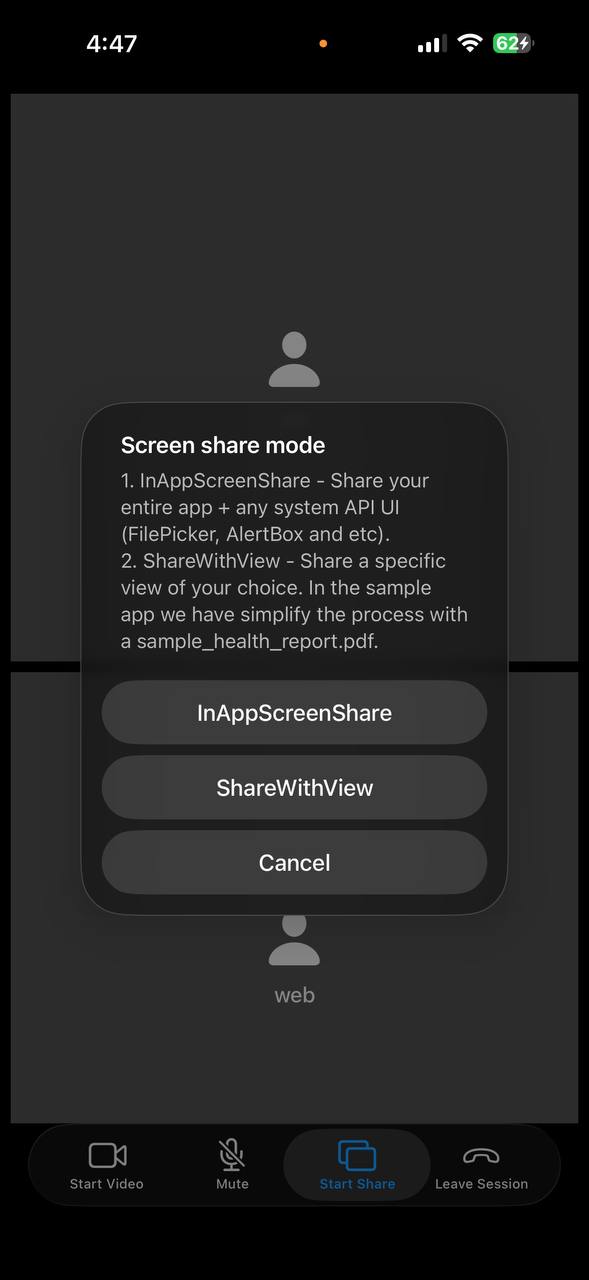
        // 4.1 Create an UIAlertController for user to select if they want InAppScreenShare or ShareWithView.
        let alert = UIAlertController(
            title: "Screen share mode",
            message: "1. InAppScreenShare - Share your entire app + any system API UI (FilePicker, AlertBox and etc).\n2. ShareWithView - Share a specific view of your choice. In the sample app we have simplify the process with a sample_health_report.pdf.",
            preferredStyle: .alert
        )
        // 4.2 Check if local user is currently sharing out.
        if shareHelper.isSharingOut() {
            // 4.3 Local user is already sharing, so by clicking on the share button we should stop share
            let error = shareHelper.stopShare()
            if error == .Errors_Success {
                print("stopShare")
                toggleShareBarItem.title = "Start Share"
                toggleShareBarItem.image = UIImage(systemName: "rectangle.on.rectangle")
            } else {
                print("Fail stopShare")
            }
        } else {
            // 4.4  Local user is not sharing, so by clicking on the share button we should provide the 2 UIAlertAction options (InAppScreenShare and ShareWithView)
            alert.addAction(UIAlertAction(title: "InAppScreenShare", style: .default, handler: { _ in
                self.handleShareSelection(with: .InAppScreenShare)
            }))
            alert.addAction(UIAlertAction(title: "ShareWithView", style: .default, handler: { _ in
                self.handleShareSelection(with: .ShareWithView)
            }))
            alert.addAction(UIAlertAction(title: "Cancel", style: .cancel, handler: { _ in
                print("Cancel share")
            }))
            present(alert, animated: true, completion: nil)
        }
        toggleShareBarItem.isEnabled = true
        #endif
    }
    func handleShareSelection(with chosenShare: ShareSelection) {
        guard let shareHelper = ZoomVideoSDK.shareInstance()?.getShareHelper() else { return }
        chosenShareType = chosenShare
        var error = ZoomVideoSDKError.Errors_Audio_Module_Error
        switch chosenShare {
        // User selected InAppScreenShare
        case .InAppScreenShare:
            error = shareHelper.startInAppScreenShare()
            if error == .Errors_Success {
                print("startInAppScreenShare")
            } else {
                print("Fail startInAppScreenShare")
            }
        // User selected ShareWithView
        case .ShareWithView:
            openBundledPDF() // This methiod is for opening up the sample PDF (sample_health_report.pdf) added earlier.
            error = shareHelper.startShare(with: sharedPDFView)
            if error == .Errors_Success {
                print("startShareWithView")
            } else {
                print("Fail startShareWithView")
            }
        }
        if error == .Errors_Success {
            toggleShareBarItem.title = "Stop Share"
            toggleShareBarItem.image = UIImage(systemName: "rectangle.on.rectangle.slash")
        }
    }
}
In SessionViewControllerExtension.swift, we will also need to handle the additional screen share button logic and sample PDF (sample_health_report.pdf) logic.
import UIKit
import UniformTypeIdentifiers // Add
import PDFKit // Add
import ZoomVideoSDK
extension SessionViewController: UIDocumentPickerDelegate {
    private func setupTabBar() {
        tabBar.delegate = self
        tabBar.isHidden = true
        let leaveSessionBarItem = UITabBarItem(title: "Leave Session", image: UIImage(systemName: "phone.down"), tag: ControlOption.leaveSession.rawValue)
        tabBar.items = [toggleVideoBarItem, toggleAudioBarItem, toggleShareBarItem, leaveSessionBarItem]
    }
    // ...
    @objc func pickPDF() {
        let picker = UIDocumentPickerViewController(forOpeningContentTypes: [UTType.pdf])
        picker.delegate = self
        present(picker, animated: true)
    }
    func documentPicker(_ controller: UIDocumentPickerViewController, didPickDocumentsAt urls: [URL]) {
        guard let url = urls.first else { return }
        // Gain temporary read access to files outside your sandbox.
        let didAccess = url.startAccessingSecurityScopedResource()
        defer { if didAccess { url.stopAccessingSecurityScopedResource() } }
        // Coordinate reading (helps with iCloud/third-party providers ensuring the file is available).
        let coordinator = NSFileCoordinator()
        var coordError: NSError?
        var readableURL: URL?
        coordinator.coordinate(readingItemAt: url, options: [], error: &coordError) { securedURL in
            // Copy to a local temp URL you fully control (robust across providers).
            let tmpURL = FileManager.default.temporaryDirectory
                .appendingPathComponent(UUID().uuidString)
                .appendingPathExtension("pdf")
            do {
                // If the provider streams the file, copying forces a local, complete file.
                try FileManager.default.copyItem(at: securedURL, to: tmpURL)
                readableURL = tmpURL
            } catch {
                // If copy fails (e.g., already local), fall back to using the securedURL directly.
                readableURL = securedURL
            }
        }
        if let e = coordError {
            print("NSFileCoordinator error: \(e)")
        }
        guard let openURL = readableURL else {
            print("No readable URL resolved.")
            return
        }
        // Try opening with URL first.
        if let doc = PDFDocument(url: openURL) {
            sharedPDFView.document = doc
            sharedPDFView.autoScales = true
            sharedPDFView.isHidden = false
            shareBtnStackView.isHidden = false
        }
    }
    func openBundledPDF() {
        // Make sure your PDF is added to the project and "Target Membership" is checked
        if let pdfURL = Bundle.main.url(forResource: "sample_health_report", withExtension: "pdf") {
            if let pdfDoc = PDFDocument(url: pdfURL) {
                sharedPDFView.autoScales = true
                sharedPDFView.document = pdfDoc
                sharedPDFView.isHidden = false
                shareBtnStackView.isHidden = true
            }
        } else {
            print("Could not find PDF in bundle")
        }
    }
}
Setup for annotation
In SessionViewControllerExtension, we will need to add the draw logic first.
extension SessionViewController: UIDocumentPickerDelegate {
    // ...
    @objc func toggleDraw() {
        guard let shareHelper = ZoomVideoSDK.shareInstance()?.getShareHelper() else { return }
        // 1. If local share owner is sharing - Allow viewer to annotation
        shareHelper.disableViewerAnnotation(false)
        // 2. Check if annotation is supported and if viewer annotation is disable
        guard shareHelper.isAnnotationFeatureSupport(), !shareHelper.isViewerAnnotationDisabled() else {
            showError(message: "Annotation is not supported", dismiss: false)
            return
        }
        // 3. Check if annotationHelper exist, if so we will destory it.
        if annotationHelper != nil {
            shareHelper.destroy(annotationHelper)
        }
        // 4. Check if local user is the one sharing out.
        if shareHelper.isSharingOut() {
            // 4.1 Local user is the one sharing, first check if sharedPDFView contains the sample PDF or a selected PDF. Then create the annotationHelper.
            guard sharedPDFView.document != nil else {
                showError(message: "Select a PDF first.", dismiss: false)
                return
            }
            annotationHelper = shareHelper.createAnnotationHelper(nil) // Nil for self sharing as mentioned for shareHelper.createAnnotationHelper
        } else if shareHelper.isOtherSharing() {
            // 4.2 Check if other is sharing. If so, create a annotation helper.
            annotationHelper = shareHelper.createAnnotationHelper(sharerView)
        }
        // 5. If annotationHelper is still nil at this stage, means annotation is invalid.
        guard let annotationHelper = annotationHelper else {
            showError(message: "You are not allowed to annotate", dismiss: false)
            return
        }
        // 6. Check the current status of annotation
        if annotationStarted {
            // 6.1 Annotation has already been started before, so by toggle this button again we will stop annotation.
            let error = annotationHelper.stopAnnotation()
            if error == .Errors_Success {
                shareDrawBtn.setImage(UIImage(systemName: "pencil")?.withConfiguration(UIImage.SymbolConfiguration(pointSize: 30, weight: .regular)), for: .normal)
                annotationStarted = false
            }
        } else {
            // 6.2 Annotation not yet started, so by toggle this button again we will start annotation.
            let error = annotationHelper.startAnnotation()
            if error == .Errors_Success {
                var errorInAppAnnotationResult: ZoomVideoSDKError?
                // Check what is the chosenShareType.
                switch chosenShareType {
                case .InAppScreenShare:
                    // For InAppScreenShare, we will need to use setAnnotationView for annotation.
                    // Check if local user or remote user is sharing, then set annotation view accordingly.
                    if (shareHelper.isSharingOut()) {
                        errorInAppAnnotationResult = shareHelper.setAnnotationView(sharedPDFView)
                    } else {
                        errorInAppAnnotationResult = shareHelper.setAnnotationView(sharerView)
                    }
                    if errorInAppAnnotationResult == .Errors_Success {
                        // Set the annotation tool type, color and width. There are various configurations available. Check the ZoomVideoSDKAnnotationHelper for more information.
                        annotationHelper.setToolType(.pen)
                        annotationHelper.setToolColor(.red)
                        annotationHelper.setToolWidth(2)
                        shareDrawBtn.setImage(UIImage(systemName: "pencil.slash")?.withConfiguration(UIImage.SymbolConfiguration(pointSize: 30, weight: .regular)), for: .normal)
                    } else {
                        print("Fail to set annotation")
                    }
                case .ShareWithView:
                    // For ShareWithView, we will directly set the tool type, color and width
                    annotationHelper.setToolType(.pen)
                    annotationHelper.setToolColor(.red)
                    annotationHelper.setToolWidth(2)
                    shareDrawBtn.setImage(UIImage(systemName: "pencil.slash")?.withConfiguration(UIImage.SymbolConfiguration(pointSize: 30, weight: .regular)), for: .normal)
                default:
                    return
                }
                annotationStarted = true
            } else {
                print("Fail to start annotation")
            }
        }
    }
}
Bonus section
If you are using the simulator for testing, you will realise that there are a few limitations such as no camera, screen share and a few features that aren't supported. Hence it will be great to also include the necessary checks.
In SessionViewController, add the following check:
private func handleVideoToggle(_ tabBar: UITabBar) {
    #if targetEnvironment(simulator)
    showError(message: "Simulator detected, video is not supported", dismiss: false)
    #else
    // ...
    #endif
}
Next, we will also want to add the Zoom VSDK onError handling.
In SessionViewController, update the showError method and add the onError callback from Zoom VSDK.
class SessionViewController: UIViewController {
    // ...
    public func showError(message: String, dismiss: Bool = true) {
        Task { @MainActor in
            let alert = UIAlertController(title: "Error", message: message, preferredStyle: .alert)
            alert.addAction(UIAlertAction(title: "OK", style: .default) { _ in
                if (dismiss) {
                    self.dismiss(animated: true)
                }
            })
            present(alert, animated: true)
        }
    }
}
// MARK: - ZoomVideoSDKDelegate
extension SessionViewController: ZoomVideoSDKDelegate {
    func onError(_ ErrorType: ZoomVideoSDKError, detail details: Int) {
        showError(message: "Error occured: \(ErrorType.rawValue)", dismiss: false)
    }
    // ...
}
And that's how you integrate the screen share and annotation features. You can find more information under the Add Features section in our Video SDK docs.