Adding Picture-in-Picture to Zoom Video SDK iOS apps
Introduction
Picture-in-Picture allows users to multitask with ease, making calls with the Zoom Video SDK even while your app is backgrounded. To enable this powerful feature, only a single function call from the Video SDK is required, as well as implementation of the Apple AVKit framework. While CallKit is not required, it does make acheiving this feature easier. With these tools, this guide will teach you how to unlock Picture-in-Picture within your very own Zoom Video SDK app.
Prerequisites
Picture-in-Picture with Zoom Video SDK for iOS requires the implemention of AVKit features introduced in iOS 15, the minimum required version for this feature.
If enabling picture-in-picture via AVKit directly instead of an entitlements file, you must use Zoom Video SDK 1.12.10 or greater. (See Prerequisites for AVKit below.)
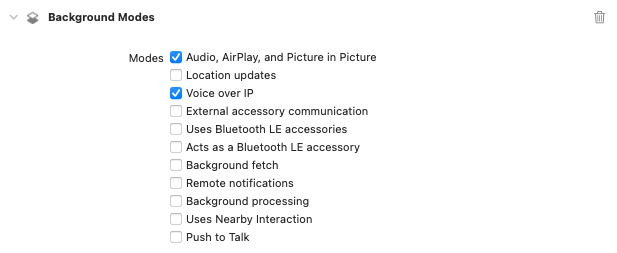
Ensure that “Audio, Airplay, and Picture in Picture” and “Voice over IP” are selected under Background Modes in the Xcode project’s Signing & Capabilities tab.
Rendering Picture-in-Picture in Video SDK
To render a user's video while a Zoom Video SDK app is in the foreground, we retrieve the user's ZoomVideoSDKUser object, call getVideoCanvas() or getShareCanvas() depending on the use case, and then call the appropriate subscribeWithView function within ZoomVideoSDKVideoCanvas.
For Picture-in-Picture mode when the app is backgrounded, the process is identical, except in the last step we call subscribe(withPiPView: aspectMode:andResolution:).
This guide will focus on rendering a user's video in Picture-in-Picture mode, instead of the user's shared view. For a more comprehensive example, please see the ZoomVideoSample iOS app contained in /Sample-Libs in the Video SDK package.
Calling CallKit from Video SDK
Picture-in-Picture mode is triggered when a Zoom Video SDK app makes a VoIP call. We implement CallKit to interact with our Video SDK sessions. The official Apple sample app showcasing CallKit can be found here. The accompanying introductory talk, WWDC 2016 session 230, is found here.
We create a CallKitManager class that conforms to the CXProviderDelegate protocol. Whenever we join or leave a Video SDK session, we also want to perform the corresponding CallKit start or end call action.
The class that calls this manager should conform to ZoomVideoSDKDelegate, since that protocol contains the onSessionJoin and onSessionLeave callbacks that notify us when the Video SDK session status changes.
public func onSessionJoin() {
    CallKitManager.shared().startCall()
}
public func onSessionLeave() {
    CallKitManager.shared().endCall()
}
After we join or create a session, we create a CXStartCallAction, which represents when a telephony call has begun. In this case, the call is a VoIP call initiated through the Zoom Video SDK. The start call action's parameters are a call UUID that we use to track our call status, and a call CXHandle that represents the recipient’s “address", populated here with dummy data. We create a CXTransaction with the start call action, and an instance of CXCallController then performs the action via the request function. By doing so, we signal to the CallKit framework that we have entered a VoIP call.
// CallKitManager.swift
func startCall(withCompletion completion: (() -> Swift.Void)? = nil) {
    if self.isInCall() {
        print("Already in call!")
        return
    }
    let callUUID = UUID()
    let startCallAction = CXStartCallAction(call: callUUID,
                                            handle: CXHandle(type: .generic, value: "foo@bar.zoom"))
    let transaction = CXTransaction(action: startCallAction)
    callController.request(transaction) { error in
        if let error = error {
            print("Error requesting start call transaction:", error.localizedDescription)
            self.callingUUID = nil
        } else {
            print("Requested start call transaction succeeded")
            self.callingUUID = callUUID
            completion?()
        }
    }
}
We’ll also create a isInCall() function that tracks our call status based on the existence of the callingUUID.
func isInCall() -> Bool {
    return callingUUID != nil
}
Ending a call works similarly, except we use a CXEndCallAction in the transaction object, and make sure to remove the callingUUID once the transaction has completed.
func endCall() {
    if !self.isInCall() {
        print("Not in call")
        return
    }
    let endCallAction = CXEndCallAction(call: callingUUID!)
    let transaction = CXTransaction(action: endCallAction)
    callController.request(transaction) { error in
        if let error = error {
            print("Error ending call:", error.localizedDescription)
        } else {
            print("Call ended successfully")
            self.callingUUID = nil
        }
    }
}
Handling CallKit Delegate Callbacks
Our CallKitManager conforms to CXProviderDelegate protocol. The CXProvider, the object representation of the telephony provider, will call this delegate after it performs call actions, including the aforementioned start and end call. We want to make sure it calls the fulfill() method whenever a call action is successful.
extension CallKitManager: CXProviderDelegate {
    func provider(_ provider: CXProvider, perform action: CXStartCallAction) {
        action.fulfill()
    }
For the end call action, we also want to leave the Zoom session via leaveSession: and end the entire session for all users depending on if we are the host.
func provider(_ provider: CXProvider, perform action: CXEndCallAction) {
    let shouldEndCall = ZoomVideoSDK.shareInstance()?.getSession()?.getMySelf()?.isHost() ?? false
    ZoomVideoSDK.shareInstance()?.leaveSession(shouldEndCall)
    action.fulfill()
}
Please make sure to handle the mute call action CXSetMutedCallAction by calling mute or unmute accordingly in the Zoom Video SDK via the ZoomVideoSDKAudioHelper.
func provider(_ provider: CXProvider, perform action: CXSetMutedCallAction) {
    let myselfUser = ZoomVideoSDK.shareInstance()?.getSession()?.getMySelf()
    if action.isMuted {
        ZoomVideoSDK.shareInstance()?.getAudioHelper().muteAudio(myselfUser)
    } else {
        ZoomVideoSDK.shareInstance()?.getAudioHelper().unmuteAudio(myselfUser)
    }
    action.fulfill()
}
We also have to make sure the required provider delegate callback providerDidReset is implemented- we need to reset the calling UUID when it is called.
func providerDidReset(_ provider: CXProvider) {
    callingUUID = nil
}
Prerequisites for AVKit
We leverage AVKit's Picture-in-Picture support for video calls in our Zoom Video SDK app. First, if your app deployment target is earlier than iOS 16, you will need to add the multitasking camera access entitlement com.apple.developer.avfoundation.multitasking-camera-access to allow your app to use the camera in multitasking mode. Contact Apple to request permission for this entitlement and then add it to the entitlements file accordingly.
For iOS 16.0 and above, you would need to set the isMultitaskingCameraAccessEnabled property on the AVCaptureSession to true. isMultitaskingCameraAccessEnabled can be set directly via the Zoom Video SDK by enabling the multitaskingCameraAccessEnabled property on ZoomVideoSDKVideoOptions. The options object is set when we first create and join a session.
let sessionContext = ZoomVideoSDKSessionContext()
sessionContext.token = "..."
let videoOption = ZoomVideoSDKVideoOptions()
videoOption.multitaskingCameraAccessEnabled = true
sessionContext.videoOption = videoOption
if let session = ZoomVideoSDK.shareInstance()?.joinSession(sessionContext) {
    // Session joined successfully.
}
Please see Apple's corresponding Picture-in-Picture best practices article for details.
Activating AVKit
In our app we create an AVKitManager that conforms to the AVPictureInPictureControllerDelegate protocol in order to observe picture-in-picture life-cycle events.
Upon initialization of this class, we want to register for the notifications for when the app moves between background and foreground. We'll fill in those callbacks in a later section.
import AVKit
import ZoomVideoSDK
@available(iOS 15.0, *)
class AVKitManager: NSObject {
    private static var avKitManager: AVKitManager = {
        let avKitManager = AVKitManager()
        return avKitManager
    }()
    class func shared() -> AVKitManager {
        return avKitManager
    }
    private override init() {
        super.init()
        NotificationCenter.default.addObserver(self, selector: #selector(appMovedToBackground),
           name: UIApplication.willResignActiveNotification, object: nil)
        NotificationCenter.default.addObserver(self, selector: #selector(appBecameActive),
           name: UIApplication.didBecomeActiveNotification, object: nil)
    }
The chief task of the manager is to set up the AVKit stack for PiP support, with the ultimate goal of creating a fully-populated Picture-in-Picture controller of the AVPictureInPictureController class. To do so, we'll be following Apple's "Adopting Picture in Picture for video calls" guide closely.
Our setup function is passed in a source view that we want to display while in picture-in-picture mode.
We first confirm that our app supports PiP and is currently in a CallKit call. (We'll fill in the cleanUp() function later on.)
class func isPictureInPictureSupported() -> Bool {
    return AVPictureInPictureController.isPictureInPictureSupported() && CallKitManager.shared().isInCall()
}
func setupPictureInPicture(withSourceView srcView: UIView?) {
    guard AVKitManager.isPictureInPictureSupported(),
          let newSourceView = srcView else {
        return
    }
	self.cleanUp()
It all starts with a display view for the source view, which we will embed inside a Picture-in-Picture video call view controller.
private var pipVideoView: AVSampleBufferDisplayLayer?
// ... continuing setupPictureInPicture
    let pipSize = CGSizeMake(280, 210)
    let pipRect = CGRect(origin: CGPointZero, size: pipSize)
    pipVideoView = UIView(frame: pipRect)
Next, we create the AVPictureInPictureVideoCallViewController with the source display view as a subview.
private var pipVideoView: AVSampleBufferDisplayLayer?
// ... continuing setupPictureInPicture
    pipVideoCallViewController = AVPictureInPictureVideoCallViewController()
    pipVideoCallViewController?.view.backgroundColor = UIColor.black
    pipVideoCallViewController?.view.bounds = pipRect
    pipVideoCallViewController?.view.addSubview(pipVideoView!)
    pipVideoCallViewController?.preferredContentSize = pipSize
We're now ready to create a content source to determine what the Picture-in-Picture controller actually displays. The AVPictureInPictureController.ContentSource will take in the PiP video call view controller and the source view passed into setup.
The system uses the source view to find the source frame for picture-in-picture animation, and as the restore target for when the user returns to the app or PiP stops.
private var pipContentSource: AVPictureInPictureController.ContentSource?
private var pipController: AVPictureInPictureController?
// ... continuing setupPictureInPicture
    pipContentSource = AVPictureInPictureController.ContentSource.init(activeVideoCallSourceView: newSourceView,
        contentViewController: pipVideoCallViewController!)
    pipController = AVPictureInPictureController.init(contentSource: pipContentSource!)
We need to set canStartPictureInPictureAutomaticallyFromInline to true on this controller to start picture-in-picture mode automatically when our app is backgrounded. (By default, AVKit starts PiP when a user moves to the background if the source view is full-screen; setting this flag to true enables the same behavior when the controller embeds its content inline.) We also set our class to be the delegate of the controller.
    pipController?.canStartPictureInPictureAutomaticallyFromInline = true
    pipController?.delegate = self
    self.sourceView = newSourceView
Finally, we need to clean up when the active call ends by setting all of the PiP objects we've created to nil.
func cleanUp() {
    pipVideoView = nil
    pipVideoCallViewController = nil
    pipContentSource = nil
    pipController?.delegate = nil
    pipController = nil
}
Picture-in-Picture mode with Zoom Video SDK
Let's fill out the app life cycle notification callbacks. This is where we will actually call the Video SDK functions to subscribe and unsubscribe to picture-in-picture video. To do so, we need to keep track of the current video user (to subscribe) and to the previous video user (to unsubscribe).
private var videoUser: ZoomVideoSDKUser?
private var lastVideoUser: ZoomVideoSDKUser?
func updatePiPVideoUser(user: ZoomVideoSDKUser?) {
    if self.videoUser != nil {
        self.lastVideoUser = self.videoUser
    }
    self.videoUser = user
}
When the app is backgrounded, we can call subscribe(withPiPView: aspectMode:andResolution:) on our current video user after we unsubscribe from the same with the previous video user. We then set our current video user to lastVideoUser to keep track.
@objc func appMovedToBackground() {
    if AVKitManager.isPictureInPictureSupported() && !AVKitManager.shared().isInPictureInPictureMode() {
        self.lastVideoUser?.getVideoCanvas()?.unSubscribe(with: self.pipVideoView)
        self.videoUser?.getVideoCanvas()?.subscribe(withPiPView: self.pipVideoView,
                                                    aspectMode: .original,
                                                    andResolution: ._Auto)
        self.lastVideoUser = self.videoUser
    }
}
When we return our app to the foreground, we want to clean up any picture-in-picture video before re-setting the stack.
@objc func appBecameActive() {
    self.pipController?.stopPictureInPicture()
    self.lastVideoUser?.getVideoCanvas()?.unSubscribe(with: self.pipVideoView)
    self.cleanUp()
    if AVKitManager.isPictureInPictureSupported() {
        self.setupPictureInPicture(withSourceView: self.sourceView)
    }
}
Putting it together
Now that we have fulfilled conformance with the frameworks, let's stitch them all together.
We began by making a CallKit call with the ZoomVideoSDKDelegate class once the callback onSessionJoin() fired, in the Calling CallKit from Video SDK section. Now, let's update the completion block of the start call action to have AVKitManager set up the stack for Picture-in-Picture, with care to do so on the main thread. Initially, we pass along the local user's user object and view. Once the app is backgrounded, it will show the local user's video by default.
public func onSessionJoin() {
//...
    CallKitManager.shared().startCall {
        DispatchQueue.main.async {
            let selfUser = ZoomVideoSDK.shareInstance()?.getSession()?.getMySelf()
            AVKitManager.shared().updatePiPVideoUser(user: selfUser)
            AVKitManager.shared().setupPictureInPicture(withSourceView: self.localUserView)
        }
    }
Whenever the active speaker changes, we'll need to update the user in the appropriate function, as in the following sample function.
func activeSpeakerChanged(with user: ZoomVideoSDKUser) {
    setActiveSpeaker(with: user) // sample function
    AVKitManager.shared().updatePiPVideoUser(user: user)
}
And that's it!
With CallKit and AVKit implemented, picture-in-picture should now work on iOS with Zoom Video SDK.
For further community discussion and insight from Zoom Developer Advocates and other developers, please check out the Zoom Developer Forum. For prioritized assistance and troubleshooting, take advantage of Premier Developer Support plans.