# Developing a picture-in-picture experience with Zoom Android Video SDK
The [picture-in-picture (PIP)](https://source.android.com/docs/core/display/pip) feature for Android handheld devices lets users resize an app with an ongoing `Activity` into a small window. PIP is used in many video calling apps to navigate to other applications while keeping the video streams uninterrupted.
Users can manipulate this window's position through the system UI and interact with the application currently in picture-in-picture with (up to three) app-provided actions.
Android offers two choices for incorporating this functionality: enabling support for the application in a floating window and utilizing a picture-in-picture mode. Based on their use-case, a developer can choose between the two methods. Picture-in-picture (PiP) on Android is a comparatively straightforward method to integrate multi-window support into your application.
This guide will teach you how to unlock Picture-in-Picture for your very own Zoom Video SDK app.
## Prerequisites
Picture-in-picture mode is supported on devices with Android 8 and above. If your app supports versions lower than this, all calls related to the Picture-in-Picture (PiP) mode should be wrapped in a system version check.
```
if (Build.VERSION.SDK_INT >= Build.VERSION_CODES.N) {
// Pip code snippets
}
```
## Rendering PIP in Video SDK
### Declare PIP support in the selected activity
To render a user's [video](/docs/video-sdk/android/video/#render-a-users-video) while a Zoom Video SDK app is in the foreground, we use a video canvas and subscribe to the videos. Now, let us see how to render the video in PIP mode. For this guide, I am taking the android video sdk sample app as base reference code.
The activity which has to be rendered in PIP mode has to be declared to support PIP in AndroidManifest.xml. For example, If I want to support PIP when the meeting is ongoing, I shall declare the PIP support in my MeetingActivity.
```
```
### Check for pip support
Before using picture-in-picture it is necessary to make sure that the user’s device supports this mode, to do this we turn to the [PackageManager](https://developer.android.com/reference/android/content/pm/PackageManager).
```
boolean isPipSupported = context.packageManager.hasSystemFeature(PackageManager.FEATURE_PICTURE_IN_PICTURE);
```
### Customizing the PIP layout
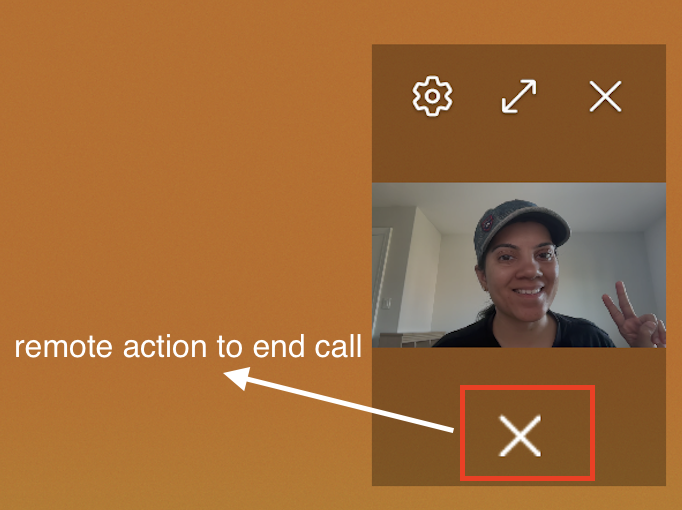
You can choose to hide/show each `View` defined in your layout in the PIP mode by modifying its visibility. In order to show and hide a `View`, use the predefined “id” tag of the `View`. We can also choose to have actions in the PIP mode. For example, a call application can have an “end call” button to end the call in PIP mode without navigating back to the app.
_Note: Remote actions are supported only from Android version O_
### Invoking PIP layout
In its simplest form, transitioning to picture-in-picture mode is achieved with just one line of code.
```
this.enterPictureInPictureMode()
```
You need to know when it is convenient for the user to switch to PIP mode. You can make a separate button and jump when you click on it. The most common approach involves an automatic switch when the user moves the application to the background, typically by using buttons like Home or Recent, especially during a call.
Starting with Android 12, this behavior can be implemented by setting PictureInPictureParams with the setAutoEnterEnabled flag on the Activity:
```
PictureInPictureParams pipParams = new Builder().setAutoEnterEnabled(true).build();
setPictureInPictureParams(pipParams)
```
On devices with Android 11 or lower, an activity must explicitly call [enterPictureInPictureMode()]() in [Activity.onUserLeaveHint]():
```
@Override
protected void onUserLeaveHint() {
super.onUserLeaveHint();
if (isPipSupported) {
enterPictureInPictureMode();
}
}
```
#### Sample
In order to activate PIP mode in my Activity, I used the following code snippet in `onCreate()`.
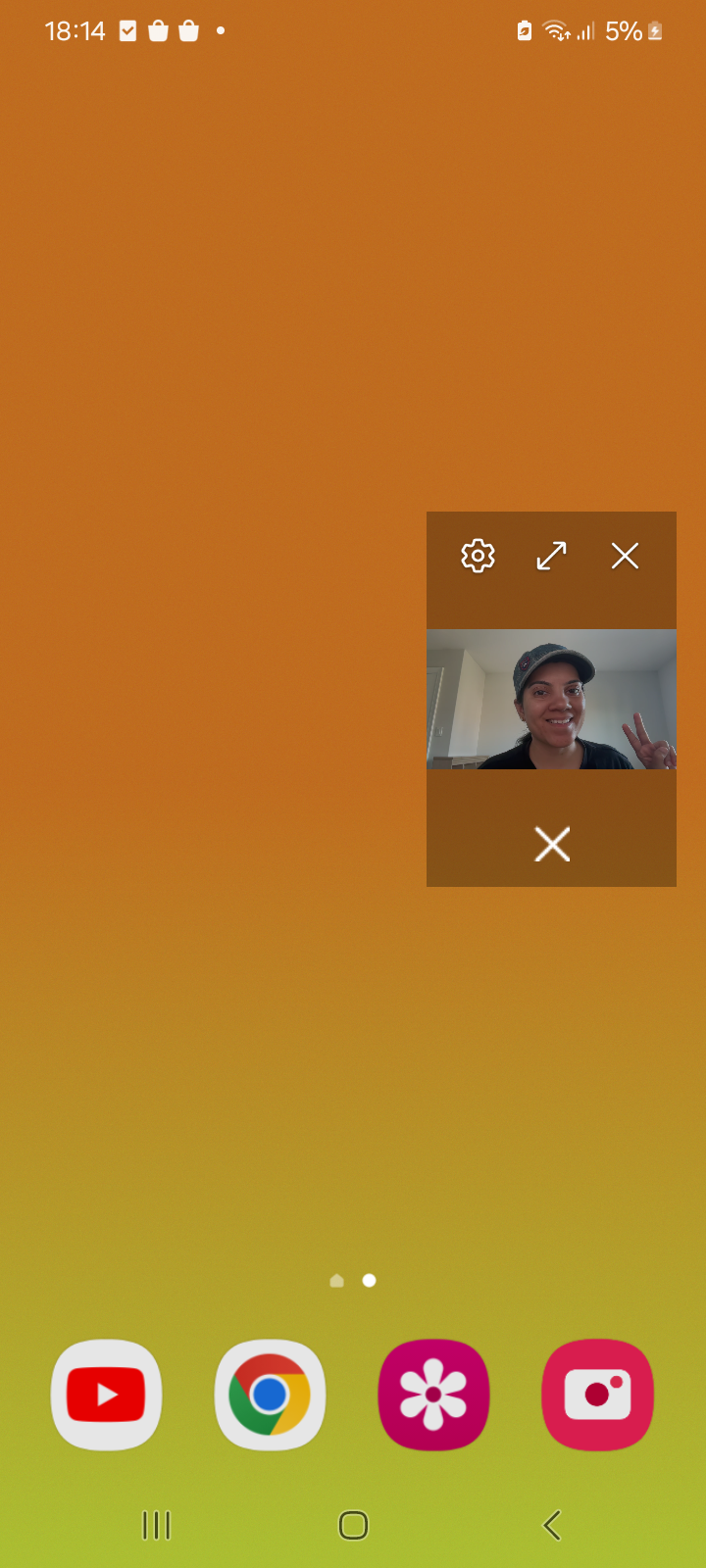
This code snippet is placed in my active in-meeting Activity. I have a video container named "videoContain" in my Activity which is a FrameLayout containing the ZoomVideoSDKVideoView of the active speaking participant (either self or remote).. I have set this container as the boundary for my PIP layout. I have also defined an action in my PIP layout which would end the active video call.
```
if (Build.VERSION.SDK_INT >= Build.VERSION_CODES.O) {
//setting pip boundaries
final Rect sourceRectHint = new Rect();
videoContain.getGlobalVisibleRect(sourceRectHint);
//defining action
Intent intent = new Intent(getApplicationContext(), MeetingActivity.class);
intent.putExtra("end_action_from_pip",true);
intent.setAction(Long.toString(System.currentTimeMillis()));
PendingIntent pendingIntent = PendingIntent.getActivity(getApplicationContext(), 0, intent, PendingIntent.FLAG_UPDATE_CURRENT|PendingIntent.FLAG_MUTABLE);
//setting actions and enabling pip using auto-enter mode
RemoteAction myAction=new RemoteAction(Icon.createWithResource(this, R.drawable.icon_close), "End call", "End call", pendingIntent);
PictureInPictureParams pipParams = new Builder()
.setAutoEnterEnabled(true)
.setSourceRectHint(sourceRectHint)
.setActions(Collections
.singletonList(myAction))
.setAspectRatio(new Rational(2,3))
.build();
setPictureInPictureParams(pipParams);
}
```
Great, now our app automatically goes into picture-in-picture on supported Android phones. To track the transition to/from PIP mode, we have a method [onPictureInPictureModeChanged](). Let’s redefine it and hide unnecessary interface elements.
```
@Override
public void onPictureInPictureModeChanged(boolean isInPictureInPictureMode, Configuration newConfig) {
super.onPictureInPictureModeChanged(isInPictureInPictureMode, newConfig);
//define the layout which you intend to hide
if(isInPictureInPictureMode) {
//hide the layout while in PIP mode
findViewById(R.id.layoutToHide).setVisibility(View.GONE);
} else {
//PIP mode is disabled here. Restore the layout's previous visibility when you are out of the PIP mode
findViewById(R.id.layoutToHide).setVisibility(View.VISIBLE);
}
}
```
The PIP window is quite small, so it makes sense to hide everything except the video display and any necessary actions.
### Handling activity states in the PIP mode
Watch out to handle the `Activity` states in the PIP transition. For example, we might be stopping the subscriptions in onPause and restarting the subscriptions in onResume() callback for saving battery. We should not interrupt the video stream while entering onPause() to have an uninterrupted video stream while in PIP mode.
If you have any remote actions in PIP layout, we might end up reaching the onResume() callback in the `Activity` while handling those actions. For example, I have included the "end call" action in the PIP layout and I have defined the action below.
```
@Override
protected void onResume() {
super.onResume();
//identifying if the intent is received from PIP action
Bundle bundle = getIntent().getExtras();
boolean isEndActionFromPip = bundle.getBoolean("end_action_from_pip");
if(isEndActionFromPip) {
//terminate session gracefullly and unsubscribe video streams
}
}
```
### Screenshot
## Conclusion
With the above snippets, picture-in-picture should now work on Android with Zoom Video SDK. We have considered a simple example for demonstration.