

Zoom is adding the Interpreter API to AI Services. It translates live speech in Arabic, Chinese, English, French, German, Italian, Japanese, Portuguese, and Spanish. Stream the customer's audio over a WebSocket to receive translated speech, translated text, and an optional transcript in the customer's own language. Each text fragment is final when it arrives, so you can show it on the agent's screen and save it with the call record without waiting for corrections.
For example, a customer calls support in Spanish about a delayed order, and the agent who answers speaks English. Without an interpreter, the customer waits for a Spanish-speaking agent, or the two of them type through a text translator. With the Interpreter API, the agent can hear the customer's words translated to English in real time. This walkthrough uses that English–Spanish call as its example.
Prerequisites
- A Zoom developer account on the Build platform
- Zoom AI Services API credentials (key and secret). See Get credentials.
- Node.js 24+ to run the quickstart app
- A microphone and headphones
Try it in the quickstart
The AI Services quickstart includes a playground with an Interpreter page. Clone the repository, add your credentials, and start the server:
git clone https://github.com/zoom/ai-services-quickstart.git
cd ai-services-quickstart
npm install
cp .env.example .env    # add ZOOM_API_KEY and ZOOM_API_SECRET
npm start
In a second terminal, start the playground:
cd playground && npm install && npm run dev
Open http://localhost:5173/interpreter/live:
- Set Source language to Spanish and Target language to English, and choose a voice.
- Turn on Source transcript.
- Put on headphones so the translated speech doesn't feed back into your microphone.
- Select Start interpreting and speak in Spanish.
- Select Finish input when you're done. The remaining translation finishes playing before the session closes.
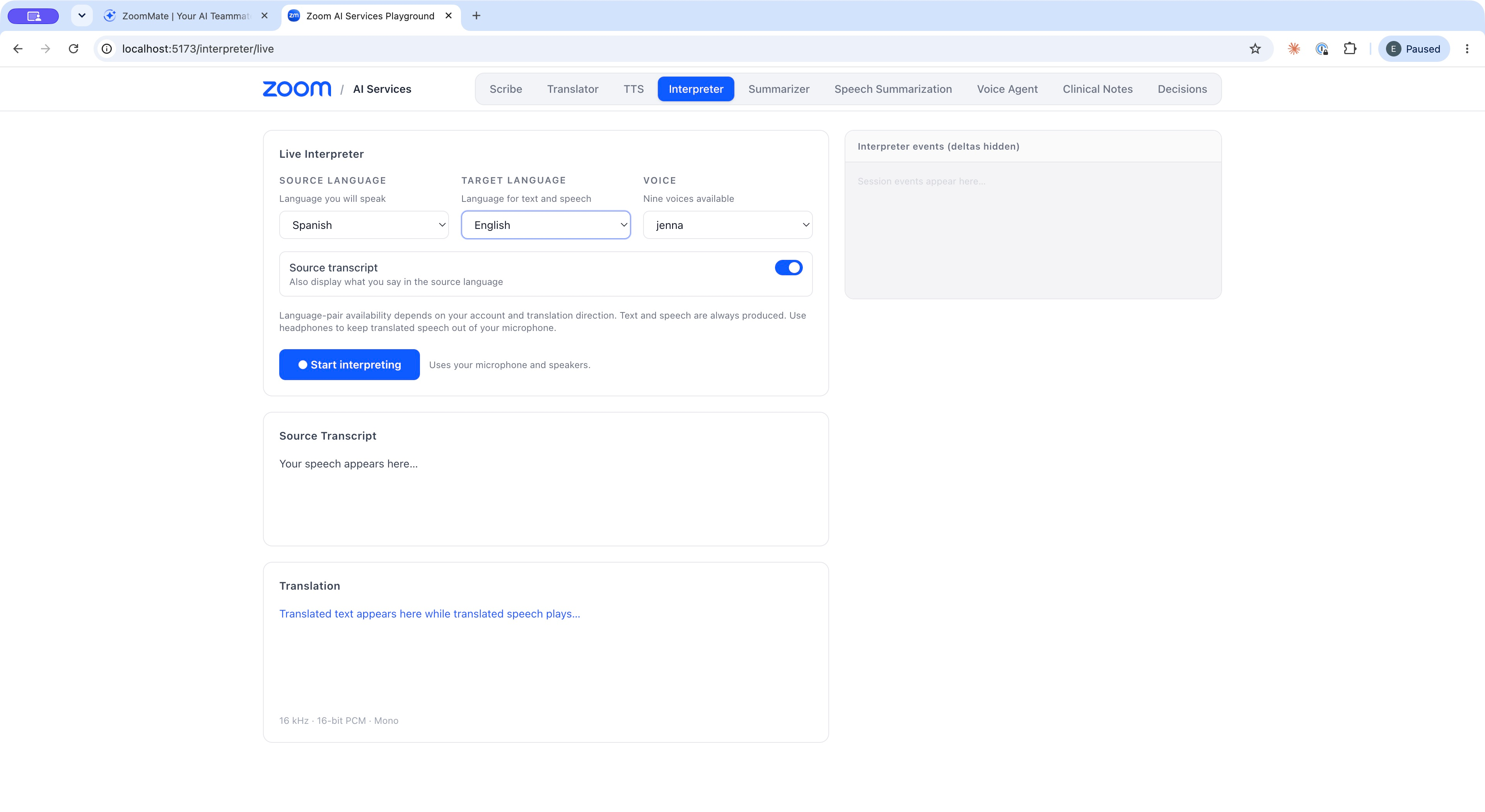
Spanish-to-English interpretation configured in the local playground, ready to start.
Translate both sides of the call
Each Interpreter connection translates one audio stream in one direction. For a two-way call, open two connections:
| Connection | Audio you stream | Source language | Target language | Translated speech goes to |
|---|---|---|---|---|
| Customer | The customer's voice | es-ES | en-US | The agent |
| Agent | The agent's voice | en-US | es-ES | The customer |
Give each connection only one speaker's audio. If your telephony or meeting platform mixes both voices into one track, each connection translates both speakers, so the agent also hears their own words translated back to them. Language-pair availability depends on your account, so confirm that it allows translation in both directions for your chosen pair.
Connect from your backend
Browsers can't set the Authorization header on a WebSocket, and credentials in client code are exposed to anyone who opens it. The quickstart's src/live/relay.ts runs on the server, opens the Interpreter connection with your credentials, and relays events between the browser and Zoom:
const upstream = new WebSocket(
    `${WSS_ROOT}/ws/aiservices/interpreter/live`,
    ['interpreter.zoom.v1'],
    { headers: { Authorization: `Bearer ${generateJWT()}` } },
);
The interpreter.zoom.v1 subprotocol is required.
Configure the session
Send session.update as soon as the connection opens. This configuration translates the customer's Spanish into English speech with the sarah voice, and turns on the Spanish source transcript with an empty transcription object:
{
    "type": "session.update",
    "session": {
        "audio": {
            "input": {
                "language": "es-ES",
                "transcription": {}
            },
            "output": {
                "language": "en-US",
                "voice": "sarah"
            }
        }
    }
}
Wait for session.updated before you send any audio. If the server rejects the configuration, for example because the voice doesn't support the target language, it sends an error event that names the field in error.param. Correct it and send session.update again on the same connection. To change languages or voice later, open a new connection.
For another supported language pair, change session.audio.input.language and session.audio.output.language, and set session.audio.output.voice to a voice for the target language. See Languages and voices for the language tags and compatible voices.
Stream the caller's audio
Interpreter accepts 16 kHz mono PCM16 audio, Base64-encoded in JSON events. The quickstart creates its AudioContext at 16 kHz so the browser resamples the microphone, and an AudioWorklet converts the samples to PCM16 in 100 ms chunks of 3,200 bytes:
const context = new AudioContext({ sampleRate: 16000 });
await context.audioWorklet.addModule('/pcm-worklet.js');
const node = new AudioWorkletNode(context, 'pcm-processor');
context.createMediaStreamSource(stream).connect(node);

node.port.onmessage = ({ data }) => {
    ws.send(JSON.stringify({
        type: 'session.input_audio_buffer.append',
        audio: toBase64(data),
    }));
};
Send 100–200 ms of audio per event, as you capture it. Keep streaming during pauses too: silence counts as input, and the session closes after 30 seconds without a message from your client.
Show the agent both transcripts
Translated text, translated speech, and the source transcript arrive as separate streams of events. useInterpreter.ts appends each text fragment to its transcript and queues each audio chunk for playback:
switch (event.type) {
    case 'session.input_transcript.delta':
        setSourceText((text) => text + event.delta);
        break;
    case 'session.output_transcript.delta':
        setTranslatedText((text) => text + event.delta);
        break;
    case 'session.output_audio.delta':
        player.append(fromBase64(event.delta));
        break;
}
Fragments are never revised and already include the spaces between them, so append them as they are. Put the source transcript beside the translation on the agent's screen. When a translated phrase looks wrong, the agent can check the customer's words and ask a clarifying question before acting on it. Save both transcripts with the support ticket.
Translated audio is 16 kHz mono PCM16. The three streams aren't synchronized with each other, so play the audio as it arrives rather than waiting for the matching text.
End the call cleanly
When the call ends, stop sending audio and send session.close. Keep the connection open until the server returns the remaining translation and a session.closed event:
{
    "type": "session.closed",
    "event_id": "event_0999",
    "reason": "completed"
}
A completed reason confirms that the server delivered all translated text and speech. If the connection closes without it, treat the transcripts as possibly incomplete.
If you receive a fatal error event, the session is over. When error.retryable is true, open a new connection and configure a new session to continue the call. Don't resend audio from the failed session, or the translation can repeat. A session lasts up to 120 minutes, so start a new one for longer calls.
Test before live calls
Before you route customers to it, try your setup with recorded calls for each language pair you plan to offer. Include background noise, speakers who talk over each other, and the product names and order numbers your customers mention. Measure the delay between the customer finishing a sentence and the agent hearing the translation. Keep a human interpreter available for calls where accuracy matters most.
See the Interpreter API docs for every event, field, and error code.