# How to get data from Zoom RTMS without managing infrastructure
Zoom Realtime Media Streams (RTMS) provides developers with real-time access to meeting media and event data, including audio, video, transcripts, and participant events. RTMS enables approved applications to receive meeting data directly from Zoom infrastructure, eliminating the need for a participant bot architecture in supported scenarios. Unlike post-meeting APIs, RTMS delivers data in real time, enabling products like live transcription, in-meeting AI assistants, compliance workflows, and real-time analytics.
Building directly on RTMS involves handling WebSocket connections and media streams at scale. [Recall.ai's Meeting Direct Connect](https://www.recall.ai/product/meeting-direct-connect) lets you skip the complexity of building and maintaining infrastructure for media streaming. [Recall.ai](https://www.recall.ai/) handles the underlying infrastructure, so you can focus on last-mile product delivery.
This enables products like live transcription, in-meeting AI assistants, and enterprise tooling for compliance, monitoring, and knowledge capture. RTMS includes participant notification and consent controls designed to support transparency and customer compliance requirements.
[Zoom RTMS](https://www.recall.ai/blog/what-is-zoom-rtms) gives you real-time access to structured meeting data, but you still need to handle ingestion, process the streams, and make that data usable in your application. That's where Recall.ai, a Zoom Preferred Partner, comes in. Recall.ai, trusted by thousands of companies from startups like [ClickUp](https://www.recall.ai/customers/clickup) to enterprises like HubSpot and Datadog, is the API to get transcripts, recordings, and metadata from meetings, and can be used alongside RTMS to simplify this layer.
## Why use RTMS through Recall.ai
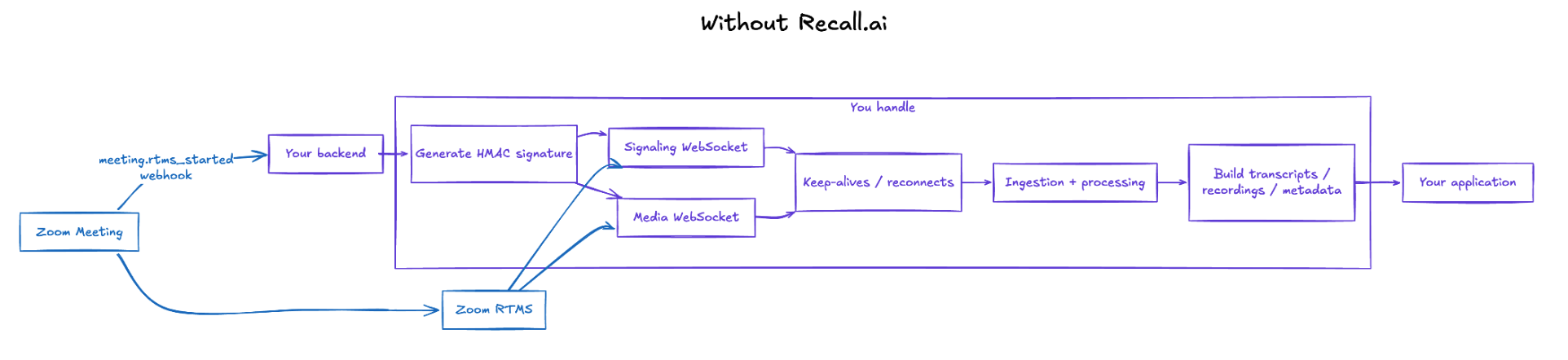
Using RTMS directly means handling the full streaming flow yourself. RTMS is very powerful and with all of that power comes some complexity.
You'll manage signaling and media WebSocket connections, authenticate each session using HMAC signatures with your Zoom app credentials, and handle the full lifecycle, starting from the webhook event, maintaining keep-alives, and reconnecting on failure. You're also responsible for processing media streams and handling concurrency as meetings start and stop.
Using RTMS directly gives developers powerful, low-latency access to Zoom meeting data, but it also means managing signaling, media WebSocket connections, authentication, keep-alives, retries, and stream lifecycle events.
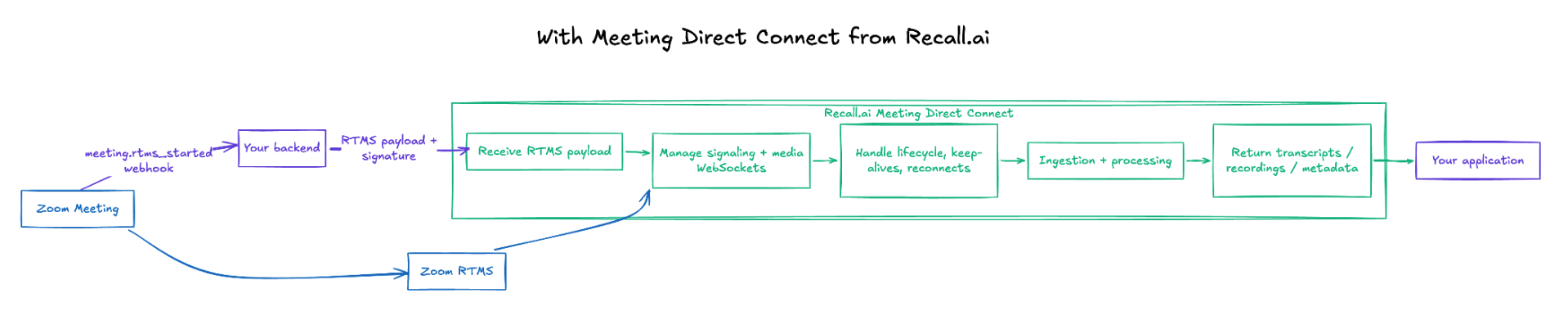
Recall.ai's [Meeting Direct Connect](https://docs.recall.ai/docs/meeting-direct-connect-overview) provides a simpler operational path for developers who do not want to build and maintain that streaming infrastructure themselves. Instead of opening and managing RTMS connections directly, developers can pass the RTMS event payload to Recall.ai and receive structured outputs like transcripts, recordings, and metadata through Recall.ai's API.
Recall.ai is a great fit for teams that want the benefits of RTMS while reducing the amount of stream-handling infrastructure they need to build and maintain on their own. Recall.ai is also the only option that is SOC 2 Type II, HIPAA, GDPR, and CCPA compliant, allowing you to build with any meeting data and in regions around the world.
## Create and configure your Zoom app
Before connecting using RTMS, you'll need to [create and configure a Zoom app](/docs/zoom-apps/create/).
> **Account requirements**
>
> If you are using RTMS directly through Zoom:
>
> - RTMS must be enabled for your Zoom account
> - RTMS credits are required, available through the Zoom Developer Pack or your Zoom account team
>
> If you are using Recall.ai's [Meeting Direct Connect](https://www.recall.ai/product/meeting-direct-connect):
>
> - Recall.ai handles the infrastructure for you
> - Receive RTMS credits through Recall.ai
> - Your Zoom app must be configured correctly for RTMS and linked to your Recall.ai account
>
> In both cases, you will need to create and configure a General App in the Zoom App Marketplace.
## Sign up for a Recall.ai account
> You'll also need to create a Recall.ai account to use Zoom RTMS through Recall.ai. Recall.ai provides several data regions you can sign up under, including US, EU and APAC. [Sign up for free](https://www.recall.ai/signup).
## Set up your Zoom RTMS app
### Step 1: Create a Zoom General App
Go to Zoom App Marketplace, then Develop, then Build App and select General App.
RTMS requires a General App. Other app types (such as Server-to-Server OAuth or Webhook-only apps) do not support RTMS.
In the Basic Information section:
- Add an OAuth Redirect URL (required)
- Copy your:
- Client ID
- Client Secret
- Secret Token
You will use these credentials to authenticate your RTMS connection.
### Step 2: Enable event subscriptions
RTMS integrations rely on webhook notifications to inform your application when RTMS streams start or stop. Configure webhook subscriptions so your application can respond to RTMS stream lifecycle events.
- Enable Event Subscription
- Set your Event Notification Endpoint (for example: `/zoom-webhook`)
- Subscribe to:
- `meeting.rtms_started`
- `meeting.rtms_stopped`
Your endpoint must:
- Be publicly accessible via HTTPS
- Match exactly during validation
### Step 3: Add required scopes
Under Scopes, add:
- RTMS scopes (for example: `meeting:rtms:read`)
- Meeting media scopes (audio, video, transcript, etc.)
### Step 4: Enable RTMS and auto-start (recommended)
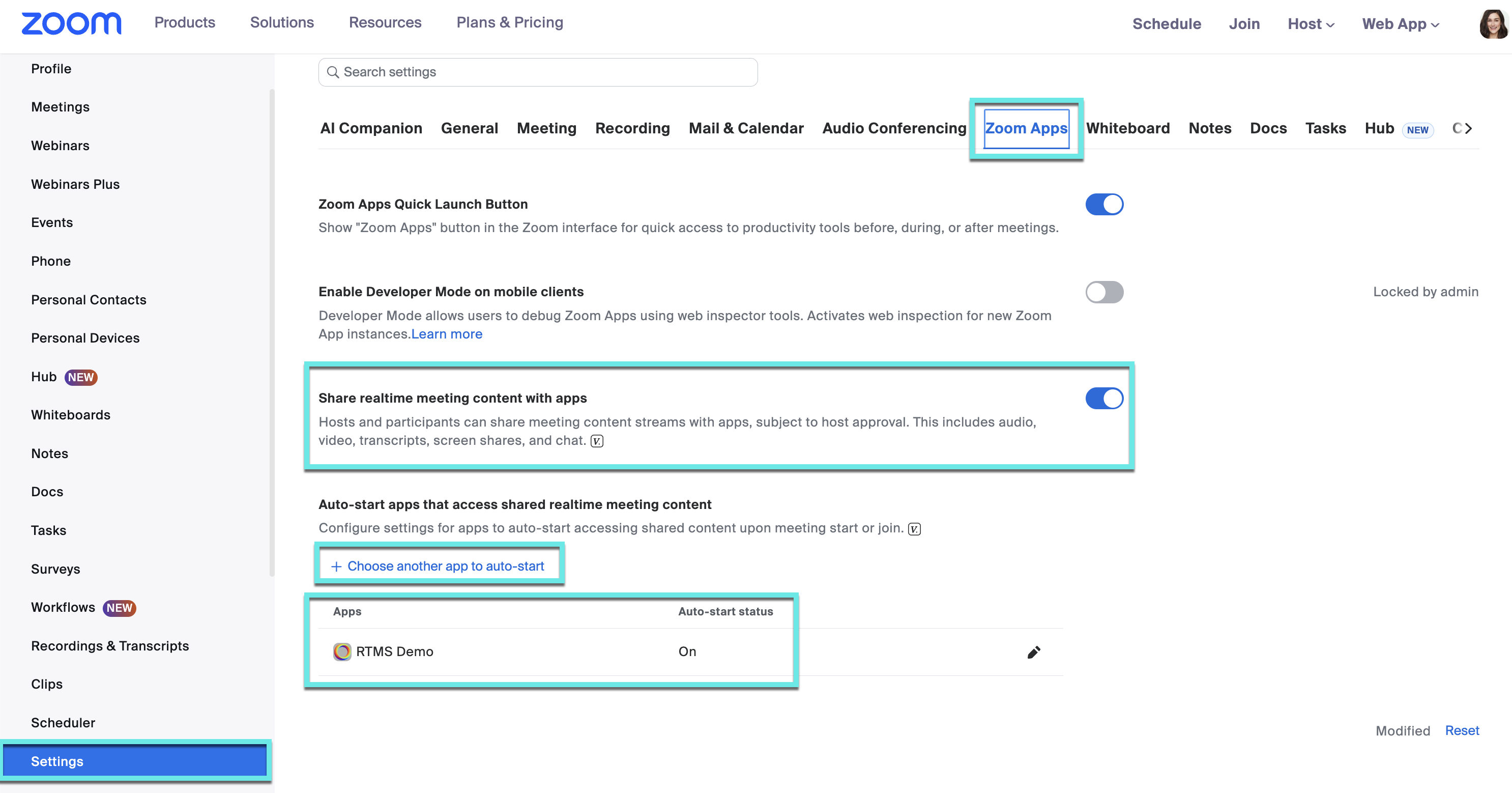
In your Zoom settings, go to Settings, then Zoom Apps:
- Share realtime meeting content with apps
- Enable auto-start and select the General app you created in the [Zoom App Marketplace](http://marketplace.zoom.com/)
This enables RTMS for eligible meetings without requiring a participant to manually start the integration each time.
### Step 5: Set up a public webhook endpoint
Zoom requires a public HTTPS endpoint for webhook delivery.
If you're testing locally:
- Use a tool like ngrok with a static domain
- Configure your webhook URL using that domain
If the endpoint changes, webhook validation will fail, and events will not be delivered.
## Set up RTMS for Recall.ai's Meeting Direct Connect
### Step 1: Handle the RTMS webhook
When an RTMS stream becomes available for a meeting, Zoom sends a `meeting.rtms_started` event to your configured webhook endpoint.
This event provides the information needed to connect to the RTMS stream and begin processing meeting data.
Your server should:
- Validate the request
- Extract:
- `meeting_uuid`
- `rtms_stream_id`
- `server_urls`
These values identify the RTMS stream associated with the meeting and are used when establishing an RTMS connection.
### Step 2: Generate a signature
RTMS uses HMAC-SHA256 for authentication.
```javascript
function generateSignature(clientId, clientSecret, meetingUuid, streamId) {
const message = `${clientId},${meetingUuid},${streamId}`;
return crypto
.createHmac("sha256", clientSecret)
.update(message)
.digest("hex");
}
```
Once your Zoom app is configured and connected through Recall.ai's setup flow, you can start capturing RTMS data.
### Step 3: Send the RTMS payload to Recall.ai's Meeting Direct Connect
Instead of opening WebSocket connections yourself, send the RTMS event data to [Meeting Direct Connect](https://docs.recall.ai/docs/meeting-direct-connect-overview).
```
POST /api/v1/meeting_direct_connect
```
Include your Recall.ai API key in the request headers:
- `Authorization: Token `
- `Content-Type: application/json`
> If you don't have a Recall.ai API key, you can [sign up and get one for free](https://www.recall.ai/signup).
In the request body, pass RTMS data under `zoom_rtms`:
- `meeting_uuid`
- `rtms_stream_id`
- `server_urls`
- `signature`
Example structure:
```json
{
"zoom_rtms": {
"meeting_uuid": "...",
"rtms_stream_id": "...",
"server_urls": "...",
"signature": "..."
}
}
```
Recall.ai's Meeting Direct Connect uses the RTMS stream information provided by Zoom to establish the stream connection and begin processing meeting data on your behalf.
### Step 4: Retrieve meeting data
The API returns a `meeting_direct_connect` ID. Use it to retrieve:
- Video recordings
- Audio
- Transcripts
- Meeting metadata
All outputs are available through Recall's API.
## Release your RTMS app to production
You can test your RTMS app for free when you're doing low volume internal testing, but when you're ready to release to customers at scale, you'll need to get your Zoom account topped up with RTMS credits.
Recall.ai is a Preferred Zoom Partner and provides RTMS credits, so all you have to do is [reach out to the Recall.ai team](https://docs.recall.ai/docs/how-to-get-support) through one of three channels:
1. Email support@recall.ai
2. Send a chat message in your Recall.ai dashboard, by clicking the "Talk to a human" button
3. Slack the Recall.ai team, if you have a Slack channel set up already with them
This way, you can get RTMS credits within hours, without needing to go through a sales cycle.
If you have any questions, or need implementation help, feel free to [reach out to Recall.ai](https://www.recall.ai/book-a-demo), and check out the [Meeting Direct Connect for RTMS docs](https://docs.recall.ai/docs/meeting-direct-connect-for-zoom-rtms).